
How to remove a price sticker from a photo
Erfahren Sie, wie Sie mit Magic Eraser How to remove a price sticker from a photo können. Einfache Schritt-für-Schritt-Anleitung mit kostenlosem KI-Tool. Funktioniert im Web, auf iOS und Android.
Last updated
Jetzt ausprobieren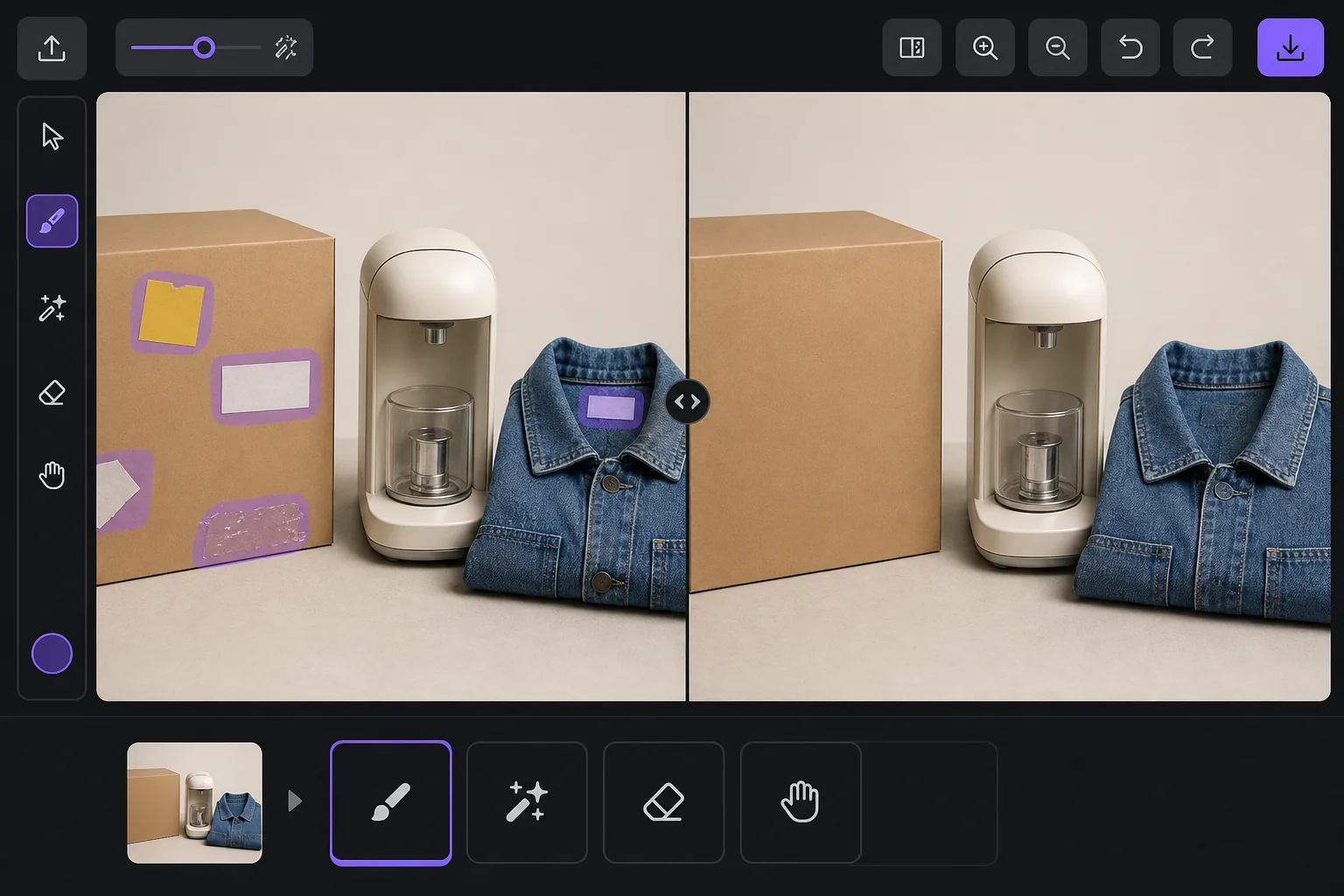
Why a visible price sticker hurts your resale listing mit Magic Eraser
A price tag in a listing photo quietly works against you. Buyers see the original retail or clearance price and anchor their offer below it, so a leftover $4.99 yellow sticker can cost you more than five dollars in negotiation. It also signals the item came from a closeout bin or was already returned once, which lowers perceived condition even when the product is genuinely good. And some platforms care: marketplaces and their image guidelines generally want a clean product shot, and a barcode or store tag clutters the main image where buyers decide in a half-second whether to tap. Peeling a sticker off physically often leaves adhesive residue, a torn label, or a faded rectangle where the box was protected from light — so the photo problem survives the physical one. Removing it in the photo is the faster fix. A price sticker is rendered onto the image pixels just like any other object, so it replaces whatever box art, fabric, or surface sat behind it. Magic Eraser's AI brushes the sticker away and generates a plausible reconstruction of that hidden area from the surrounding pixels. Be clear on what that means: over a flat colored box or a plain surface the result is usually seamless, but the AI is synthesizing what was likely there, not recovering literal hidden detail — so printed text or a logo that sat entirely under the sticker is invented, not restored.
Before you start
Schritt-für-Schritt-Anleitung
Start with foto hochladen. The result preview above and tips below use this guide's existing content; no separate before-and-after proof is assumed.
- 1
Foto hochladen
Öffnen Sie Magic Eraser im Web, auf iOS oder Android. Ziehen Sie Ihr JPEG-, PNG-, HEIC- oder WebP-Foto per Drag & Drop hinein. Kein Konto erforderlich.
- 2
Tool und Bereich auswählen
Wählen Sie das passende Tool und markieren Sie den zu bearbeitenden Bereich. Die KI analysiert und wendet die Änderungen automatisch in Sekunden an.
- 3
Ergebnis herunterladen
Sehen Sie sich das Ergebnis in der Vorschau an und laden Sie das bearbeitete Foto herunter. Export als hochqualitatives PNG oder JPEG.
Am besten geeignet für
- eBay and Facebook Marketplace sellers cleaning price tags off secondhand items before listing
- Resellers and thrift flippers removing clearance and markdown stickers that anchor buyers low
- Hiding barcode and store-inventory labels stuck to product boxes and packaging
- Removing price gun tags and plastic fasteners from clothing and accessory photos
- Erasing adhesive residue or the faded outline left after a sticker was peeled off by hand
Tipps für beste Ergebnisse
Whenever you can, peel the sticker off the real item and photograph the actual surface — a true photo always beats a reconstruction, and it spares you any question about whether the listing image is accurate. Use the eraser for what's left behind: adhesive gunk, a torn corner, or the sun-faded rectangle a long-stuck tag protected. Keep your edits honest about the product itself. Removing a price tag or barcode is fine, but don't erase genuine flaws a buyer needs to see — scratches, stains, or damage belong in the listing, and most marketplaces treat a doctored condition photo as grounds for a return or a policy strike. Reconstruction quality tracks the background: a sticker on a flat single-color box vanishes cleanly, while one sitting across detailed printed artwork, a logo, or a model number is the hardest case, because the AI has to guess at text it can't see. If part of the hidden label is still visible elsewhere on the item, photograph that angle instead. Finally, shoot a little wider than the sticker so there's plenty of surrounding surface for the AI to sample from — tightly cropped tags leave it less to work with.
Häufig gestellte Fragen
- Ist die Funktion How to remove a price sticker from a photo kostenlos?
- Ja, Magic Eraser ermöglicht es Ihnen, kostenlos How to remove a price sticker from a photo mit täglichen Limits durchzuführen. Upgraden Sie auf Pro für unbegrenzte Bearbeitung und hochauflösende Exporte.
- Wie lange dauert es, How to remove a price sticker from a photo durchzuführen?
- Nur wenige Sekunden. Die KI von Magic Eraser verarbeitet Fotos schnell — die meisten Ergebnisse sind sofort nach dem Hochladen verfügbar.
- Kann ich es auf dem Handy verwenden?
- Ja, Magic Eraser funktioniert auf iOS, Android und allen Webbrowsern. Sie können nahtlos zwischen Geräten wechseln.
- Wird die Bildqualität beeinträchtigt?
- Nein, Magic Eraser bewahrt die ursprüngliche Fotoqualität. Die KI verarbeitet intelligent, um Details und Schärfe zu erhalten.