
Remove an Object From a Photo, Free and Online
Erfahren Sie, wie Sie mit Magic Eraser Remove an Object From a Photo, Free and Online können. Einfache Schritt-für-Schritt-Anleitung mit kostenlosem KI-Tool. Funktioniert im Web, auf iOS und Android.
Last updated
Jetzt ausprobieren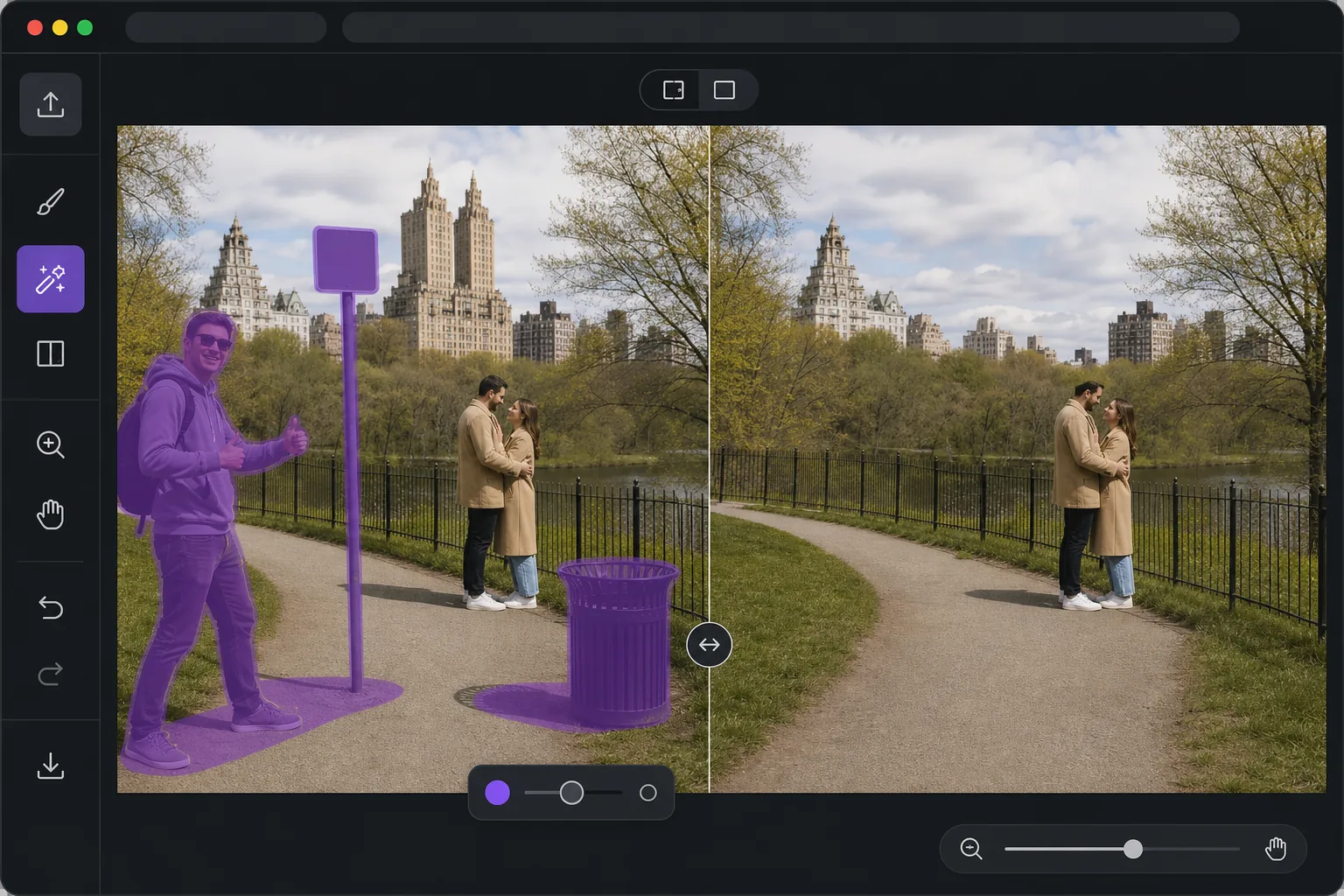
Open the editor, then remove it. mit Magic Eraser
When you want one object gone from a photo, the last thing you need is desktop software, a complex editor, or a forced paid trial before you can see a result. Magic Eraser runs entirely in your browser, so there is nothing to install. Use your limited free edits, brush over the thing you want gone, and AI inpainting reconstructs a plausible background where it used to be — fences, sky, grass, walls — so the gap blends in instead of leaving a hole. Free exports are saved without a watermark, which means the photo you download is the photo you keep. The whole loop is built for speed: open the page, paint over the object, preview the fill, and save. No menus to learn and no layers to manage; limited free edits are available before you choose any paid plan. If you just need a clean shot fast, this is the shortest path from messy photo to finished image.
Before you start
Schritt-für-Schritt-Anleitung
Start with foto hochladen. The result preview above and tips below use this guide's existing content; no separate before-and-after proof is assumed.
- 1
Foto hochladen
Öffnen Sie Magic Eraser im Web, auf iOS oder Android. Ziehen Sie Ihr JPEG-, PNG-, HEIC- oder WebP-Foto per Drag & Drop hinein. Kein Konto erforderlich.
- 2
Tool und Bereich auswählen
Wählen Sie das passende Tool und markieren Sie den zu bearbeitenden Bereich. Die KI analysiert und wendet die Änderungen automatisch in Sekunden an.
- 3
Ergebnis herunterladen
Sehen Sie sich das Ergebnis in der Vorschau an und laden Sie das bearbeitete Foto herunter. Export als hochqualitatives PNG oder JPEG.
Am besten geeignet für
- Removing a photobomber or stranger before you post in the next minute
- Cleaning up a listing or product shot without opening desktop software
- Editing on a phone or borrowed computer where you can't install apps
- One-off fixes where installing software is not worth it
- Quick social posts that need a clean image with no watermark
Tipps für beste Ergebnisse
Brush slightly past the edges of the object so the AI has room to blend, rather than tracing it tightly. Objects sitting against simple, repeating backgrounds — sky, water, grass, plain walls — reconstruct most convincingly. For larger or more complex removals, work in passes: erase the main object first, then brush over any leftover shadow or reflection it left behind. If a fill looks off, undo and reselect with a slightly different brush area; small changes to your selection often produce a noticeably better blend.
Häufig gestellte Fragen
- Ist die Funktion Remove an Object From a Photo, Free and Online kostenlos?
- Ja, Magic Eraser ermöglicht es Ihnen, kostenlos Remove an Object From a Photo, Free and Online mit täglichen Limits durchzuführen. Upgraden Sie auf Pro für unbegrenzte Bearbeitung und hochauflösende Exporte.
- Wie lange dauert es, Remove an Object From a Photo, Free and Online durchzuführen?
- Nur wenige Sekunden. Die KI von Magic Eraser verarbeitet Fotos schnell — die meisten Ergebnisse sind sofort nach dem Hochladen verfügbar.
- Kann ich es auf dem Handy verwenden?
- Ja, Magic Eraser funktioniert auf iOS, Android und allen Webbrowsern. Sie können nahtlos zwischen Geräten wechseln.
- Wird die Bildqualität beeinträchtigt?
- Nein, Magic Eraser bewahrt die ursprüngliche Fotoqualität. Die KI verarbeitet intelligent, um Details und Schärfe zu erhalten.