
Remove a Logo Sticker From a Photo
Erfahren Sie, wie Sie mit Magic Eraser Remove a Logo Sticker From a Photo können. Einfache Schritt-für-Schritt-Anleitung mit kostenlosem KI-Tool. Funktioniert im Web, auf iOS und Android.
Last updated
Jetzt ausprobieren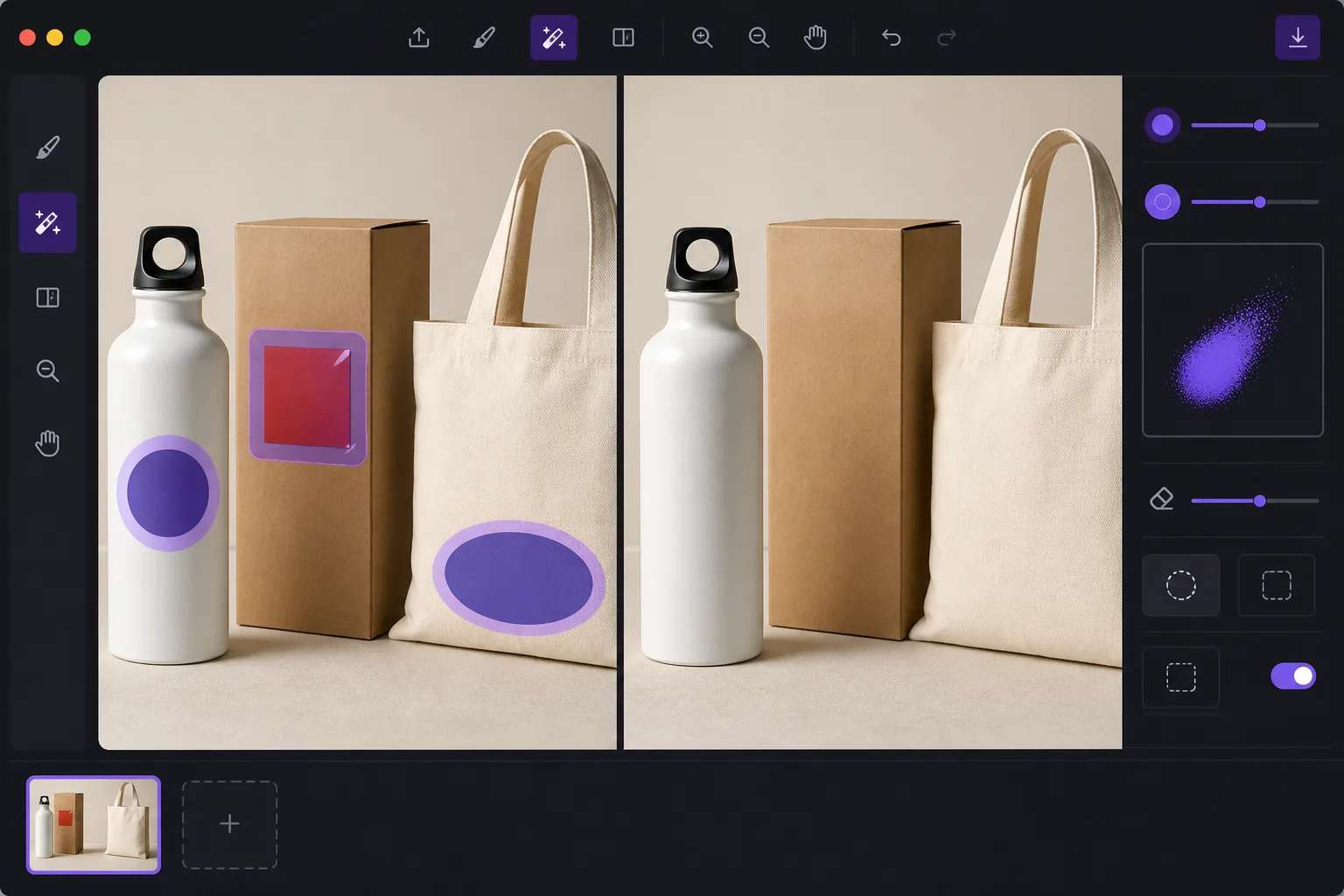
De-brand items for clean catalog photography mit Magic Eraser
When you shoot products for a catalog, marketplace listing, or mockup, a stray brand logo sticker can pull focus, clash with your own branding, or raise licensing concerns. Peeling the sticker off in real life leaves residue, glare, or a torn label — and reshooting costs time. Magic Eraser lets you remove the logo sticker directly in the photo instead. Brush over the offending label and the AI inpainting engine reconstructs the material behind it: the box panel, the bottle curve, the fabric weave, or the matte surface the sticker was covering. It's worth being clear about how this works. Magic Eraser does not recover the literal pixels hidden under the sticker — that information isn't in the photo. It synthesizes a plausible reconstruction based on the surrounding texture, color, and lighting. For flat, evenly lit, single-color surfaces the result is usually seamless. Over busy patterns, text, or sharp edges you may need a second pass or a careful crop. Magic Eraser runs in your browser and on iOS and Android, has a free tier, and adds no watermark, so you can clean up a whole product set without extra cost.
Before you start
Schritt-für-Schritt-Anleitung
Start with foto hochladen. The result preview above and tips below use this guide's existing content; no separate before-and-after proof is assumed.
- 1
Foto hochladen
Öffnen Sie Magic Eraser im Web, auf iOS oder Android. Ziehen Sie Ihr JPEG-, PNG-, HEIC- oder WebP-Foto per Drag & Drop hinein. Kein Konto erforderlich.
- 2
Tool und Bereich auswählen
Wählen Sie das passende Tool und markieren Sie den zu bearbeitenden Bereich. Die KI analysiert und wendet die Änderungen automatisch in Sekunden an.
- 3
Ergebnis herunterladen
Sehen Sie sich das Ergebnis in der Vorschau an und laden Sie das bearbeitete Foto herunter. Export als hochqualitatives PNG oder JPEG.
Am besten geeignet für
- De-branding items so a stray logo doesn't compete with your own brand in catalog shots
- Cleaning price tags, barcodes, and store labels off retail products before listing
- Removing manufacturer logo stickers from props and backgrounds in lifestyle photography
- Prepping neutral product mockups where any visible third-party brand is a distraction
- Tidying review and resale photos so the focus stays on the item, not its packaging label
Tipps für beste Ergebnisse
The flatter and more uniform the surface under the sticker, the cleaner the reconstruction. Logos on solid-color boxes, matte plastic, or plain fabric usually vanish in one pass. If the sticker sits over printed text, a logo print, or a sharp product edge, the AI is guessing at complex detail — brush in smaller sections, run a second pass on any smudged spots, and zoom in to check the blend. When a reconstruction looks slightly off, reframing or a tight crop can hide the seam entirely. Always confirm the de-branded image still represents the actual product honestly before you publish it to a store or catalog.
Häufig gestellte Fragen
- Ist die Funktion Remove a Logo Sticker From a Photo kostenlos?
- Ja, Magic Eraser ermöglicht es Ihnen, kostenlos Remove a Logo Sticker From a Photo mit täglichen Limits durchzuführen. Upgraden Sie auf Pro für unbegrenzte Bearbeitung und hochauflösende Exporte.
- Wie lange dauert es, Remove a Logo Sticker From a Photo durchzuführen?
- Nur wenige Sekunden. Die KI von Magic Eraser verarbeitet Fotos schnell — die meisten Ergebnisse sind sofort nach dem Hochladen verfügbar.
- Kann ich es auf dem Handy verwenden?
- Ja, Magic Eraser funktioniert auf iOS, Android und allen Webbrowsern. Sie können nahtlos zwischen Geräten wechseln.
- Wird die Bildqualität beeinträchtigt?
- Nein, Magic Eraser bewahrt die ursprüngliche Fotoqualität. Die KI verarbeitet intelligent, um Details und Schärfe zu erhalten.