
Remove Emoji from a Screenshot
Erfahren Sie, wie Sie mit Magic Eraser Emoji aus Screenshot entfernen können. Einfache Schritt-für-Schritt-Anleitung mit kostenlosem KI-Tool. Funktioniert im Web, auf iOS und Android.
Last updated
Jetzt ausprobieren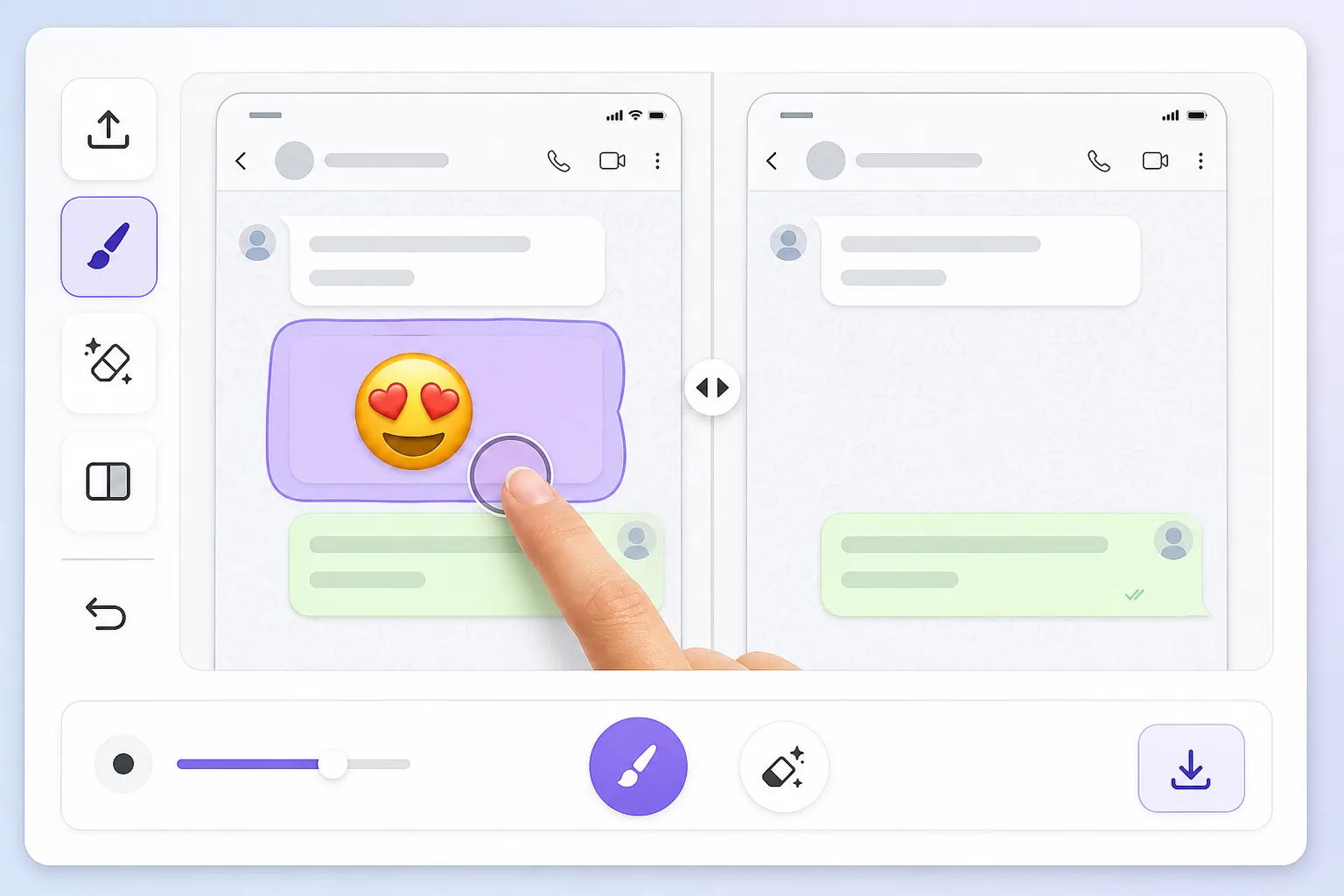
Why a screenshot makes the emoji impossible to just delete mit Magic Eraser
When you screenshot a chat, a story, or an app, the device captures one flat raster image. Whatever emoji, reaction, or sticker was placed on top gets baked in alongside the text, photo, or UI behind it — there are no separate layers to undo. That's why you can't simply tap the emoji and remove it later: in the saved PNG or JPG it's the same pixels as everything else. To clear it you have to delete those pixels and fill the gap with something believable. Magic Eraser handles both steps: you brush over the baked-in emoji, the AI removes it, and it synthesizes a reconstruction of the screenshot content underneath. Be clear on one thing — the AI is making an informed guess at what was behind the emoji, not recovering the literal hidden pixels. For backgrounds, wallpaper, UI panels, and plain text it usually looks seamless; for a face or fine detail fully covered by the emoji, treat the result as a clean-up, not a true reveal.
Before you start
Schritt-für-Schritt-Anleitung
Start with foto hochladen. The result preview above and tips below use this guide's existing content; no separate before-and-after proof is assumed.
- 1
Foto hochladen
Öffnen Sie Magic Eraser im Web, auf iOS oder Android. Ziehen Sie Ihr JPEG-, PNG-, HEIC- oder WebP-Foto per Drag & Drop hinein. Kein Konto erforderlich.
- 2
Tool und Bereich auswählen
Wählen Sie das passende Tool und markieren Sie den zu bearbeitenden Bereich. Die KI analysiert und wendet die Änderungen automatisch in Sekunden an.
- 3
Ergebnis herunterladen
Sehen Sie sich das Ergebnis in der Vorschau an und laden Sie das bearbeitete Foto herunter. Export als hochqualitatives PNG oder JPEG.
Am besten geeignet für
- Chat screenshots where a reaction emoji or sticker covers part of the message you need to read
- Social media story screenshots with emojis slapped over a photo or background
- App or product screenshots where placeholder emojis need to come off before sharing
- Dating or profile screenshots with an emoji baked over the image you want cleaned up
- Saved memes or forwarded images where someone's emoji landed on the wrong spot
Tipps für beste Ergebnisse
Screenshots have lots of flat, predictable areas — solid chat backgrounds, white UI panels, gradient wallpapers — and the AI reconstructs those almost perfectly, so emojis sitting on plain backgrounds disappear cleanly. Trouble starts when the emoji overlaps busy detail: small text, a face, or a logo. There the AI invents a plausible fill rather than restoring the real characters, so don't rely on it to recover exact words or someone's hidden face. Brush tightly around the emoji instead of swiping broadly, and erase one emoji at a time on cluttered screenshots so each fill has clean reference pixels nearby. If a result looks off, undo and re-brush a slightly smaller area — leaving a sliver of original background gives the AI better context to match colors and texture.
Häufig gestellte Fragen
- Ist die Funktion Emoji aus Screenshot entfernen kostenlos?
- Ja, Magic Eraser ermöglicht es Ihnen, kostenlos Emoji aus Screenshot entfernen mit täglichen Limits durchzuführen. Upgraden Sie auf Pro für unbegrenzte Bearbeitung und hochauflösende Exporte.
- Wie lange dauert es, Emoji aus Screenshot entfernen durchzuführen?
- Nur wenige Sekunden. Die KI von Magic Eraser verarbeitet Fotos schnell — die meisten Ergebnisse sind sofort nach dem Hochladen verfügbar.
- Kann ich es auf dem Handy verwenden?
- Ja, Magic Eraser funktioniert auf iOS, Android und allen Webbrowsern. Sie können nahtlos zwischen Geräten wechseln.
- Wird die Bildqualität beeinträchtigt?
- Nein, Magic Eraser bewahrt die ursprüngliche Fotoqualität. Die KI verarbeitet intelligent, um Details und Schärfe zu erhalten.