
Remove an Emoji From an iPhone Photo
Erfahren Sie, wie Sie mit Magic Eraser Emoji auf dem iPhone entfernen können. Einfache Schritt-für-Schritt-Anleitung mit kostenlosem KI-Tool. Funktioniert im Web, auf iOS und Android.
Last updated
Jetzt ausprobieren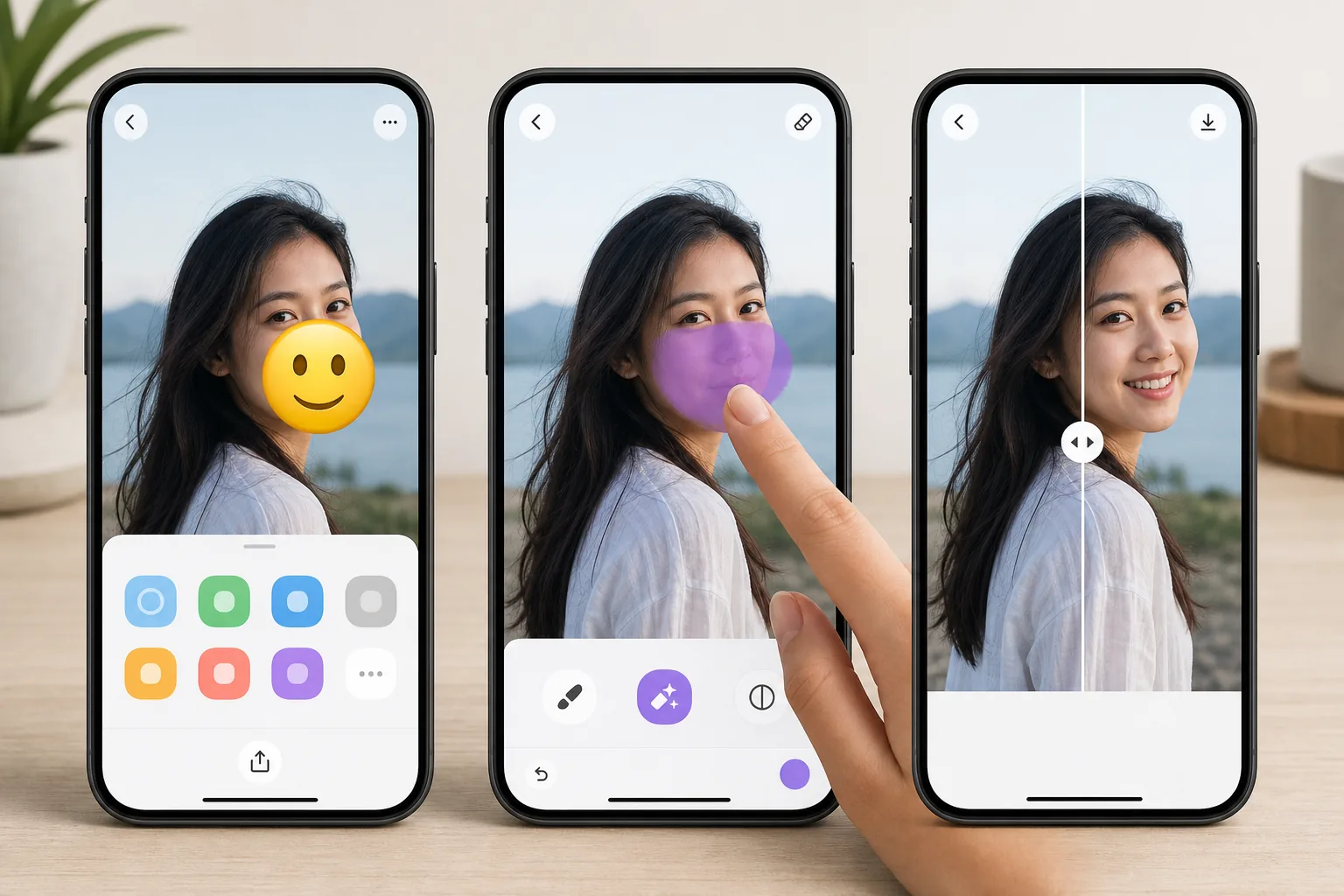
Erase emojis without leaving your iPhone mit Magic Eraser
Emojis pile up on iPhone photos fast — a sticker you slapped on in Messages, a 😂 added in Markup, or a face cover someone dropped over a shot before AirDropping it to you. Once it is saved to your camera roll, that emoji is baked into the pixels, and iOS gives you no built-in way to peel it back off. Magic Eraser fixes that on-device. You open the photo in the iOS Photos app, send it to Magic Eraser through the standard share sheet (or the Magic Eraser app), brush over the emoji, and the AI inpainting reconstructs a plausible version of whatever was behind it. To be clear: the AI synthesizes a believable fill based on the surrounding texture — sky, wall, skin, grass — it does not recover the literal original pixels or reveal a hidden face. The result lands back in your Photos library at full resolution, free, and with no watermark on the free tier.
Before you start
Schritt-für-Schritt-Anleitung
Start with foto hochladen. The result preview above and tips below use this guide's existing content; no separate before-and-after proof is assumed.
- 1
Foto hochladen
Öffnen Sie Magic Eraser im Web, auf iOS oder Android. Ziehen Sie Ihr JPEG-, PNG-, HEIC- oder WebP-Foto per Drag & Drop hinein. Kein Konto erforderlich.
- 2
Tool und Bereich auswählen
Wählen Sie das passende Tool und markieren Sie den zu bearbeitenden Bereich. Die KI analysiert und wendet die Änderungen automatisch in Sekunden an.
- 3
Ergebnis herunterladen
Sehen Sie sich das Ergebnis in der Vorschau an und laden Sie das bearbeitete Foto herunter. Export als hochqualitatives PNG oder JPEG.
Am besten geeignet für
- Wiping a 😂 or 🔥 sticker you added in iMessage or Markup off a saved photo
- Clearing an emoji face-cover someone placed before AirDropping a picture to you
- Cleaning up a screenshot where an emoji landed over the part you actually wanted
- Prepping a camera-roll shot for posting after removing a playful sticker
- Removing an emoji from a downloaded or received iPhone photo without a Mac or laptop
Tipps für beste Ergebnisse
Brush slightly past the emoji's edges — sticker outlines and soft shadows extend a few pixels beyond the visible art, and missing them leaves a faint halo. Emojis sitting on flat backgrounds (a clear sky, a solid-color wall, blurred bokeh) reconstruct almost invisibly; ones plastered over a face, fine text, or busy patterns are harder, since the AI is inventing a plausible fill rather than restoring true detail. If the first pass looks slightly soft, zoom in on your iPhone and re-brush just the rough area instead of redoing the whole thing. Always keep the original in Photos until you are happy — iOS makes duplicating a shot easy, so edit the copy.
Häufig gestellte Fragen
- Ist die Funktion Emoji auf dem iPhone entfernen kostenlos?
- Ja, Magic Eraser ermöglicht es Ihnen, kostenlos Emoji auf dem iPhone entfernen mit täglichen Limits durchzuführen. Upgraden Sie auf Pro für unbegrenzte Bearbeitung und hochauflösende Exporte.
- Wie lange dauert es, Emoji auf dem iPhone entfernen durchzuführen?
- Nur wenige Sekunden. Die KI von Magic Eraser verarbeitet Fotos schnell — die meisten Ergebnisse sind sofort nach dem Hochladen verfügbar.
- Kann ich es auf dem Handy verwenden?
- Ja, Magic Eraser funktioniert auf iOS, Android und allen Webbrowsern. Sie können nahtlos zwischen Geräten wechseln.
- Wird die Bildqualität beeinträchtigt?
- Nein, Magic Eraser bewahrt die ursprüngliche Fotoqualität. Die KI verarbeitet intelligent, um Details und Schärfe zu erhalten.