
How to remove dark circles from a photo
Erfahren Sie, wie Sie mit Magic Eraser How to remove dark circles from a photo können. Einfache Schritt-für-Schritt-Anleitung mit kostenlosem KI-Tool. Funktioniert im Web, auf iOS und Android.
Last updated
Jetzt ausprobieren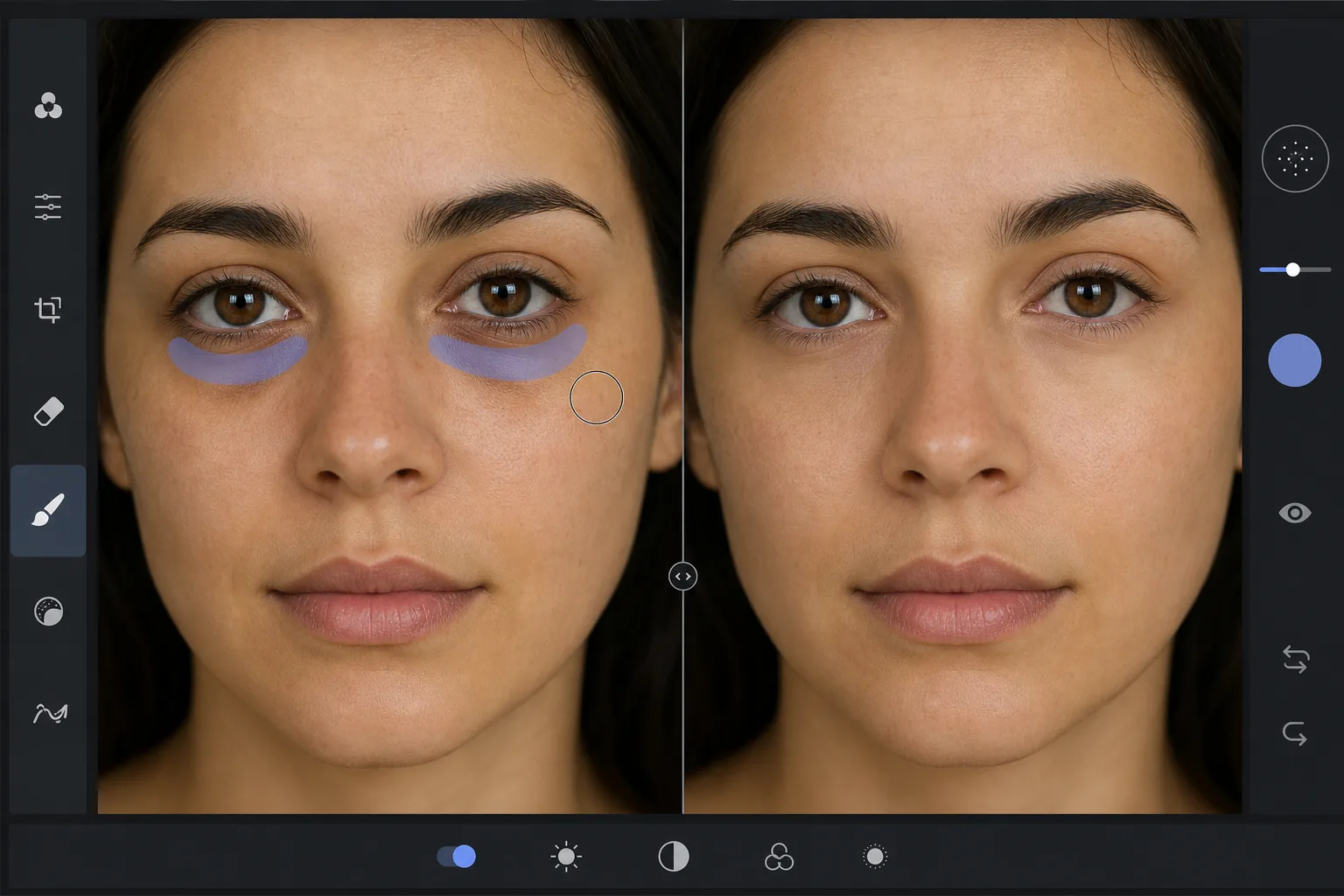
Why dark circles are tricky to retouch mit Magic Eraser
Under-eye dark circles are not a single object you can cut out — they are a gradient of shadow and discoloration that blends into the surrounding skin. Heavy-handed editing (a brightness brush, a clone stamp) erases the natural shading that gives the face dimension, leaving a flat, obviously-retouched patch under the eye. The goal is to reduce the darkness while preserving skin texture, pores, and the subtle highlight-to-shadow transition that reads as real. Magic Eraser's AI treats the under-eye region as skin to reconstruct rather than a color to paint over: it lightens the area and rebuilds matching texture from the surrounding cheek and lower-lid skin, so the result looks like a well-rested version of the same face, not an airbrushed mask. This makes it useful for headshots, dating-profile photos, family portraits, and any shot where the subject looks more tired than they felt.
Before you start
Schritt-für-Schritt-Anleitung
Start with foto hochladen. The result preview above and tips below use this guide's existing content; no separate before-and-after proof is assumed.
- 1
Foto hochladen
Öffnen Sie Magic Eraser im Web, auf iOS oder Android. Ziehen Sie Ihr JPEG-, PNG-, HEIC- oder WebP-Foto per Drag & Drop hinein. Kein Konto erforderlich.
- 2
Tool und Bereich auswählen
Wählen Sie das passende Tool und markieren Sie den zu bearbeitenden Bereich. Die KI analysiert und wendet die Änderungen automatisch in Sekunden an.
- 3
Ergebnis herunterladen
Sehen Sie sich das Ergebnis in der Vorschau an und laden Sie das bearbeitete Foto herunter. Export als hochqualitatives PNG oder JPEG.
Am besten geeignet für
- Professional headshots where the subject looks tired despite good lighting
- Dating-profile and social photos that need a fresher, well-rested look
- Family and event portraits taken late in the day
- Quick retouching without learning frequency separation or dodge-and-burn
- Batch-cleaning a set of portraits to a consistent look
Tipps für beste Ergebnisse
Reduce, don't erase. Real faces have some shadow under the eye — removing it completely reads as fake. Aim to lighten dark circles to the point they no longer draw attention, not to a uniform flat tone. Brush each eye separately so the AI references the skin closest to each one. If the subject has both dark circles and under-eye bags, the discoloration and the puffiness-shadow are two issues: lighten the discoloration first, then assess whether the remaining shadow still needs a light pass. For a related cleanup, pair this with removing blemishes or skin shine in the same edit. And as always, the most natural result keeps pores and skin texture intact — Magic Eraser preserves them automatically, so avoid over-brushing into clear skin.
Häufig gestellte Fragen
- Ist die Funktion How to remove dark circles from a photo kostenlos?
- Ja, Magic Eraser ermöglicht es Ihnen, kostenlos How to remove dark circles from a photo mit täglichen Limits durchzuführen. Upgraden Sie auf Pro für unbegrenzte Bearbeitung und hochauflösende Exporte.
- Wie lange dauert es, How to remove dark circles from a photo durchzuführen?
- Nur wenige Sekunden. Die KI von Magic Eraser verarbeitet Fotos schnell — die meisten Ergebnisse sind sofort nach dem Hochladen verfügbar.
- Kann ich es auf dem Handy verwenden?
- Ja, Magic Eraser funktioniert auf iOS, Android und allen Webbrowsern. Sie können nahtlos zwischen Geräten wechseln.
- Wird die Bildqualität beeinträchtigt?
- Nein, Magic Eraser bewahrt die ursprüngliche Fotoqualität. Die KI verarbeitet intelligent, um Details und Schärfe zu erhalten.