
So konvertieren Sie ein Foto mit Transparenz in PNG
JPEG-Bilder dürfen keinen transparenten Hintergrund haben – der Hintergrund ist immer mit einer Volltonfarbe gefüllt. Durch die Konvertierung in PNG mit AI-Hintergrundentfernung erhalten Sie einen sauberen Ausschnitt mit transparentem Hintergrund, der auf jedem Design, jeder Folie oder jeder Website platziert werden kann.
Last updated
Jetzt in PNG konvertieren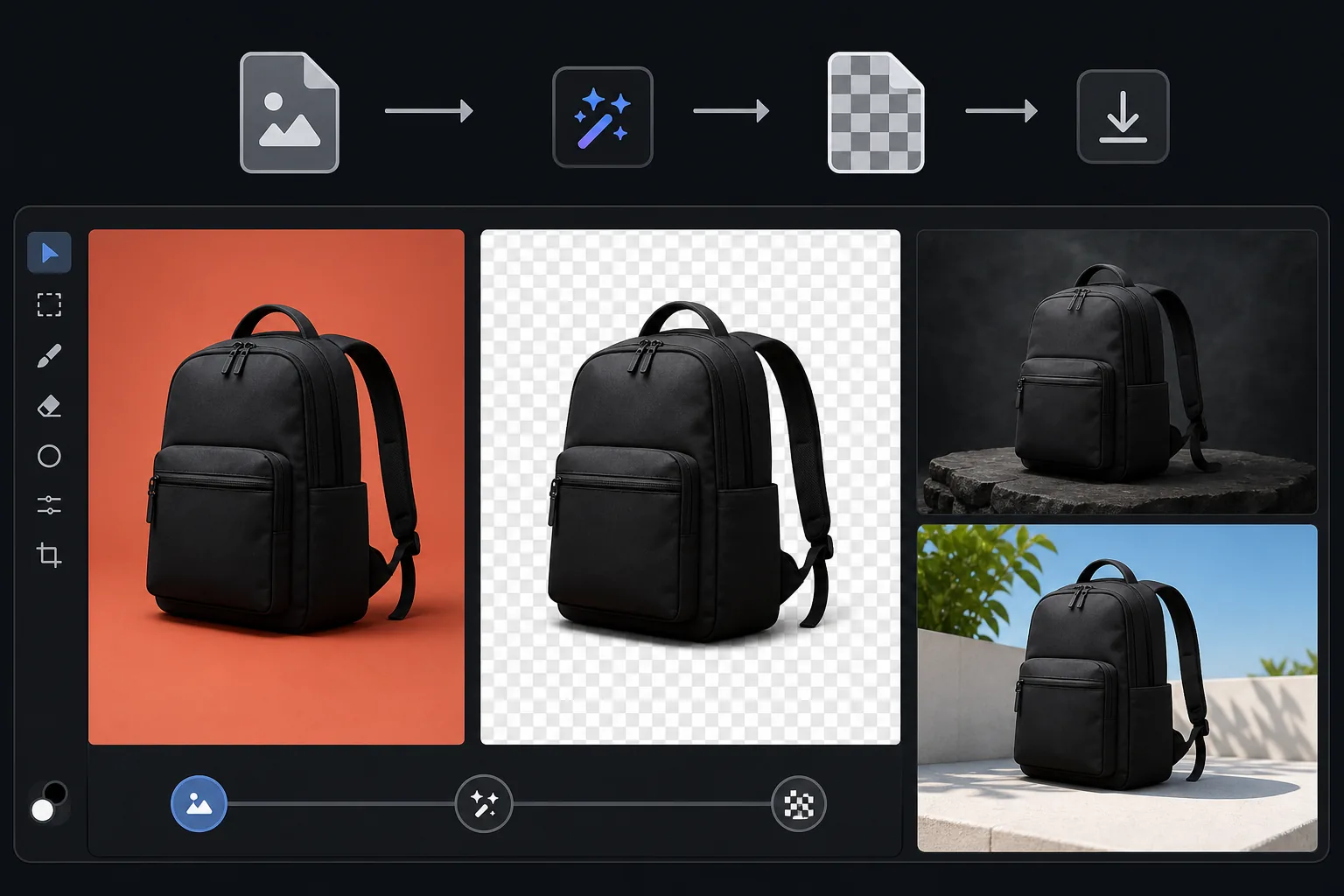
So wandelst du ein Foto in ein PNG mit transparentem Hintergrund um
Um ein JPG in ein transparentes PNG umzuwandeln, öffnest du Magic Eraser im Web, auf iOS oder Android, lädst das Foto hoch, entfernst den Hintergrund und exportierst es als PNG – das freigestellte Motiv behält einen transparenten Hintergrund statt eines weißen Kastens. Das ist kostenlos und ohne Anmeldung. Ein JPEG kann von sich aus keine Transparenz speichern, deshalb besteht die Umwandlung eigentlich aus zwei Schritten, die das Tool in einem Rutsch erledigt: den Hintergrund löschen, um den Alphakanal zu erzeugen, und dann als PNG speichern. Das Ergebnis fügt sich sauber in eine Folie, Webseite oder Marketinggrafik ein. JPEG ist das Standardformat für Fotos, unterstützt jedoch keine Transparenz – jedes Pixel hat eine Farbe, auch der Hintergrund. Wenn Sie ein Produkt, eine Person oder ein Objekt auf einem anderen Hintergrund (einem Foliendeck, einer Webseite, einer Marketinggrafik) platzieren müssen, benötigen Sie ein PNG mit transparentem Hintergrund. Das PNG-Format unterstützt einen Alphakanal, der die Transparenzstufe jedes Pixels definiert – vollständig undurchsichtig für das Motiv, vollständig transparent für den entfernten Hintergrund und halbtransparent für Haarkanten und weiche Ränder. Durch diese Transparenz sieht das Bild natürlich auf jedem Hintergrund aus, ohne dass ein Rechteck sichtbar ist. Um aus einem JPEG ein transparentes PNG zu erstellen, muss der Hintergrund entfernt (Erstellen des Alphakanals) und im PNG-Format gespeichert werden – genau das, was Magic Eraser in einem Schritt tut.
Before you start
Konvertieren Sie in drei Schritten in transparentes PNG
Start with laden sie das foto hoch. The result preview above and tips below use this guide's existing content; no separate before-and-after proof is assumed.
- 1
Laden Sie das Foto hoch
Öffnen Sie Magic Eraser im Web, iOS oder Android. Laden Sie das JPEG-, HEIC- oder WebP-Foto mit dem Motiv hoch, das Sie ausschneiden möchten. Produktfotos, Porträts, Logos auf farbigem Hintergrund und Objekte auf jedem Hintergrund werden unterstützt.
- 2
Entfernen Sie den Hintergrund
Wählen Sie Hintergrundentfernung aus. Die KI erkennt das Hauptmotiv und entfernt alles dahinter, wodurch ein transparenter Alphakanal entsteht. Haarkanten, halbtransparente Materialien und komplexe Konturen werden automatisch verarbeitet.
- 3
Als PNG exportieren
Laden Sie das Ergebnis als PNG herunter, um den transparenten Hintergrund beizubehalten. Die Datei weist in Viewern, die Transparenz anzeigen, ein Schachbrettmuster auf und liegt in Designtools, Foliendecks oder Webseiten sauber über jedem Hintergrund. Wenn Sie stattdessen eine einfarbige Hintergrundfarbe wünschen, ist auch ein JPEG-Export verfügbar.
Am besten für
- Produktbilder für den E-Commerce, die auf benutzerdefinierten Website-Hintergründen oder in Designvorlagen platziert werden müssen
- Porträtausschnitte für Teamseiten, Präsentationen und zusammengesetzte Bilder
- Logokonvertierung von Fotos gedruckter Logos in transparente PNGs für die digitale Verwendung
- Entwerfen Sie Assets, bei denen Motive auf unterschiedlichen Hintergründen in Canva, Figma oder Photoshop überlagert werden müssen
- Präsentationsfolien, bei denen Produkt- oder Personenausschnitte auf gebrandeten Folienhintergründen platziert werden müssen
Tipps für beste Ergebnisse
Beginnen Sie mit dem Quellbild höchster Qualität – die PNG-Ausgabequalität darf die Eingabequalität nicht überschreiten. Wenn das Motiv an den Rändern feine Details aufweist (Haare, Fell, Federn), erstellt die KI halbtransparente Ränder, die auf natürliche Weise mit jedem Hintergrund harmonieren. Bei Produkten auf weißem Hintergrund ist die Hintergrundentfernung nahezu perfekt, da die Grenze klar definiert ist. Bei Motiven vor komplexem Hintergrund benötigt die KI in schwierigen Randbereichen möglicherweise einen zweiten Durchgang. Wenn Sie die transparente PNG-Datei auf einem farbigen Hintergrund platzieren, achten Sie darauf, dass die halbtransparenten Randbereiche vor der jeweiligen Hintergrundfarbe natürlich aussehen – bei sehr dunklen Hintergründen können Reste des Hintergrundlichthofs des Originalfotos sichtbar sein.
Häufig gestellte Fragen
- Warum kann ich ein JPEG nicht einfach in PNG umbenennen?
- Durch das Umbenennen ändert sich die Dateierweiterung, nicht jedoch das Format. Ein umbenanntes JPEG hat immer noch keinen Alphakanal – der Hintergrund ist weiß oder welche Farbe auch immer er hatte. Sie müssen den Hintergrund tatsächlich entfernen, um echte Transparenz zu erzeugen.
- Wird die PNG-Datei größer als die JPEG-Datei sein?
- Ja, normalerweise 2-5x größer, da PNG verlustfreie Komprimierung verwendet. Für die Webnutzung, bei der die Dateigröße eine Rolle spielt, sollten Sie WebP in Betracht ziehen (unterstützt Transparenz bei kleineren Dateigrößen). Für Design-Workflows ist PNG der Standard und die größere Größe ist akzeptabel.
- Kann ich später wieder in JPEG konvertieren?
- Ja, aber Sie müssen eine Hintergrundfarbe für die transparenten Bereiche auswählen – JPEG unterstützt keine Transparenz. Weiß ist die häufigste Wahl. Behalten Sie die PNG-Datei als Masterdatei.
- Ist die PNG-Konvertierung kostenlos?
- Ja. Hintergrundentfernung und PNG-Export sind im kostenlosen Kontingent mit täglichen Nutzungsbeschränkungen verfügbar. Premium hebt Beschränkungen für Batch-Konvertierungen auf.
- Wie bekomme ich einen transparenten Hintergrund und nicht nur ein PNG?
- Eine einfache JPG-zu-PNG-Umwandlung behält dieselben Pixel – einschließlich des Hintergrunds – und ist daher von sich aus nicht transparent. Für echte Transparenz entfernst du zuerst den Hintergrund: Lade das Foto hoch, lass die KI das Motiv freistellen und exportiere es dann als PNG. Dadurch werden die transparenten (Alpha-)Bereiche in die Datei geschrieben, sodass das Motiv auf jedem Hintergrund sitzt – ohne weißen Kasten dahinter. In Magic Eraser passieren beide Schritte in einem einzigen Export.
- Kann ich ein JPG auf dem Handy in ein transparentes PNG umwandeln?
- Ja. Öffne Magic Eraser in einem beliebigen mobilen Browser oder in der iOS- bzw. Android-App, lade das JPG aus deiner Galerie, entferne den Hintergrund und exportiere es als PNG. Das transparente PNG wird direkt zurück in deine Fotos gespeichert und ist bereit, um es in eine Präsentation, einen Sticker oder ein Produktangebot einzufügen. Es funktioniert genauso wie die Desktop-Version – und wenn du den Browser nutzt, ist keine App-Installation nötig.