
إزالة التجاعيد من الصور
تنعيم خطوط الجبهة وأقدام الغراب والطيات الأنفية الشفوية وتجاعيد الرقبة في الصور الشخصية مع الحفاظ على مظهر البشرة طبيعيًا وملمسًا. Magic Eraser يقلل التجاعيد دون خلق المظهر البلاستيكي فائق النعومة الذي تنتجه عملية التنقيح القوية - تبدو النتيجة مثل موضوعك في يوم من الراحة، وليس مثل شكل الشمع.
آخر تحديث
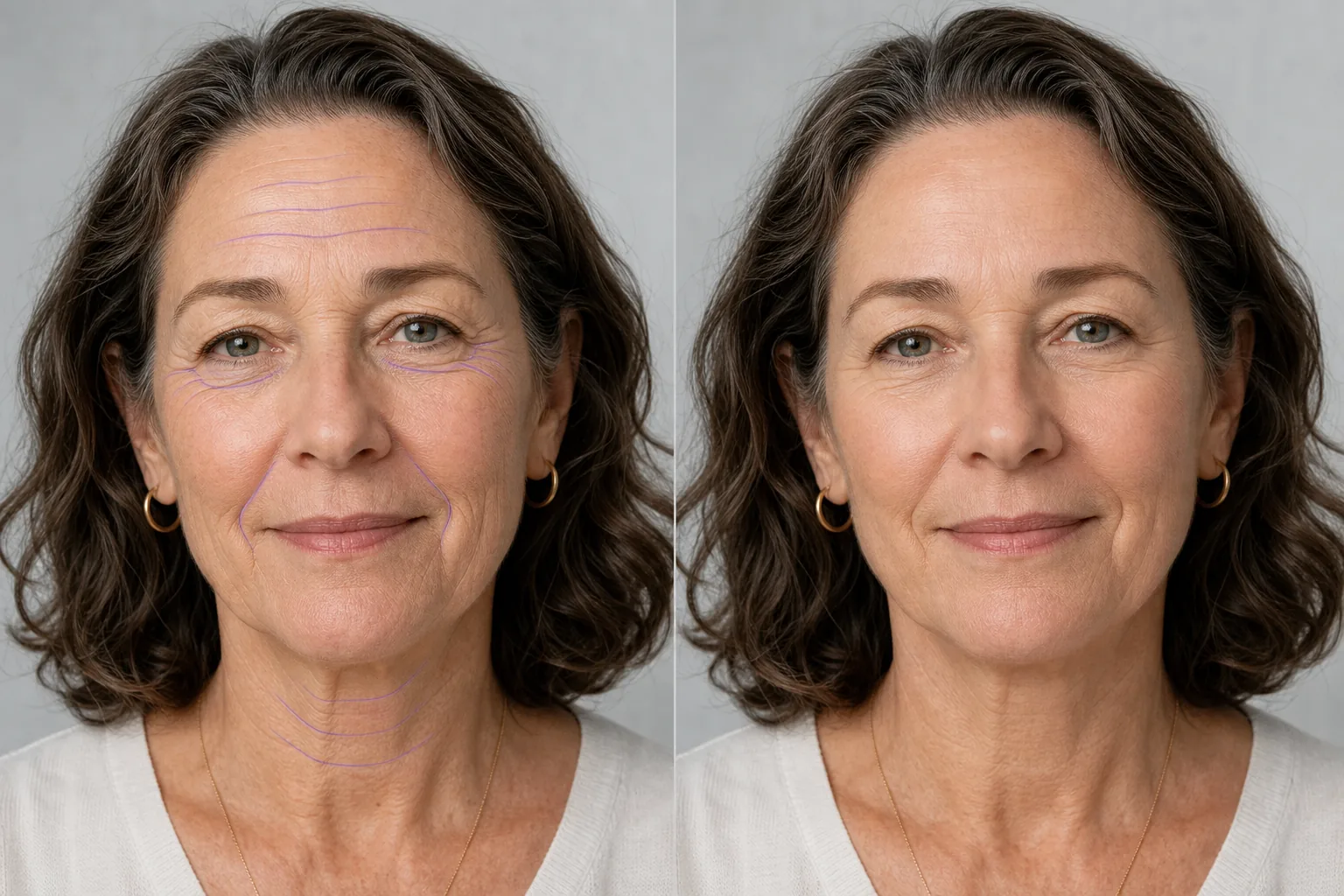
كيفية إزالة التجاعيد والخطوط الدقيقة من الصورة
لإزالة التجاعيد من الصورة، افتح Magic Eraser على الويب أو iOS أو Android، وارفع صورتك الشخصية، ثم مرّر الفرشاة فوق الخطوط التي تريد تنعيمها — خطوط الجبين، تجاعيد زوايا العين، الطيات الأنفية الشفوية، أو ثنيات الرقبة — واضغط على Erase. يقوم الذكاء الاصطناعي بتقليل عمق التجاعيد مع الحفاظ على ملمس البشرة والمسام والإضاءة الطبيعية كما هي، فيبدو الوجه مرتاحاً لا معدّلاً. مجاني، بلا تسجيل وبلا علامة مائية. تتبع التجاعيد الخطوط الطبيعية للوجه وتتفاعل مع الإضاءة والتعبير وملمس الجلد. يؤدي استنساخ ثنية الجبين إلى استبدال التجاعيد بالجلد المجاور، ولكن نادرًا ما يتطابق تدرج الإضاءة - والنتيجة هي لطخة مرئية تبدو أسوأ من التجاعيد الأصلية. يستخدم المنقحون المحترفون تقنيات فصل التردد التي تستغرق من 10 إلى 15 دقيقة لكل صورة. يستخدم Magic Eraser الذكاء الاصطناعي الذي يفهم بنية الوجه والإضاءة لتقليل التجاعيد مع الحفاظ على نسيج الجلد الطبيعي والمسام وتدرجات الضوء التي تجعل الصورة تبدو أصلية. يميز الذكاء الاصطناعي بين التجاعيد (التي تريد تقليلها) وخطوط الشخصية (التي تساهم في التعبير)، مع تطبيق التجانس المتدرج بدلاً من المحو الكامل.
إزالة التجاعيد في ثلاث خطوات
- 1
قم بتحميل صورتك
افتح Magic Eraser على الويب أو iOS أو Android وقم بتحميل لقطة الرأس أو الصورة الجماعية أو الصورة الشخصية. يتم قبول JPEG، PNG، HEIC، وWebP. للحصول على أفضل النتائج، استخدم صورة مضاءة جيدًا حيث تكون التجاعيد التي تريد تقليلها مرئية بوضوح.
- 2
فرشاة على المناطق التجاعيد
استخدمي أداة الفرشاة للرسم على التجاعيد التي تريد تقليلها - خطوط الجبهة، أو خطوط التجاعيد حول العينين، أو الطيات الأنفية الشفوية، أو تجاعيد الرقبة، أو خطوط العبوس بين الحاجبين. اعمل على منطقة واحدة في كل مرة للحصول على أفضل النتائج الطبيعية. استخدم الفرشاة على نطاق أوسع قليلاً من التجاعيد نفسها حتى يكون لدى الذكاء الاصطناعي سياق للبشرة المحيطة.
- 3
محو وضبط
اضغط على "مسح" وسيعمل الذكاء الاصطناعي على تنعيم التجاعيد المحددة مع الحفاظ على نسيج الجلد وتدرج الإضاءة الطبيعي للوجه. قم بالتكبير إلى 100% للتحقق من النتيجة - إذا تم تقليل أي تجاعيد بشكل كبير جدًا أو غير كافٍ، فقم بإجراء تمريرة ثانية على تلك المناطق المحددة. قم بالتصدير بدقة كاملة للصور أو الملفات الشخصية على LinkedIn أو صور تطبيقات المواعدة أو الطباعة.
الأفضل ل
- لقطات احترافية للرأس حيث يبدو تقليل التجاعيد بشكل معتدل مصقولًا دون أن يبدو مصطنعًا
- صور فريق LinkedIn والشركات التي تحتاج إلى مظهر متناسق ومهندم
- صور الملفات الشخصية التي يرجع تاريخها حيث يريد الموضوع مظهرًا طبيعيًا وجذابًا
- تصوير حفلات الزفاف والمناسبات حيث يريد الزوجان تنعيم البشرة بشكل خفيف
- الكتاب السنوي والصور المدرسية حيث يطلب الآباء تنقيح الضوء
- صور الوكيل العقاري والمؤلف المستخدمة في المواد المطبوعة والمواقع الإلكترونية
- جلسات صورة عائلية حيث يريد الأجداد تنقيحًا متواضعًا
- صور قبل/بعد اللياقة البدنية أو العافية تظهر مظهرًا منتعشًا
نصائح لإزالة التجاعيد بمظهر طبيعي
الهدف هو التخفيض وليس الإزالة. إن محو جميع التجاعيد بالكامل من وجه يبلغ من العمر 60 عامًا يبدو أمرًا غريبًا - فالمشاهدون يعتبرونه مصطنعًا حتى لو لم يتمكنوا من توضيح السبب. أفضل الممارسات هي تقليل عمق التجاعيد بنسبة 50-70% بدلاً من 100%. يميل الذكاء الاصطناعي الخاص بـ Magic Eraser بشكل طبيعي نحو هذا النهج المتدرج، ولكن إذا أزالت التمريرة الأولى الكثير، فتراجع واستخدم ضربة فرشاة أخف. انتبه جيدًا حول العينين: ترتبط أقدام الغراب ارتباطًا وثيقًا بالتعبير، والإفراط في تنعيمها يجعل الموضوع يبدو فارغًا. بالنسبة للصور الجماعية، قم بمطابقة مستوى التنقيح في جميع المواضيع - وجه واحد ناعم للغاية بجوار الوجوه القديمة بشكل طبيعي يخلق تباينًا واضحًا. عند التنقيح للسياقات المهنية (صور الرأس، مواقع الشركات)، استهدف أن يبدو الموضوع مثله في يوم جيد، وليس كشخص مختلف.
الأسئلة المتداولة
- هل إزالة التجاعيد من الصورة مجانية؟
- نعم. تغطي الطبقة المجانية لـ Magic Eraser إزالة التجاعيد مع حدود الاستخدام اليومي. يزيل Premium (29.99 دولارًا سنويًا) الحدود ويفتح عمليات تصدير عالية الدقة للحصول على صور عالية الجودة للطباعة.
- هل ستبدو النتيجة طبيعية أم معالجة بشكل مفرط؟
- Magic Eraser يحافظ على نسيج الجلد والمسام والإضاءة الطبيعية مع تقليل عمق التجاعيد. يطبق الذكاء الاصطناعي التجانس المتدرج بدلاً من المحو الكامل، مما ينتج عنه نتائج تبدو منتعشة بدلاً من التنقيح. للحصول على أفضل النتائج، اعمل على منطقة وجه واحدة في كل مرة وتحقق من التكبير/التصغير بنسبة 100%.
- هل يمكنني تقليل التجاعيد دون إزالتها بالكامل؟
- نعم. استخدم ضربة فرشاة أخف أو قم بإجراء تحديد أصغر. يقوم الذكاء الاصطناعي بضبط قوة تقليل التجاعيد بناءً على المنطقة المصقولة، حيث تنتج التحديدات الأصغر والأكثر دقة نتائج أكثر دقة. يمكنك دائمًا تشغيل تمريرة ثانية إذا كنت تريد المزيد من التخفيض.
- هل يعمل على الصور الجماعية ذات الوجوه المتعددة؟
- نعم. فرشاة على التجاعيد على كل وجه على حدة. بالنسبة للصور الجماعية، قم بتطبيق تنقيح متسق على جميع المواضيع حتى لا يبدو أي وجه أكثر نعومة من الوجه الآخر. يتكيف الذكاء الاصطناعي مع إضاءة كل وجه ولون البشرة بشكل مستقل.
- ماذا عن تجاعيد الرقبة واليدين؟
- Magic Eraser يعمل على أي سطح جلدي، وليس الوجه فقط. قم بمسح تجاعيد الرقبة أو تجاعيد الصدر أو تجاعيد اليد وسيعمل الذكاء الاصطناعي على تنعيمها مع الحفاظ على نسيج الجلد الأساسي. تستجيب مناطق الرقبة واليدين بشكل جيد لأن نسيج الجلد عادة ما يكون موحدًا بدرجة كافية لإعادة البناء النظيف.
- كيف أزيل خطوط الجبين وخطوط التجهم من الصورة؟
- مرّر الفرشاة فوق ثنيات الجبين الأفقية وخطوط التجهم العمودية (خطوط الـ '11') بين الحاجبين، ثم اضغط على Erase. عادةً ما يكون جلد الجبين سطحاً واسعاً متساوي الإضاءة، لذا يعيد الذكاء الاصطناعي بناءه بنظافة ويبدو التخفيف طبيعياً. عالج الخطوط الأفقية وخطوط التجهم في تمريرات منفصلة إذا احتاجت إحدى المناطق إلى تنعيم أكثر من الأخرى، وتحقق بتكبير 100% حتى لا ينتهي الجبين بمظهر مسطّح أو لامع.
- هل يمكنني تقليل تجاعيد زوايا العين دون أن يبدو الوجه متجمداً؟
- نعم، وهذه هي المنطقة التي يجب التعامل معها بأخف لمسة. تتحرك تجاعيد زوايا العين مع كل ابتسامة، لذا فإن إزالتها بالكامل تبدو مصطنعة وتجعل التعبير فارغاً. استخدم فرشاة أصغر وتمريرة واحدة خفيفة لتقليل عمق الخطوط بدلاً من إزالتها — الهدف مظهر مرتاح ما زال يتجعّد بشكل طبيعي عند ابتسامة الشخص.
- هل يعمل على خطوط الابتسامة والطيات الأنفية الشفوية؟
- نعم. مرّر الفرشاة فوق الطيات الأنفية الشفوية الممتدة من الأنف إلى زاويتي الفم. تتشكّل هذه الطيات بفعل بنية الوجه بقدر ما تتشكّل بفعل العمر، لذا قلّلها جزئياً بدلاً من إزالتها — فتسطيحها بالكامل قد يغيّر شكل الوجه. تخفيف بنسبة 50-70% ينعّم الطية مع الحفاظ على الابتسامة وتحديد الخد بمظهر الشخص الحقيقي.
- هل يمكنني تنعيم تجاعيد الرقبة وخطوطها في الصورة الشخصية؟
- نعم. مرّر الفرشاة فوق ثنيات الرقبة الأفقية أو خطوطها العمودية واضغط على Erase. يميل جلد الرقبة إلى لون وملمس أكثر تجانساً من الوجه، لذا يُعاد بناؤه عادةً بنظافة عالية. اضبط مستوى التنعيم على الرقبة ليطابق ما فعلته على الوجه — فرقبة خالية تماماً تحت وجه معدّل بخفة من أكثر العلامات شيوعاً على أن الصورة قد جرى تعديلها.