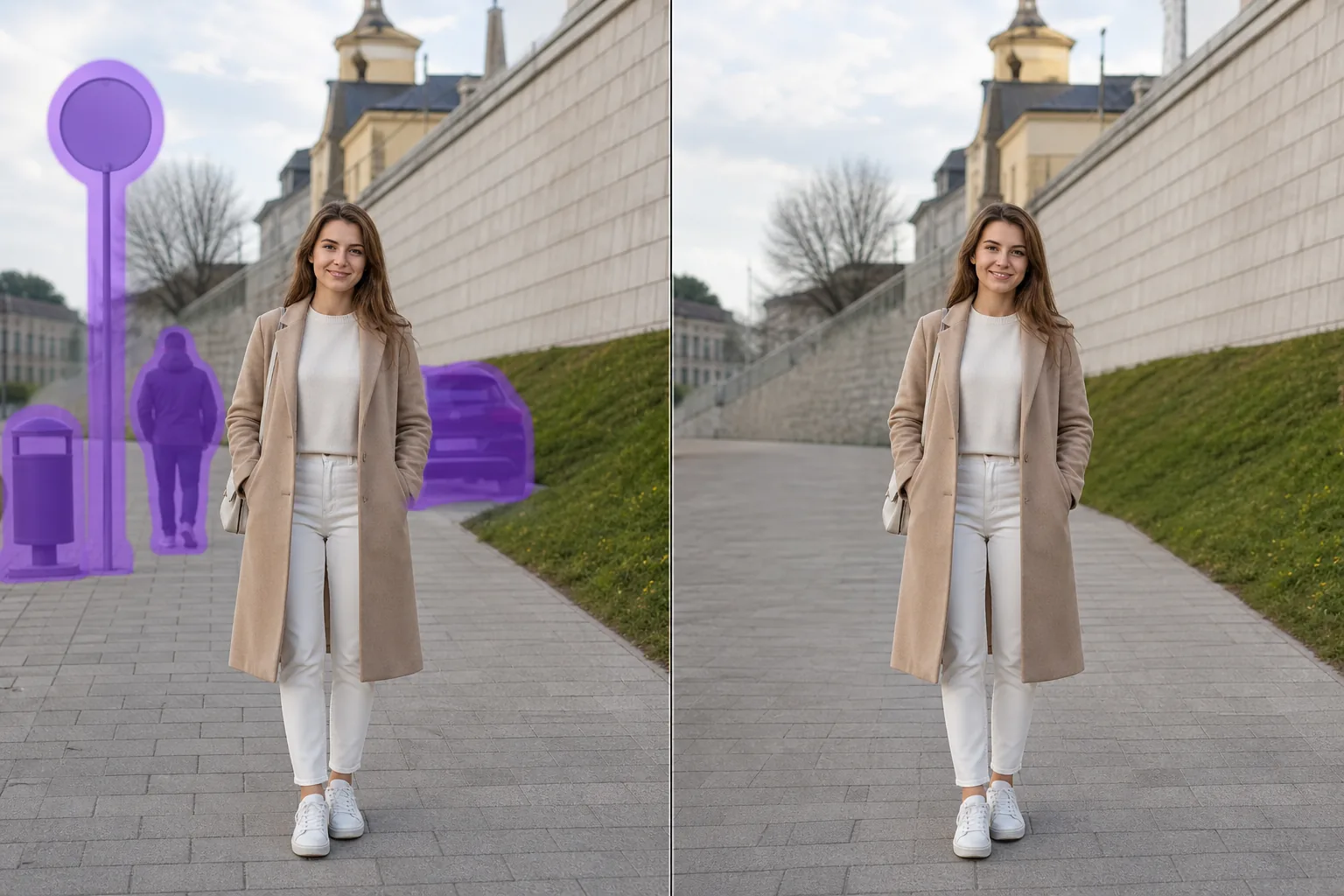
从照片中删除背景物体
使用 Magic Eraser 在几秒钟内从照片中删除背景物体。AI 自动重建背景。在 iOS、Android 和网页上免费使用。
Last updated
立即尝试

AI 删除背景物体的工作原理
A great shot is often ruined by something in the background — a stranger walking through, a rubbish bin by the wall, a road sign poking out behind someone's head. Magic Eraser focuses on exactly that problem: removing background distractions without disturbing the person, pet or product in front. You brush over the thing you want gone, and the AI rebuilds the area behind it — the wall, sky, grass or pavement that the object was hiding. Because the original pixels behind an object don't exist in the photo, the tool synthesizes a believable replacement rather than recovering anything literal. For background clutter set against fairly even surfaces, that reconstruction is usually clean enough to share straight away. It runs on the web and on iOS and Android, with a free tier and no watermark, so you can fix a background in seconds and download the result.
分步教程
- 1
上传照片
在网页、iOS 或 Android 上打开 Magic Eraser,上传包含背景物体的照片。支持 JPEG、PNG 和 WebP 格式。
- 2
涂抹要删除的区域
用画笔涂抹要删除的背景物体。画笔范围比对象稍大一点,AI 会产生更干净的边缘。
- 3
擦除并下载
AI 在几秒内重建背景。检查结果,必要时用修补画笔微调,然后以全分辨率导出。
最适合
- Erasing a stranger or photobomber walking behind your main subject
- Removing road signs, posts and street furniture sticking out behind someone's head
- Clearing rubbish bins, recycling boxes and clutter against a back wall
- Deleting parked or passing cars in the background of portraits and travel shots
- Tidying messy shelves, cables and household clutter behind a product photo
- Removing distant tourists or crowds behind a landmark
- Cleaning up power lines or poles in the sky behind a scene
- Taking out background scaffolding, fences or construction mess
重要提示
Magic Eraser doesn't uncover the hidden pixels behind an object — it generates a plausible reconstruction based on the surrounding area. That works best when the background behind the object is fairly simple and continuous: a wall, sky, water, grass, pavement or an even floor. In those cases the patch usually blends in seamlessly. Removing something in front of a busy or highly detailed background — repeating patterns, text, faces, or intricate architecture — is harder, and the fill can look soft or slightly off on close inspection. A few tips: brush a little beyond the object's edge to capture its shadow and any colour spill, work in zoomed-in passes for cleaner boundaries, and remove large background objects in smaller sections rather than one huge selection. If the first result isn't perfect, run a second pass over the leftover area — it often resolves the remaining artifacts. Always keep your brush on the background and off the foreground subject so the person or product in front stays crisp.
常见问题
- 从照片中删除背景物体是免费的吗?
- 是的。Magic Eraser 免费版包含删除背景物体功能,有每日使用限制。升级到 Premium($29.99/年)可解除限制并解锁高分辨率导出。
- 删除背景物体需要多长时间?
- 通常只需几秒钟。AI 处理涂抹区域并几乎即时重建背景。
- 手机上能用吗?
- 是的。Magic Eraser 适用于 iOS、Android 和网页浏览器。您可以在任何设备上删除背景物体。
- 图片质量会下降吗?
- 不会。AI 保留照片的原始分辨率和质量。重建区域与周围的光线、颜色和纹理匹配。