
Remove a Watermark in Adobe Photoshop — or Skip Straight to 1-Click
Tìm hiểu cách Remove a Watermark in Adobe Photoshop — or Skip Straight to 1-Click với Magic Eraser. Hướng dẫn từng bước đơn giản với công cụ AI miễn phí. Hoạt động trên web, iOS và Android.
Last updated
Thử ngay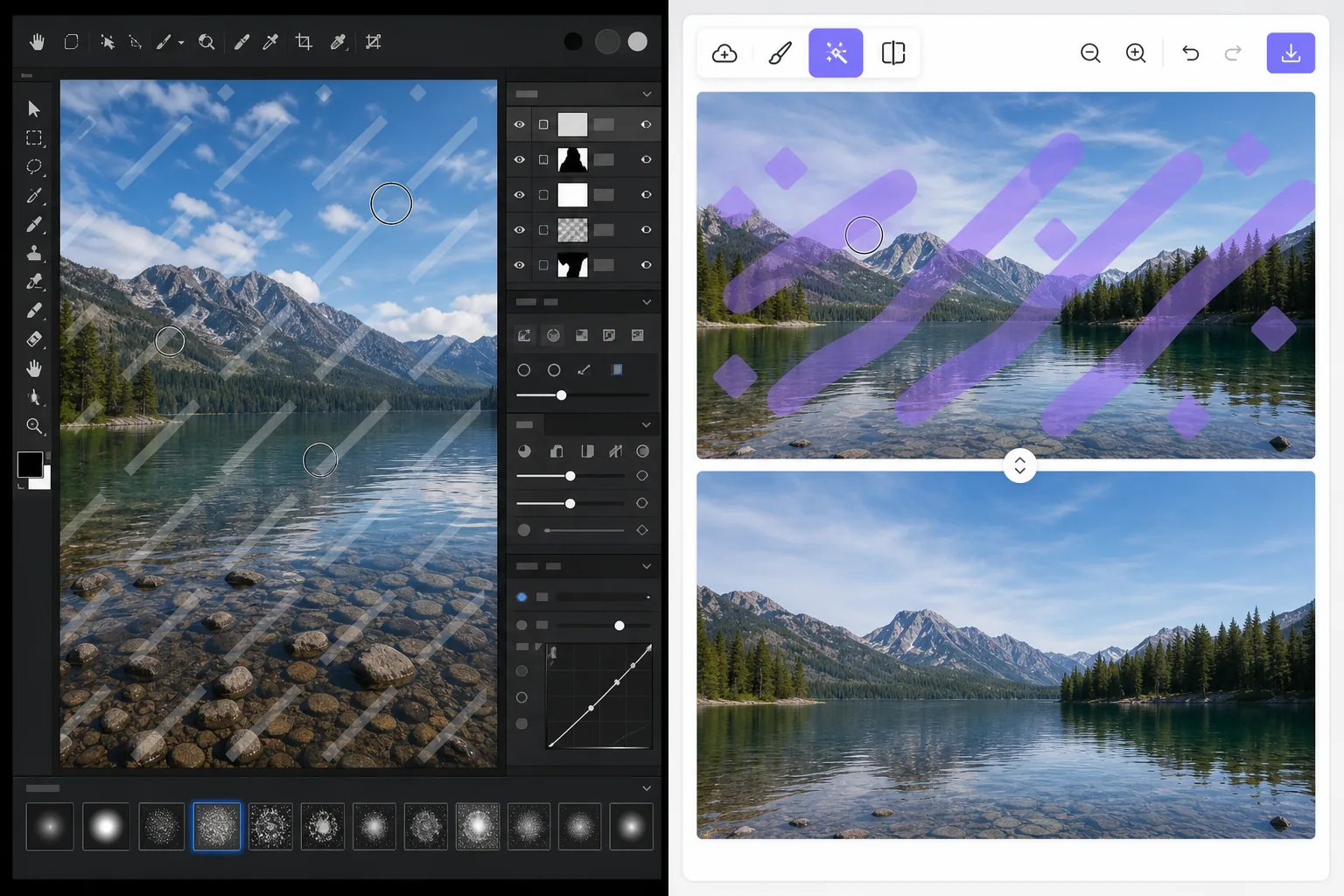
Two ways to remove a watermark với Magic Eraser
Searching for how to remove a watermark in Adobe Photoshop usually lands you on a clone-and-heal tutorial. That method is real and it works: Photoshop is a professional-grade editor with precise Clone Stamp, Healing Brush, and Content-Aware Fill tools that give you pixel-level control. The catch is time and skill. You select the watermark, sample clean pixels, brush carefully, and often repeat across complex backgrounds. For a single quick fix that is a lot of steps. Magic Eraser takes the same goal and compresses it to one click. You brush over the watermark and AI inpainting reconstructs a plausible fill for the area. Honest caveat: it does not recover the literal pixels hidden underneath — no tool can — it generates a believable replacement. For most photos that result is clean enough to use immediately, with no install, no subscription, and no learning curve.
Before you start
Hướng dẫn từng bước
Start with tải ảnh lên. The result preview above and tips below use this guide's existing content; no separate before-and-after proof is assumed.
- 1
Tải ảnh lên
Mở Magic Eraser trên web, iOS hoặc Android. Kéo thả ảnh JPEG, PNG, HEIC hoặc WebP vào. Không cần tài khoản để bắt đầu.
- 2
Chọn công cụ và vùng cần xử lý
Chọn công cụ phù hợp và đánh dấu vùng cần xử lý. AI sẽ tự động phân tích và thực hiện thay đổi trong vài giây.
- 3
Tải kết quả về
Xem trước kết quả và tải ảnh đã chỉnh sửa về. Xuất dưới dạng PNG hoặc JPEG với chất lượng cao.
Phù hợp nhất cho
- Quick one-off fixes where firing up Adobe Photoshop is overkill
- People without a Photoshop subscription or editing experience
- Removing watermarks on your own photos from a phone (iOS/Android) or browser
- Batch-style cleanups where speed matters more than pixel-perfect retouching
- Anyone who finds clone/heal tutorials too fiddly or time-consuming
Mẹo để có kết quả tốt nhất
Only remove watermarks from images you own or are licensed to edit. Watermarks often mark copyrighted or paid-license work, and stripping them from images you do not have rights to can violate copyright and terms of use. When in doubt, license the image or get permission first. For best results on busy backgrounds, brush a little wider than the watermark so the AI has clean surrounding context to reconstruct from.
Câu hỏi thường gặp
- Tính năng Remove a Watermark in Adobe Photoshop — or Skip Straight to 1-Click có miễn phí không?
- Có, Magic Eraser cho phép bạn Remove a Watermark in Adobe Photoshop — or Skip Straight to 1-Click miễn phí với giới hạn hàng ngày. Nâng cấp lên Pro để xử lý không giới hạn và xuất chất lượng cao.
- Remove a Watermark in Adobe Photoshop — or Skip Straight to 1-Click mất bao lâu?
- Chỉ mất vài giây. AI của Magic Eraser xử lý ảnh nhanh chóng — hầu hết kết quả có ngay lập tức sau khi tải lên.
- Tôi có thể sử dụng trên điện thoại không?
- Có, Magic Eraser hoạt động trên iOS, Android và mọi trình duyệt web. Bạn có thể chuyển đổi giữa các thiết bị.
- Chất lượng ảnh có bị giảm không?
- Không, Magic Eraser duy trì chất lượng ảnh gốc. AI xử lý thông minh để giữ nguyên chi tiết và độ sắc nét.