
Remove an Unwanted Object in Adobe Photoshop — or Erase It in 1 Click
Tìm hiểu cách Remove an Unwanted Object in Adobe Photoshop — or Erase It in 1 Click với Magic Eraser. Hướng dẫn từng bước đơn giản với công cụ AI miễn phí. Hoạt động trên web, iOS và Android.
Last updated
Thử ngay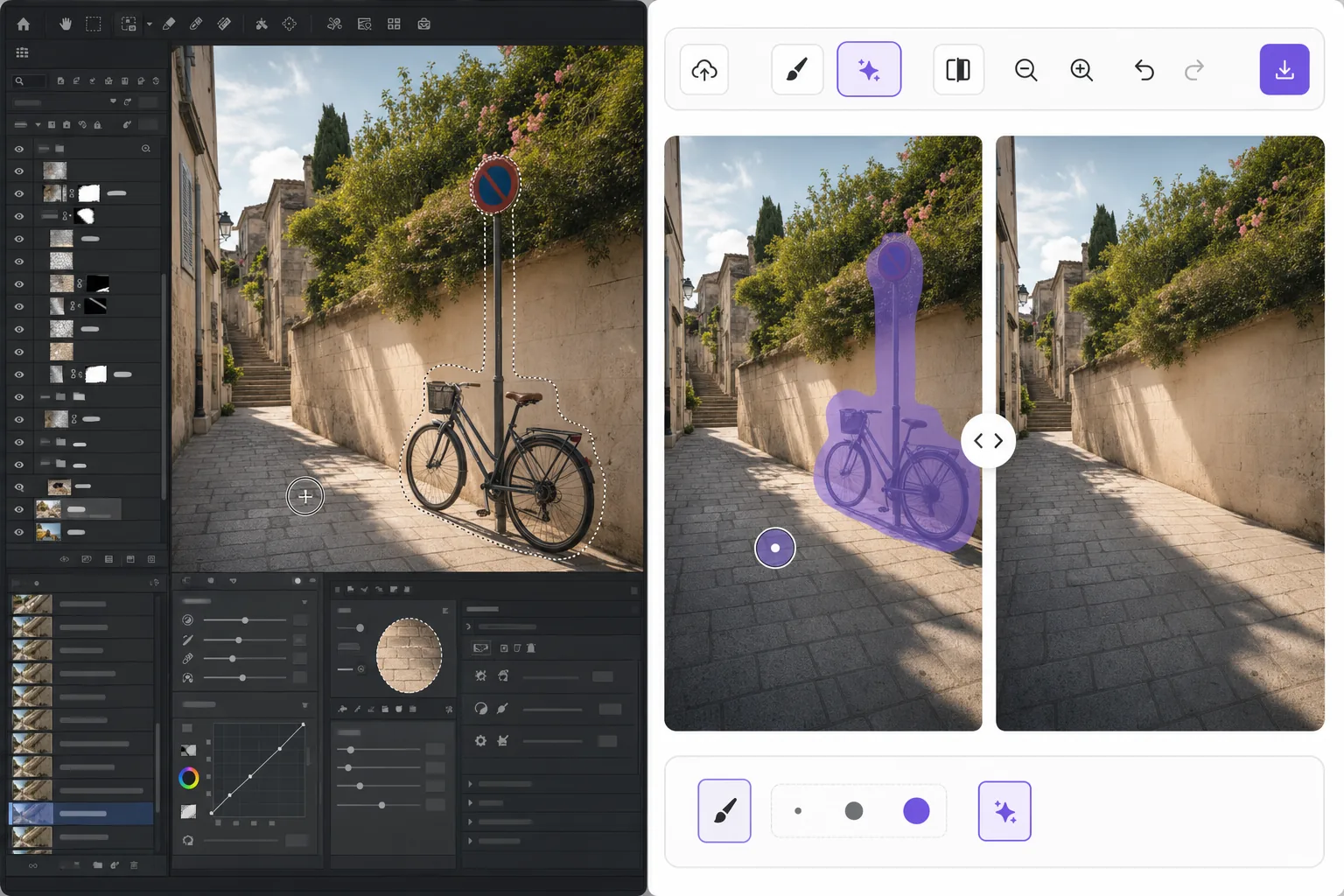
Two ways to remove an unwanted object với Magic Eraser
Searching for how to remove an unwanted object in Adobe Photoshop usually leads to a multi-step tutorial: make a selection around the object, then use Content-Aware Fill or the Clone Stamp and Spot Healing tools to paint over it with surrounding pixels. Adobe Photoshop is a powerful, professional editor and this approach produces excellent results — especially when you want frame-by-frame control over textures, edges, and shadows. The trade-off is the learning curve and the time: you need a paid Adobe subscription, the app installed, and several minutes of careful selecting and retouching per object. Magic Eraser takes the honest shortcut. Instead of selections and layers, you brush over the unwanted object and let AI inpainting reconstruct a plausible background fill. It runs in any browser plus iOS and Android, costs nothing to start, and handles most everyday photos — stray people, signs, wires, blemishes — in a single pass. If you need pixel-perfect compositing for a client deliverable, Photoshop is still a fine choice. For everything else, here is the faster path.
Before you start
Hướng dẫn từng bước
Start with tải ảnh lên. The result preview above and tips below use this guide's existing content; no separate before-and-after proof is assumed.
- 1
Tải ảnh lên
Mở Magic Eraser trên web, iOS hoặc Android. Kéo thả ảnh JPEG, PNG, HEIC hoặc WebP vào. Không cần tài khoản để bắt đầu.
- 2
Chọn công cụ và vùng cần xử lý
Chọn công cụ phù hợp và đánh dấu vùng cần xử lý. AI sẽ tự động phân tích và thực hiện thay đổi trong vài giây.
- 3
Tải kết quả về
Xem trước kết quả và tải ảnh đã chỉnh sửa về. Xuất dưới dạng PNG hoặc JPEG với chất lượng cao.
Phù hợp nhất cho
- Removing photobombers and strangers from travel and event photos
- Cleaning up power lines, poles, and wires from landscape shots
- Erasing signs, logos, watermarks, and date stamps
- Deleting blemishes, dust, or stray objects from product images
- Quick edits on mobile when you don't have Photoshop installed
Mẹo để có kết quả tốt nhất
Brush slightly beyond the object's edges so the AI has room to blend the fill, and include any contact shadow the object casts. For large objects against busy or detailed backgrounds (brick patterns, faces, repeating text), work in smaller passes and re-erase rather than covering everything at once — this gives the inpainting cleaner reference pixels. If a single result looks off, undo and re-brush; the fill is regenerated each time. And remember the honest caveat: Magic Eraser reconstructs a plausible background, it does not recover the real pixels hidden behind the object — so for forensic or pixel-exact compositing work, the manual Adobe Photoshop method still wins.
Câu hỏi thường gặp
- Tính năng Remove an Unwanted Object in Adobe Photoshop — or Erase It in 1 Click có miễn phí không?
- Có, Magic Eraser cho phép bạn Remove an Unwanted Object in Adobe Photoshop — or Erase It in 1 Click miễn phí với giới hạn hàng ngày. Nâng cấp lên Pro để xử lý không giới hạn và xuất chất lượng cao.
- Remove an Unwanted Object in Adobe Photoshop — or Erase It in 1 Click mất bao lâu?
- Chỉ mất vài giây. AI của Magic Eraser xử lý ảnh nhanh chóng — hầu hết kết quả có ngay lập tức sau khi tải lên.
- Tôi có thể sử dụng trên điện thoại không?
- Có, Magic Eraser hoạt động trên iOS, Android và mọi trình duyệt web. Bạn có thể chuyển đổi giữa các thiết bị.
- Chất lượng ảnh có bị giảm không?
- Không, Magic Eraser duy trì chất lượng ảnh gốc. AI xử lý thông minh để giữ nguyên chi tiết và độ sắc nét.