
Remove an Object From a Photo, Free and Online
Tìm hiểu cách Remove an Object From a Photo, Free and Online với Magic Eraser. Hướng dẫn từng bước đơn giản với công cụ AI miễn phí. Hoạt động trên web, iOS và Android.
Last updated
Thử ngay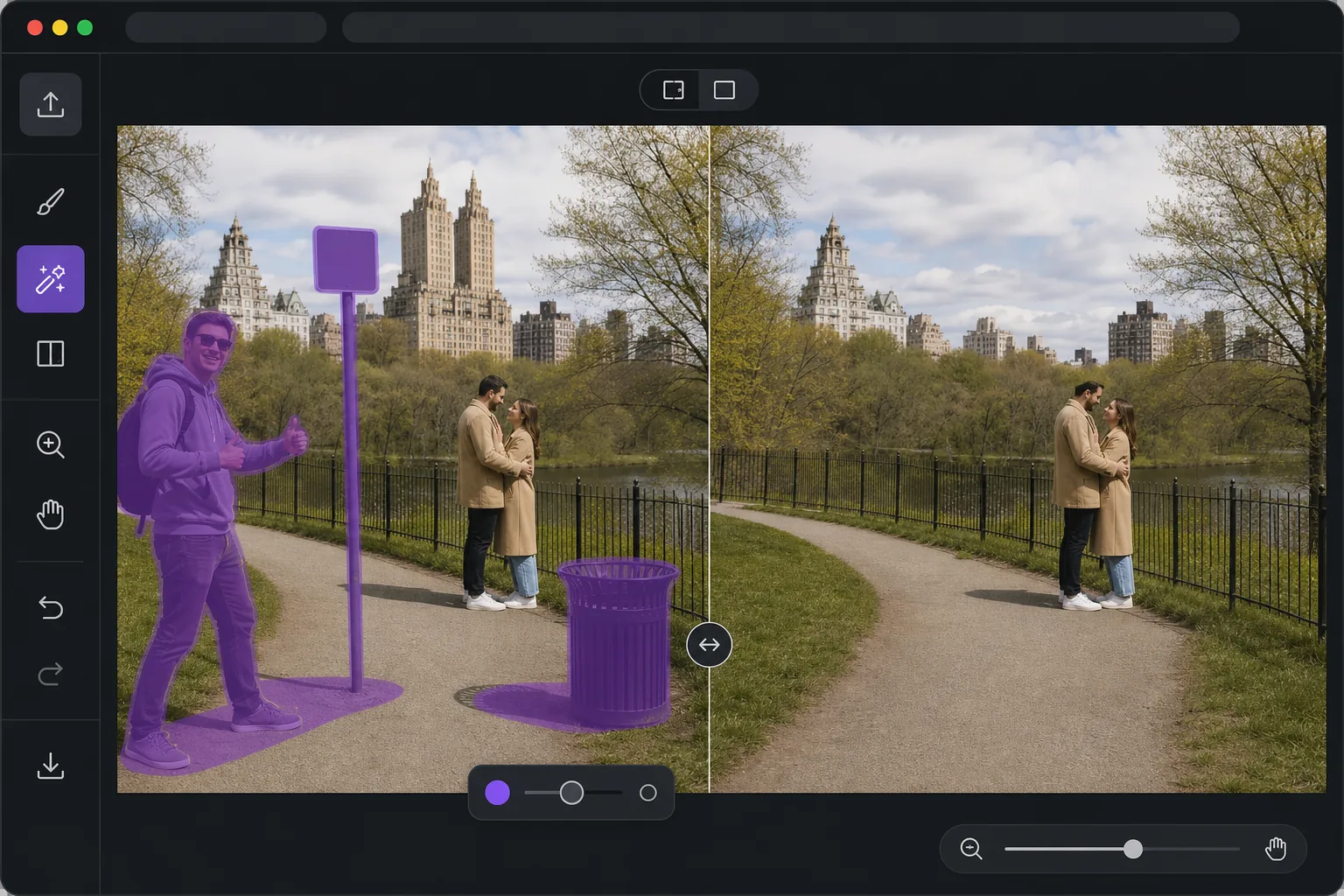
Open the editor, then remove it. với Magic Eraser
When you want one object gone from a photo, the last thing you need is desktop software, a complex editor, or a forced paid trial before you can see a result. Magic Eraser runs entirely in your browser, so there is nothing to install. Use your limited free edits, brush over the thing you want gone, and AI inpainting reconstructs a plausible background where it used to be — fences, sky, grass, walls — so the gap blends in instead of leaving a hole. Free exports are saved without a watermark, which means the photo you download is the photo you keep. The whole loop is built for speed: open the page, paint over the object, preview the fill, and save. No menus to learn and no layers to manage; limited free edits are available before you choose any paid plan. If you just need a clean shot fast, this is the shortest path from messy photo to finished image.
Before you start
Hướng dẫn từng bước
Start with tải ảnh lên. The result preview above and tips below use this guide's existing content; no separate before-and-after proof is assumed.
- 1
Tải ảnh lên
Mở Magic Eraser trên web, iOS hoặc Android. Kéo thả ảnh JPEG, PNG, HEIC hoặc WebP vào. Không cần tài khoản để bắt đầu.
- 2
Chọn công cụ và vùng cần xử lý
Chọn công cụ phù hợp và đánh dấu vùng cần xử lý. AI sẽ tự động phân tích và thực hiện thay đổi trong vài giây.
- 3
Tải kết quả về
Xem trước kết quả và tải ảnh đã chỉnh sửa về. Xuất dưới dạng PNG hoặc JPEG với chất lượng cao.
Phù hợp nhất cho
- Removing a photobomber or stranger before you post in the next minute
- Cleaning up a listing or product shot without opening desktop software
- Editing on a phone or borrowed computer where you can't install apps
- One-off fixes where installing software is not worth it
- Quick social posts that need a clean image with no watermark
Mẹo để có kết quả tốt nhất
Brush slightly past the edges of the object so the AI has room to blend, rather than tracing it tightly. Objects sitting against simple, repeating backgrounds — sky, water, grass, plain walls — reconstruct most convincingly. For larger or more complex removals, work in passes: erase the main object first, then brush over any leftover shadow or reflection it left behind. If a fill looks off, undo and reselect with a slightly different brush area; small changes to your selection often produce a noticeably better blend.
Câu hỏi thường gặp
- Tính năng Remove an Object From a Photo, Free and Online có miễn phí không?
- Có, Magic Eraser cho phép bạn Remove an Object From a Photo, Free and Online miễn phí với giới hạn hàng ngày. Nâng cấp lên Pro để xử lý không giới hạn và xuất chất lượng cao.
- Remove an Object From a Photo, Free and Online mất bao lâu?
- Chỉ mất vài giây. AI của Magic Eraser xử lý ảnh nhanh chóng — hầu hết kết quả có ngay lập tức sau khi tải lên.
- Tôi có thể sử dụng trên điện thoại không?
- Có, Magic Eraser hoạt động trên iOS, Android và mọi trình duyệt web. Bạn có thể chuyển đổi giữa các thiết bị.
- Chất lượng ảnh có bị giảm không?
- Không, Magic Eraser duy trì chất lượng ảnh gốc. AI xử lý thông minh để giữ nguyên chi tiết và độ sắc nét.