
Remove Emoji from a Screenshot
Tìm hiểu cách Xóa emoji khỏi ảnh chụp màn hình với Magic Eraser. Hướng dẫn từng bước đơn giản với công cụ AI miễn phí. Hoạt động trên web, iOS và Android.
Last updated
Thử ngay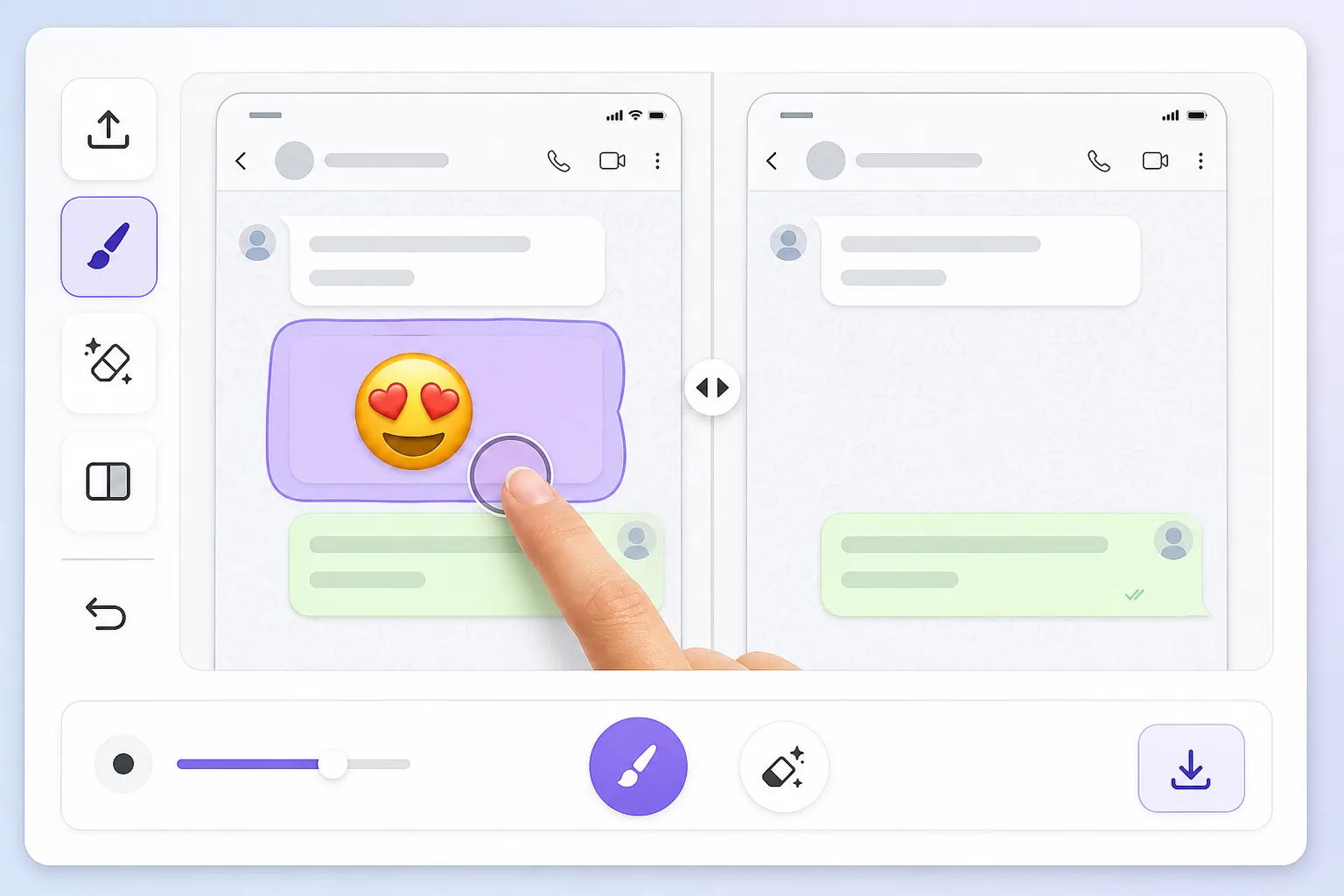
Why a screenshot makes the emoji impossible to just delete với Magic Eraser
When you screenshot a chat, a story, or an app, the device captures one flat raster image. Whatever emoji, reaction, or sticker was placed on top gets baked in alongside the text, photo, or UI behind it — there are no separate layers to undo. That's why you can't simply tap the emoji and remove it later: in the saved PNG or JPG it's the same pixels as everything else. To clear it you have to delete those pixels and fill the gap with something believable. Magic Eraser handles both steps: you brush over the baked-in emoji, the AI removes it, and it synthesizes a reconstruction of the screenshot content underneath. Be clear on one thing — the AI is making an informed guess at what was behind the emoji, not recovering the literal hidden pixels. For backgrounds, wallpaper, UI panels, and plain text it usually looks seamless; for a face or fine detail fully covered by the emoji, treat the result as a clean-up, not a true reveal.
Before you start
Hướng dẫn từng bước
Start with tải ảnh lên. The result preview above and tips below use this guide's existing content; no separate before-and-after proof is assumed.
- 1
Tải ảnh lên
Mở Magic Eraser trên web, iOS hoặc Android. Kéo thả ảnh JPEG, PNG, HEIC hoặc WebP vào. Không cần tài khoản để bắt đầu.
- 2
Chọn công cụ và vùng cần xử lý
Chọn công cụ phù hợp và đánh dấu vùng cần xử lý. AI sẽ tự động phân tích và thực hiện thay đổi trong vài giây.
- 3
Tải kết quả về
Xem trước kết quả và tải ảnh đã chỉnh sửa về. Xuất dưới dạng PNG hoặc JPEG với chất lượng cao.
Phù hợp nhất cho
- Chat screenshots where a reaction emoji or sticker covers part of the message you need to read
- Social media story screenshots with emojis slapped over a photo or background
- App or product screenshots where placeholder emojis need to come off before sharing
- Dating or profile screenshots with an emoji baked over the image you want cleaned up
- Saved memes or forwarded images where someone's emoji landed on the wrong spot
Mẹo để có kết quả tốt nhất
Screenshots have lots of flat, predictable areas — solid chat backgrounds, white UI panels, gradient wallpapers — and the AI reconstructs those almost perfectly, so emojis sitting on plain backgrounds disappear cleanly. Trouble starts when the emoji overlaps busy detail: small text, a face, or a logo. There the AI invents a plausible fill rather than restoring the real characters, so don't rely on it to recover exact words or someone's hidden face. Brush tightly around the emoji instead of swiping broadly, and erase one emoji at a time on cluttered screenshots so each fill has clean reference pixels nearby. If a result looks off, undo and re-brush a slightly smaller area — leaving a sliver of original background gives the AI better context to match colors and texture.
Câu hỏi thường gặp
- Tính năng Xóa emoji khỏi ảnh chụp màn hình có miễn phí không?
- Có, Magic Eraser cho phép bạn Xóa emoji khỏi ảnh chụp màn hình miễn phí với giới hạn hàng ngày. Nâng cấp lên Pro để xử lý không giới hạn và xuất chất lượng cao.
- Xóa emoji khỏi ảnh chụp màn hình mất bao lâu?
- Chỉ mất vài giây. AI của Magic Eraser xử lý ảnh nhanh chóng — hầu hết kết quả có ngay lập tức sau khi tải lên.
- Tôi có thể sử dụng trên điện thoại không?
- Có, Magic Eraser hoạt động trên iOS, Android và mọi trình duyệt web. Bạn có thể chuyển đổi giữa các thiết bị.
- Chất lượng ảnh có bị giảm không?
- Không, Magic Eraser duy trì chất lượng ảnh gốc. AI xử lý thông minh để giữ nguyên chi tiết và độ sắc nét.