
Remove an Emoji From an iPhone Photo
Tìm hiểu cách Xóa emoji trên iPhone với Magic Eraser. Hướng dẫn từng bước đơn giản với công cụ AI miễn phí. Hoạt động trên web, iOS và Android.
Last updated
Thử ngay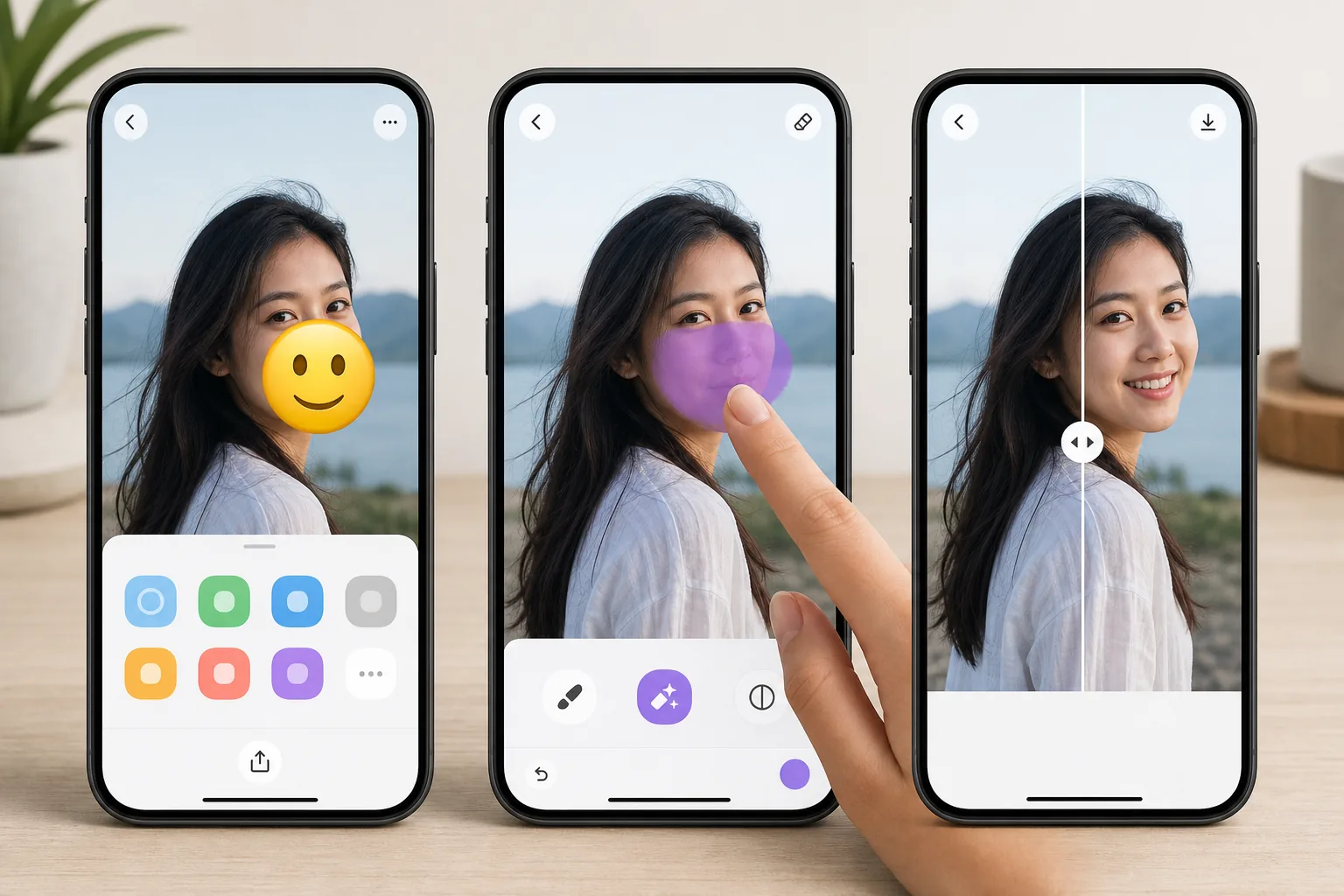
Erase emojis without leaving your iPhone với Magic Eraser
Emojis pile up on iPhone photos fast — a sticker you slapped on in Messages, a 😂 added in Markup, or a face cover someone dropped over a shot before AirDropping it to you. Once it is saved to your camera roll, that emoji is baked into the pixels, and iOS gives you no built-in way to peel it back off. Magic Eraser fixes that on-device. You open the photo in the iOS Photos app, send it to Magic Eraser through the standard share sheet (or the Magic Eraser app), brush over the emoji, and the AI inpainting reconstructs a plausible version of whatever was behind it. To be clear: the AI synthesizes a believable fill based on the surrounding texture — sky, wall, skin, grass — it does not recover the literal original pixels or reveal a hidden face. The result lands back in your Photos library at full resolution, free, and with no watermark on the free tier.
Before you start
Hướng dẫn từng bước
Start with tải ảnh lên. The result preview above and tips below use this guide's existing content; no separate before-and-after proof is assumed.
- 1
Tải ảnh lên
Mở Magic Eraser trên web, iOS hoặc Android. Kéo thả ảnh JPEG, PNG, HEIC hoặc WebP vào. Không cần tài khoản để bắt đầu.
- 2
Chọn công cụ và vùng cần xử lý
Chọn công cụ phù hợp và đánh dấu vùng cần xử lý. AI sẽ tự động phân tích và thực hiện thay đổi trong vài giây.
- 3
Tải kết quả về
Xem trước kết quả và tải ảnh đã chỉnh sửa về. Xuất dưới dạng PNG hoặc JPEG với chất lượng cao.
Phù hợp nhất cho
- Wiping a 😂 or 🔥 sticker you added in iMessage or Markup off a saved photo
- Clearing an emoji face-cover someone placed before AirDropping a picture to you
- Cleaning up a screenshot where an emoji landed over the part you actually wanted
- Prepping a camera-roll shot for posting after removing a playful sticker
- Removing an emoji from a downloaded or received iPhone photo without a Mac or laptop
Mẹo để có kết quả tốt nhất
Brush slightly past the emoji's edges — sticker outlines and soft shadows extend a few pixels beyond the visible art, and missing them leaves a faint halo. Emojis sitting on flat backgrounds (a clear sky, a solid-color wall, blurred bokeh) reconstruct almost invisibly; ones plastered over a face, fine text, or busy patterns are harder, since the AI is inventing a plausible fill rather than restoring true detail. If the first pass looks slightly soft, zoom in on your iPhone and re-brush just the rough area instead of redoing the whole thing. Always keep the original in Photos until you are happy — iOS makes duplicating a shot easy, so edit the copy.
Câu hỏi thường gặp
- Tính năng Xóa emoji trên iPhone có miễn phí không?
- Có, Magic Eraser cho phép bạn Xóa emoji trên iPhone miễn phí với giới hạn hàng ngày. Nâng cấp lên Pro để xử lý không giới hạn và xuất chất lượng cao.
- Xóa emoji trên iPhone mất bao lâu?
- Chỉ mất vài giây. AI của Magic Eraser xử lý ảnh nhanh chóng — hầu hết kết quả có ngay lập tức sau khi tải lên.
- Tôi có thể sử dụng trên điện thoại không?
- Có, Magic Eraser hoạt động trên iOS, Android và mọi trình duyệt web. Bạn có thể chuyển đổi giữa các thiết bị.
- Chất lượng ảnh có bị giảm không?
- Không, Magic Eraser duy trì chất lượng ảnh gốc. AI xử lý thông minh để giữ nguyên chi tiết và độ sắc nét.