
Remove a Date Stamp from an iPhone Photo
That orange date and time stamped across the corner of your iPhone photo usually comes from a timestamp-camera app, not iOS itself — so Photos has no toggle to undo it. Magic Eraser brushes the stamp away and rebuilds the background underneath, no extra editing skills needed.
Last updated
Erase the stamp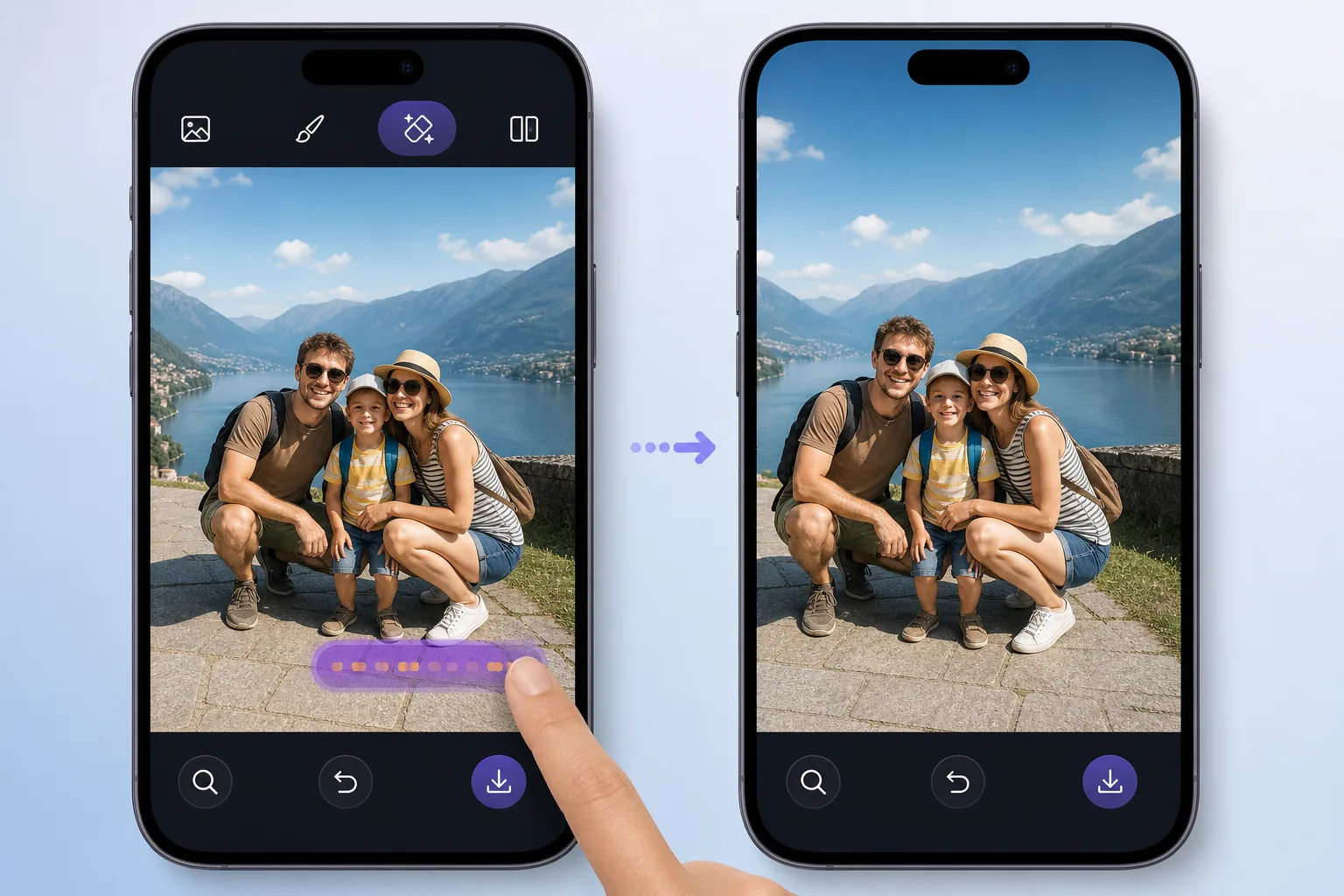
Why the stamp won't disappear from Photos
If your iPhone photos show a date and time printed across a corner, it was almost certainly added by a third-party timestamp-camera app (DateStamper, Timestamp Camera, and similar) at the moment of capture. The text is baked into the pixels, not stored as editable metadata, so the iOS Photos editor — with its crop, filters, and Markup tools — gives you no way to peel it off. Cropping can sometimes cut it out, but only if the stamp sits near an edge, and you lose part of your shot in the process. Magic Eraser takes a different route: you paint over the stamp, and its AI inpainting fills the area with a plausible reconstruction of whatever was behind it — sky, pavement, wall texture — so the corner looks untouched. It works on the web and in the iOS and Android apps, so you can clean up a photo straight from your camera roll.
Before you start
Remove the iPhone date stamp in 3 steps
Start with open the photo from your camera roll. The result preview above and tips below use this guide's existing content; no separate before-and-after proof is assumed.
- 1
Open the photo from your camera roll
Go to magiceraser.live in Safari or open the Magic Eraser iOS app, then import the stamped photo straight from your Photos library. Pinch to zoom into the corner where the date and time sit so you can work precisely.
- 2
Brush over the date and time text
Drag your finger across the stamp to highlight it. Cover the full string — every digit, the slashes or colons, and any AM/PM — but stay close to the text so the AI has the surrounding background to reference. A slightly larger brush over the whole stamp usually beats lots of tiny dabs.
- 3
Erase, check, and save
Tap erase. The AI inpaints the area, synthesizing a believable version of the background rather than recovering literal hidden pixels. Inspect the corner at full zoom; if a faint edge or smudge remains, brush it again. When it looks clean, save the full-resolution image back to your camera roll — no watermark.
Best for
- Photos stamped by timestamp-camera apps like DateStamper or Timestamp Camera
- Corner date/time text you can't remove with the built-in iOS Photos editor
- Stamps too far from the edge to crop out without losing your subject
- Cleaning up shots straight from your iPhone camera roll, no desktop needed
- Removing both the date line and time line in one pass over busy backgrounds like sky or grass
Get a cleaner result
The stamp's background decides how invisible the fix looks. Over plain areas — clear sky, a smooth wall, calm water — the reconstruction is almost always seamless. Over detailed patterns like brick lines, foliage, or printed text, zoom in and erase in shorter strokes so the AI can match the surroundings more closely, and re-brush any leftover halo. If a stamp overlaps your subject's face or fine detail, expect a softer result there; reframing or a light crop can help. Always work from the original full-resolution photo rather than a screenshot, since screenshots drop quality before the edit even begins.
FAQ
- Why can't I remove the date stamp in the iPhone Photos app itself?
- Because the stamp was added by a timestamp-camera app at capture time and burned directly into the image pixels — it isn't editable metadata. The iOS Photos editor only offers crop, filters, and Markup, none of which can lift baked-in text. Magic Eraser paints it out and rebuilds the background instead.
- Is Magic Eraser free to start?
- Yes. There's a free tier you can use to erase date stamps on the web and in the iOS and Android apps, and exports come with no watermark.
- Will the corner look exactly like the original scene behind the stamp?
- Not literally. The AI doesn't recover hidden pixels — it synthesizes a plausible reconstruction of what was likely behind the stamp. Over simple backgrounds it's usually seamless; over intricate detail you may see a soft patch, which you can refine by re-brushing.