
How to remove dark circles from a photo
Tìm hiểu cách How to remove dark circles from a photo với Magic Eraser. Hướng dẫn từng bước đơn giản với công cụ AI miễn phí. Hoạt động trên web, iOS và Android.
Last updated
Thử ngay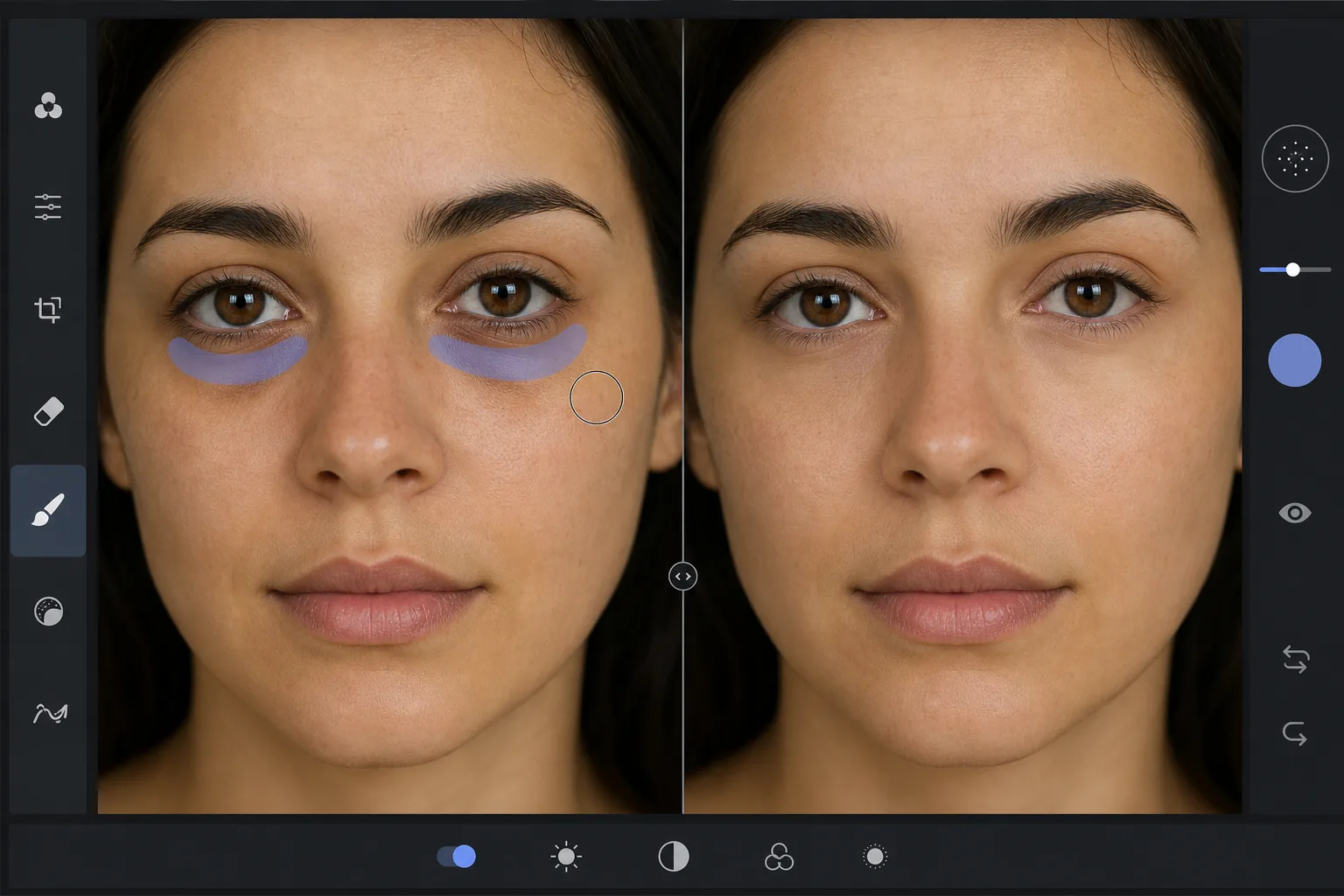
Why dark circles are tricky to retouch với Magic Eraser
Under-eye dark circles are not a single object you can cut out — they are a gradient of shadow and discoloration that blends into the surrounding skin. Heavy-handed editing (a brightness brush, a clone stamp) erases the natural shading that gives the face dimension, leaving a flat, obviously-retouched patch under the eye. The goal is to reduce the darkness while preserving skin texture, pores, and the subtle highlight-to-shadow transition that reads as real. Magic Eraser's AI treats the under-eye region as skin to reconstruct rather than a color to paint over: it lightens the area and rebuilds matching texture from the surrounding cheek and lower-lid skin, so the result looks like a well-rested version of the same face, not an airbrushed mask. This makes it useful for headshots, dating-profile photos, family portraits, and any shot where the subject looks more tired than they felt.
Before you start
Hướng dẫn từng bước
Start with tải ảnh lên. The result preview above and tips below use this guide's existing content; no separate before-and-after proof is assumed.
- 1
Tải ảnh lên
Mở Magic Eraser trên web, iOS hoặc Android. Kéo thả ảnh JPEG, PNG, HEIC hoặc WebP vào. Không cần tài khoản để bắt đầu.
- 2
Chọn công cụ và vùng cần xử lý
Chọn công cụ phù hợp và đánh dấu vùng cần xử lý. AI sẽ tự động phân tích và thực hiện thay đổi trong vài giây.
- 3
Tải kết quả về
Xem trước kết quả và tải ảnh đã chỉnh sửa về. Xuất dưới dạng PNG hoặc JPEG với chất lượng cao.
Phù hợp nhất cho
- Professional headshots where the subject looks tired despite good lighting
- Dating-profile and social photos that need a fresher, well-rested look
- Family and event portraits taken late in the day
- Quick retouching without learning frequency separation or dodge-and-burn
- Batch-cleaning a set of portraits to a consistent look
Mẹo để có kết quả tốt nhất
Reduce, don't erase. Real faces have some shadow under the eye — removing it completely reads as fake. Aim to lighten dark circles to the point they no longer draw attention, not to a uniform flat tone. Brush each eye separately so the AI references the skin closest to each one. If the subject has both dark circles and under-eye bags, the discoloration and the puffiness-shadow are two issues: lighten the discoloration first, then assess whether the remaining shadow still needs a light pass. For a related cleanup, pair this with removing blemishes or skin shine in the same edit. And as always, the most natural result keeps pores and skin texture intact — Magic Eraser preserves them automatically, so avoid over-brushing into clear skin.
Câu hỏi thường gặp
- Tính năng How to remove dark circles from a photo có miễn phí không?
- Có, Magic Eraser cho phép bạn How to remove dark circles from a photo miễn phí với giới hạn hàng ngày. Nâng cấp lên Pro để xử lý không giới hạn và xuất chất lượng cao.
- How to remove dark circles from a photo mất bao lâu?
- Chỉ mất vài giây. AI của Magic Eraser xử lý ảnh nhanh chóng — hầu hết kết quả có ngay lập tức sau khi tải lên.
- Tôi có thể sử dụng trên điện thoại không?
- Có, Magic Eraser hoạt động trên iOS, Android và mọi trình duyệt web. Bạn có thể chuyển đổi giữa các thiết bị.
- Chất lượng ảnh có bị giảm không?
- Không, Magic Eraser duy trì chất lượng ảnh gốc. AI xử lý thông minh để giữ nguyên chi tiết và độ sắc nét.