
Remove the Background in GIMP — or Do It in 1 Click
Tìm hiểu cách Remove the Background in GIMP — or Do It in 1 Click với Magic Eraser. Hướng dẫn từng bước đơn giản với công cụ AI miễn phí. Hoạt động trên web, iOS và Android.
Last updated
Thử ngay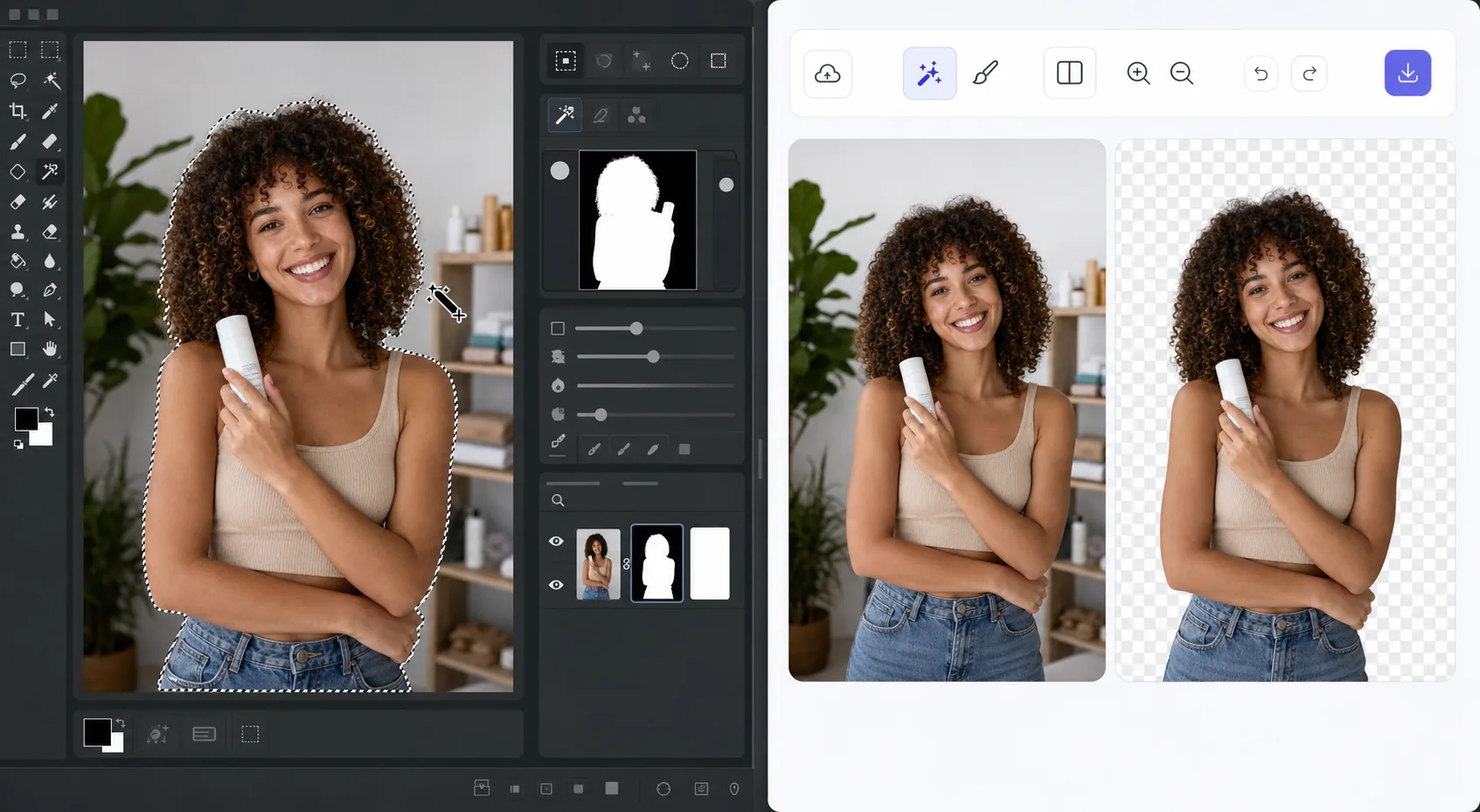
The GIMP method works — it just takes time với Magic Eraser
GIMP is a genuinely capable, free, open-source desktop editor, and removing a background in it is a well-trodden workflow. The usual route: open your image, add an alpha channel, then use the Fuzzy Select (magic wand) or Select by Color tool to grab the background. For clean, high-contrast edges you can often select and delete in a few clicks. For hair, fur, or busy backgrounds, you switch to a layer mask, paint with black to hide and white to reveal, and refine the edge by hand at high zoom. It's powerful and precise — but it's a learn-the-tools, manual process, and it lives on your desktop. If you just need a clean cutout fast, there's a shorter path that needs no install and runs on phone or browser.
Before you start
Hướng dẫn từng bước
Start with tải ảnh lên. The result preview above and tips below use this guide's existing content; no separate before-and-after proof is assumed.
- 1
Tải ảnh lên
Mở Magic Eraser trên web, iOS hoặc Android. Kéo thả ảnh JPEG, PNG, HEIC hoặc WebP vào. Không cần tài khoản để bắt đầu.
- 2
Chọn công cụ và vùng cần xử lý
Chọn công cụ phù hợp và đánh dấu vùng cần xử lý. AI sẽ tự động phân tích và thực hiện thay đổi trong vài giây.
- 3
Tải kết quả về
Xem trước kết quả và tải ảnh đã chỉnh sửa về. Xuất dưới dạng PNG hoặc JPEG với chất lượng cao.
Phù hợp nhất cho
- Product photos that need a clean white or transparent background for a store listing
- Profile pictures and headshots where you want the subject isolated fast
- Anyone without GIMP installed who needs a cutout right now in the browser
- Mobile editing on iOS or Android with no desktop software at hand
- Batch social and marketing images where per-image manual masking isn't worth the time
Mẹo để có kết quả tốt nhất
Use whichever path fits the task. For maximum pixel-level control — compositing, tricky semi-transparent edges, or work you want to keep fully local and offline — GIMP's layer masks reward the effort and cost nothing. For speed and convenience on a clean subject, Magic Eraser's 1-click removal gets you there without the learning curve or the install. A useful workflow: get the fast cutout in Magic Eraser, then open it in GIMP only if you need fine compositing afterward.
Câu hỏi thường gặp
- Tính năng Remove the Background in GIMP — or Do It in 1 Click có miễn phí không?
- Có, Magic Eraser cho phép bạn Remove the Background in GIMP — or Do It in 1 Click miễn phí với giới hạn hàng ngày. Nâng cấp lên Pro để xử lý không giới hạn và xuất chất lượng cao.
- Remove the Background in GIMP — or Do It in 1 Click mất bao lâu?
- Chỉ mất vài giây. AI của Magic Eraser xử lý ảnh nhanh chóng — hầu hết kết quả có ngay lập tức sau khi tải lên.
- Tôi có thể sử dụng trên điện thoại không?
- Có, Magic Eraser hoạt động trên iOS, Android và mọi trình duyệt web. Bạn có thể chuyển đổi giữa các thiết bị.
- Chất lượng ảnh có bị giảm không?
- Không, Magic Eraser duy trì chất lượng ảnh gốc. AI xử lý thông minh để giữ nguyên chi tiết và độ sắc nét.