
Remove a Watermark in Adobe Photoshop — or Skip Straight to 1-Click
Узнайте, как Remove a Watermark in Adobe Photoshop — or Skip Straight to 1-Click с Magic Eraser. Простое пошаговое руководство с бесплатным AI-инструментом. Работает в браузере, на iOS и Android.
Last updated
Попробовать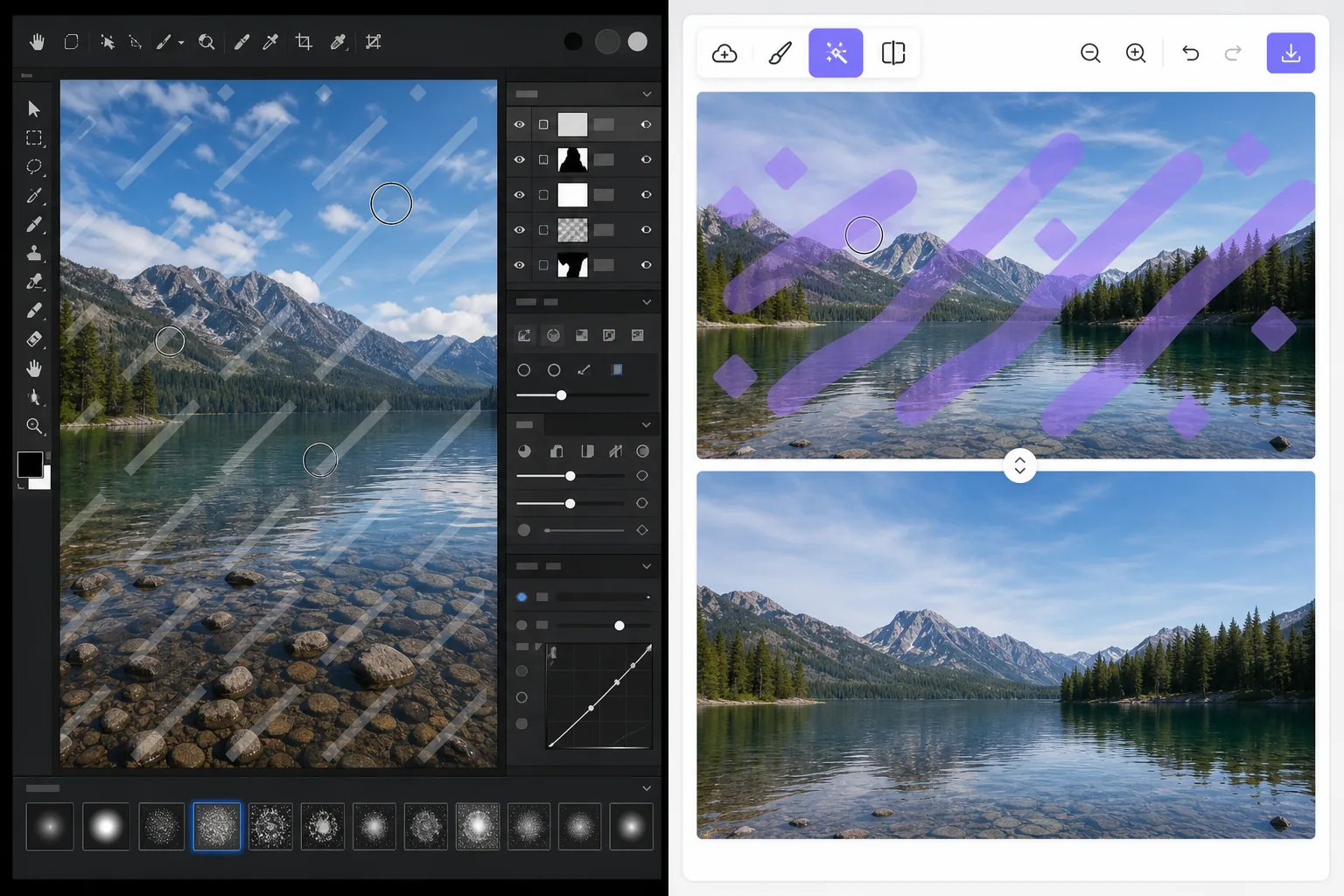
Two ways to remove a watermark — Magic Eraser
Searching for how to remove a watermark in Adobe Photoshop usually lands you on a clone-and-heal tutorial. That method is real and it works: Photoshop is a professional-grade editor with precise Clone Stamp, Healing Brush, and Content-Aware Fill tools that give you pixel-level control. The catch is time and skill. You select the watermark, sample clean pixels, brush carefully, and often repeat across complex backgrounds. For a single quick fix that is a lot of steps. Magic Eraser takes the same goal and compresses it to one click. You brush over the watermark and AI inpainting reconstructs a plausible fill for the area. Honest caveat: it does not recover the literal pixels hidden underneath — no tool can — it generates a believable replacement. For most photos that result is clean enough to use immediately, with no install, no subscription, and no learning curve.
Before you start
Пошаговая инструкция
Start with загрузите фото. The result preview above and tips below use this guide's existing content; no separate before-and-after proof is assumed.
- 1
Загрузите фото
Откройте Magic Eraser в браузере, на iOS или Android. Перетащите фото в формате JPEG, PNG, HEIC или WebP. Аккаунт не нужен.
- 2
Выберите инструмент и область
Выберите подходящий инструмент и укажите область обработки. AI автоматически проанализирует и применит изменения за секунды.
- 3
Скачайте результат
Просмотрите результат и скачайте отредактированное фото. Экспорт в высококачественном PNG или JPEG.
Лучше всего подходит для
- Quick one-off fixes where firing up Adobe Photoshop is overkill
- People without a Photoshop subscription or editing experience
- Removing watermarks on your own photos from a phone (iOS/Android) or browser
- Batch-style cleanups where speed matters more than pixel-perfect retouching
- Anyone who finds clone/heal tutorials too fiddly or time-consuming
Советы для лучших результатов
Only remove watermarks from images you own or are licensed to edit. Watermarks often mark copyrighted or paid-license work, and stripping them from images you do not have rights to can violate copyright and terms of use. When in doubt, license the image or get permission first. For best results on busy backgrounds, brush a little wider than the watermark so the AI has clean surrounding context to reconstruct from.
Часто задаваемые вопросы
- Функция Remove a Watermark in Adobe Photoshop — or Skip Straight to 1-Click бесплатна?
- Да, Magic Eraser позволяет Remove a Watermark in Adobe Photoshop — or Skip Straight to 1-Click бесплатно с ежедневными лимитами. Перейдите на Pro для безлимитной обработки и экспорта в высоком разрешении.
- Сколько времени занимает Remove a Watermark in Adobe Photoshop — or Skip Straight to 1-Click?
- Всего несколько секунд. AI Magic Eraser обрабатывает фото быстро — большинство результатов доступны сразу после загрузки.
- Можно ли использовать на телефоне?
- Да, Magic Eraser работает на iOS, Android и во всех веб-браузерах. Вы можете свободно переключаться между устройствами.
- Ухудшается ли качество изображения?
- Нет, Magic Eraser сохраняет исходное качество фото. AI обрабатывает интеллектуально, сохраняя детали и резкость.