
Remove Screen Glare From Photos
Узнайте, как Remove Screen Glare From Photos с Magic Eraser. Простое пошаговое руководство с бесплатным AI-инструментом. Работает в браузере, на iOS и Android.
Last updated
Попробовать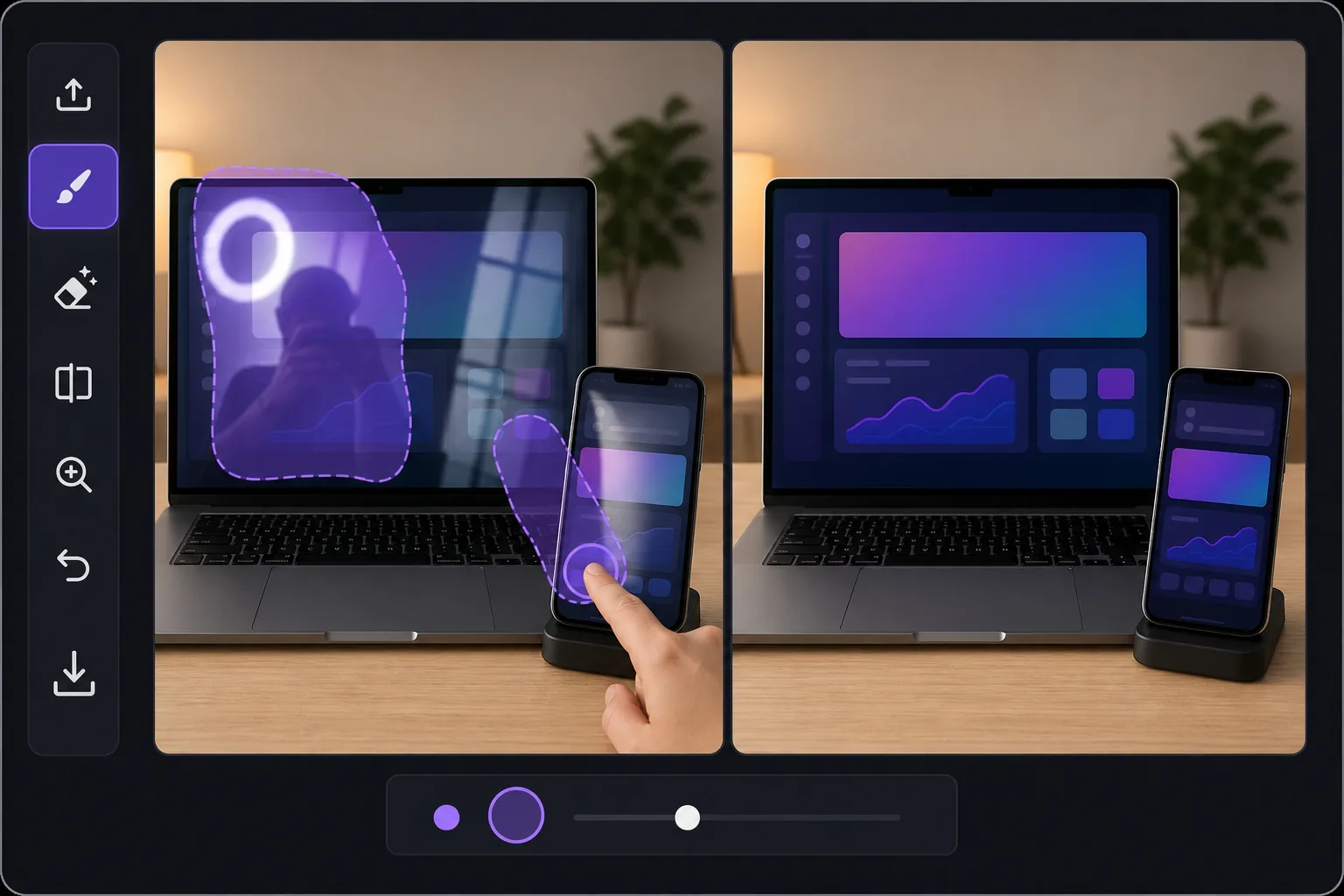
Why screen glare is harder than ordinary glare — Magic Eraser
Glare on a glossy display is a special problem. Phones, laptops, tablets, monitors and TVs are mirrors when they are dark, and they blow out to pure white when light hits them at the wrong angle. In product shots and how-to tutorials, that hotspot or reflection sits directly over the UI, the app screen, or the thing you are trying to show — so a viewer can't read the interface or see the demo. Reshooting means re-staging the device, dimming lights, and chasing the reflection around the room. Magic Eraser skips all of that. Brush over the bright streak, the reflected window, or even your own silhouette caught in the screen, and the AI removes it. Because this is inpainting, it does not recover the literal pixels that were hidden under the glare — it synthesizes a plausible, glare-free continuation of the surrounding screen, bezel and on-screen content. For a uniform wallpaper, a solid app background, or a simple gradient that looks seamless. For dense, specific UI text buried under a full white-out, treat it as a believable clean-up rather than a perfect copy of what was there.
Before you start
Пошаговая инструкция
Start with загрузите фото. The result preview above and tips below use this guide's existing content; no separate before-and-after proof is assumed.
- 1
Загрузите фото
Откройте Magic Eraser в браузере, на iOS или Android. Перетащите фото в формате JPEG, PNG, HEIC или WebP. Аккаунт не нужен.
- 2
Выберите инструмент и область
Выберите подходящий инструмент и укажите область обработки. AI автоматически проанализирует и применит изменения за секунды.
- 3
Скачайте результат
Просмотрите результат и скачайте отредактированное фото. Экспорт в высококачественном PNG или JPEG.
Лучше всего подходит для
- Product photos of phones and tablets where a window or ring light hotspot covers the app on screen
- Laptop and monitor shots for how-to tutorials, with overhead-light glare washing out the interface
- TV and smart-display listings where reflections of the room hide what's playing
- Removing your own silhouette or camera caught reflected in a dark, glossy screen
- E-commerce and marketplace device listings that need a clean, glare-free display to look trustworthy
Советы для лучших результатов
Work in zoomed-in passes rather than one big stroke — small, accurate brushing over the glare protects the surrounding UI and bezel. If a reflection has soft edges, include the faint halo around the hotspot so no gray smear is left behind. For partially blown-out screens, erase the glare first, then judge what's left: if real content survives at the edges, the AI blends it convincingly; if the whole screen is white, expect a believable synthesized fill, not the exact original interface. When the screen shows simple, repeating content (a solid color, wallpaper or plain background), results look near-flawless. For critical UI text or a chart you must show accurately, the cleanest route is to erase glare on a re-shot, dimmer image — and let Magic Eraser handle the residual shine.
Часто задаваемые вопросы
- Функция Remove Screen Glare From Photos бесплатна?
- Да, Magic Eraser позволяет Remove Screen Glare From Photos бесплатно с ежедневными лимитами. Перейдите на Pro для безлимитной обработки и экспорта в высоком разрешении.
- Сколько времени занимает Remove Screen Glare From Photos?
- Всего несколько секунд. AI Magic Eraser обрабатывает фото быстро — большинство результатов доступны сразу после загрузки.
- Можно ли использовать на телефоне?
- Да, Magic Eraser работает на iOS, Android и во всех веб-браузерах. Вы можете свободно переключаться между устройствами.
- Ухудшается ли качество изображения?
- Нет, Magic Eraser сохраняет исходное качество фото. AI обрабатывает интеллектуально, сохраняя детали и резкость.