
Remove an Unwanted Object in Adobe Photoshop — or Erase It in 1 Click
Узнайте, как Remove an Unwanted Object in Adobe Photoshop — or Erase It in 1 Click с Magic Eraser. Простое пошаговое руководство с бесплатным AI-инструментом. Работает в браузере, на iOS и Android.
Last updated
Попробовать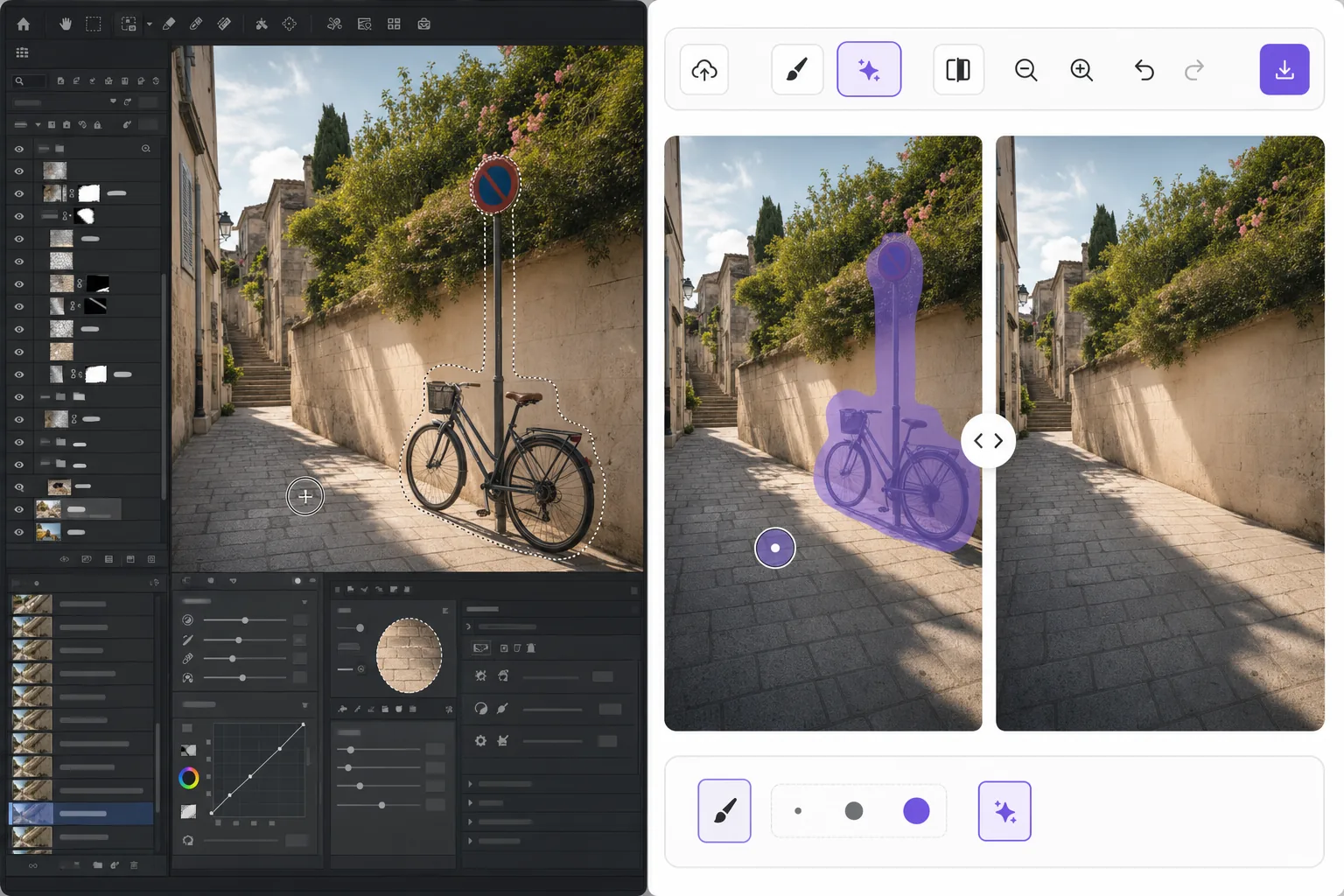
Two ways to remove an unwanted object — Magic Eraser
Searching for how to remove an unwanted object in Adobe Photoshop usually leads to a multi-step tutorial: make a selection around the object, then use Content-Aware Fill or the Clone Stamp and Spot Healing tools to paint over it with surrounding pixels. Adobe Photoshop is a powerful, professional editor and this approach produces excellent results — especially when you want frame-by-frame control over textures, edges, and shadows. The trade-off is the learning curve and the time: you need a paid Adobe subscription, the app installed, and several minutes of careful selecting and retouching per object. Magic Eraser takes the honest shortcut. Instead of selections and layers, you brush over the unwanted object and let AI inpainting reconstruct a plausible background fill. It runs in any browser plus iOS and Android, costs nothing to start, and handles most everyday photos — stray people, signs, wires, blemishes — in a single pass. If you need pixel-perfect compositing for a client deliverable, Photoshop is still a fine choice. For everything else, here is the faster path.
Before you start
Пошаговая инструкция
Start with загрузите фото. The result preview above and tips below use this guide's existing content; no separate before-and-after proof is assumed.
- 1
Загрузите фото
Откройте Magic Eraser в браузере, на iOS или Android. Перетащите фото в формате JPEG, PNG, HEIC или WebP. Аккаунт не нужен.
- 2
Выберите инструмент и область
Выберите подходящий инструмент и укажите область обработки. AI автоматически проанализирует и применит изменения за секунды.
- 3
Скачайте результат
Просмотрите результат и скачайте отредактированное фото. Экспорт в высококачественном PNG или JPEG.
Лучше всего подходит для
- Removing photobombers and strangers from travel and event photos
- Cleaning up power lines, poles, and wires from landscape shots
- Erasing signs, logos, watermarks, and date stamps
- Deleting blemishes, dust, or stray objects from product images
- Quick edits on mobile when you don't have Photoshop installed
Советы для лучших результатов
Brush slightly beyond the object's edges so the AI has room to blend the fill, and include any contact shadow the object casts. For large objects against busy or detailed backgrounds (brick patterns, faces, repeating text), work in smaller passes and re-erase rather than covering everything at once — this gives the inpainting cleaner reference pixels. If a single result looks off, undo and re-brush; the fill is regenerated each time. And remember the honest caveat: Magic Eraser reconstructs a plausible background, it does not recover the real pixels hidden behind the object — so for forensic or pixel-exact compositing work, the manual Adobe Photoshop method still wins.
Часто задаваемые вопросы
- Функция Remove an Unwanted Object in Adobe Photoshop — or Erase It in 1 Click бесплатна?
- Да, Magic Eraser позволяет Remove an Unwanted Object in Adobe Photoshop — or Erase It in 1 Click бесплатно с ежедневными лимитами. Перейдите на Pro для безлимитной обработки и экспорта в высоком разрешении.
- Сколько времени занимает Remove an Unwanted Object in Adobe Photoshop — or Erase It in 1 Click?
- Всего несколько секунд. AI Magic Eraser обрабатывает фото быстро — большинство результатов доступны сразу после загрузки.
- Можно ли использовать на телефоне?
- Да, Magic Eraser работает на iOS, Android и во всех веб-браузерах. Вы можете свободно переключаться между устройствами.
- Ухудшается ли качество изображения?
- Нет, Magic Eraser сохраняет исходное качество фото. AI обрабатывает интеллектуально, сохраняя детали и резкость.