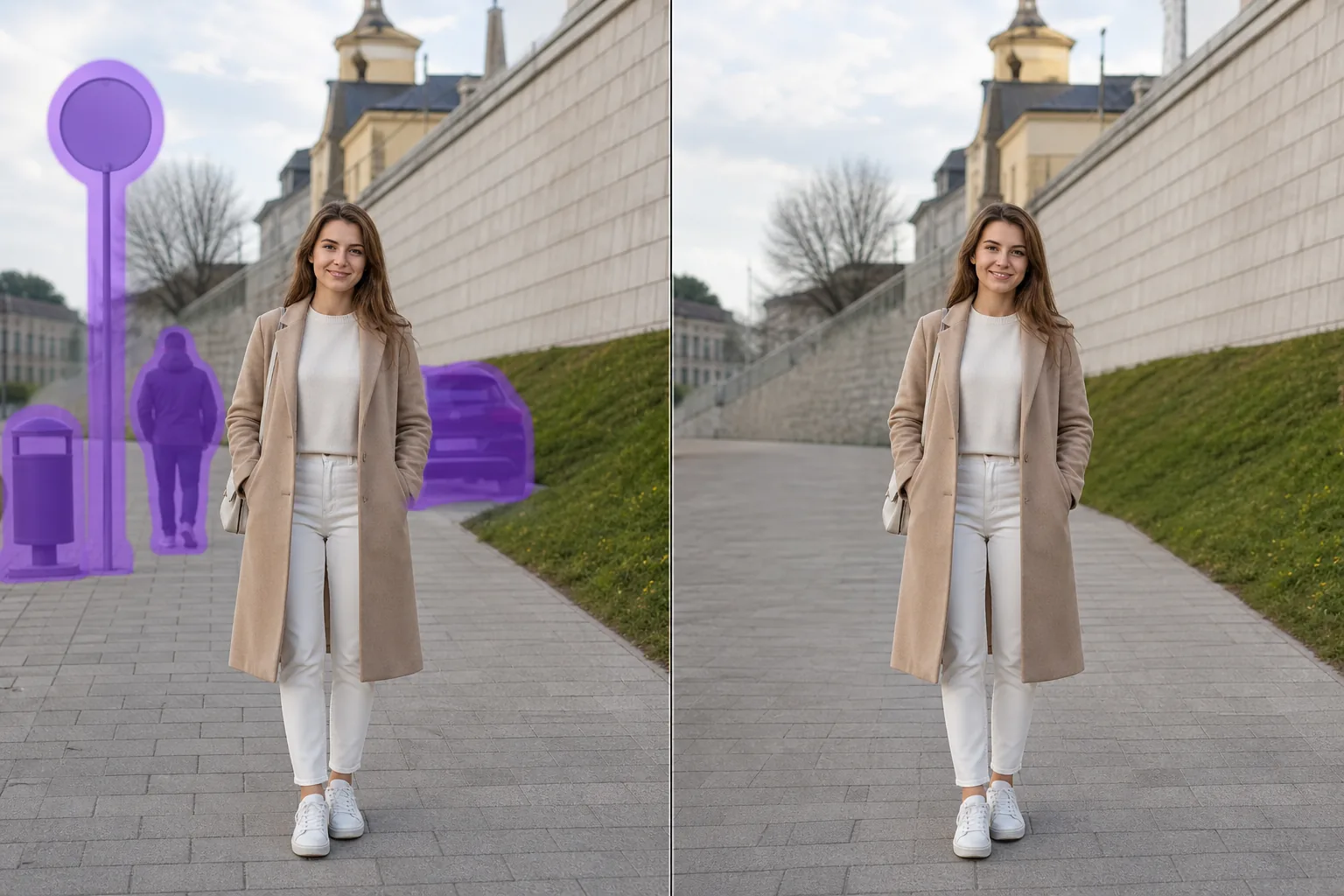
사진에서 배경 물체 제거하기
Magic Eraser로 사진에서 배경 물체을(를) 몇 초 만에 제거하세요. AI가 자동으로 배경을 복원합니다. iOS, Android, 웹에서 무료로 사용 가능.
Last updated
지금 사용해보기

AI 배경 물체 제거 작동 방식
A great shot is often ruined by something in the background — a stranger walking through, a rubbish bin by the wall, a road sign poking out behind someone's head. Magic Eraser focuses on exactly that problem: removing background distractions without disturbing the person, pet or product in front. You brush over the thing you want gone, and the AI rebuilds the area behind it — the wall, sky, grass or pavement that the object was hiding. Because the original pixels behind an object don't exist in the photo, the tool synthesizes a believable replacement rather than recovering anything literal. For background clutter set against fairly even surfaces, that reconstruction is usually clean enough to share straight away. It runs on the web and on iOS and Android, with a free tier and no watermark, so you can fix a background in seconds and download the result.
단계별 안내
- 1
사진 업로드
웹, iOS 또는 Android에서 Magic Eraser를 열고 배경 물체이(가) 있는 사진을 업로드하세요. JPEG, PNG, WebP를 지원합니다.
- 2
영역 위에 브러시
제거하려는 배경 물체 위에 브러시로 칠하세요. 대상보다 약간 넓게 칠하면 AI가 더 깨끗한 테두리를 만듭니다.
- 3
지우기 및 다운로드
AI가 몇 초 만에 배경을 복원합니다. 결과를 확인하고 필요시 터치업 브러시로 수정한 후 원본 해상도로 내보내세요.
추천 대상
- Erasing a stranger or photobomber walking behind your main subject
- Removing road signs, posts and street furniture sticking out behind someone's head
- Clearing rubbish bins, recycling boxes and clutter against a back wall
- Deleting parked or passing cars in the background of portraits and travel shots
- Tidying messy shelves, cables and household clutter behind a product photo
- Removing distant tourists or crowds behind a landmark
- Cleaning up power lines or poles in the sky behind a scene
- Taking out background scaffolding, fences or construction mess
참고 사항
Magic Eraser doesn't uncover the hidden pixels behind an object — it generates a plausible reconstruction based on the surrounding area. That works best when the background behind the object is fairly simple and continuous: a wall, sky, water, grass, pavement or an even floor. In those cases the patch usually blends in seamlessly. Removing something in front of a busy or highly detailed background — repeating patterns, text, faces, or intricate architecture — is harder, and the fill can look soft or slightly off on close inspection. A few tips: brush a little beyond the object's edge to capture its shadow and any colour spill, work in zoomed-in passes for cleaner boundaries, and remove large background objects in smaller sections rather than one huge selection. If the first result isn't perfect, run a second pass over the leftover area — it often resolves the remaining artifacts. Always keep your brush on the background and off the foreground subject so the person or product in front stays crisp.
자주 묻는 질문
- 사진에서 배경 물체을(를) 무료로 제거할 수 있나요?
- 네. Magic Eraser 무료 플랜으로 일일 사용 한도 내에서 배경 물체 제거가 가능합니다. Premium($29.99/년) 업그레이드 시 한도가 해제되고 고해상도 내보내기가 가능합니다.
- 배경 물체 제거에 얼마나 걸리나요?
- 보통 몇 초면 됩니다. AI가 칠한 영역을 처리하고 배경을 거의 즉시 복원합니다.
- 모바일에서도 작동하나요?
- 네. Magic Eraser는 iOS, Android, 웹 브라우저에서 작동합니다. 어떤 기기에서든 배경 물체을(를) 제거할 수 있습니다.
- 이미지 품질이 유지되나요?
- 아니요. AI가 사진의 원래 해상도와 품질을 유지합니다. 복원된 영역은 주변 조명, 색상, 텍스처와 일치합니다.