
Remove Decorative Emoji Overlays From a Photo
Magic Eraserで絵文字オーバーレイを除去する方法を学びましょう。無料のAIツールを使ったシンプルなステップバイステップガイド。Web、iOS、Androidで利用可能。
Last updated
今すぐ試す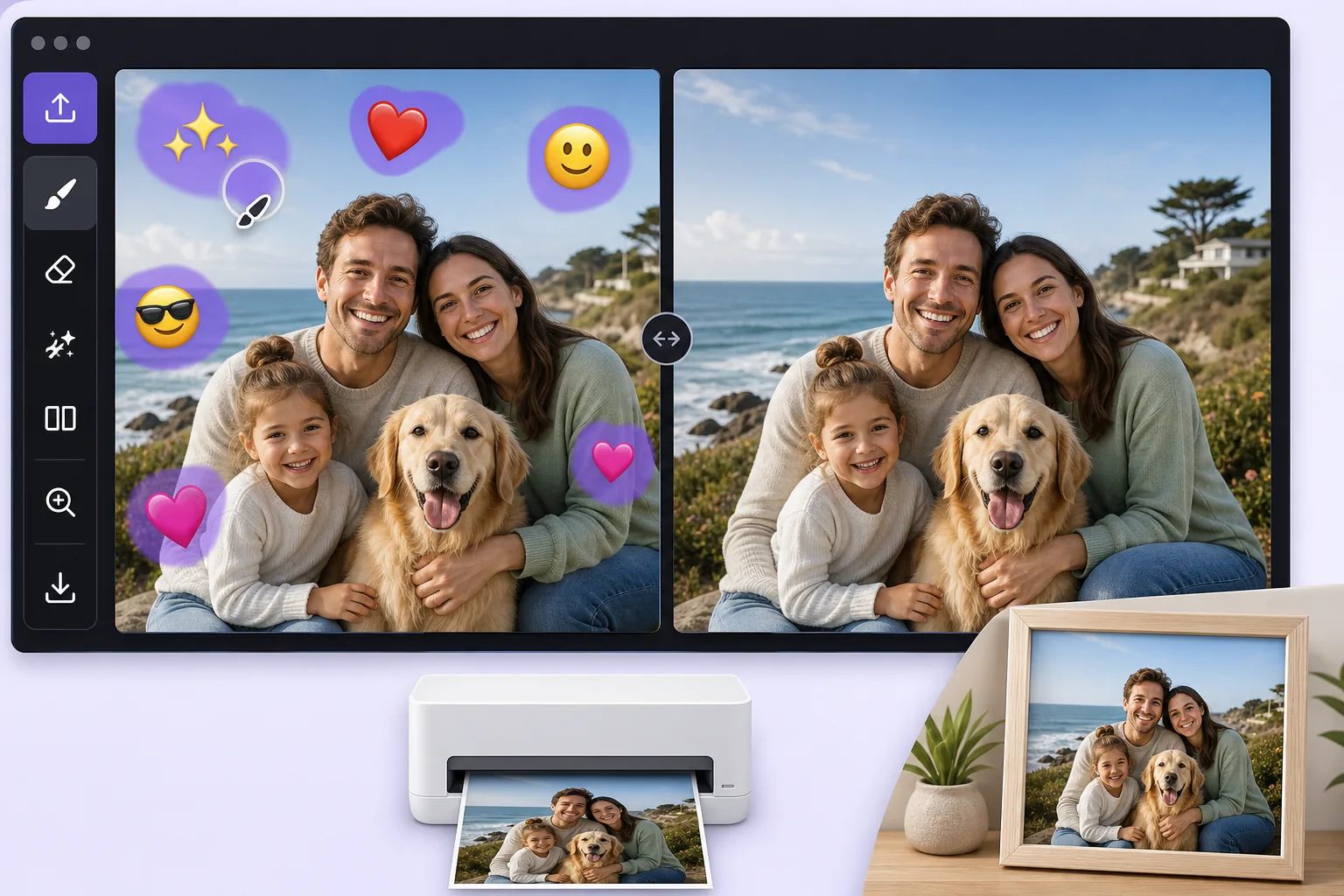
Turn a fun, sticker-covered photo into a clean print-ready image — Magic Eraser
We all decorate photos with emoji overlays for laughs, a crown on a birthday selfie, sunglasses on the dog, a string of hearts across a couple shot. The problem comes later, when you want to print that photo as a framed gift, submit it for a professional profile, or hand it to a client, and the cartoon stickers suddenly look out of place. Re-shooting is rarely an option, and the original un-stickered file is often long gone. Magic Eraser solves this by removing the decorative emoji overlay and using AI inpainting to fill the gap with a believable continuation of the surrounding scene. Be clear on what this does: the AI synthesizes a plausible reconstruction of the area an emoji was covering, it does not recover the literal original pixels that were hidden, and it cannot reveal a face or detail that the sticker concealed. For most decorative overlays, though, what was behind them is ordinary background, wall, sky, clothing, hair, so the result is clean enough to print or use professionally. It runs free on web, iOS, and Android with no watermark, so you can clean up a photo on your phone right after the fun and have a print-ready version in seconds.
Before you start
ステップバイステップ手順
Start with 写真をアップロード. The result preview above and tips below use this guide's existing content; no separate before-and-after proof is assumed.
- 1
写真をアップロード
Web、iOS、またはAndroidでMagic Eraserを開きます。JPEG、PNG、HEIC、WebP形式の写真をドラッグ&ドロップ。アカウント不要で始められます。
- 2
ツールと範囲を選択
適切なツールを選択し、処理する範囲を指定します。AIが自動的に分析し、数秒で変更を適用します。
- 3
結果をダウンロード
結果をプレビューして、編集済みの写真をダウンロード。高品質のPNGまたはJPEGでエクスポートできます。
こんな方におすすめ
- Cleaning a birthday or holiday selfie before ordering it as a framed print or photo gift
- Turning a fun, sticker-decorated headshot into a usable photo for a resume or LinkedIn profile
- Removing playful emoji a friend added before you reuse the shot in a client deck or brochure
- Stripping heart and sparkle overlays off a couple or wedding photo destined for a printed album
- Prepping a casually decorated product or pet photo for a professional listing or store catalog
ベストな結果を得るコツ
Start from the largest version of the file you can find, the original camera roll image rather than a re-saved chat screenshot, because printing magnifies any softness in the reconstructed area. Emoji placed over flat, repeating backgrounds like a wall, sky, or solid shirt reconstruct most convincingly; an emoji sitting on top of a face or fine detail is harder, and the AI will invent a plausible fill rather than restore the true hidden feature, so treat those spots critically before printing. Work emoji-by-emoji on busy photos and review each erased patch zoomed in. If a result looks off, a slightly larger or smaller brush selection often gives the AI better context to rebuild the scene.
よくある質問
- 絵文字オーバーレイを除去機能は無料ですか?
- はい、Magic Eraserでは毎日の無料枠内で絵文字オーバーレイを除去が可能です。Pro にアップグレードすると無制限に処理でき、高解像度でエクスポートできます。
- 絵文字オーバーレイを除去にはどのくらい時間がかかりますか?
- ほんの数秒です。Magic EraserのAIは写真を高速処理し、ほとんどの場合アップロード直後に結果が得られます。
- スマートフォンでも使えますか?
- はい、Magic EraserはiOS、Android、およびすべてのWebブラウザで利用できます。デバイス間で自由に切り替え可能です。
- 画質は低下しますか?
- いいえ、Magic Eraserは元の写真の品質を維持します。AIがスマートに処理し、ディテールとシャープネスを保ちます。