
Remove Emoji from a Screenshot
Magic Eraserでスクリーンショットから絵文字を除去する方法を学びましょう。無料のAIツールを使ったシンプルなステップバイステップガイド。Web、iOS、Androidで利用可能。
Last updated
今すぐ試す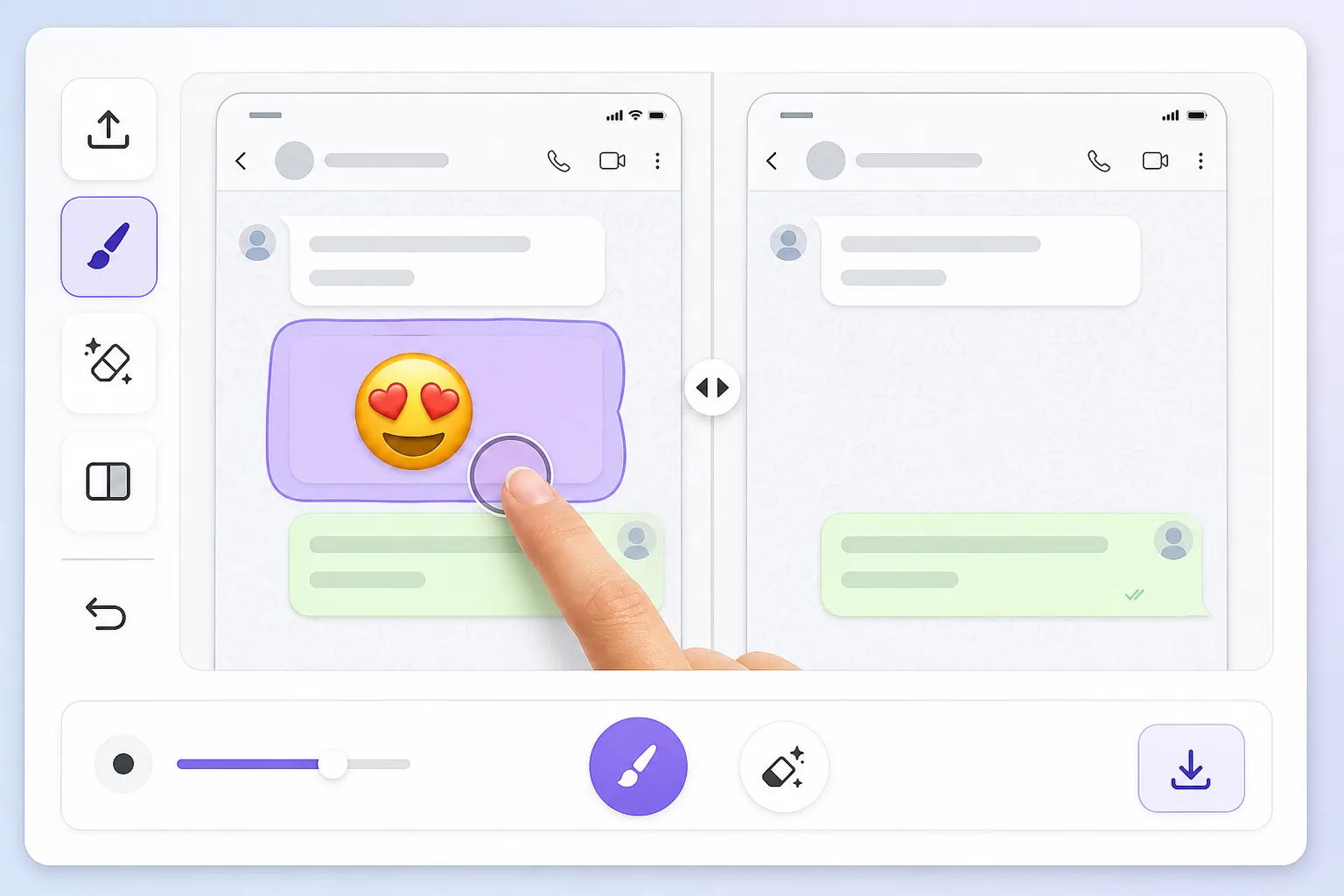
Why a screenshot makes the emoji impossible to just delete — Magic Eraser
When you screenshot a chat, a story, or an app, the device captures one flat raster image. Whatever emoji, reaction, or sticker was placed on top gets baked in alongside the text, photo, or UI behind it — there are no separate layers to undo. That's why you can't simply tap the emoji and remove it later: in the saved PNG or JPG it's the same pixels as everything else. To clear it you have to delete those pixels and fill the gap with something believable. Magic Eraser handles both steps: you brush over the baked-in emoji, the AI removes it, and it synthesizes a reconstruction of the screenshot content underneath. Be clear on one thing — the AI is making an informed guess at what was behind the emoji, not recovering the literal hidden pixels. For backgrounds, wallpaper, UI panels, and plain text it usually looks seamless; for a face or fine detail fully covered by the emoji, treat the result as a clean-up, not a true reveal.
Before you start
ステップバイステップ手順
Start with 写真をアップロード. The result preview above and tips below use this guide's existing content; no separate before-and-after proof is assumed.
- 1
写真をアップロード
Web、iOS、またはAndroidでMagic Eraserを開きます。JPEG、PNG、HEIC、WebP形式の写真をドラッグ&ドロップ。アカウント不要で始められます。
- 2
ツールと範囲を選択
適切なツールを選択し、処理する範囲を指定します。AIが自動的に分析し、数秒で変更を適用します。
- 3
結果をダウンロード
結果をプレビューして、編集済みの写真をダウンロード。高品質のPNGまたはJPEGでエクスポートできます。
こんな方におすすめ
- Chat screenshots where a reaction emoji or sticker covers part of the message you need to read
- Social media story screenshots with emojis slapped over a photo or background
- App or product screenshots where placeholder emojis need to come off before sharing
- Dating or profile screenshots with an emoji baked over the image you want cleaned up
- Saved memes or forwarded images where someone's emoji landed on the wrong spot
ベストな結果を得るコツ
Screenshots have lots of flat, predictable areas — solid chat backgrounds, white UI panels, gradient wallpapers — and the AI reconstructs those almost perfectly, so emojis sitting on plain backgrounds disappear cleanly. Trouble starts when the emoji overlaps busy detail: small text, a face, or a logo. There the AI invents a plausible fill rather than restoring the real characters, so don't rely on it to recover exact words or someone's hidden face. Brush tightly around the emoji instead of swiping broadly, and erase one emoji at a time on cluttered screenshots so each fill has clean reference pixels nearby. If a result looks off, undo and re-brush a slightly smaller area — leaving a sliver of original background gives the AI better context to match colors and texture.
よくある質問
- スクリーンショットから絵文字を除去機能は無料ですか?
- はい、Magic Eraserでは毎日の無料枠内でスクリーンショットから絵文字を除去が可能です。Pro にアップグレードすると無制限に処理でき、高解像度でエクスポートできます。
- スクリーンショットから絵文字を除去にはどのくらい時間がかかりますか?
- ほんの数秒です。Magic EraserのAIは写真を高速処理し、ほとんどの場合アップロード直後に結果が得られます。
- スマートフォンでも使えますか?
- はい、Magic EraserはiOS、Android、およびすべてのWebブラウザで利用できます。デバイス間で自由に切り替え可能です。
- 画質は低下しますか?
- いいえ、Magic Eraserは元の写真の品質を維持します。AIがスマートに処理し、ディテールとシャープネスを保ちます。