
Comment supprimer un tatouage d'une photo
Avez-vous besoin d'une version sans tatouage d'un portrait pour un usage professionnel ou souhaitez-vous avoir un aperçu de ce à quoi vous ressembleriez sans encre ? Magic Eraser élimine les tatouages tout en reconstruisant la texture, le teint et l'éclairage naturels de la peau.
Last updated
Supprimer le tatouage maintenant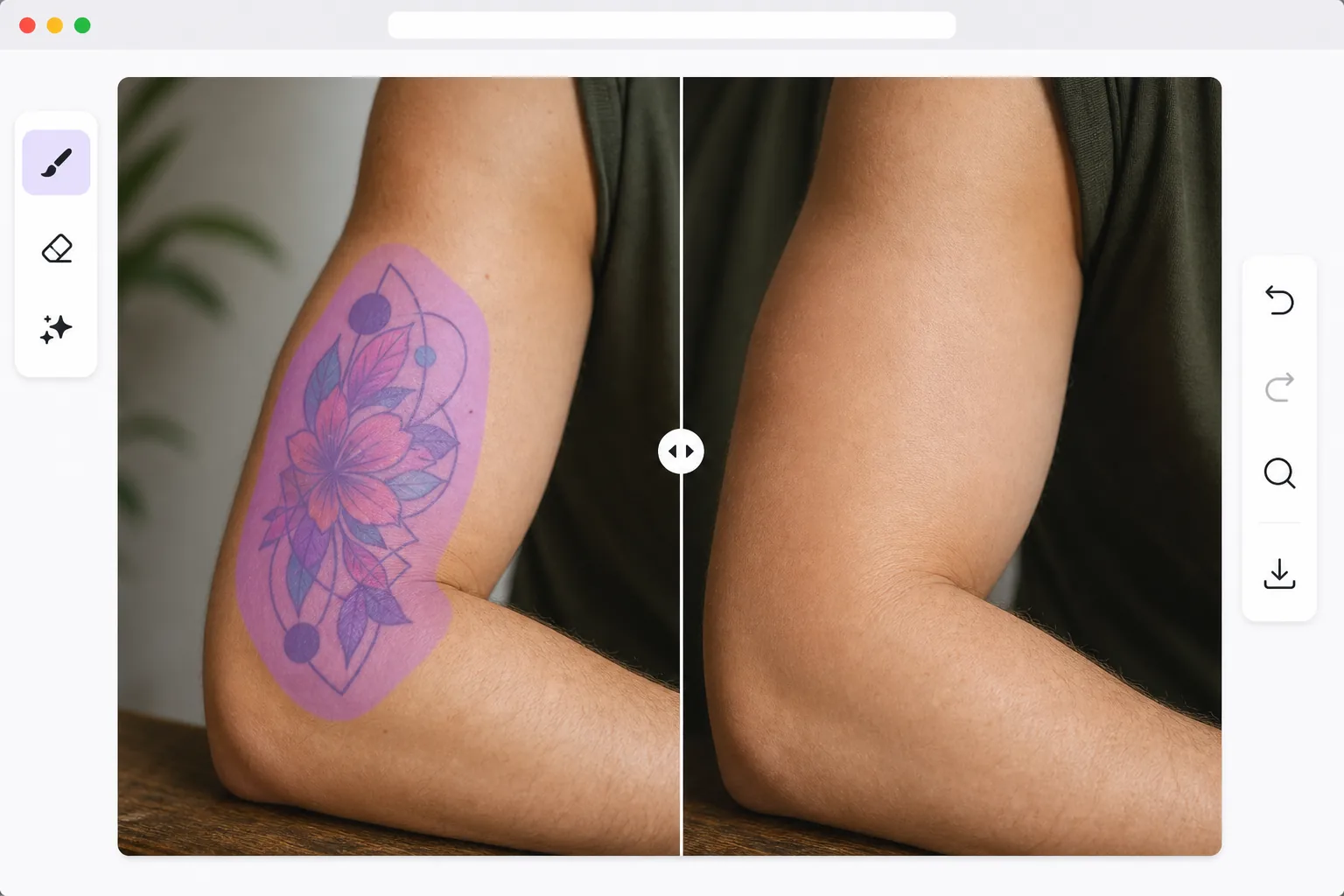
Comment le détatouage par l’IA reconstruit la peau naturelle
Pour effacer un tatouage sur une photo, ouvrez Magic Eraser sur le web, iOS ou Android, importez l'image, passez le pinceau sur tout le tatouage en débordant légèrement sur la peau nette, puis touchez Effacer. L'IA remplace l'encre par une peau reconstituée qui s'accorde au teint, aux pores et à la lumière des alentours : la zone ressemble à de la peau nue, pas à une retouche grossière. C'est gratuit, sans inscription. Cela modifie uniquement la photo : ça n'enlève pas un vrai tatouage sur la peau. C'est donc idéal pour des photos de book, des portraits officiels ou pour visualiser un rendu sans tatouage. Pour les grandes pièces, travaillez par sections afin d'obtenir le résultat le plus naturel possible. Le détatouage sur les photos est plus nuancé que le simple retrait d’objets. Les tatouages suivent les contours de la peau et l'encre interagit avec le teint, la réflexion de la lumière et la définition musculaire. Le simple fait de peindre sur un tatouage avec une couleur de peau mate semble évidemment artificiel. L'élimination basée sur l'IA considère la peau comme une surface tridimensionnelle : elle reconstruit les pores, les follicules pileux, les motifs veineux subtils et les variations naturelles de couleur qui existeraient si le tatouage n'était pas là. Le résultat correspond au ton, à la texture et à l'éclairage de la peau environnante, produisant un résultat qui donne l'impression que la personne n'a jamais eu le tatouage.
Before you start
Supprimer un tatouage en trois étapes
Start with téléchargez la photo. The result preview above and tips below use this guide's existing content; no separate before-and-after proof is assumed.
- 1
Téléchargez la photo
Ouvrez Magic Eraser sur le Web, iOS ou Android. Téléchargez le portrait ou la photo du corps. L'IA fonctionne avec des tatouages de toutes tailles, couleurs et complexités, des petits motifs de poignet aux tatouages sur les manches complètes.
- 2
Brossez le tatouage
Utilisez l’outil pinceau pour recouvrir complètement le tatouage. Suivez de près les limites du tatouage, mais incluez une petite marge de peau propre afin que l'IA puisse correspondre parfaitement au ton et à la texture environnants.
- 3
Examiner la reconstruction et l'exportation de la peau
L’IA remplace le tatouage par une peau naturelle qui correspond à la zone environnante. Vérifiez que les contours musculaires, les plis cutanés et les transitions d'éclairage semblent continus. Exportez le portrait épuré en pleine résolution.
Idéal pour
- Modèles ayant besoin de photos de portfolio sans tatouage pour les castings et les auditions
- Professionnels créant des portraits formels là où les tatouages ne sont pas appropriés
- Les gens prévisualisent à quoi ils ressembleraient avant de se faire enlever un tatouage
- Photographes proposant des retouches de détatouage en tant que service à leurs clients
- Utilisateurs de médias sociaux créant des versions alternatives de photos pour différents publics
Conseils pour de meilleurs résultats
Les photos bien éclairées produisent les meilleurs résultats car l’IA doit comprendre la couleur et la texture naturelles de la peau. Pour les grands tatouages (manches complètes, dos), procédez par sections plutôt que de sélectionner la zone entière en même temps – cela donne à l’IA un contexte plus environnant pour chaque section. Les tatouages sombres sur une peau claire sont plus faciles car le contraste facilite la détection des limites. Les tatouages colorés sur une peau bronzée nécessitent un brossage plus soigné sur les bords. Après le retrait, effectuez un zoom avant pour vérifier que la texture de la peau reconstruite correspond au motif des pores et aux cheveux de la zone environnante.
Questions fréquemment posées
- Peut-il enlever les tatouages colorés ?
- Oui. L'IA gère l'encre noire, les tatouages de couleur, les styles d'aquarelle et même les tatouages UV/lumière noire. Chaque type est remplacé par une peau reconstruite qui correspond à la zone environnante.
- Est-ce que ça marche avec les tatouages à manches complètes ?
- Oui, même si le traitement par sections produit les meilleurs résultats pour les grands tatouages. Commencez par les bords et travaillez vers l’intérieur afin que l’IA ait toujours un contexte cutané propre à proximité.
- Le détatouage est-il gratuit ?
- Oui. Les fonctionnalités de suppression d'objets sont disponibles dans le niveau gratuit avec des limites d'utilisation quotidiennes. Premium supprime les limites du traitement par lots.
- Comment effacer un tatouage sur une photo sous Android ou iPhone ?
- Ouvrez Magic Eraser dans n'importe quel navigateur mobile ou dans l'application iOS ou Android, chargez la photo depuis votre pellicule, puis pincez pour zoomer afin de suivre le tatouage avec précision. Passez le doigt sur tout le motif en débordant un peu sur la peau nette, puis touchez Effacer. L'IA reconstruit la peau en dessous directement sur votre téléphone et enregistre l'image nette dans votre pellicule. Le fonctionnement est identique à la version bureau, et aucune installation n'est nécessaire si vous passez par le navigateur.
- Est-ce que ça enlève vraiment un tatouage sur la peau ?
- Non. Magic Eraser est un éditeur de photos : il modifie les pixels d'une image pour que le tatouage n'apparaisse plus sur cette photo. Cela n'a rien à voir avec le détatouage réel, qui est un acte médical (traitement au laser) réalisé par un professionnel agréé. Utilisez cet outil quand vous voulez une version sans tatouage d'une photo : pour un book de casting, un portrait officiel, ou pour prévisualiser un rendu sans tatouage avant de réserver un vrai détatouage.