
Remove an Object From a Photo, Free and Online
Découvrez comment Remove an Object From a Photo, Free and Online avec Magic Eraser. Guide simple étape par étape avec un outil IA gratuit. Fonctionne sur le web, iOS et Android.
Last updated
Essayer maintenant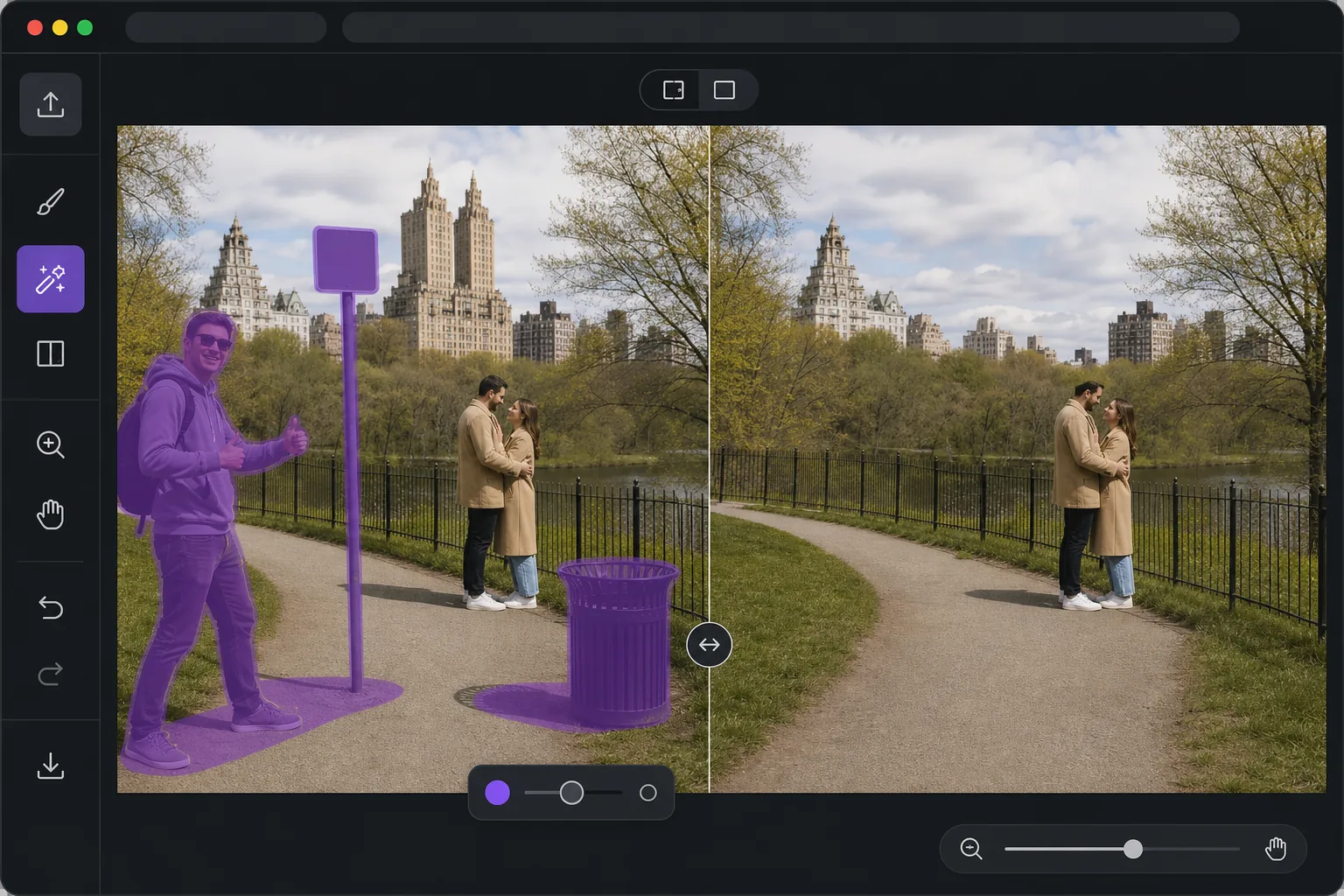
Open the editor, then remove it. avec Magic Eraser
When you want one object gone from a photo, the last thing you need is desktop software, a complex editor, or a forced paid trial before you can see a result. Magic Eraser runs entirely in your browser, so there is nothing to install. Use your limited free edits, brush over the thing you want gone, and AI inpainting reconstructs a plausible background where it used to be — fences, sky, grass, walls — so the gap blends in instead of leaving a hole. Free exports are saved without a watermark, which means the photo you download is the photo you keep. The whole loop is built for speed: open the page, paint over the object, preview the fill, and save. No menus to learn and no layers to manage; limited free edits are available before you choose any paid plan. If you just need a clean shot fast, this is the shortest path from messy photo to finished image.
Before you start
Instructions étape par étape
Start with téléchargez la photo. The result preview above and tips below use this guide's existing content; no separate before-and-after proof is assumed.
- 1
Téléchargez la photo
Ouvrez Magic Eraser sur le web, iOS ou Android. Glissez-déposez votre photo JPEG, PNG, HEIC ou WebP. Aucun compte nécessaire pour commencer.
- 2
Sélectionnez l'outil et la zone
Choisissez l'outil approprié et marquez la zone à traiter. L'IA analyse et applique automatiquement les modifications en quelques secondes.
- 3
Téléchargez le résultat
Prévisualisez le résultat et téléchargez la photo éditée. Exportez en PNG ou JPEG haute qualité.
Idéal pour
- Removing a photobomber or stranger before you post in the next minute
- Cleaning up a listing or product shot without opening desktop software
- Editing on a phone or borrowed computer where you can't install apps
- One-off fixes where installing software is not worth it
- Quick social posts that need a clean image with no watermark
Conseils pour de meilleurs résultats
Brush slightly past the edges of the object so the AI has room to blend, rather than tracing it tightly. Objects sitting against simple, repeating backgrounds — sky, water, grass, plain walls — reconstruct most convincingly. For larger or more complex removals, work in passes: erase the main object first, then brush over any leftover shadow or reflection it left behind. If a fill looks off, undo and reselect with a slightly different brush area; small changes to your selection often produce a noticeably better blend.
Questions fréquentes
- La fonction Remove an Object From a Photo, Free and Online est-elle gratuite ?
- Oui, Magic Eraser permet de Remove an Object From a Photo, Free and Online gratuitement avec des limites quotidiennes. Passez au plan Pro pour un traitement illimité et des exports haute résolution.
- Combien de temps faut-il pour Remove an Object From a Photo, Free and Online ?
- Quelques secondes seulement. L'IA de Magic Eraser traite les photos rapidement — la plupart des résultats sont disponibles immédiatement après le téléchargement.
- Puis-je l'utiliser sur mon téléphone ?
- Oui, Magic Eraser fonctionne sur iOS, Android et tous les navigateurs web. Vous pouvez passer d'un appareil à l'autre librement.
- La qualité de l'image est-elle préservée ?
- Non, Magic Eraser préserve la qualité originale de la photo. L'IA traite intelligemment pour conserver les détails et la netteté.