
Eliminar rayones de las fotos
Borre rayones, grietas, arrugas y daños en la superficie de impresiones escaneadas, fotografías antiguas y fotografías familiares antiguas. Magic Eraser elimina el daño y reconstruye el detalle original debajo, restaurando las fotografías a su apariencia anterior al daño.
Última actualización
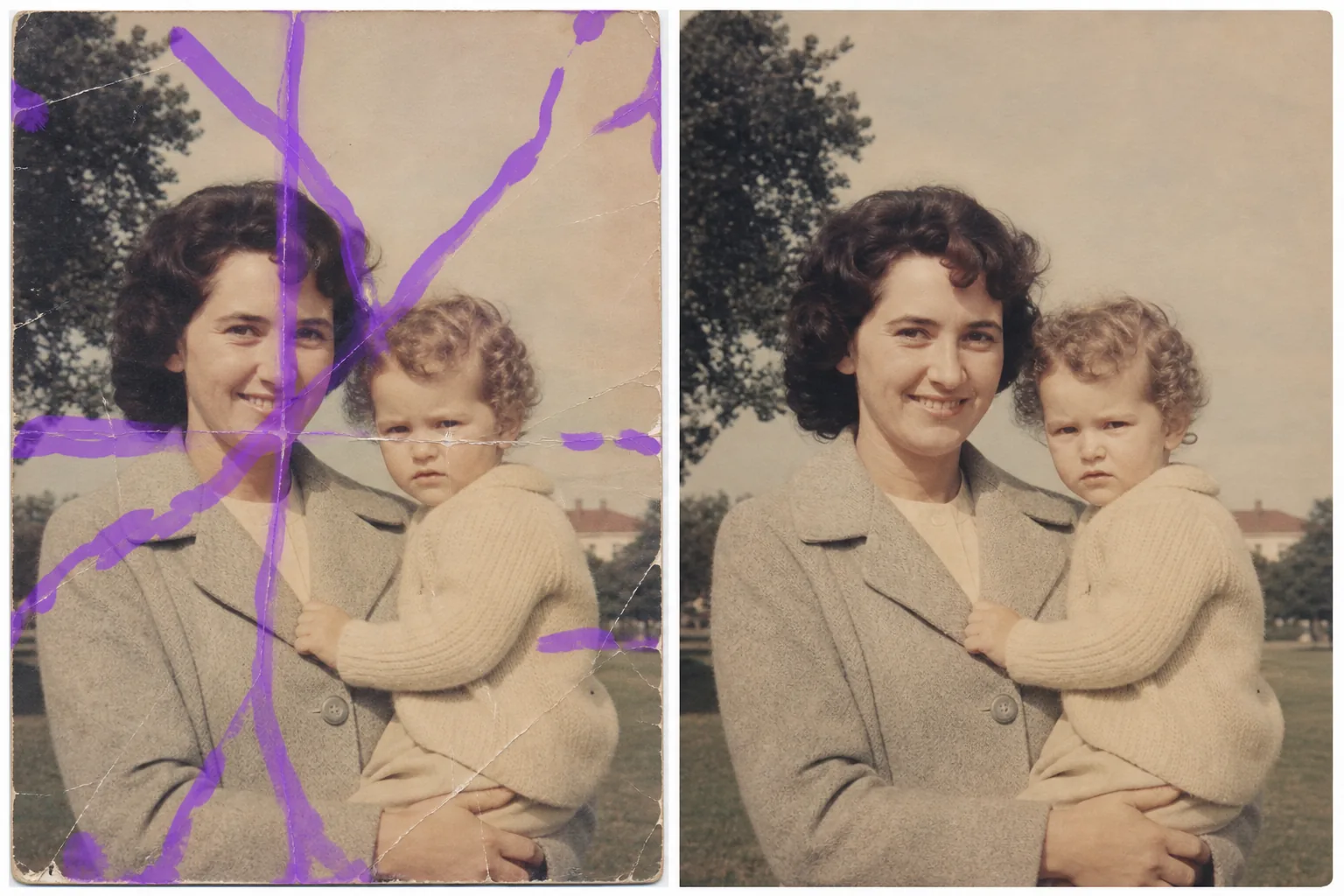
Cómo quitar rayas y arañazos de una foto
Para quitar arañazos de una foto, abre Magic Eraser en la web, iOS o Android, sube la copia escaneada o la imagen, pasa el pincel por cada arañazo, pliegue o grieta y toca Borrar. La IA sigue la línea del daño y reconstruye la cara, la ropa, el fondo o la textura que hay debajo. Es gratis y sin registro. El mismo pincel también elimina arañazos y rozaduras superficiales en objetos: una funda de móvil marcada, un zapato rozado, un arañazo en la foto de un producto. Si la foto está muy dañada, trabaja por secciones y revisa cada pasada al 100 %. Las impresiones físicas se degradan con el tiempo. Los rayones causados por el manejo, las arrugas por el almacenamiento, las grietas por doblarse y la abrasión de la superficie de los álbumes dejan marcas visibles que atraviesan rostros, paisajes y recuerdos. Cuando escanea una impresión rayada, cada línea de daño se captura en resolución completa, a menudo más visible en la pantalla que en la impresión física. El retoque tradicional requiere clonar y sellar cada rasguño manualmente, haciendo coincidir la textura y el tono en cada píxel de cada línea. Para una foto muy rayada, esto puede llevar horas. La IA de Magic Eraser analiza el patrón de rayado (su dirección, profundidad y el detalle que cubre) y reconstruye el contenido de la imagen original debajo. Pasa los arañazos y la IA rellena rostros, ropa, fondos y texturas como si el daño nunca hubiera ocurrido.
Elimina rayones en tres pasos
- 1
Sube tu foto escaneada
Abra Magic Eraser en la web, iOS o Android y cargue la imagen escaneada. Para obtener mejores resultados, escanee a 300 ppp o más: cuanto más detalles tenga la IA, mejor será la reconstrucción de los rayones.
- 2
Cepille los rayones
Pinte sobre cada rasguño, grieta o pliegue. Para rayones largos que atraviesen la imagen, cepille en toda su longitud. Para grupos de rayones finos, use un cepillo más ancho para cubrir el área afectada. Incluya un pequeño margen más allá del daño visible.
- 3
Borrar y revisar
Toque Borrar y la IA eliminará las marcas de rayones y reconstruirá las caras, las texturas y los fondos debajo. Revise el resultado con el zoom máximo para comprobar que las áreas reconstruidas se mezclan naturalmente con los detalles circundantes. Exporte la foto restaurada para imprimirla, compartirla o archivarla.
Lo mejor para
- Fotografías familiares escaneadas con rayones en las caras
- Impresiones antiguas con grietas superficiales debido al paso del tiempo y al almacenamiento.
- Fotos de álbumes con daños por adhesivo y marcas de despegado
- Fotografías históricas digitalizadas para archivos
- Proyectos de restauración de fotografías patrimoniales y conmemorativas.
- Fotografías de bodas y eventos dañadas durante el almacenamiento o el transporte.
- Empresas de restauración de fotografías que procesan escaneos de clientes
- Fotografías escolares y de anuario con pliegues y líneas de plegado.
Consejos para eliminar los rayones limpiamente
La calidad del escaneo es importante para eliminar rayones. Un escaneo de alta resolución (más de 300 ppp) le brinda a la IA más detalles circundantes para referencia al reconstruir el área dañada. Si el rasguño atraviesa una cara, la IA utiliza las partes no dañadas de la cara para reconstruir el detalle faltante: cuanta más información facial esté disponible, mejor será el resultado. Para rayones muy profundos que eliminaron la emulsión (que aparecen como líneas blancas en la impresión), la IA reconstruye tanto el color como la textura. Los rayones más leves que solo dispersan la luz son aún más fáciles de corregir. Procese los rayones largos en secciones si el resultado varía a lo largo de la longitud; diferentes texturas de fondo pueden necesitar un tratamiento por separado. Para fotografías con rayones y decoloración, primero elimine los rayones y luego use las herramientas AI Enhancement para restaurar el color y el contraste. Esta secuencia produce resultados más limpios que intentar corregir todo a la vez.
Preguntas frecuentes
- ¿Puede eliminar los rayones profundos que atraviesan la cara?
- Sí. La IA reconstruye los rasgos faciales utilizando como referencia las partes no dañadas del rostro. Los rasguños profundos en los ojos, la nariz y la boca se restauran con detalles de apariencia natural, aunque las áreas dañadas extremadamente amplias pueden necesitar varias pasadas.
- ¿Funciona en fotos agrietadas?
- Sí. Las grietas, pliegues y líneas de pliegue siguen el mismo proceso de eliminación. Pase la línea de la grieta y la IA completará el detalle que falta. Para fotografías divididas en varios pedazos, primero alinee y combine los escaneos y luego elimine las líneas de grieta.
- ¿Es gratis eliminar rayones de las fotos?
- Sí. El nivel gratuito de Magic Eraser maneja la eliminación de rayones con límites diarios. Para proyectos de restauración masiva o trabajos de restauración fotográfica profesional, los planes pagos ofrecen procesamiento ilimitado.
- ¿Qué resolución de escaneo debo usar?
- 300 DPI es la resolución mínima recomendada. 600 DPI produce mejores resultados para fotografías muy rayadas porque captura más detalles del entorno para que la IA pueda consultarlas durante la reconstrucción.
- ¿Cómo quito arañazos de una foto desde el móvil?
- Abre Magic Eraser en cualquier navegador móvil o en la app de iOS o Android, carga la foto desde tu galería y pellizca para acercarte al arañazo. Pasa el pincel por la línea con el dedo y toca Borrar. Ampliar la imagen te permite seguir un arañazo fino con precisión sin tocar el detalle que tiene al lado. El resultado es igual que en la versión de escritorio y se guarda directamente en tus fotos.
- ¿Puede quitar un arañazo o roce de un objeto, no solo de una foto antigua?
- Sí. El mismo pincel funciona con arañazos y rozaduras superficiales en fotos cotidianas: un arañazo en la pantalla o la funda de un móvil, un roce en un zapato o un mueble, una marca en la carrocería de un coche o en la foto de un producto. Pasa el pincel por el arañazo y la IA reconstruye la superficie a su alrededor; en superficies brillantes o reflectantes, sigue el arañazo de cerca y revisa la línea de brillo al 100 %.
- ¿Puede arreglar una foto con muchos arañazos a la vez?
- Sí. Pasa el pincel por todos los arañazos que veas y toca Borrar una sola vez: la IA reconstruye cada línea dañada a partir del detalle que la rodea. En una copia con daños densos y entrecruzados, suele quedar más limpio trabajar por secciones: cubre una zona con el pincel, revísala al 100 % y pasa a la siguiente, para que cada región se reconstruya con el detalle intacto de alrededor.