
AI Create style
Low Poly AI Image Generator
Create low poly images from text prompts with polygonal facets, angular geometry, and clear color planes. Use the style for posters, characters, landscapes, and product concepts; describe the subject, polygon density, palette, and lighting.
Use case
Geometric posters, covers, and social visuals.
Use case
Stylized character, mascot, and environment concepts.
Use case
Product and editorial illustrations with bold faceted color.

Visual direction preview
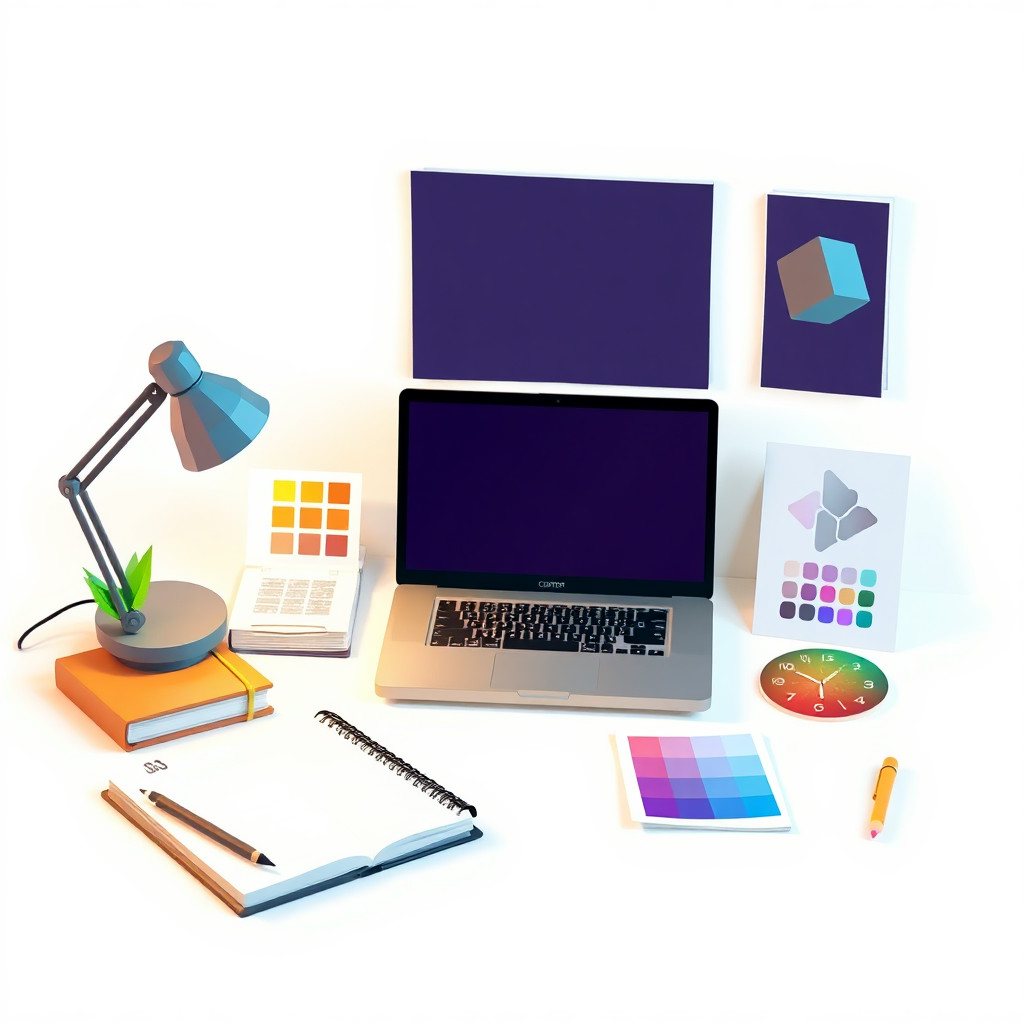
Use the style thumbnail as the creative target
The preview gives users a concrete reference for color, texture, edge detail, and mood before they open the generator. Pair it with the prompt starters below to keep the page useful instead of only decorative.
Generated examples
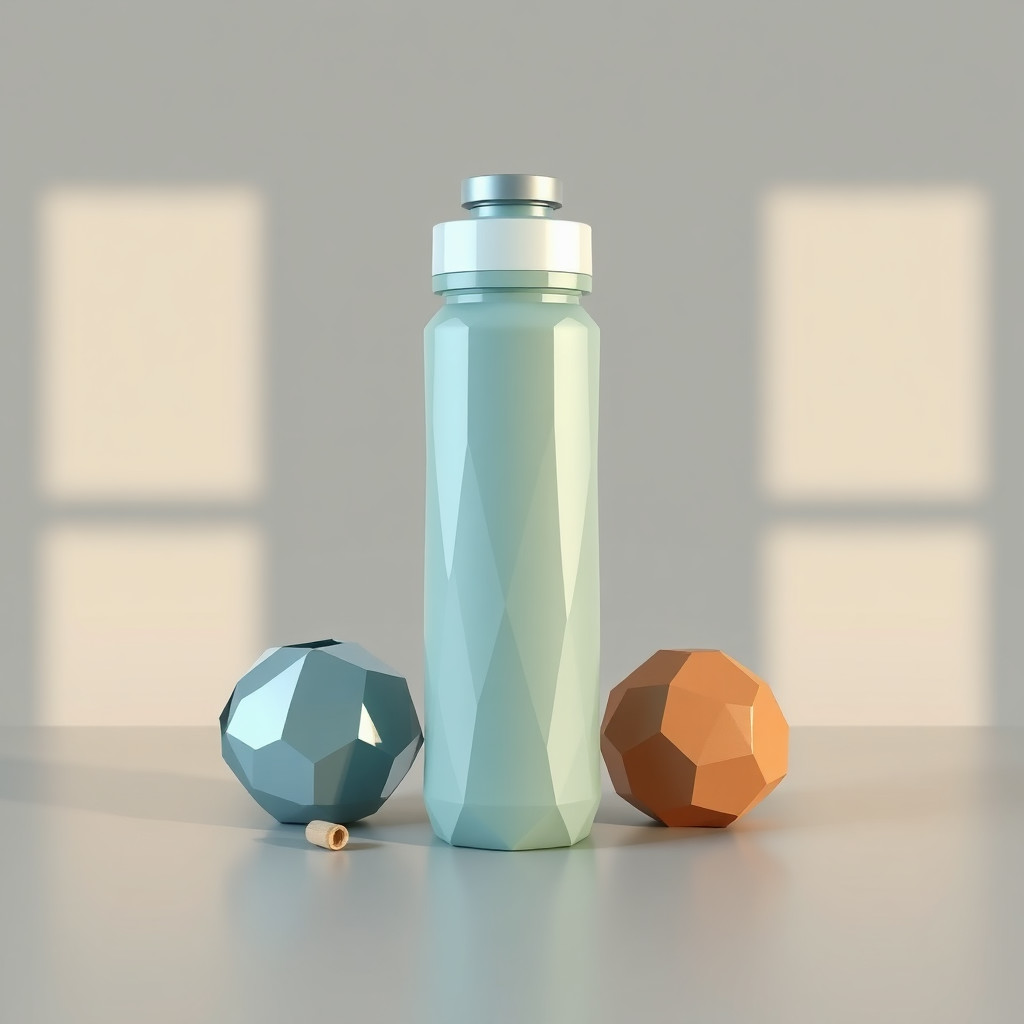
See the lowpoly style in real outputs
These examples were generated through the Magic Eraser AI Create API with the lowpoly style selected.
Prompt workflow
How to get a stronger lowpoly result
Describe one main subject, the viewpoint, and the composition.
Add triangular facets, the level of detail, the color palette, and the light direction.
Generate several variations, choose the clearest silhouette, then crop and remove distracting elements.
Prompt starters
- “Low poly deer on a mountain, large triangular facets, blue and orange palette, sunset light”
- “Low poly robot portrait, angular geometry, dark background, blue rim light”
- “Low poly tropical island from above, turquoise water, crisp flat colors”
Style tips
- Keep the background simple so the polygon edges remain readable.
- Use fewer facets for abstraction or more facets to preserve detail.
- Add exact text and logos after generation for reliable placement.
Output planning checklist
- Decide the final placement before prompting: square post, vertical story, product insert, poster, thumbnail, or wide banner.
- Keep one primary subject and one visual mood so the lowpoly style has a clear job.
- Describe the background as simple, detailed, bright, dark, studio, outdoor, or textured instead of leaving it open-ended.
- Generate variations first, then edit the selected image for crop, cleanup, and export size.
When to choose this style
Choose lowpoly when the image needs a clear creative direction before production: an ad concept, a social visual, a character idea, a packaging mood, or a fast design draft. Choose another style if the final asset must look like a camera photo, preserve exact product color, or include precise typography.
For commercial work, treat the generated image as a starting point. Review details, remove distracting artifacts, add exact text separately, and export the final size from the editor.
FAQ
Can I edit the generated image?
Yes. Generate the image, then continue with cleanup, crop, background, and export tools in Magic Eraser.
Should I include exact text?
Use AI Create for the visual direction. Add exact text later with editable design tools for cleaner spelling and layout.
Is this style selected automatically?
The CTA opens AI Create with the lowpoly style parameter, and the app falls back safely if the option changes.