
AI Create style
Fauvism AI Image Generator
Create Fauvist-inspired images from text prompts with intense, non-naturalistic color, simplified forms, and expressive brushwork. Use the style for portraits, landscapes, posters, and editorial concepts; describe the subject, dominant colors, composition, and desired paint texture.
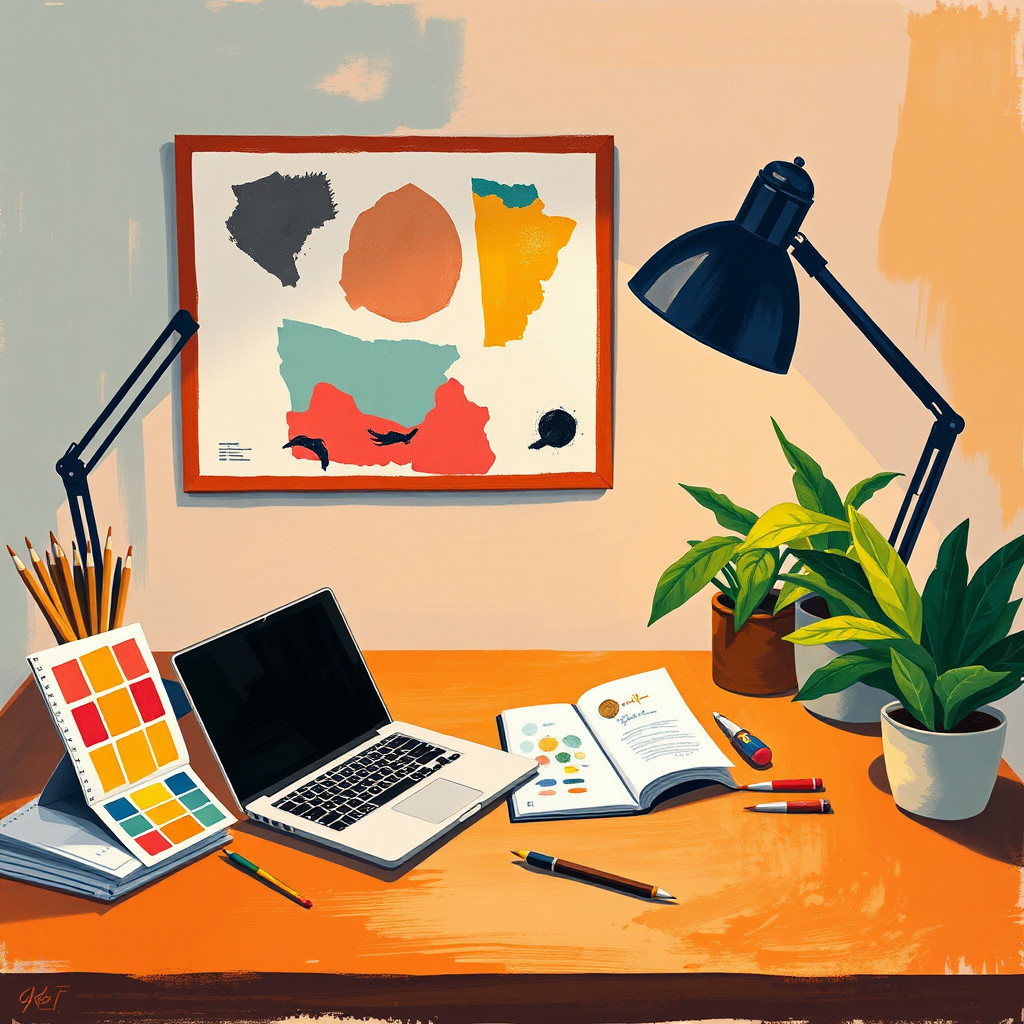
Use case
Expressive portraits with vivid, unexpected skin and background colors.
Use case
Landscapes and city scenes built from bold color contrasts.
Use case
Posters, covers, and editorial artwork with energetic painted texture.
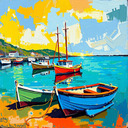
Visual direction preview
Use the style thumbnail as the creative target
The preview gives users a concrete reference for color, texture, edge detail, and mood before they open the generator. Pair it with the prompt starters below to keep the page useful instead of only decorative.
Generated examples
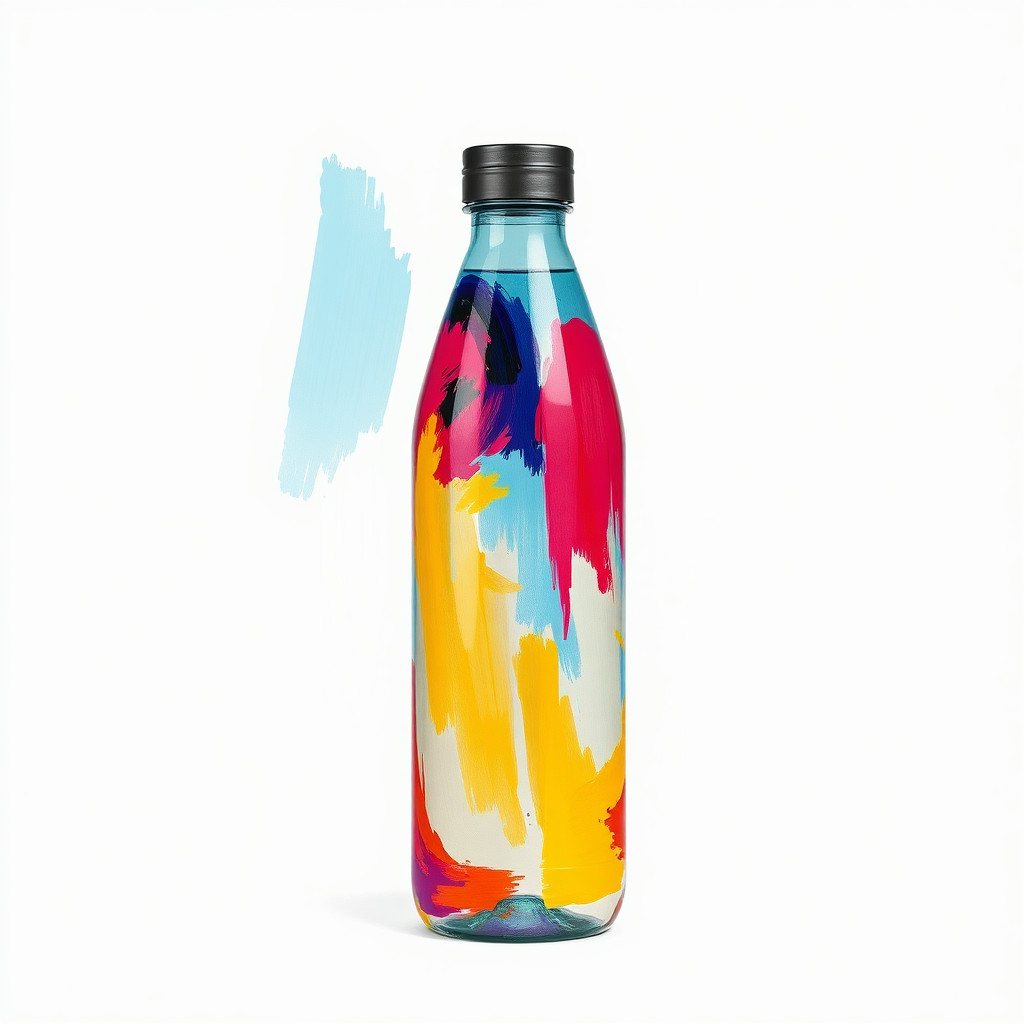
See the fauvism style in real outputs
These examples were generated through the Magic Eraser AI Create API with the fauvism style selected.
Prompt workflow
How to get a stronger fauvism result
Choose one main subject and a simple, readable composition.
Specify intense colors, simplified forms, visible brushwork, and the mood you want.
Generate several variations, select the strongest color balance, then crop and remove distracting details.
Prompt starters
- “Fauvist-inspired portrait of an original musician, cobalt shadows, orange background, expressive brushwork”
- “Coastal village landscape, vivid magenta sky and turquoise sea, simplified painted forms”
- “Fauvist-inspired poster of a red bicycle, bold complementary colors, generous negative space”
Style tips
- Name two or three dominant colors instead of relying on the style label alone.
- Keep small details limited so broad shapes and color remain clear.
- Add exact text and logos after generation for reliable placement.
Output planning checklist
- Decide the final placement before prompting: square post, vertical story, product insert, poster, thumbnail, or wide banner.
- Keep one primary subject and one visual mood so the fauvism style has a clear job.
- Describe the background as simple, detailed, bright, dark, studio, outdoor, or textured instead of leaving it open-ended.
- Generate variations first, then edit the selected image for crop, cleanup, and export size.
When to choose this style
Choose fauvism when the image needs a clear creative direction before production: an ad concept, a social visual, a character idea, a packaging mood, or a fast design draft. Choose another style if the final asset must look like a camera photo, preserve exact product color, or include precise typography.
For commercial work, treat the generated image as a starting point. Review details, remove distracting artifacts, add exact text separately, and export the final size from the editor.
FAQ
Can I edit the generated image?
Yes. Generate the image, then continue with cleanup, crop, background, and export tools in Magic Eraser.
Should I include exact text?
Use AI Create for the visual direction. Add exact text later with editable design tools for cleaner spelling and layout.
Is this style selected automatically?
The CTA opens AI Create with the fauvism style parameter, and the app falls back safely if the option changes.