
How to whiten teeth in a photo
A bright, natural smile can transform a portrait from good to great. Magic Eraser's AI enhance tool whitens teeth realistically — no manual masking, no unnatural neon-white results — just a clean, confident smile in seconds.
Last updated
Whiten teeth now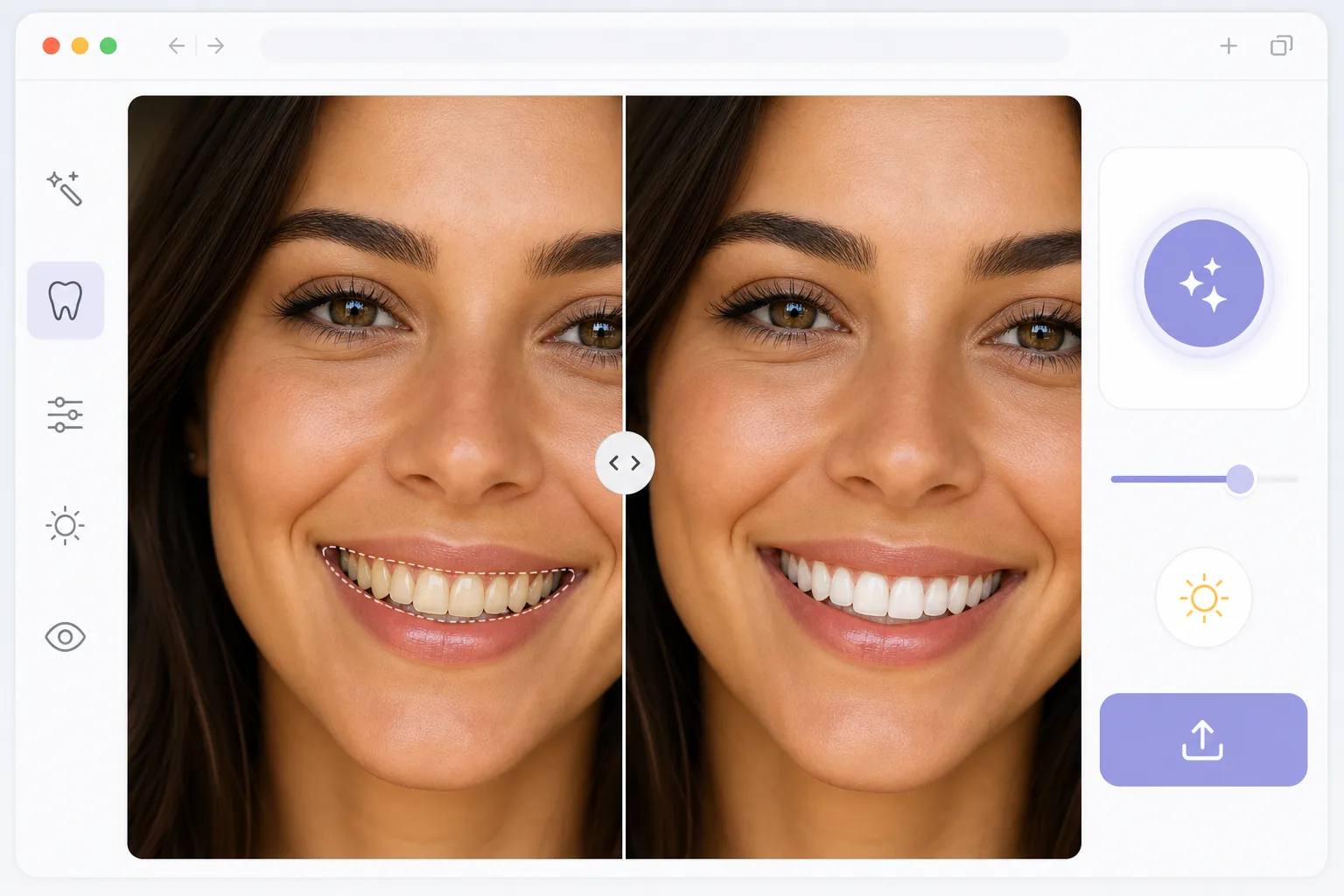
How to whiten teeth in a photo
To whiten teeth in a photo, open Magic Eraser on the web, iOS, or Android, select AI Enhance, upload a photo where the subject is smiling, and let the AI brighten the teeth — it detects the tooth boundaries and lifts the shade to match the scene's lighting, so the smile looks naturally white rather than painted over. It includes limited free edits after sign-in. The whitening stays subtle on purpose: shadows between teeth and any warm light are kept, which is what separates a believable result from the neon-white look manual editing tends to produce. Traditional teeth whitening in Photoshop requires selecting teeth with a lasso tool, desaturating yellows, boosting brightness, and carefully feathering edges — a process that takes 5-10 minutes per photo and often looks artificial. Coffee stains, uneven lighting, and shadows between teeth make consistent results difficult. AI-powered whitening analyzes the image holistically: it identifies tooth boundaries, understands the lighting conditions, and applies whitening that matches the scene's color temperature. The result looks like the person actually has white teeth, not like someone painted over them in post-processing.
Before you start
Whiten teeth in three steps
Start with upload the portrait. The result preview above and tips below use this guide's existing content; no separate before-and-after proof is assumed.
- 1
Upload the portrait
Open Magic Eraser on web, iOS, or Android and select AI Enhance. Upload a photo where the subject is smiling. Close-up portraits work best, but the AI can detect teeth in group photos and full-body shots too. JPEG, PNG, HEIC, and WebP are all supported.
- 2
Apply teeth whitening
The AI automatically detects teeth in the image and applies natural whitening. The enhancement respects the photo's existing color temperature — warm golden-hour light keeps a natural warmth, while studio lighting produces brighter whites. Shadows between teeth are preserved to maintain depth and realism.
- 3
Export your enhanced portrait
Preview the before and after, then export in your preferred format and resolution. The original photo is untouched — you can always re-edit or adjust. Save to your device or share directly to social media.
Best for
- Portrait photographers delivering client-ready headshots with polished smiles
- Social media users who want natural-looking enhancement for profile pictures
- Wedding photographers brightening smiles across hundreds of reception photos
- Real estate agents polishing headshots for listings and marketing materials
- Dating app profiles where a confident smile makes a strong first impression
Tips for best results
Start with a well-lit photo where teeth are clearly visible — the AI needs to see tooth boundaries to produce clean results. For group photos, the tool processes all visible smiles simultaneously. Avoid over-whitening by sticking with the AI's default — it is calibrated for natural results. If the subject has visible dental work (braces, crowns), the AI handles these gracefully without over-brightening metal or ceramic materials. For consistency across a photo series, process all images from the same session together.
Frequently asked questions
- Will teeth whitening look natural?
- Yes. The AI calibrates whitening to match the photo's lighting conditions. Teeth whitened in golden-hour light retain warmth, while studio-lit photos get brighter results. The tool avoids the neon-white look that manual editing often produces.
- Can I whiten teeth in group photos?
- Yes. The AI detects and whitens teeth for every smiling person in the photo. Each face is processed independently, so results adapt to each person's lighting angle and tooth color.
- Is teeth whitening free?
- Yes. AI Enhance features including teeth whitening are available in the free tier with daily usage limits. Premium removes limits and enables batch processing for large photo sets.
- How do I whiten teeth in a photo on Android or iPhone?
- Open Magic Eraser in any mobile browser or the iOS or Android app, load the photo from your camera roll, and select AI Enhance. The AI detects the teeth and applies natural whitening on your phone — no desktop needed. The enhanced photo saves straight back to your camera roll, ready to share or post. It works the same as the desktop version, with no app install required if you use the browser.
- Will the whitened smile still look like me?
- Yes — that's the point of matching the lighting instead of just painting the teeth white. The AI keeps the natural shade variation and the shadows between teeth, so the result reads as a clean, well-lit smile rather than a fake. Preview the before-and-after before exporting; if it ever looks too strong for a particular photo, the original is untouched, so you can re-edit. For the most believable result, start from a well-lit photo where the teeth are clearly visible.