
How to sharpen a blurry photo
Camera shake, motion blur, and soft focus do not have to mean a ruined photo. Magic Eraser's AI sharpening recovers lost detail and clarity, transforming a blurry shot into a crisp, usable image.
Last updated
Sharpen photo now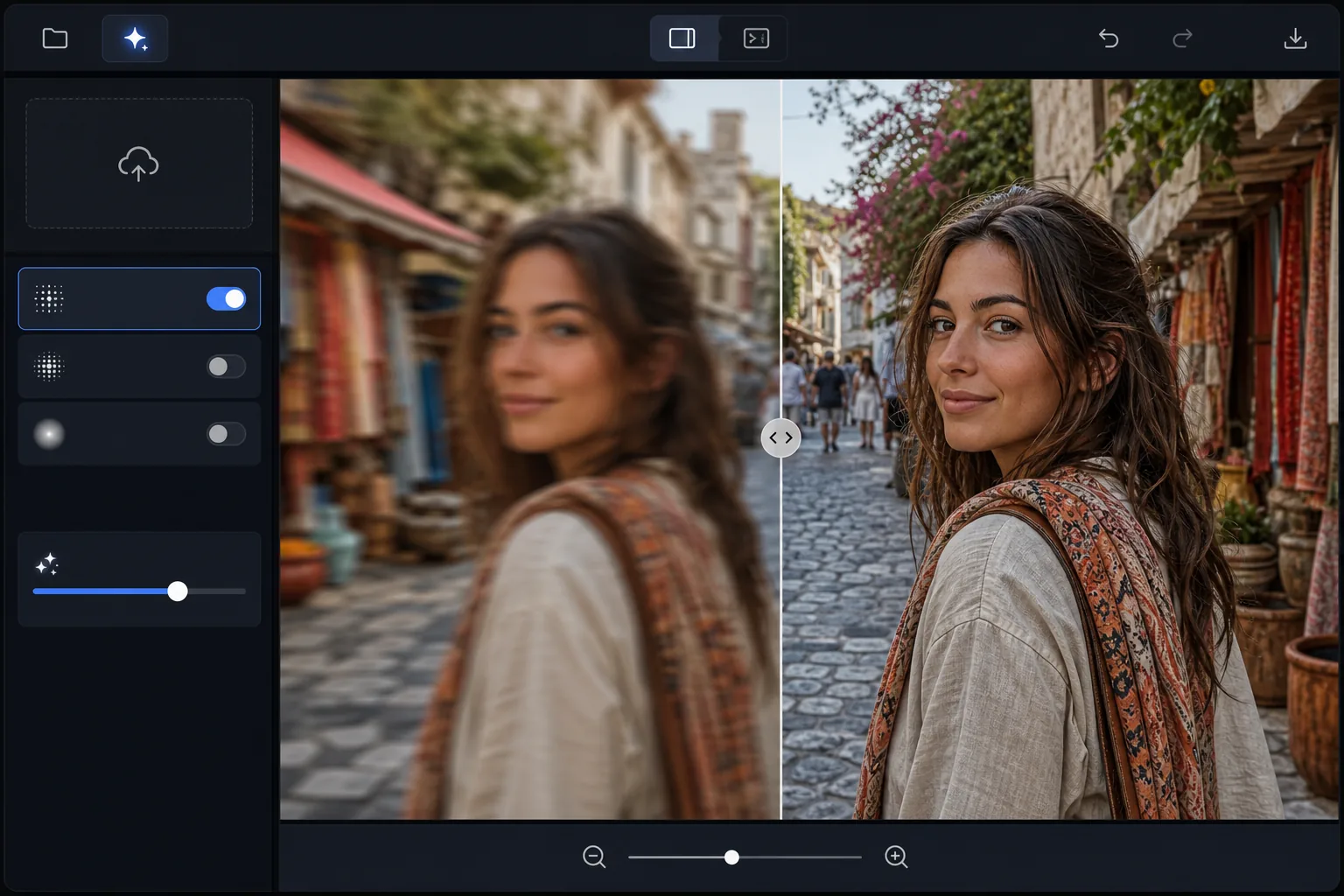
How to sharpen a blurry photo
To sharpen a blurry photo, open Magic Eraser on the web, iOS, or Android, select AI Enhance, upload the photo, and let the AI deblur it — it detects the type of blur (camera shake, motion, soft focus) and reconstructs edge and texture detail, so a soft shot comes back crisper and more usable. It includes limited free edits after sign-in. It works best on slight-to-moderate blur where you can still make out the subject; on severe blur the AI fills in plausible detail rather than the exact original, so treat it as recovery, not a guarantee. Compare the before and after, and if the photo is also low-resolution, sharpen first, then upscale. Blur comes in several forms: camera shake (the whole image shifts), motion blur (a moving subject streaks), defocus blur (the subject is outside the depth of field), and compression blur (JPEG artifacts soften details). Traditional sharpening (unsharp mask, high-pass) only enhances existing edges — it cannot recover detail that was never captured. AI sharpening is fundamentally different: neural networks trained on millions of sharp/blurry image pairs learn to predict what the sharp version should look like. They can reconstruct texture, edge detail, and fine features that are genuinely missing from the input. The result is not just edge-enhanced — it is a reconstruction of lost information based on learned priors about how the world looks in sharp focus.
Before you start
Sharpen a blurry photo in three steps
Start with upload the blurry photo. The result preview above and tips below use this guide's existing content; no separate before-and-after proof is assumed.
- 1
Upload the blurry photo
Open Magic Eraser on web, iOS, or Android and select AI Enhance. Upload the blurry photo. The AI automatically detects the type and degree of blur. It works with slight softness through to moderate motion blur — extremely blurry images where no detail is discernible have less to work with.
- 2
Apply AI sharpening
The AI analyzes the blur pattern and applies targeted deblurring. Camera shake gets deconvolution processing, motion blur is directionally reversed, and soft focus receives detail synthesis. The sharpening adapts per-region: faces get careful enhancement to avoid artifacts, while textures like fabric and foliage get aggressive detail recovery.
- 3
Compare and export
Use the before/after slider to compare the original and sharpened versions. If the photo was also low-resolution, combine sharpening with upscaling for maximum detail recovery. Export at the resolution you need — the enhanced version maintains natural appearance without the halos and ringing that traditional sharpening produces.
Best for
- Photographers rescuing shots ruined by camera shake in low light conditions
- Parents sharpening motion-blurred photos of children and pets
- Real estate photographers correcting slightly soft interior photos
- Anyone recovering irreplaceable moments from imperfect phone camera shots
- Professionals salvaging slightly out-of-focus product or event photography
Tips for best results
AI sharpening works best on photos that are slightly to moderately blurry — if you can make out the subject and basic shapes, the AI can likely recover useful detail. For extreme blur where the subject is unrecognizable, results will be limited. Camera shake blur (everything equally soft) sharpens better than motion blur (directional streaking). For photos that are both blurry and low-resolution, sharpen first, then upscale — this order produces better results than upscaling the blur. Avoid applying traditional unsharp mask before AI sharpening, as it introduces edge halos that interfere with AI processing.
Frequently asked questions
- Can AI actually recover detail from a blurry photo?
- Yes, within limits. The AI uses learned knowledge of what sharp images look like to reconstruct plausible detail. For mild to moderate blur, the results are remarkably accurate. For severe blur, the AI generates plausible but not necessarily pixel-accurate details — faces may look natural but not identical to the original.
- Is it better than Photoshop's sharpening?
- For blur recovery, yes. Photoshop's unsharp mask and smart sharpen only enhance existing edges. AI sharpening reconstructs missing detail using neural networks, producing results that are fundamentally different from traditional edge enhancement.
- Is photo sharpening free?
- Yes. AI Enhance including sharpening is available in the free tier with daily usage limits. Premium removes limits and adds batch processing.
- How do I sharpen a blurry photo on Android or iPhone?
- Open Magic Eraser in any mobile browser or the iOS or Android app, load the blurry photo from your camera roll, and select AI Enhance. The AI detects the blur and deblurs it right on your phone — no desktop needed — then saves the sharper version back to your camera roll. It works the same as the desktop version, with no app install required if you use the browser. As on desktop, slight-to-moderate blur recovers best.
- Why is my photo still soft after sharpening?
- AI sharpening reconstructs detail from what's in the image, so when the original is severely blurred — the subject is unrecognizable, or motion smeared it into streaks — there isn't enough information to fully recover, and the result stays soft or looks slightly synthetic. Camera-shake blur (evenly soft) recovers better than heavy directional motion blur. For the best shot at a usable result, start from the least-blurry frame you have, sharpen before upscaling, and don't run a traditional unsharp mask first, since its edge halos interfere with the AI.