
How to remove haze from a photo
Haze, fog, and atmospheric pollution wash out colors and flatten contrast in outdoor photos. Magic Eraser's AI dehazing cuts through the haze to reveal the vivid scene your eyes actually saw.
Last updated
Remove haze now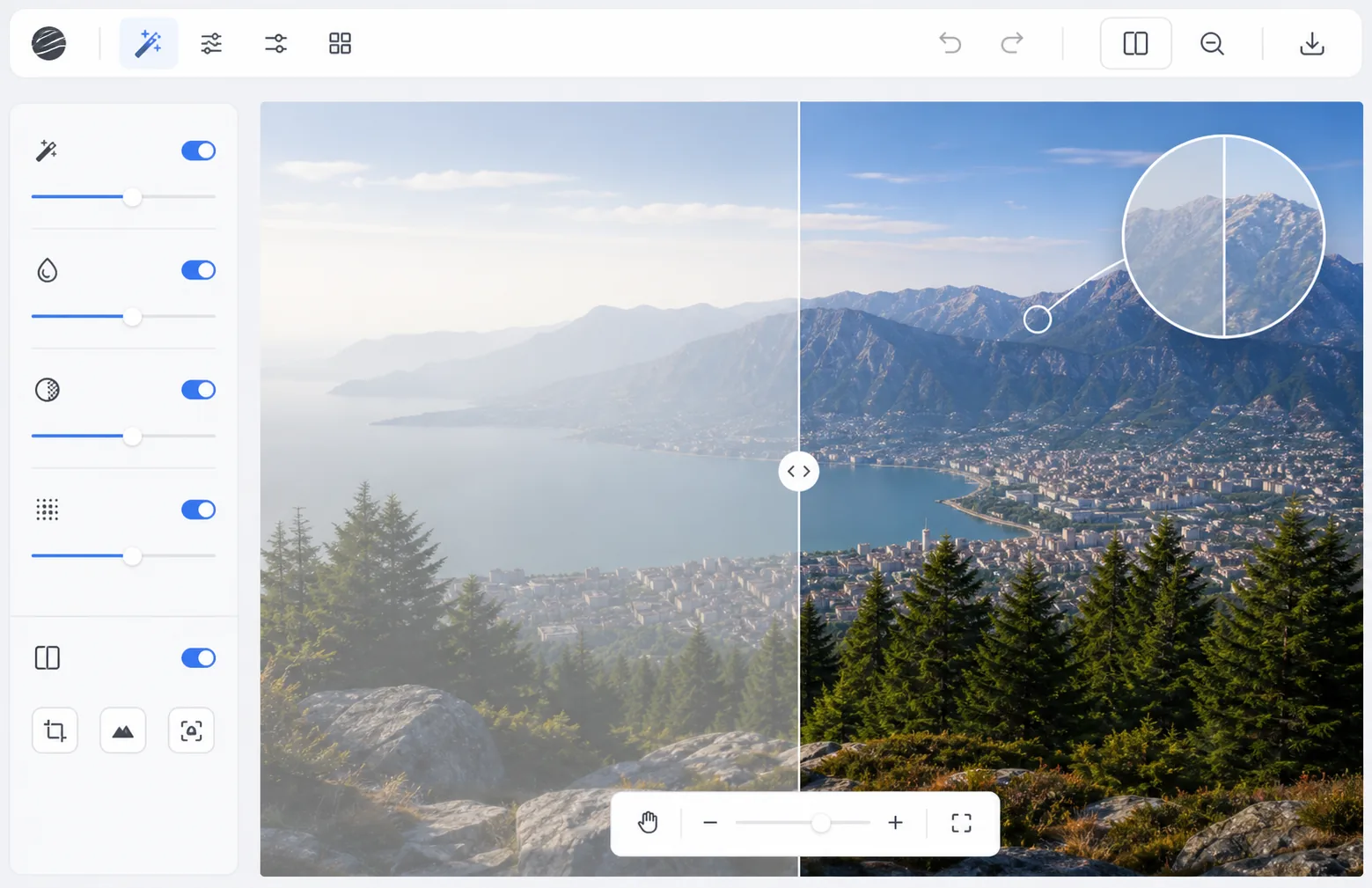
How to remove haze from a photo
To remove haze from a photo, open Magic Eraser on the web, iOS, or Android, upload the hazy image, and apply AI Enhance (dehaze) — it restores contrast and color depth-by-depth, correcting distant hazy areas more strongly than the clear foreground. It includes limited free edits after sign-in. This recovers detail that haze flattened but didn't erase: moderate haze and atmospheric smog clean up well, while dense fog that fully hid distant objects has little left to recover. If the result looks over-corrected, dial the intensity down for a natural finish. Haze is caused by moisture, dust, pollution, or temperature inversions scattering light between the camera and subject. It reduces contrast, washes out colors, and adds a milky overlay that worsens with distance — nearby objects look fine while distant mountains, buildings, and horizons fade into a flat gray-blue. Traditional contrast adjustments (curves, levels) cannot fix haze properly because they affect the entire image uniformly, blowing out highlights in clear areas while barely touching hazy backgrounds. AI dehazing uses depth-aware processing: it estimates how far each pixel is from the camera and applies stronger correction to distant, hazier areas while leaving foreground elements natural. The result restores the scene's true color and contrast at every depth.
Before you start
Remove haze in three steps
Start with upload the hazy photo. The result preview above and tips below use this guide's existing content; no separate before-and-after proof is assumed.
- 1
Upload the hazy photo
Open Magic Eraser on web, iOS, or Android and select AI Enhance. Upload the photo with visible haze, fog, or atmospheric pollution. The AI works with any degree of haze from light atmospheric softening to dense fog.
- 2
Apply AI dehazing
The AI analyzes the image's depth structure and applies progressive dehazing — stronger correction for distant hazy areas, lighter correction for clear foreground. Colors emerge as the scattered light is computationally removed. Contrast is restored without the blown-out look that manual adjustments create.
- 3
Adjust and export
Fine-tune the dehazing intensity if needed — sometimes a touch of atmospheric haze adds depth and mood. Compare before and after to verify that colors look natural, not oversaturated. Export the clear photo.
Best for
- Landscape photographers shooting in humid or hazy conditions
- Drone photographers capturing aerial views through atmospheric haze
- Travel photographers rescuing shots from polluted or foggy cities
- Real estate photographers shooting exterior views on hazy days
- Nature photographers shooting through morning mist or wildfire smoke
Tips for best results
The AI produces the best results when haze is uniform across the image — patchy fog or localized mist may require selective processing. For photos shot through significant haze, dehazing may reveal noise that was hidden by the haze's smoothing effect — apply denoising after dehazing if needed. Intentional fog and mist in atmospheric photos can be an artistic choice — do not automatically dehaze every foggy shot. Some haze adds depth perception and mood. For drone photography, dehazing combined with contrast enhancement can dramatically improve aerial landscape shots.
Frequently asked questions
- Does it work with thick fog?
- It works best with moderate haze and fog. Dense fog where objects are barely visible has less recoverable information. The AI can improve visibility through thick fog but may not fully restore distant details that were completely obscured.
- Will colors look natural after dehazing?
- Yes. The AI restores natural color balance rather than artificially boosting saturation. The result shows colors as they would appear on a clear day. You can adjust intensity if the correction feels too strong.
- Is dehazing free?
- Yes. AI Enhance including dehazing is available in the free tier with daily usage limits. Premium removes limits for batch processing landscape photo sets.
- What's the difference between haze and a blurry or soft photo?
- Haze is a loss of contrast and color — a milky veil over the scene — while the detail underneath is usually still in focus. Blur is a loss of sharpness, where edges themselves are soft. Dehazing fixes the veil and brings back contrast and color, but it can't sharpen a photo that's genuinely out of focus or motion-blurred. If your image is both hazy and soft, dehaze first, then run a separate sharpen or enhance pass for the focus.
- Can I dehaze a photo on my iPhone or Android phone?
- Yes. Magic Eraser runs in the mobile browser and as an app on iOS and Android, so you can dehaze straight from your camera roll without a computer. Upload the shot, apply AI Enhance, adjust the strength, and save the cleaned-up version back to your phone. Starting from the highest-quality copy (not a re-saved screenshot) gives the AI the most to work with.