
How to remove grain from a photo
High ISO, low light, or an old camera sensor — grain and noise can ruin an otherwise great shot. Magic Eraser's AI denoising removes grain while preserving sharpness and detail that traditional noise reduction destroys.
Last updated
Remove grain now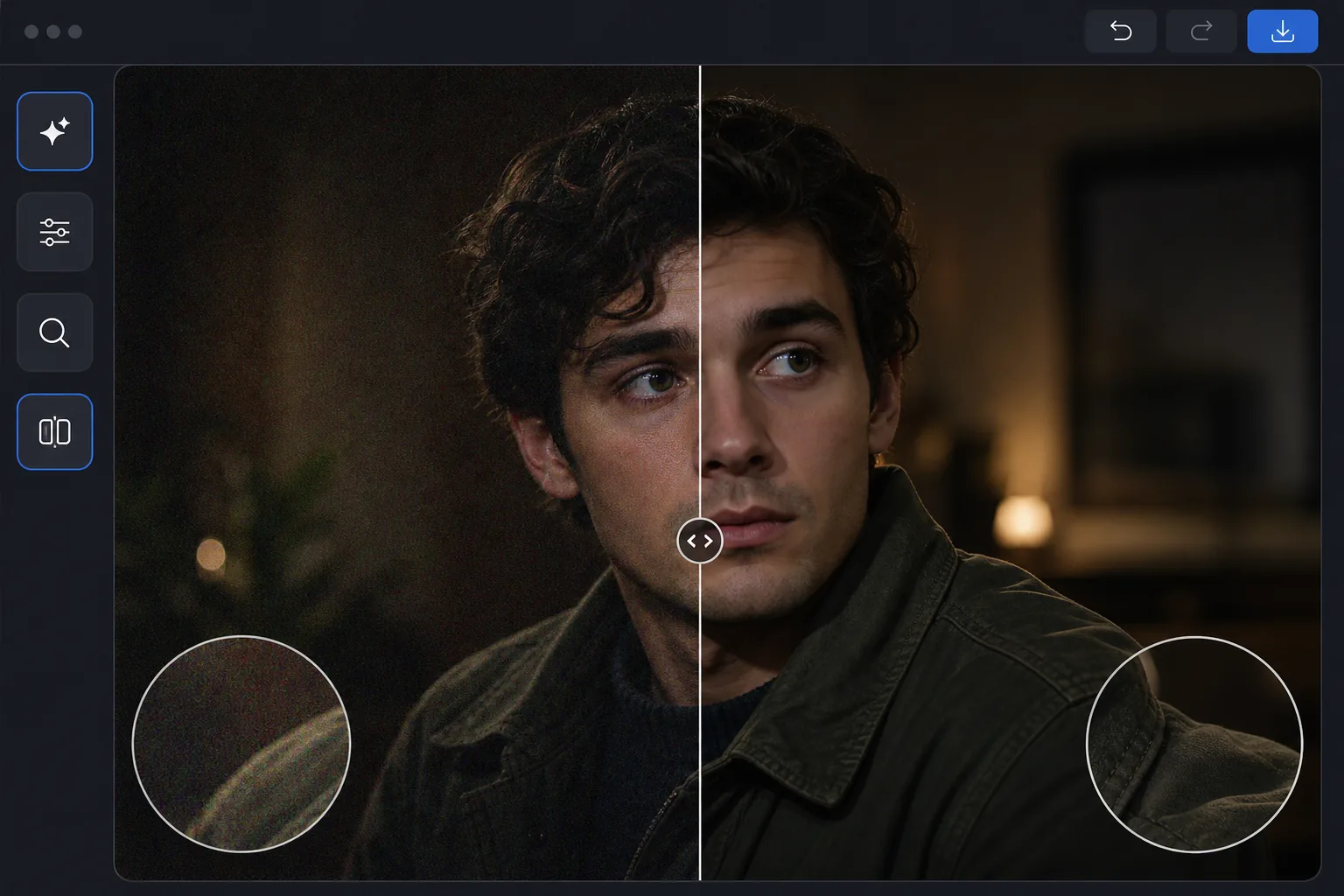
How to remove grain from a photo
To remove grain from a photo, open Magic Eraser on the web, iOS, or Android, select AI Enhance, upload the noisy shot, and let the AI denoise it — it tells grain apart from real detail, so it suppresses the speckle while keeping edges, text, and texture sharp instead of blurring them away. It includes limited free edits after sign-in. It works on both grainy luminance noise and colored chroma speckles, common in high-ISO and low-light photos. Compare the before and after at full zoom, and if the photo is low-resolution too, denoise first, then upscale. Digital noise (grain) appears when cameras amplify the sensor signal in low light or at high ISO settings. Traditional denoising blurs the image to smooth out noise, destroying fine detail in the process — text becomes unreadable, skin loses pores, and fabrics lose texture. AI denoising works differently: neural networks trained on millions of clean/noisy image pairs learn to distinguish noise from detail. They can suppress noise while actually sharpening genuine detail. The result is a photo that looks like it was shot at a lower ISO with better lighting — not just a blurred version of the noisy original.
Before you start
Remove grain in three steps
Start with upload the noisy photo. The result preview above and tips below use this guide's existing content; no separate before-and-after proof is assumed.
- 1
Upload the noisy photo
Open Magic Eraser on web, iOS, or Android and select AI Enhance. Upload the grainy photo. The AI automatically detects the noise level and type — luminance noise (grainy texture), chroma noise (colored speckles), or both.
- 2
Apply AI denoising
The AI processes the image, removing grain while preserving edges, textures, and fine details. It treats different image regions appropriately: smooth areas like sky get aggressive denoising, while textured areas like hair and fabric get careful treatment to preserve detail.
- 3
Compare and export
Use the before/after slider to compare. Zoom into detailed areas (text, eyes, fabric patterns) to verify detail preservation. Export at the resolution you need. For photos that are both noisy and low-resolution, combine denoising with AI upscaling for maximum quality recovery.
Best for
- Night photography and astrophotography shot at high ISO settings
- Indoor event photos taken without flash in dim venues
- Phone camera photos from low-light situations where noise is prominent
- Security camera footage that needs to be cleaned up for clarity
- Scanned film photos with visible film grain that needs smoothing
Tips for best results
The AI works best when noise is the main issue — if the photo is also severely blurry or extremely underexposed, address those issues separately. For photos with both luminance and chroma noise, the AI handles both simultaneously. Avoid applying traditional noise reduction before AI denoising, as the pre-processing can remove detail the AI needs. For RAW photos, export with minimal in-camera noise reduction applied, then use AI denoising for better results than the camera's built-in processing. Night sky photos retain star detail better with AI denoising than any traditional method.
Frequently asked questions
- Does denoising reduce image sharpness?
- Unlike traditional blurring-based methods, AI denoising actually preserves and can enhance sharpness. The neural network distinguishes between noise and detail, removing only the noise while keeping edges crisp.
- Can it fix chroma noise (colored speckles)?
- Yes. The AI handles both luminance noise (grainy texture) and chroma noise (random colored spots) simultaneously. Chroma noise is particularly easy for AI to identify and remove because it has distinct patterns.
- Is photo denoising free?
- Yes. AI Enhance including denoising is available in the free tier with daily usage limits. Premium removes limits and adds batch processing for large photo sets.
- How do I remove grain from a photo on Android or iPhone?
- Open Magic Eraser in any mobile browser or the iOS or Android app, load the grainy photo from your camera roll, and select AI Enhance. The AI detects the noise and removes it right on your phone — no desktop needed — then saves the cleaner version back to your camera roll. It works the same as the desktop version, with no app install required if you use the browser, which makes it handy for cleaning up low-light shots straight after taking them.
- Does it work on film grain from scanned photos?
- Yes. The AI smooths film grain from scanned negatives and prints much like it handles digital sensor noise, while keeping the real detail in faces, text, and textures. If you actually want to keep a film look, denoise lightly or skip it — grain is part of that aesthetic. For old or damaged scans, denoising pairs well with upscaling: clean up the grain first, then enlarge for a sharper, more usable result.