
How to remove background from a logo
A logo with a white rectangle behind it looks unprofessional on colored backgrounds. Magic Eraser removes the background and exports a transparent PNG that sits cleanly on any surface — websites, business cards, merchandise, and presentations.
Last updated
Remove logo background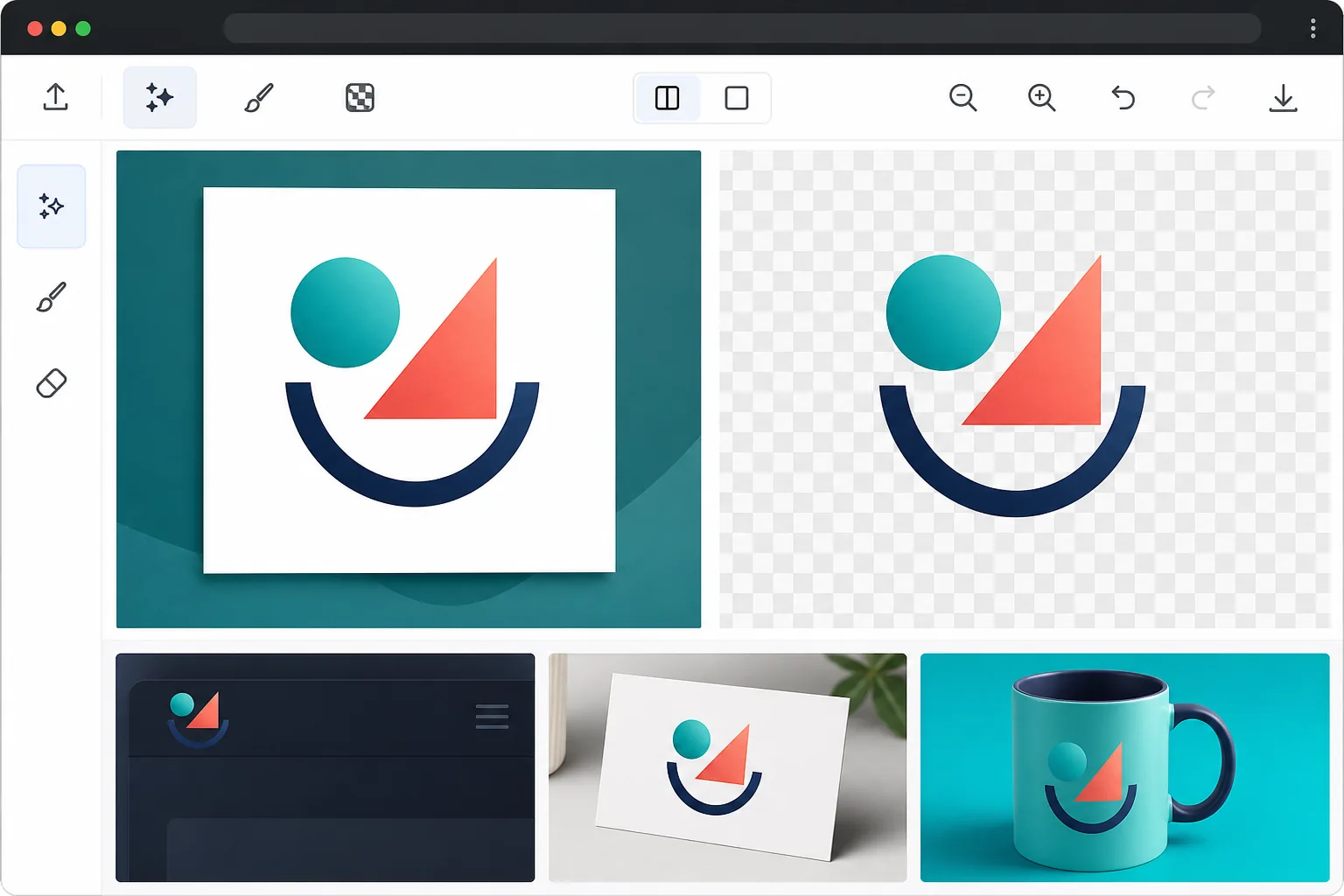
How to remove the background from a logo
To remove the background from a logo, open Magic Eraser on the web, iOS, or Android, select the Background Eraser, upload the logo, and export as PNG — the AI strips the white box or colored backdrop and leaves a transparent version that sits cleanly on any surface. It includes limited free edits after sign-in. It keeps fine details like thin text strokes, small icons, and gradient fills, and works straight from a JPEG when that's the only file you have. Check the result on light and dark backgrounds before exporting. Logos appear on dozens of different surfaces: dark headers, colored merchandise, video overlays, document watermarks, and social media profiles. A logo locked to a white background limits where it can be used professionally. Every brand should have a transparent PNG version of their logo, but many small businesses only have JPEG files from their designer. Manually tracing logo edges in Photoshop is tedious, especially for complex logos with fine details, gradients, or text. AI background removal handles logos of all complexity levels — from simple wordmarks to intricate emblems — producing clean transparent files ready for any use case.
Before you start
Remove a logo background in three steps
Start with upload your logo. The result preview above and tips below use this guide's existing content; no separate before-and-after proof is assumed.
- 1
Upload your logo
Open Magic Eraser on web, iOS, or Android and select the Background Eraser. Upload your logo file — JPEG, PNG, BMP, or any image format. For best results, use the highest resolution version available. If you only have a small logo, the AI still works but edges will be limited by the source resolution.
- 2
Remove the background
The AI instantly separates the logo from its background. It handles single-color backgrounds (white, colored), gradient backgrounds, and even textured backgrounds. Fine details like thin text strokes, small icons, and decorative elements are preserved.
- 3
Export as transparent PNG
Export as PNG to preserve transparency. Check the result against both light and dark backgrounds to verify edge quality. For web use, also export as WebP for smaller file sizes. The transparent logo is ready for use on websites, print materials, merchandise, and any design project.
Best for
- Small business owners who only have JPEG logos and need transparent versions
- Web developers placing client logos on colored website headers and footers
- Print designers preparing logos for business cards, brochures, and merchandise
- Marketing teams creating presentations and documents with logo overlays
- Brand managers building asset libraries with logos in multiple formats
Tips for best results
Upload the highest resolution version of your logo available — transparent logos need crisp edges since there is no background to hide aliasing. If your logo has very thin lines or small text, zoom in after processing to verify nothing was clipped. For logos with colors similar to the background (a white logo on a light background), the AI may need manual guidance: use the brush tool to refine areas where the contrast is low. After exporting, test your transparent logo on white, black, and your brand's primary color to ensure it reads well on all common surfaces.
Frequently asked questions
- Can it handle logos with gradients and shadows?
- Yes. The AI preserves gradient fills within the logo and removes the background around them. Drop shadows are treated as part of the background by default. If you want to keep the shadow, use the brush tool to protect it during processing.
- Will the transparent logo work for print?
- Yes, as long as the source image is high resolution (300+ DPI for print). Export at the original resolution and provide the file to your printer. Most print workflows accept transparent PNG files directly.
- Is logo background removal free?
- Yes. Background removal is available in the free tier with daily usage limits. For businesses processing multiple logo variants, Premium removes limits.
- I only have a JPEG logo — can I make it transparent?
- Yes, and this is the most common case. A JPEG can't store transparency, so a logo saved as JPEG always carries a solid (usually white) background. Upload it, let the AI remove that background, and export as PNG — the PNG holds the transparent areas a JPEG can't, so the mark sits on any color without a white box. Quality is limited by the source: a small, low-resolution JPEG gives softer edges, so use the largest version you have for crisp results.
- How do I remove a logo background on my phone?
- Open Magic Eraser in any mobile browser or the iOS or Android app, load the logo from your photos or files, and select the Background Eraser. The AI removes the background right on your phone and saves the transparent PNG back to your device, ready to drop into a website, a social profile, or a print file. It works the same as the desktop version, with no app install required if you use the browser.