
How to make a photo look vintage
Warm tones, faded highlights, and film grain — the vintage aesthetic never goes out of style. Magic Eraser's AI filters transform modern digital photos into authentic-looking vintage images that capture the character of analog photography.
Last updated
Apply vintage filter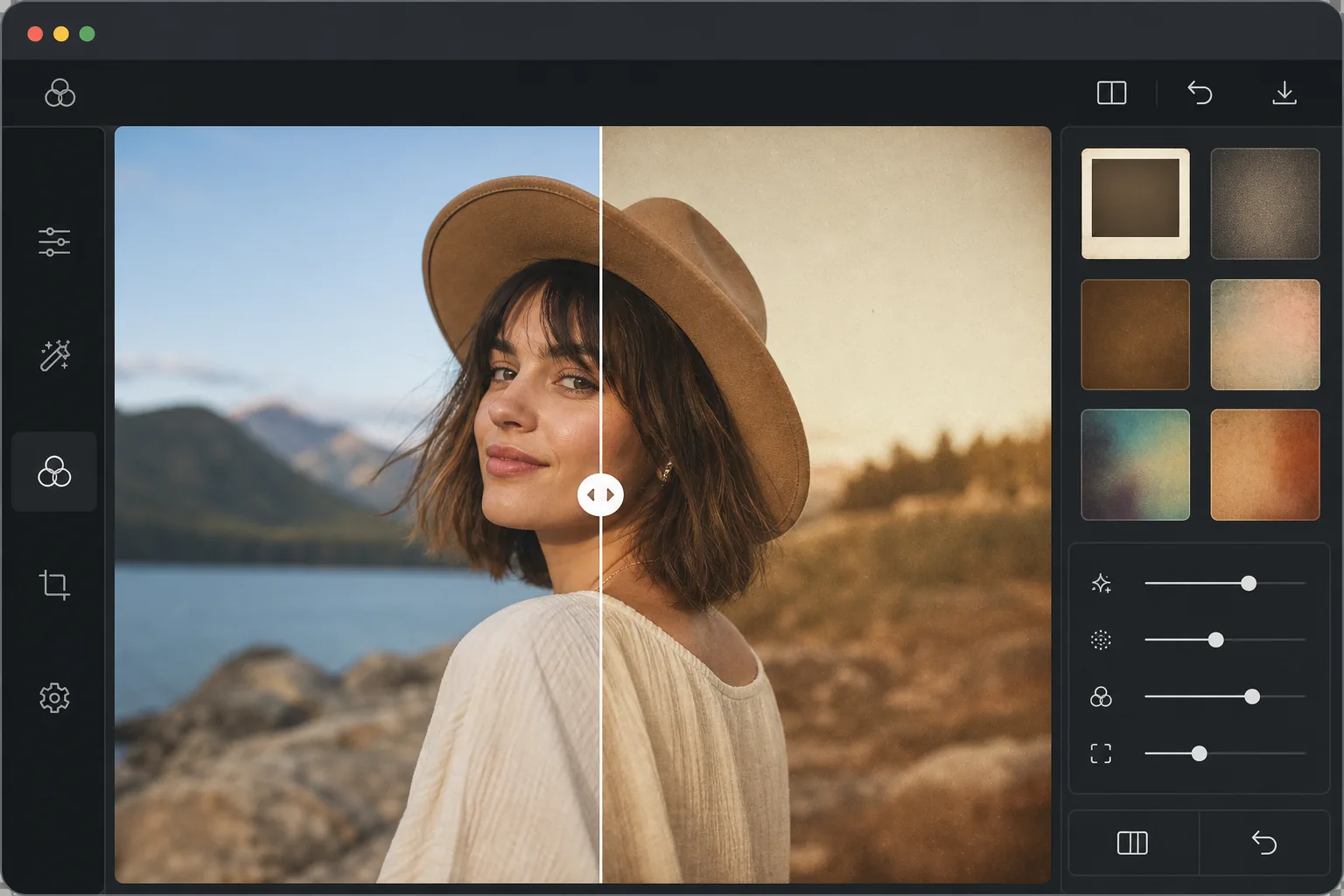
How to make a photo look vintage
To make a photo look vintage, open Magic Eraser on the web, iOS, or Android, select AI Filter, upload your photo, and pick a vintage preset — 1970s Polaroid, 35mm film, faded print, sepia, or cross-processed — then adjust the strength to taste. It includes limited free edits after sign-in. Each preset applies the warm color shift, lifted shadows, film grain, and gentle fading of analog film all at once, rather than one effect at a time. Modern smartphone shots work best because a clean digital starting point gives the filter the most to work with. The vintage look is not just a single filter — it is a combination of characteristics from analog photography. Film stocks had limited dynamic range, producing lifted shadows and compressed highlights. Color chemistry created distinctive shifts: Kodak Portra leaned warm and pink, Fuji Superia shifted green-cyan, and faded prints lost saturation unevenly. Physical aging added yellow tinting, light leaks from damaged film backs, and vignetting from older lenses. AI vintage filters model these characteristics holistically rather than stacking simple adjustments, producing results that look authentically analog rather than digitally processed.
Before you start
Create a vintage look in three steps
Start with upload your photo. The result preview above and tips below use this guide's existing content; no separate before-and-after proof is assumed.
- 1
Upload your photo
Open Magic Eraser on web, iOS, or Android and select AI Filter. Upload any photo — modern smartphone shots work great because the clean digital starting point gives the vintage filter more to work with.
- 2
Choose a vintage style
Browse vintage filter presets: 1970s Polaroid (warm, soft focus, white border), 35mm Film (subtle grain, natural color shift), Faded Print (desaturated, yellowed), Sepia (classic brown tone), and Cross-Processed (dramatic color shifts). Each filter recreates a specific analog photography era and technique.
- 3
Adjust intensity and export
Fine-tune the filter intensity — 100% for full vintage effect, or lower for a subtle hint of nostalgia. Adjust grain amount, color shift strength, and vignette depth individually. Export in your preferred format.
Best for
- Instagram creators maintaining a cohesive vintage aesthetic across their feed
- Wedding photographers offering a romantic film-look editing style to clients
- Nostalgia-themed social media posts and throwback content
- Musicians and bands creating retro-styled promotional photos and album art
- Interior designers and lifestyle bloggers using warm, lived-in visual tones
Tips for best results
The vintage look works best on photos with warm, natural lighting — golden hour shots, indoor ambient light, and overcast days all respond beautifully. Harsh midday sun produces less convincing vintage results. For an authentic 1970s look, combine the filter with a slight overexposure: vintage cameras often metered inaccurately. Portraits benefit from lighter vintage application (50-70% intensity) to preserve skin tone accuracy, while landscapes and street scenes handle full intensity well. Consistency matters: pick one vintage style and apply it across an entire series for a cohesive look.
Frequently asked questions
- Does it add real film grain?
- Yes. The AI adds film grain that matches the selected vintage style — fine grain for Portra-style, coarser grain for pushed high-ISO film, or no grain for the clean Polaroid look. The grain is organic and random, not a repeating pattern.
- Can I replicate a specific film stock?
- The preset filters are inspired by popular film stocks and vintage techniques. While they are not exact scientific replications, they capture the essential character of each style — Portra warmth, Superia greens, Velvia saturation, and Tri-X contrast.
- Is the vintage filter free?
- Yes. AI Filter features including vintage presets are available in the free tier with daily usage limits. Premium removes limits and enables batch processing for consistent vintage looks across entire photo sets.
- What is the difference between vintage, retro, and sepia?
- Sepia is one specific effect — a warm brown monotone, like an old print. Retro usually means bold, saturated color and styling from a particular decade (think 1980s neon or 1970s orange-brown). The vintage presets here are broader: they recreate the full character of analog film — color shift, lifted shadows, grain, and fading together — and include sepia as just one of several looks. Pick sepia for the classic brown tone, or a film preset for a fuller analog feel.
- How do I make it look subtle and authentic instead of like an obvious filter?
- Lower the intensity to around 40–60% rather than 100%, keep grain light, and start from a well-lit photo (golden hour or soft indoor light reads as more film-like than harsh midday sun). The goal is a believable analog feel, not a heavy overlay — a gentle warm shift with a touch of grain almost always looks more authentic than a maxed-out effect.