
How to fix an overexposed photo
Overexposure happens when too much light hits the sensor — faces wash out, skies turn white, and detail disappears into brightness. Magic Eraser's AI recovers lost detail and restores natural exposure, saving photos that look too bright.
Last updated
Fix exposure now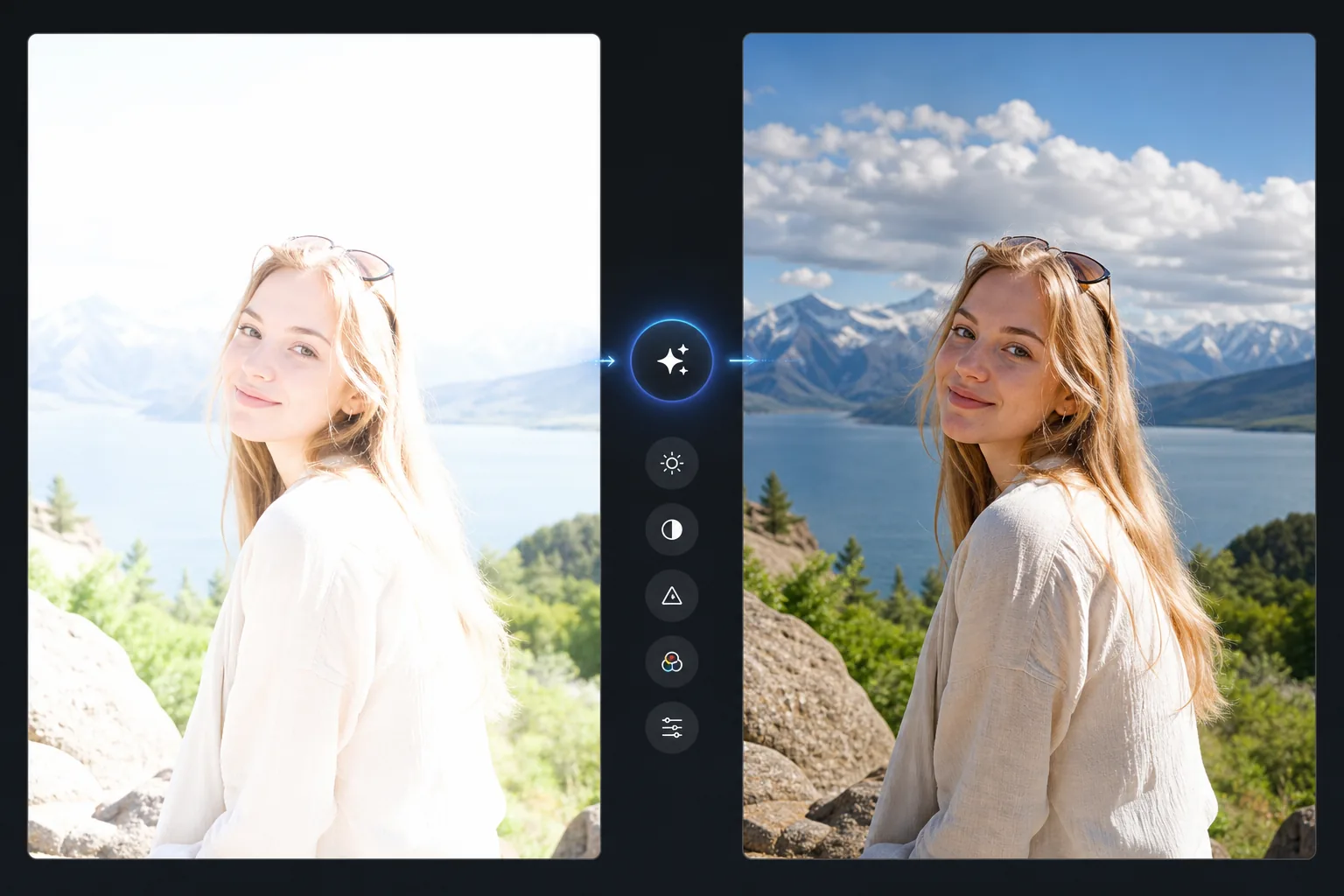
How to fix an overexposed photo
To fix an overexposed photo, open Magic Eraser on the web, iOS, or Android, upload the too-bright image, and apply AI Enhance — it lowers the overall exposure, pulls back the highlights, and restores natural color and skin tone. It includes limited free edits after sign-in. How much comes back depends on the original: areas that are bright but not pure white recover well, while fully blown-out white areas have no detail left to recover, so the AI fills them in plausibly rather than restoring what was really there. For the best result, start from the highest-resolution copy of the photo you have. Overexposure occurs when the camera's sensor receives more light than it can record — bright areas 'clip' to pure white, losing all detail in those regions. Slight overexposure (highlights are very bright but not pure white) retains recoverable detail that AI enhancement can pull back. Heavy overexposure (large areas of pure white, known as blown highlights) has permanently lost detail in those regions — the AI can reduce the brightness and generate plausible detail, but the original information is gone from the file. Understanding this distinction helps set expectations: slightly overexposed photos can be restored to excellent quality; heavily blown-out photos can be improved but won't match a properly exposed original. Magic Eraser's AI analyzes the image and applies exposure correction, highlight recovery, and color restoration tailored to each image's specific overexposure pattern.
Before you start
Fix overexposure in three steps
Start with upload the overexposed photo. The result preview above and tips below use this guide's existing content; no separate before-and-after proof is assumed.
- 1
Upload the overexposed photo
Open Magic Eraser on web, iOS, or Android. Upload the overexposed image — a washed-out portrait, a blown-out sky, a flash-blasted indoor shot, or any image that's too bright. JPEG, PNG, HEIC, and WebP supported.
- 2
Apply AI enhancement
Select the AI enhance tool. The AI detects the overexposure pattern — which areas are clipped, which are recoverable, and what the correct exposure should be. It pulls back highlights, restores color saturation lost to brightness, and recovers detail in bright regions.
- 3
Review and export
The AI produces a corrected version with restored highlights, recovered color, and natural exposure balance. Check faces (skin should look natural, not gray), skies (should show cloud detail if not completely blown), and bright areas (should show texture and detail). Export at full resolution.
Best for
- Flash photography where direct flash washed out the subject's face or created hotspots
- Outdoor portraits where bright backlight or reflections caused the camera to overexpose the subject
- Landscape and travel photos where the sky blew out to white while the ground is properly exposed
- Phone photos where auto-exposure misjudged the scene and the whole image is too bright
- Event photography where mixed lighting caused inconsistent exposure across shots
Tips for best results
The AI works best on slightly overexposed images where highlight detail is still technically present in the file but not visible. For JPEG files, the limited dynamic range means heavily blown areas have less recoverable detail than RAW files — but the AI can still improve the image by pulling back the brightest areas and regenerating plausible detail. If the overexposed area is the sky only, you can also use the sky replacement tool for a more dramatic improvement. For flash overexposure (a white-hot subject against a normal background), the AI balances the subject's exposure to match the background. For uniformly overexposed images (everything is equally too bright), the AI applies a global exposure correction with selective highlight recovery.
Frequently asked questions
- Can it recover completely blown-out white areas?
- Partially. Areas that are pure white (RGB 255,255,255) have lost all detail. The AI can reduce the brightness and generate plausible texture based on surrounding context, but it can't recover data that was never recorded. Slightly overexposed areas (very bright but not pure white) recover much better.
- Is it better to fix in-camera or with AI?
- In-camera is always better — proper exposure captures maximum detail. But when the moment is gone and the overexposed photo is all you have, AI correction produces significantly better results than manual brightness/contrast adjustment.
- Does it fix faces that are washed out by flash?
- Yes. Flash overexposure on faces is one of the best cases for AI correction. The AI restores skin tone, reduces the white hotspot, and brings back facial detail. Skin should look natural and warm, not gray.
- Is exposure correction free?
- Yes. AI enhancement including exposure correction is available on the free tier with daily usage limits. Premium removes limits for batch processing.
- Can it bring back a blown-out white sky?
- It depends on how blown out it is. A sky that's very bright but still holds faint cloud or blue tones can often be toned down to recover those details. A sky that's pure white edge to edge has no recorded detail left, so the AI will generate plausible clouds or a graduated tone rather than reveal the real sky that was there. If an accurate sky matters, a separate sky-replacement edit gives you more control than highlight recovery alone.