
How to create a transparent image
Transparent images — PNGs with no background — are essential for design work: product cutouts for e-commerce, logo files for brand kits, sticker designs, overlay graphics for presentations, and subject isolations for composite photography. Magic Eraser's Background Eraser removes the background and exports a clean PNG with alpha transparency, ready for any design tool.
Last updated
Make image transparent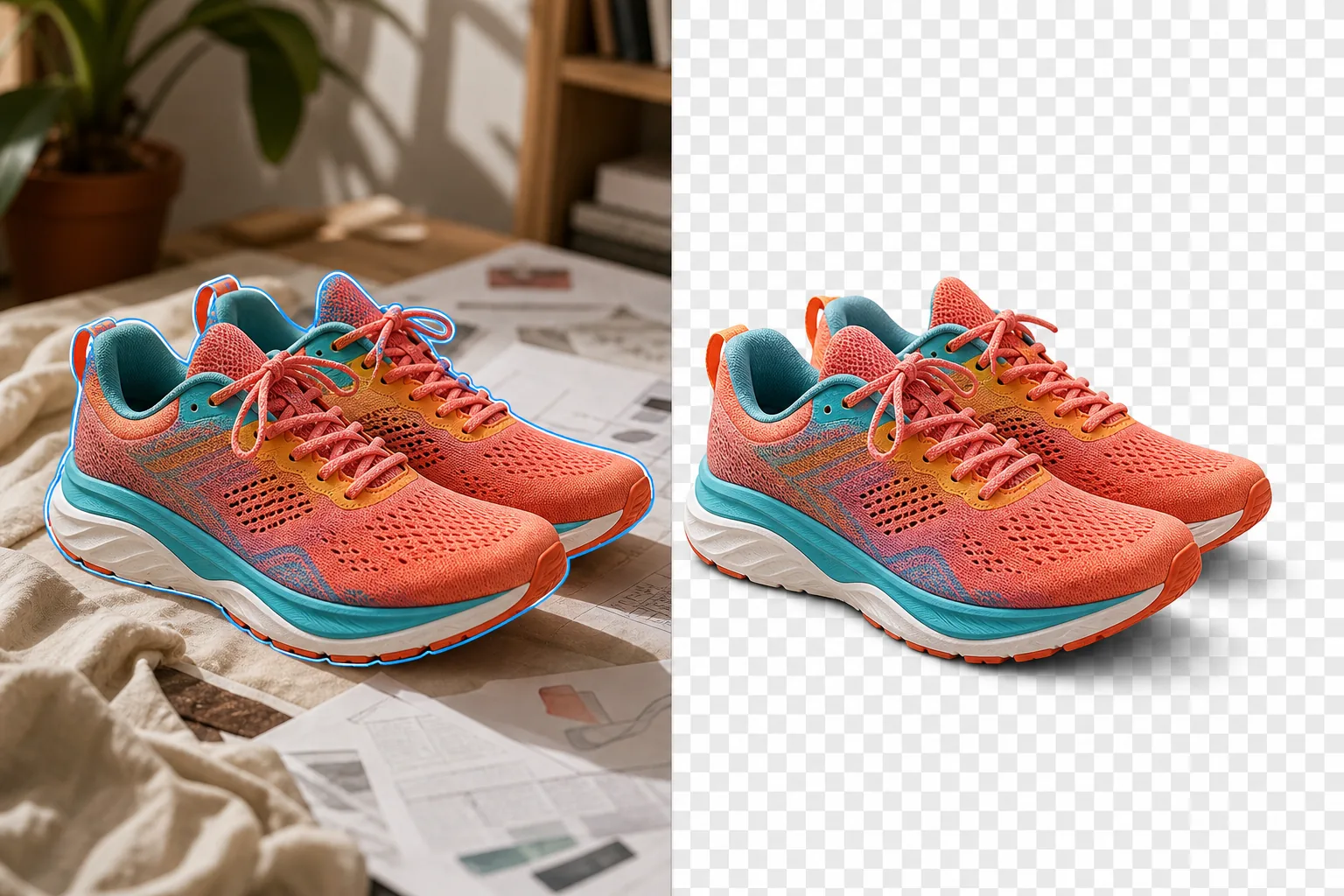
Where transparent images are used and why they matter
A transparent image (a PNG file with an alpha channel) lets the subject float on top of any background — a product image placed onto a white e-commerce listing, a logo layered over a website header, a person composited into a different scene, a sticker design printed on clear vinyl. Without transparency, images carry their rectangular background into every context where they're placed, creating visible edges where the image's background meets the destination's background. E-commerce product images need transparency so the product can be placed on marketplace-standard white backgrounds, lifestyle mockups, and promotional banners without carrying the shooting surface with it. Brand logos need transparency so the logo works on any background color — dark, light, patterned, or photographic. Presentation graphics and social media overlays need transparency so inserted elements blend with the slide or post background. Print-on-demand products (stickers, t-shirts, mugs, phone cases) need transparent source files so the design appears on the product surface without a visible rectangular boundary. The traditional workflow for creating transparency involves Photoshop's pen tool (manual selection path) or Magic Wand/Quick Selection (semi-automatic selection) followed by delete-the-background, then Save As PNG. For simple shapes with clean edges, this takes 5-10 minutes. For complex silhouettes (hair, fur, translucent materials, irregular outlines), it takes 30+ minutes of careful path editing. Magic Eraser automates the subject detection and edge masking, handling complex edges (individual hair strands, fine fur, semi-transparent fabric) in seconds.
Before you start
Create a transparent image in three steps
Start with upload the image. The result preview above and tips below use this guide's existing content; no separate before-and-after proof is assumed.
- 1
Upload the image
Open Magic Eraser on web, iOS, or Android. Drop in the product photo, logo, portrait, sticker design, or any image where you need the subject isolated on a transparent background. JPEG, PNG, HEIC, and WebP all accepted — even if the source is a JPEG (which doesn't support transparency), the output will be a PNG with the alpha channel.
- 2
Remove the background
Tap Background Eraser. The AI detects the primary subject and removes everything else, creating a transparent background shown as a checkerboard pattern. For logos and designs with internal transparent areas (the space inside a letter O, gaps between design elements), the AI detects and removes those too. If any background remnants remain at complex edges (fine hair strands, intricate cutout shapes), use the refine brush to clean them.
- 3
Export as PNG
Export the result as PNG to preserve the transparency. JPEG does not support alpha channels and will fill the transparent area with white. For design work in Canva, Figma, Photoshop, or Illustrator, the PNG imports directly with transparency intact. For web use (overlaying on a webpage background), the PNG displays with the transparent areas showing the page background behind it. For print-on-demand, check the vendor's resolution requirements — most require 300 DPI at the print size.
Best for
- E-commerce product cutouts for marketplace listings, lifestyle mockups, and promotional materials where the product needs to float on any background
- Logo and brand asset preparation where the logo file needs to work on light, dark, patterned, and photographic backgrounds
- Sticker and print-on-demand designs where the artwork needs transparent edges for clean printing on products
- Presentation and social media overlays where inserted graphics need to blend with the slide or post background
- Composite photography where subjects are isolated and placed into new scenes or group compositions
- App and web design where UI elements, icons, and illustrations need transparent backgrounds for layering
Tips for best results
For the cleanest transparency, the source image should have the subject clearly separated from the background — either by color contrast (dark product on light surface) or spatial separation (subject in focus, background slightly blurred). Clean edges in the source produce clean edges in the transparent output. For products with reflections on the shooting surface (glass bottles on a reflective table, jewelry on a mirrored tray), the Background Eraser removes the reflection along with the background — if you want to keep the reflection, use the refine brush to include it. For logos: if the logo is on a white background (common for brand files distributed as JPEG), the Background Eraser handles this cleanly — white-on-white edge detection is harder than high-contrast cases, so verify the edges of white logo elements against the checkerboard. For sticker designs with intentional white borders: the AI may remove the white border as background — use the refine brush to include the white border area if it's part of the design. Export file size: transparent PNGs are larger than JPEGs because the alpha channel adds data and PNG uses lossless compression. For web use where file size matters, consider running the PNG through an optimizer like TinyPNG after export.
Frequently asked questions
- Is creating transparent images free?
- Yes. Magic Eraser's free tier includes Background Eraser with daily usage limits. Premium ($29.99/year) removes limits and enables high-resolution PNG exports.
- What file format supports transparency?
- PNG is the standard format for transparent images. It supports an alpha channel that defines which pixels are opaque, semi-transparent, or fully transparent. JPEG does not support transparency — exporting as JPEG fills transparent areas with a solid color (usually white). WebP also supports transparency if you need smaller file sizes for web use.
- Can I make a logo transparent from a JPEG file?
- Yes. Upload the JPEG logo (which has a solid background), run Background Eraser to remove the background, and export as PNG. The result is a transparent-background logo file even though the source was a JPEG. This is one of the most common uses — converting logo JPEGs with white backgrounds into transparent PNGs for design work.
- Will it handle semi-transparent elements like glass or sheer fabric?
- Yes. The AI detects semi-transparent regions and preserves their partial opacity in the alpha channel. A glass bottle will have its body rendered as semi-transparent in the output, showing the checkerboard (or any new background) through it at the correct opacity level rather than appearing as a solid opaque cutout.
- Can I batch-process multiple images to transparent?
- Process each image individually through Background Eraser — the per-image processing is fast (seconds per image), so creating transparent versions of a 30-image product catalog takes under 15 minutes. Each image gets its own subject detection, so mixed content (products of different shapes, people, logos) all process correctly.