
How to create a photo collage
A single photo tells one moment — a collage tells a story. Whether you are summarizing a vacation, showcasing a product line, creating a before-and-after comparison, or building a mood board, collages combine multiple images into one cohesive visual. Magic Eraser's design tool provides smart layouts, drag-and-drop arrangement, and instant export.
Last updated
Create a collage now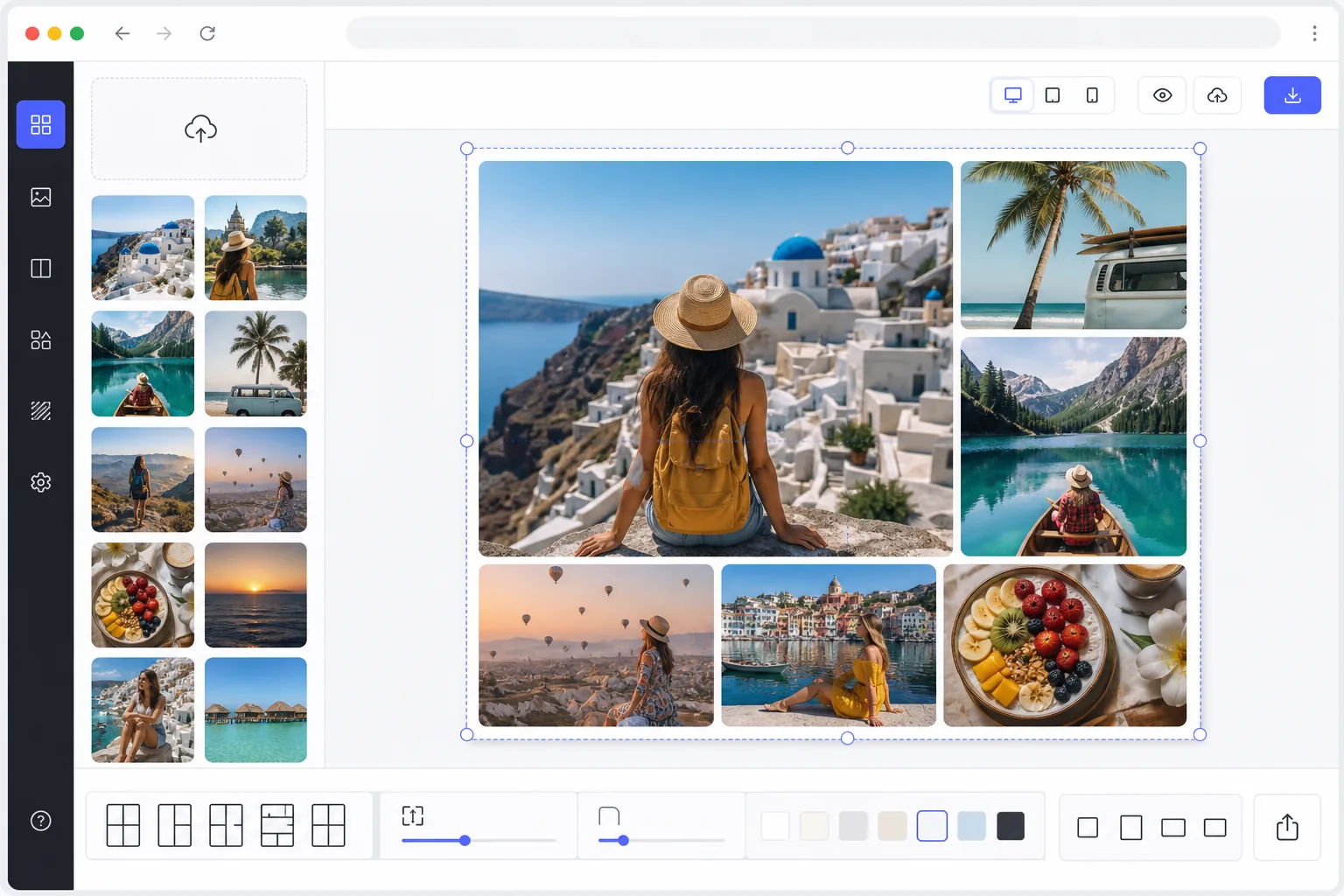
How to create a photo collage
To create a photo collage, open Magic Eraser on the web, iOS, or Android, select the Design tool, upload 2–20 photos, pick a layout template, drag to rearrange the cells, and export. It includes limited free edits after sign-in. The tool auto-crops each photo to its cell while keeping faces centred, and you can set the spacing, border, corner radius, and aspect ratio for your platform. A collage arranges whole photos side by side in a grid — if instead you want subjects cut out and blended into one shared scene, that's a photo montage. Dropping photos into a grid is easy. Creating a collage that actually looks good requires balancing visual weight across the layout, maintaining consistent color temperature and exposure between shots, sizing images so the most important subjects are prominent, choosing spacing and borders that unify without cluttering, and selecting an aspect ratio that works for the intended platform. Manual collage creation in Photoshop means resizing and positioning each image individually, masking overlaps, matching color tones, and rebuilding the layout from scratch when you want to swap a photo or change the grid. Magic Eraser's design tool handles the layout intelligence automatically — you choose photos, pick a template, drag to rearrange, and export.
Before you start
Create a collage in three steps
Start with upload your photos. The result preview above and tips below use this guide's existing content; no separate before-and-after proof is assumed.
- 1
Upload your photos
Open Magic Eraser on web, iOS, or Android and select the Design tool. Upload 2-20 photos for your collage. Mix orientations freely — portrait, landscape, and square images all work. The tool auto-crops each photo to fit its cell while keeping faces and key subjects centered using AI-based focal point detection.
- 2
Choose layout and customize
Browse layout templates organized by photo count and style — clean grids, magazine layouts, freeform scattered arrangements, or story-format vertical strips. Drag photos between cells to rearrange. Adjust cell sizes by dragging borders. Set background color, cell spacing, corner radius, and overall aspect ratio. The tool shows a live preview as you adjust every parameter.
- 3
Export the finished collage
Preview the final collage and make any last adjustments to photo placement or layout style. Export at the resolution you need — high-resolution for print, optimized for Instagram or Pinterest, or custom dimensions for presentations and websites. Choose JPEG for smaller file size or PNG for maximum quality. Share directly or download.
Best for
- Travel and vacation recaps combining highlights from a trip into a single shareable image
- Before-and-after comparisons for fitness, home renovation, or product transformations
- Product showcases displaying multiple angles or colorways in one marketing image
- Event photography summaries for weddings, parties, and corporate events
- Social media content creators building visually rich posts that tell a story
Tips for best results
Limit your collage to 4-9 photos for the strongest visual impact — too many images shrink each one to the point where details are lost, especially on mobile screens. Choose photos with similar color palettes and lighting for a cohesive look, or use the AI color-match feature to harmonize mismatched shots. Place your strongest, most eye-catching image in the largest cell to create a clear focal point. For Instagram, use the 1:1 aspect ratio; for Pinterest, use 2:3 vertical; for Facebook cover photos, use 16:9 horizontal. Consistent spacing between cells (2-4px for a tight modern look, 8-12px for an airy feel) makes a bigger difference than you would expect. White or light gray backgrounds work universally and keep focus on the photos.
Frequently asked questions
- How many photos can I include in a collage?
- The design tool supports 2 to 20 photos per collage. Layouts automatically adjust to accommodate the number of images. For best results on social media, 4-9 photos strike the ideal balance between storytelling and each image being large enough to appreciate on a phone screen.
- Can I adjust which part of each photo is visible?
- Yes. Each cell has a pan-and-zoom control that lets you reposition and resize the photo within its frame. The AI auto-crops to keep faces and key subjects centered by default, but you can override this to focus on any part of the image you prefer.
- Is creating collages free?
- Yes. Magic Eraser's design tool includes collage creation in the free tier with daily usage limits. Upload photos, choose a layout, customize, and export. Premium removes limits, unlocks additional templates, and enables high-resolution exports for print.
- How do I make a photo collage on my phone?
- Open Magic Eraser in any mobile browser or the iOS or Android app, load your photos from the camera roll, and open the Design tool. Pick a layout, then drag photos between cells and pinch to reposition each one inside its frame. Set the spacing and aspect ratio, then export — the finished collage saves straight back to your camera roll, ready to post. It works the same as the desktop version, with no app install required if you use the browser.
- What's the difference between a collage and a montage?
- A collage keeps each photo whole and arranges them side by side in a grid or layout — you still see distinct framed images, like a vacation recap or a before-and-after. A montage cuts the subjects out of their backgrounds and blends them into a single shared scene, so they look like they were photographed together. Use a collage to show several moments at once; use the montage tool when you want the pieces to merge into one composed image.