
How to convert JPG to WebP
WebP delivers the same visual quality as JPEG at 25-35% smaller file sizes — faster page loads, better Core Web Vitals, and improved SEO. Magic Eraser converts JPG to WebP instantly while preserving quality.
Last updated
Convert to WebP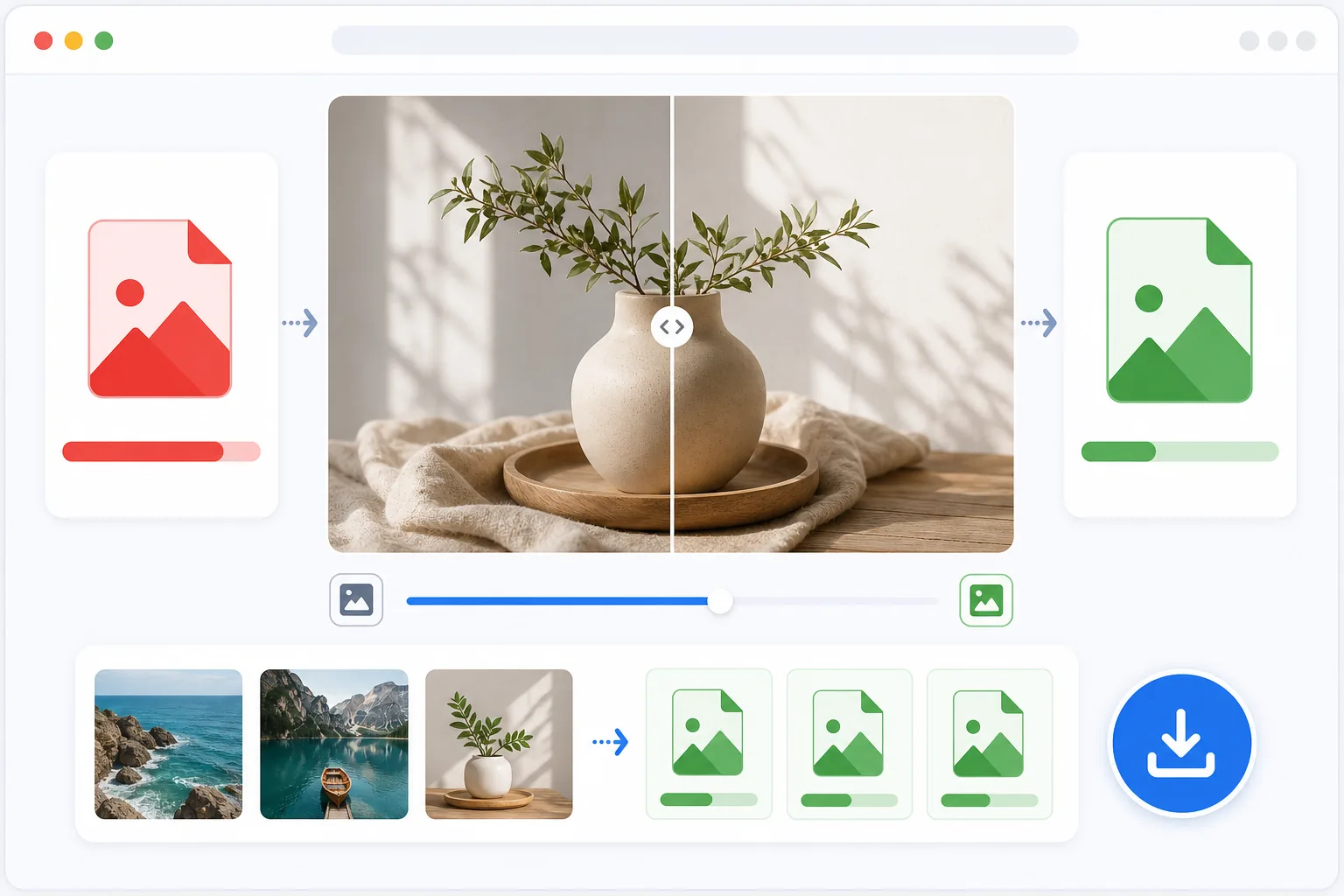
How to convert JPG to WebP
To convert a JPG to WebP, open Magic Eraser on the web, iOS, or Android, upload your JPG or JPEG (one file or a batch), and download the WebP version — it's typically 25-35% smaller at the same visible quality. It includes limited free edits after sign-in. WebP is the right choice for websites and apps, where the smaller file speeds up loading. For email attachments, print, or sharing with someone on an older device or app, JPEG is still the safer, more universally accepted format. Keep your original JPG; converting to WebP and back doesn't restore detail lost along the way. WebP was developed by Google as a successor to JPEG for web use. It uses more advanced compression algorithms (VP8/VP8L) to achieve the same perceived quality at significantly smaller file sizes. A typical JPEG photo converts to a WebP file 25-35% smaller — for a website with hundreds of images, this translates to dramatically faster page loads and lower bandwidth costs. WebP also supports transparency (like PNG) and animation (like GIF) in a single format. All major browsers have supported WebP since 2020: Chrome, Firefox, Safari, Edge, and Opera. For web developers and content creators, switching from JPEG to WebP is one of the simplest performance optimizations available.
Before you start
Convert JPG to WebP in three steps
Start with upload your jpg file. The result preview above and tips below use this guide's existing content; no separate before-and-after proof is assumed.
- 1
Upload your JPG file
Open Magic Eraser on web, iOS, or Android. Upload the JPG/JPEG file you want to convert. You can upload multiple files for batch conversion. There is no file size limit for individual images.
- 2
Preview and adjust quality
The tool shows a preview of the WebP output alongside the original JPEG. Adjust quality settings: 80 for aggressive compression (smallest files), 90 for balanced quality (recommended), or 95+ for near-lossless output. The file size comparison shows exactly how much space you are saving.
- 3
Download WebP files
Download the converted WebP file or batch-download multiple files as a zip archive. The output files maintain the original dimensions and metadata. Use the WebP files directly on your website, in content management systems, or anywhere images are displayed in browsers.
Best for
- Web developers optimizing site performance and Core Web Vitals scores
- Content managers reducing image file sizes for faster page loads
- E-commerce sites with hundreds of product images consuming bandwidth
- Bloggers and publishers optimizing articles with many embedded images
- Email marketers who need smaller image attachments for reliable delivery
Tips for best results
Quality 90 is the sweet spot for most web images — indistinguishable from the JPEG original but 30%+ smaller. Go to 80 for thumbnail grids where slight quality loss is invisible at small sizes. Use 95+ only for hero images and product photos where quality is critical. Always keep the original JPEG as a master file — WebP is lossy, so each re-conversion from an already compressed source accumulates quality loss. For websites, implement WebP with JPEG fallback using the HTML <picture> element to support the rare browsers that do not support WebP.
Frequently asked questions
- Does WebP work in all browsers?
- Yes. As of 2023, all major browsers support WebP: Chrome, Firefox, Safari (14.1+), Edge, and Opera. The only exceptions are very old browser versions that represent less than 1% of global traffic.
- Is there quality loss when converting?
- WebP is a lossy format at standard quality settings, like JPEG. At quality 90+, the difference is imperceptible to the human eye. The advantage is achieving the same perceived quality at a much smaller file size.
- Is JPG to WebP conversion free?
- Yes. Format conversion is available in the free tier with no daily limits for basic conversion. Premium adds batch processing for converting entire image libraries at once.
- When should I not convert to WebP?
- Stick with JPEG when the file is an email attachment, headed for print, or being sent to someone on an older device or app that may not open WebP. Some older software, certain CMS uploaders, and a few marketplaces still expect JPEG or PNG. WebP shines for your own website and apps; for broad compatibility outside the browser, JPEG is the safer default.
- Can I convert WebP back to JPG, and will it look the same?
- Yes, you can convert WebP back to JPG, but it won't recover anything that was already discarded. Both JPEG and standard WebP are lossy, so each conversion drops a little more detail — going JPG to WebP and back is not a round trip to the original. The fix is simple: keep your original JPG and convert from it whenever you need a different format, rather than converting a converted file.