
How to compress an image without losing quality
Large image files slow down websites, fail email attachment limits, and take forever to upload. Magic Eraser compresses photos to a fraction of their original size while keeping them visually identical — the file is smaller but the photo looks the same.
Last updated
Compress image now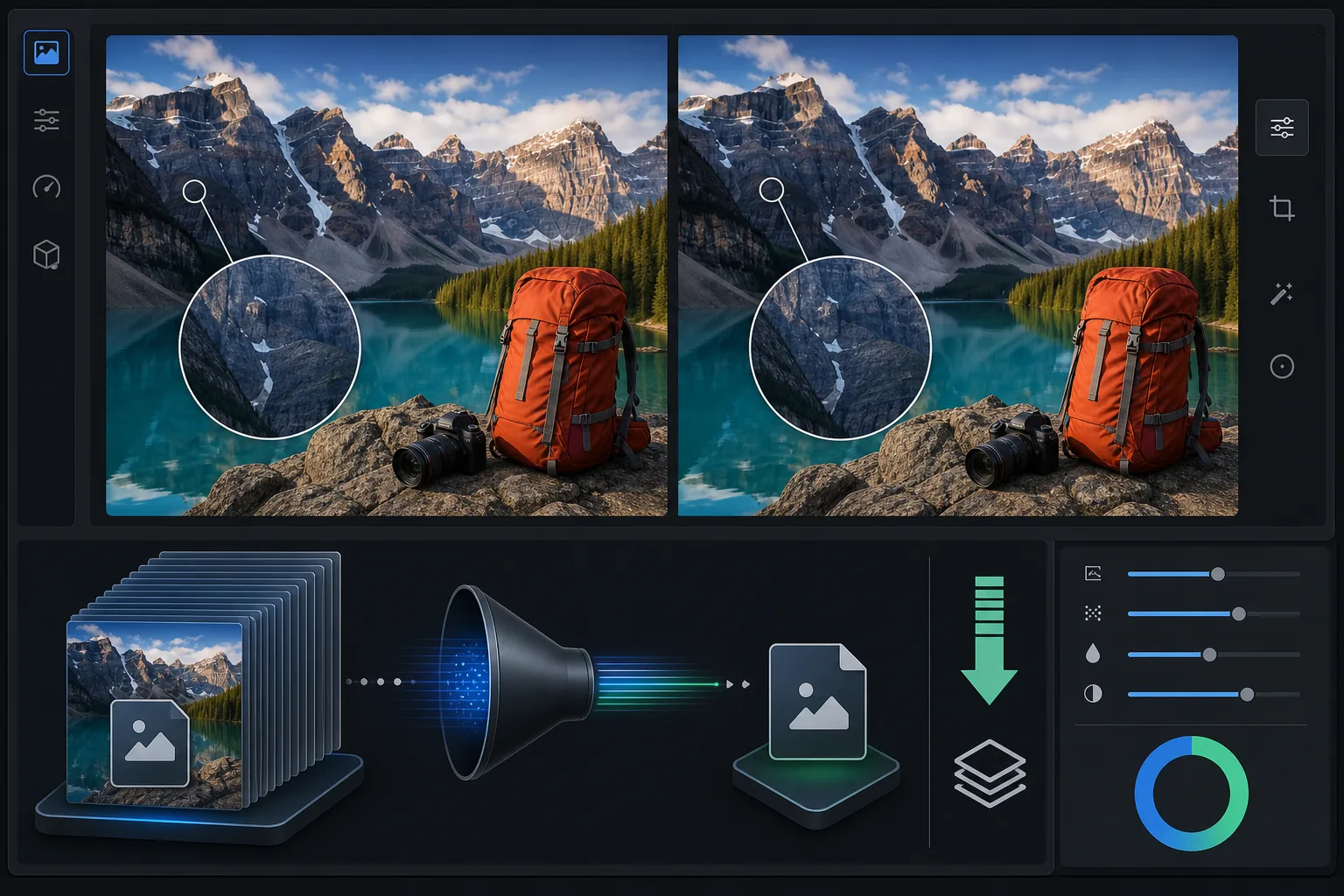
How to compress an image without losing quality
To compress an image without losing visible quality, open Magic Eraser on the web, iOS, or Android, upload your JPEG, PNG, or WebP, pick the balanced compression level, and download the smaller file. It includes limited free edits after sign-in. "Without quality loss" here means visually lossless — the file gets much smaller by dropping data your eye can't see, so the photo looks identical at normal viewing sizes even though it isn't a byte-for-byte copy of the original. Choose WebP for the smallest web files, or keep JPEG for the widest compatibility, and keep your original if you may need to re-edit later. Images are the heaviest content on most web pages — a single unoptimized photo can be 5-10 MB, while a well-compressed version of the same image at 200-500 KB looks identical to the human eye. Google's Core Web Vitals include Largest Contentful Paint (LCP), which measures how quickly the main content loads. Large, uncompressed images directly hurt LCP scores and search rankings. Email services limit attachments to 20-25 MB, and social media platforms re-compress uploaded images aggressively — uploading a pre-optimized image gives the platform less to degrade. Smart compression removes data the human eye can't perceive (high-frequency detail below perception threshold, redundant color data) while preserving the visible quality that matters.
Before you start
Compress images in three steps
Start with upload the image. The result preview above and tips below use this guide's existing content; no separate before-and-after proof is assumed.
- 1
Upload the image
Open Magic Eraser on web, iOS, or Android. Upload the image you need to compress — a photo for your website, an email attachment, or an image set for social media. JPEG, PNG, and WebP supported. The tool shows the original file size.
- 2
Choose compression level
Select the target: web-optimized (smallest file, slight quality reduction), balanced (good compression with no visible quality loss), or minimal (small reduction, maximum quality preservation). For most web use, balanced produces the best size-to-quality ratio.
- 3
Download compressed image
Download the compressed version. The tool shows the new file size and the percentage reduction. A typical photo drops from 3-5 MB to 200-500 KB with balanced compression — an 80-90% size reduction with no visible quality difference at normal viewing sizes.
Best for
- Website images that need to load fast for good Core Web Vitals scores and SEO
- Email attachments that need to fit within 20-25 MB limits when sending multiple photos
- Social media uploads where pre-compression prevents aggressive platform re-compression
- E-commerce product images that need to be high-quality but fast-loading
- Blog and article images where page speed affects reader engagement and search ranking
Tips for best results
For web images, target 200-500 KB for hero images and 50-150 KB for thumbnails and supporting images. WebP format produces 25-35% smaller files than JPEG at equivalent visual quality — use WebP if your website supports it. For images that will be viewed at small sizes (thumbnails, social media feeds), aggressive compression is fine because the small display size hides any artifacts. For images that will be viewed at full screen or printed, use balanced or minimal compression. Compress after all other edits are complete — compressing first and then editing can amplify compression artifacts. For batch compression, upload your entire image set and apply the same compression level for consistent file sizes across the set.
Frequently asked questions
- Will compressed images look worse?
- At balanced compression, the difference is invisible to the human eye at normal viewing distances. Only at extreme zoom or pixel-peeping can you detect subtle differences. For web and social media use, there is no visible quality difference.
- How much smaller will the file be?
- Typically 70-90% smaller. A 5 MB photo becomes 300-500 KB at balanced compression. Exact reduction depends on the image content — detailed photos compress less than simpler images.
- Should I use JPEG or WebP?
- WebP produces smaller files at equivalent quality. Use WebP for websites (supported by all modern browsers). Use JPEG for email attachments and sharing (universal compatibility).
- Is compression free?
- Yes. Image compression is available on the free tier with daily usage limits. Premium removes limits for batch compression of large image sets.
- Is this truly lossless, or visually lossless?
- For the big size savings, it's visually lossless, not mathematically lossless. True lossless compression (like PNG, or lossless WebP) keeps every pixel exactly but only shrinks files modestly. To get a 5 MB photo down to a few hundred KB, the tool discards data below what your eye can perceive — the result looks identical at normal viewing but isn't a bit-for-bit match. If you need an exact archival copy (for example a master file you'll keep re-editing), keep the original and use compressed versions only for sharing, web, and email.