
How to add a border to a photo
A well-chosen border transforms a casual snapshot into a polished, intentional image — whether it is a clean white margin for Instagram grid consistency, a vintage film frame for retro aesthetics, or a branded border with your logo. Magic Eraser's design tool lets you add, customize, and export borders in seconds.
Last updated
Add a border now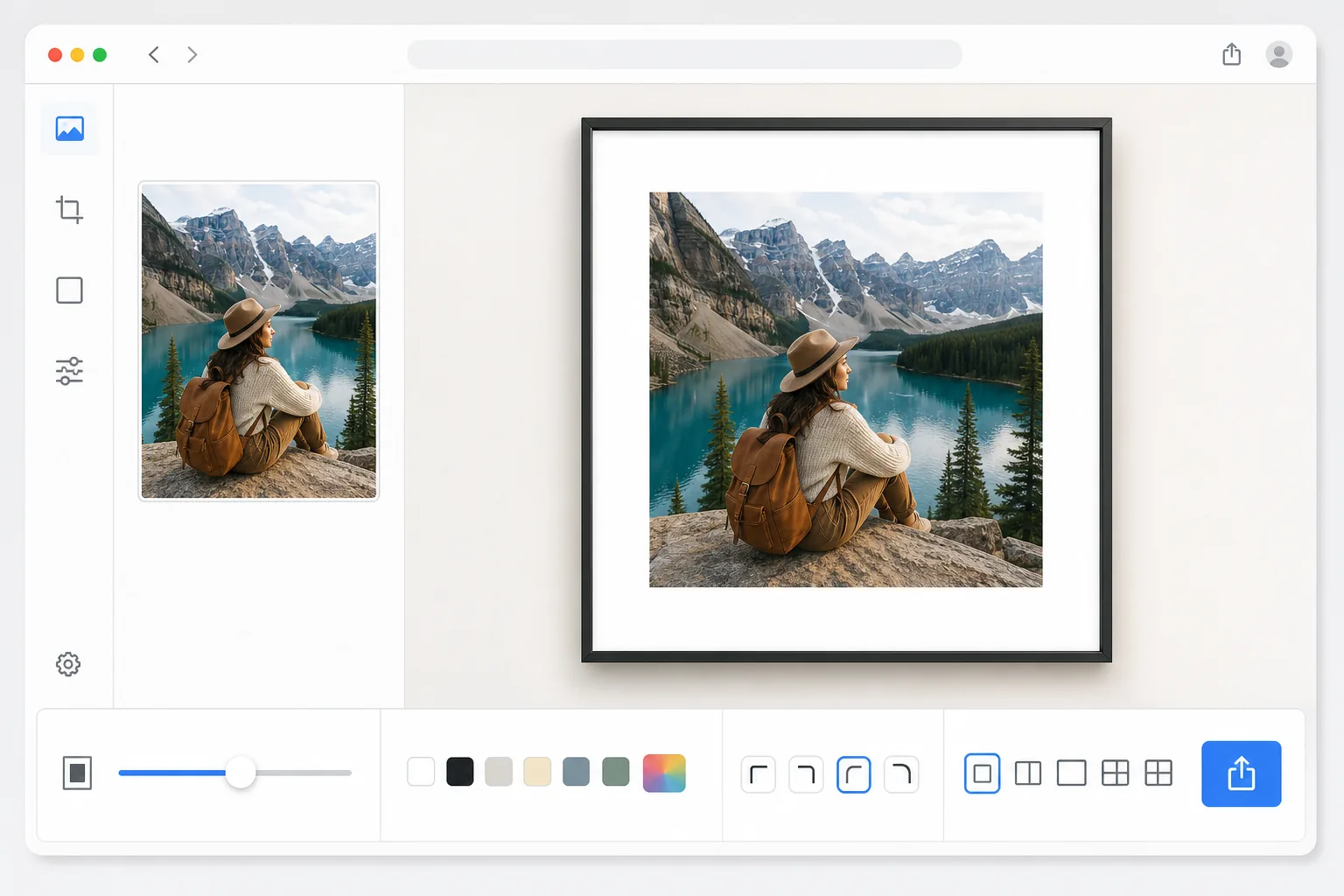
How to add a border to a photo
To add a border to a photo, open Magic Eraser on the web, iOS, or Android, select the Design tool, upload the image, and pick a border — set its width, color, and corner radius, then export. It includes limited free edits after sign-in. The border is added as canvas space around the photo, so your original stays full-resolution and pixel-for-pixel sharp; nothing is scaled down or cropped. Use a white margin for a clean Instagram grid, a black frame for a gallery look, or a branded color, and save the settings as a preset to reuse on the next photo. Borders do more than decorate — they frame the viewer's attention, create visual breathing room, and establish brand consistency. On Instagram, uniform borders make your grid look curated and professional. For print, borders prevent edge-to-edge printing from cutting into your subject. In e-commerce, consistent borders across product listings create a cohesive storefront. Manually adding borders in Photoshop means calculating pixel offsets, creating new canvases, centering images, and ensuring color consistency — tedious work that scales poorly when you need to process dozens or hundreds of images. Magic Eraser's design tool provides preset and customizable border styles that apply instantly and export at the correct dimensions for any platform.
Before you start
Add a border in three steps
Start with upload the photo. The result preview above and tips below use this guide's existing content; no separate before-and-after proof is assumed.
- 1
Upload the photo
Open Magic Eraser on web, iOS, or Android and select the Design tool. Upload the photo you want to frame. Any format works — JPEG, PNG, HEIC, or WebP. The tool preserves the original resolution so your bordered image stays sharp for print or high-resolution displays.
- 2
Choose and customize the border
Browse the border library or start with a blank frame. Adjust border width, corner radius, and color. Choose from solid colors, gradients, patterns, or transparent padding. Set the aspect ratio for your target platform — square for Instagram, 9:16 for Stories, or custom dimensions for print. Preview the result in real time as you adjust.
- 3
Export the bordered photo
Once the border looks right, export at the resolution you need. Choose PNG for borders with transparency, JPEG for solid-color borders at smaller file sizes, or WebP for web-optimized output. Save your border settings as a preset to apply the same style to future photos with one tap.
Best for
- Instagram content creators who want a consistent grid aesthetic with uniform white or colored borders
- Print preparation where margins prevent important content from being trimmed during printing
- E-commerce sellers maintaining consistent product image framing across listings
- Brand designers adding branded frames with logos and brand colors to marketing photos
- Wedding and event photographers delivering framed images to clients
Tips for best results
For Instagram grid consistency, pick one border style and aspect ratio and stick with it across all posts — the visual uniformity is what makes grids look professional. White borders work universally and let the photo's colors pop, but dark borders create a more dramatic, gallery-like feel. When adding borders for print, include at least a 3mm margin beyond the trim line to account for cutting tolerance. For branded borders, keep text and logos outside the inner 80% of the image to avoid competing with the photo content. If you are adding borders to resize photos to a specific aspect ratio (like making a 4:3 photo fit a 1:1 square), center the photo and use a complementary background color rather than pure white to add visual interest.
Frequently asked questions
- Can I add different border sizes for different sides?
- Yes. The design tool lets you control each side independently — wider bottom border for a classic Polaroid look, even margins for centered framing, or asymmetric borders for creative layouts. You can also set uniform width with a single slider if you want equal borders on all four sides.
- Will the border reduce my image quality?
- No. The tool adds canvas space around your photo rather than scaling it down. Your original image retains its full resolution and sharpness. The exported file dimensions increase to accommodate the border, but the photo content remains pixel-for-pixel identical to the original.
- Is adding borders free?
- Yes. Magic Eraser's design tool includes border and frame features in the free tier with daily usage limits. Choose from preset styles, customize colors and widths, and export. Premium removes limits and unlocks batch processing to border hundreds of images at once.
- How do I add a border to a photo on Android or iPhone?
- Open Magic Eraser in any mobile browser or the iOS or Android app, load the photo from your camera roll, and open the Design tool. Pick a border, then adjust its width and color with your finger and preview it live. Export and the bordered photo saves straight back to your camera roll, ready to post. It works the same as the desktop version, with no app install required if you use the browser — handy for framing a photo right before you share it.
- Can I add a border to make a photo square without cropping it?
- Yes — this is one of the most common reasons to add a border. Instead of cropping a landscape or portrait photo to fit a 1:1 Instagram square (which cuts off part of the image), set the canvas to square and let the border fill the leftover space. The whole photo stays visible, centered inside the frame. A white border is the classic choice, but a color sampled from the photo often looks more intentional than pure white.