
AI Filter style
KI-Fotofilter für Typografie
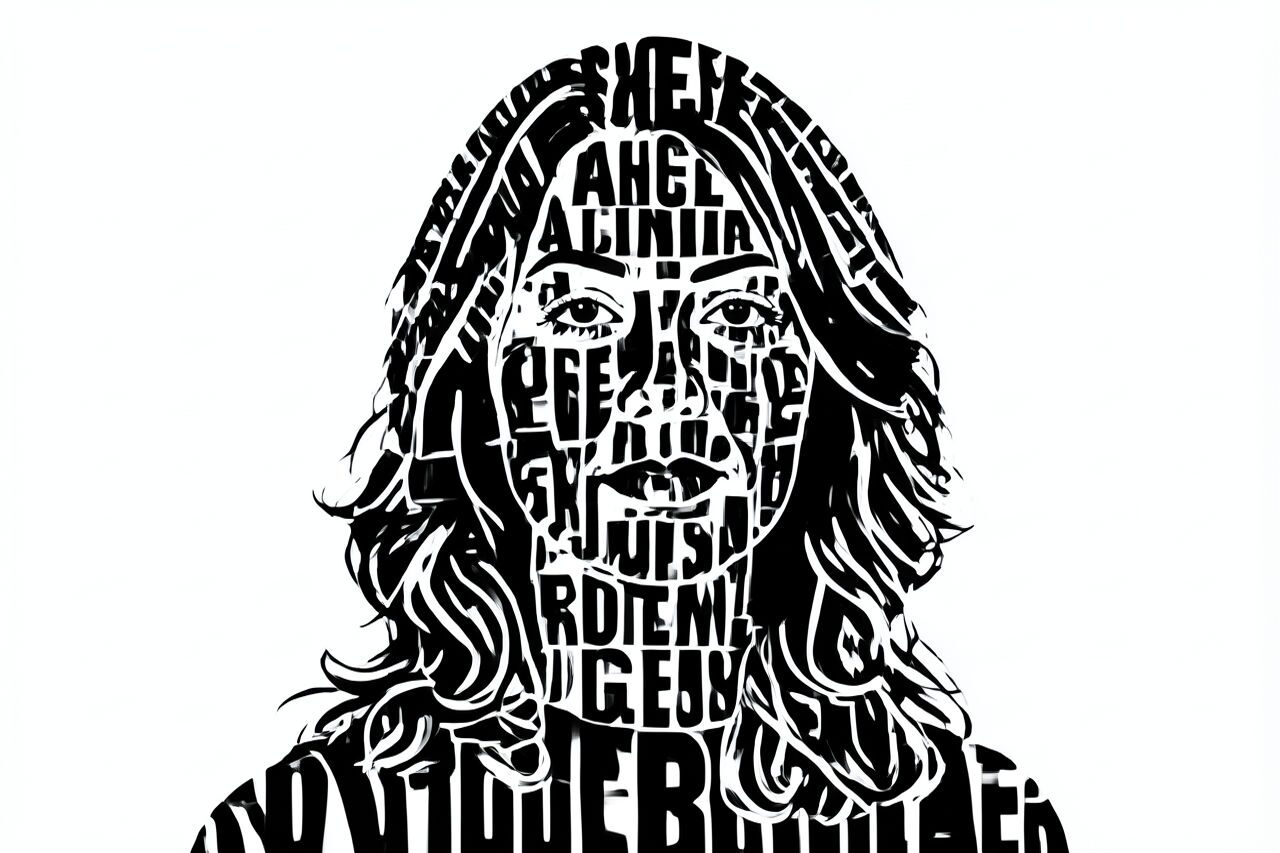
Verwandle ein Foto in eine typografiebetonte Komposition, ohne das Hauptmotiv unkenntlich zu machen. Nutze den Filter für Poster-, Cover-, Social- und Kampagnenentwürfe; behandle erzeugte Schrift als Gestaltungselement und ergänze den exakten finalen Text mit einem editierbaren Textwerkzeug.

Use case
Poster- und Coverideen rund um ein erkennbares Porträt oder Objekt.
Use case
Social-Media-Grafiken und Kampagnenentwürfe mit ausdrucksstarken Buchstaben und markantem Layout.
Use case
Album-, Event- und Merchandising-Ideen, die Fotos mit typografischem Stil verbinden.
Filter preview
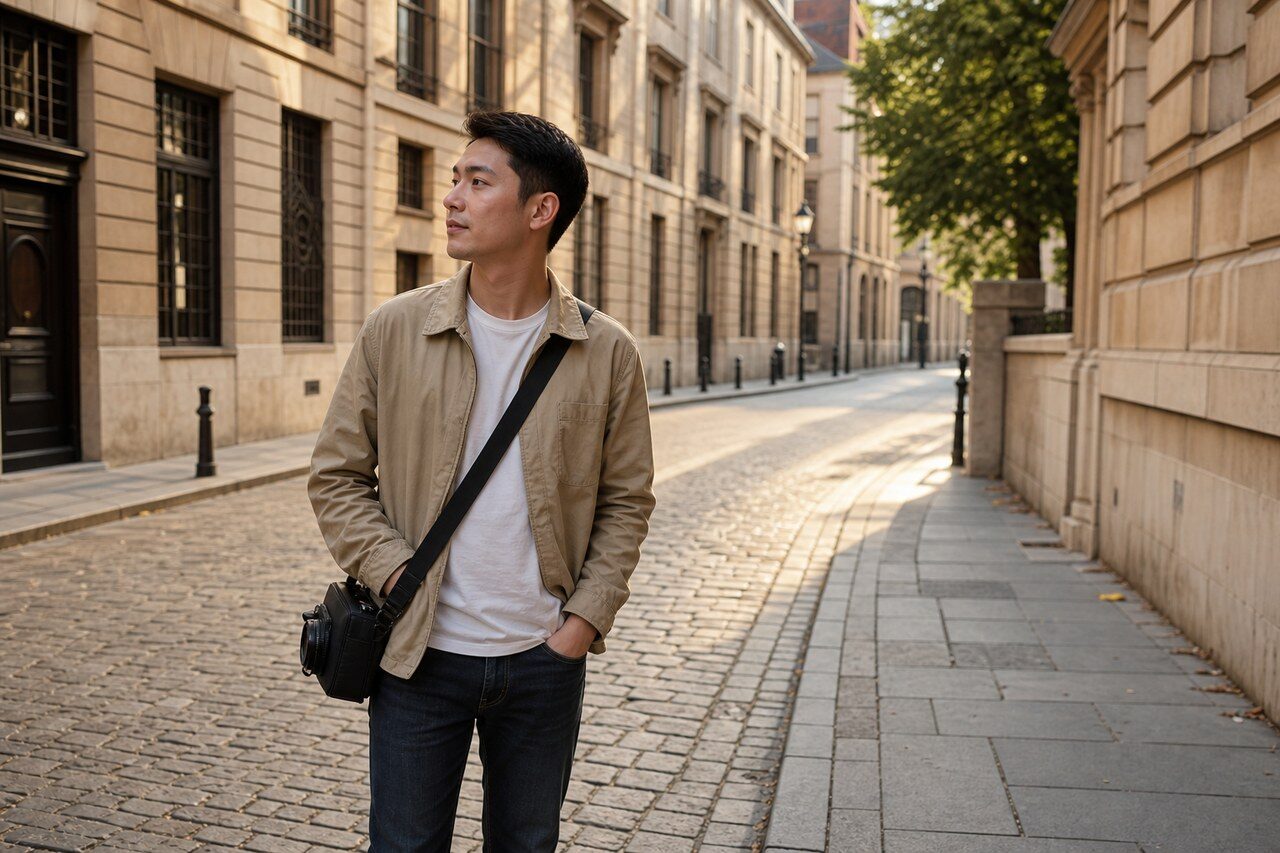
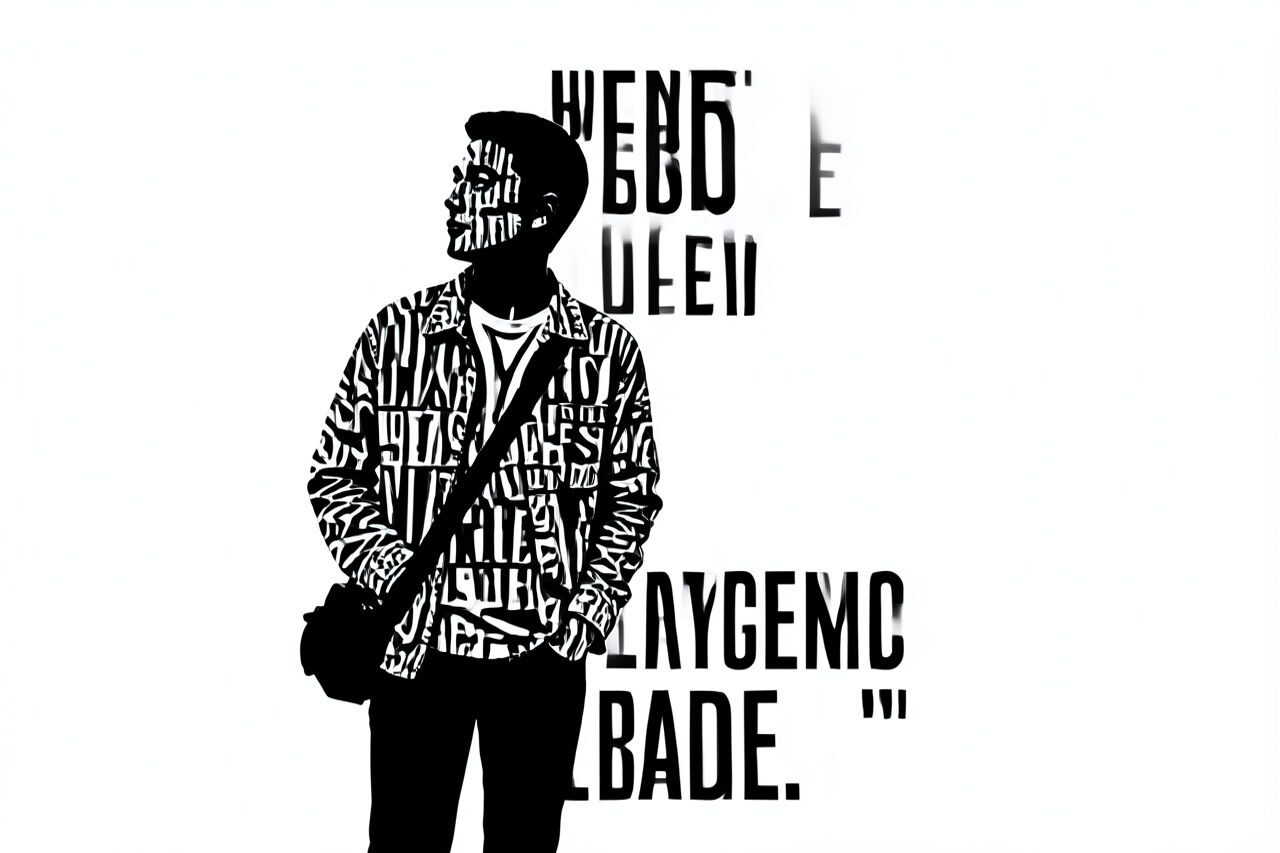
Compare the original photo with the typographic result
The example uses a generated source photo and the same filter API path as the app, so users can judge the visual treatment before uploading their own image.
More examples
Test the typographic filter on different photo types
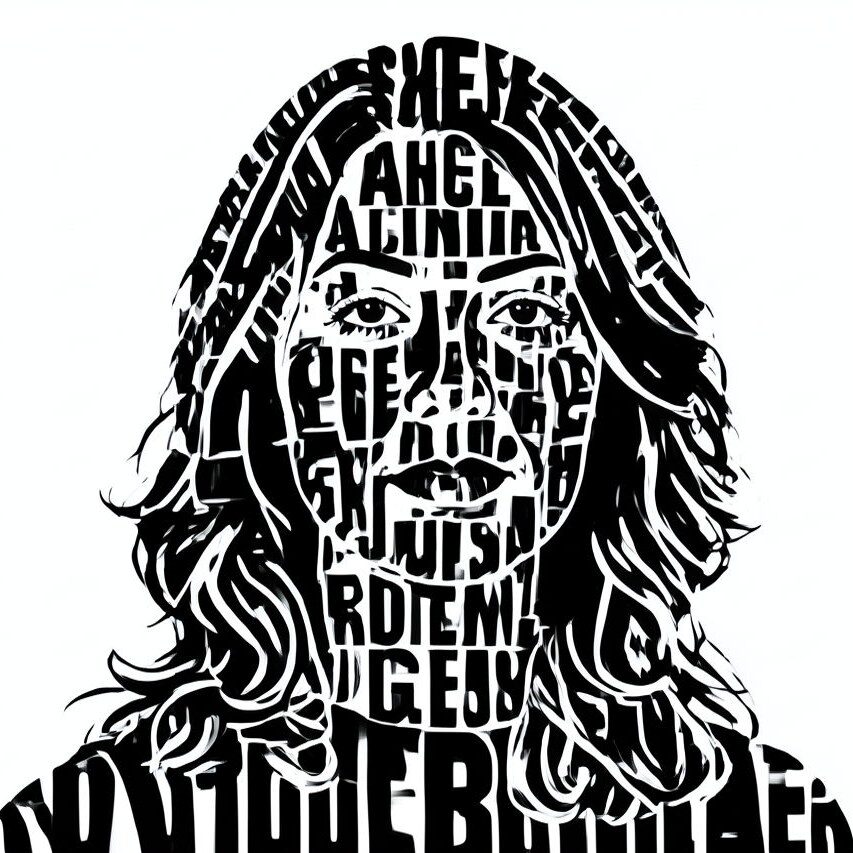
Compare portrait, product, and pet examples before opening the filter. Each result uses the same filter API path as the Magic Eraser app.

Portrait
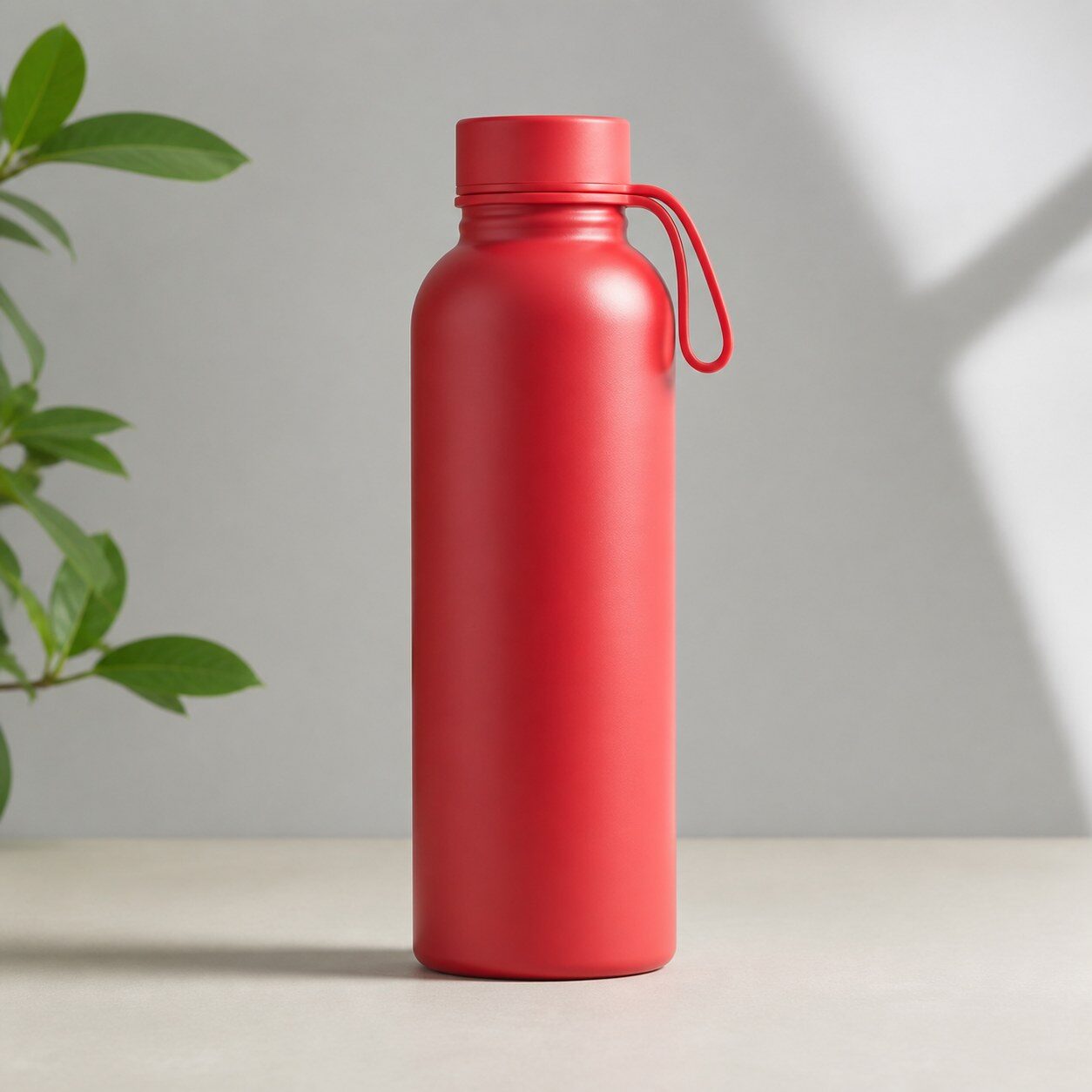
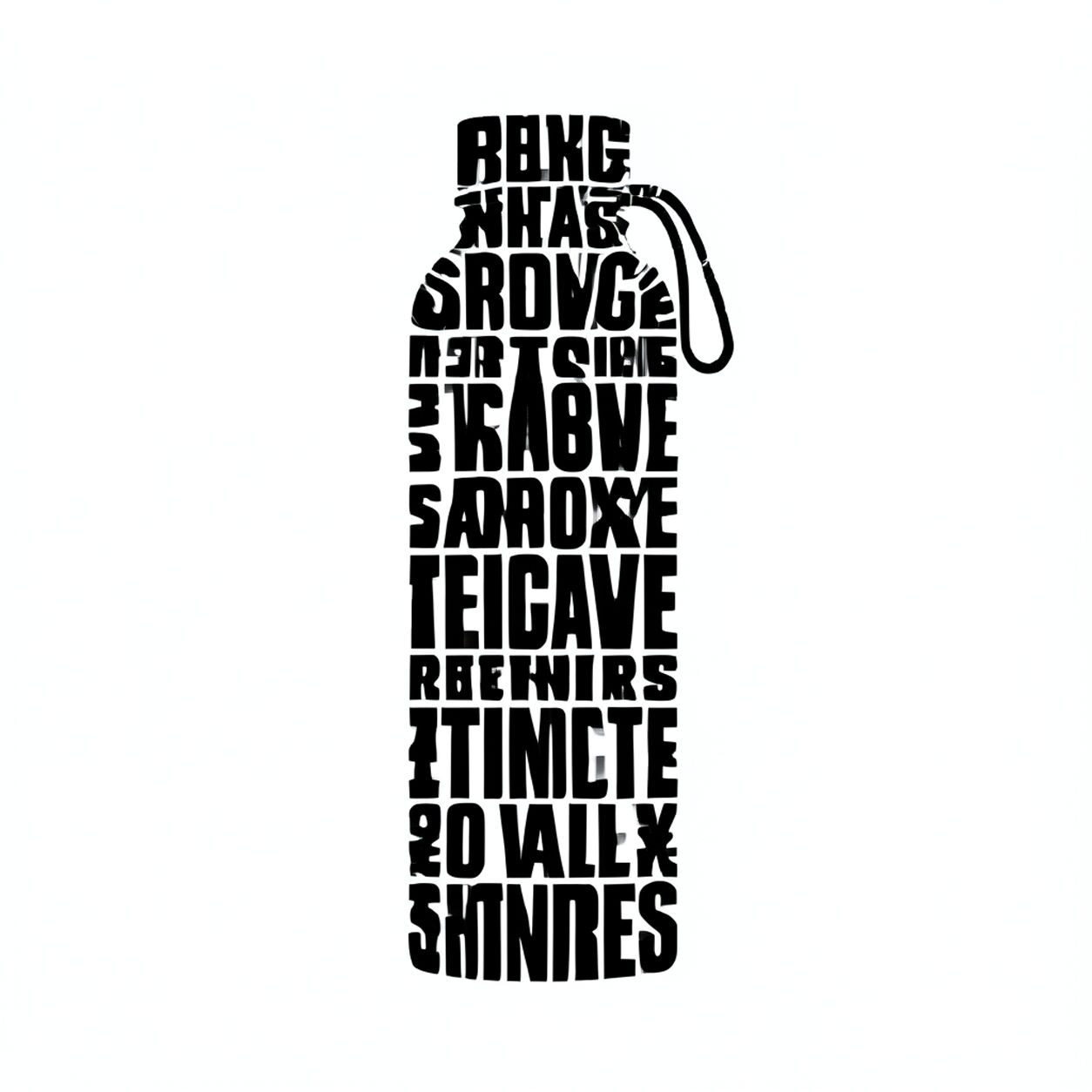
Product

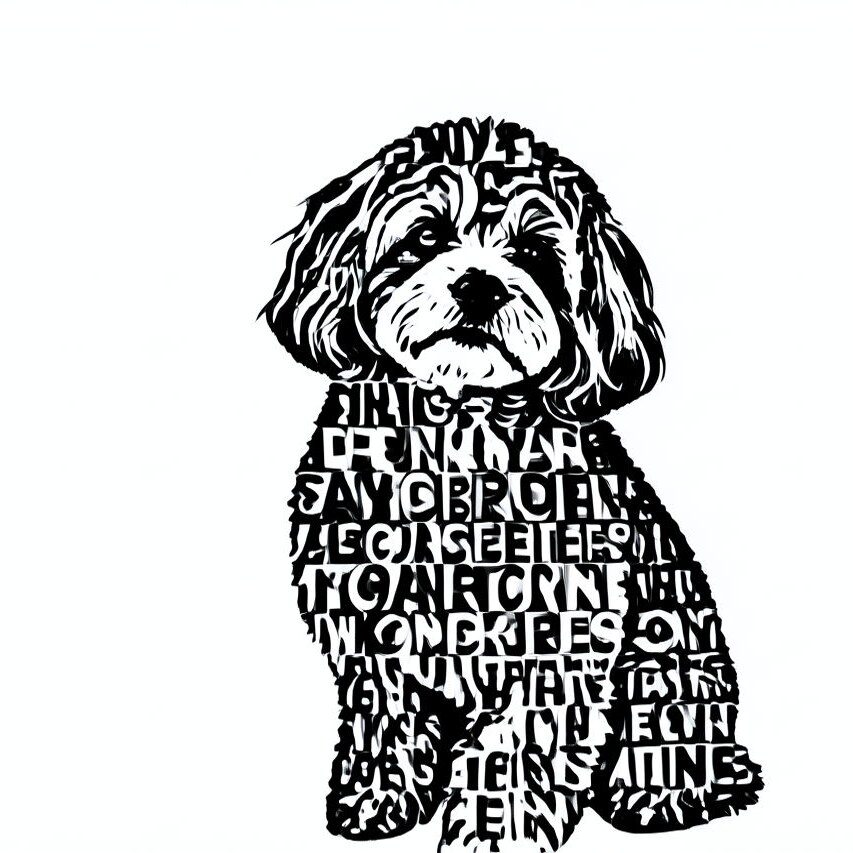
Pet
Photo workflow
How to get a cleaner typographic filter result
Wähle ein scharfes Foto mit einem klaren Motiv und ruhigem Umfeld.
Öffne den Filter, lade das Foto hoch und prüfe Motiv, Buchstabenformen und Komposition.
Schneide das Ergebnis zu oder bereinige es und ersetze erzeugte Schrift vor der Veröffentlichung durch exakten editierbaren Text.
Best source photos
- Porträts und Profilfotos mit klarer Motivtrennung.
- Produkte oder Objekte vor einem einfachen Hintergrund.
- Lifestyle- und Eventfotos mit Freiraum für ein Posterlayout.
Filter tips
- Verlasse dich bei Namen, Daten, Preisen oder anderem exaktem Text nicht auf erzeugte Schrift.
- Ein einfacher Hintergrund lässt mehr Raum für lesbare typografische Formen.
- Prüfe Gesichter, Hände, Logos und kleine Details vor dem Export.
Before upload checklist
- Use the largest clean version of the photo, not a compressed screenshot or reposted image.
- Crop loosely before filtering so the AI has enough room around the subject.
- Remove obvious distractions first if they sit directly on the face, product, or main subject.
- Check the result at the size where it will be used: profile image, feed post, story, thumbnail, or banner.
When this filter is a good fit
Choose the typographic filter when the original photo already has a clear subject and the goal is a recognizable stylized version, not a fully new generated scene. It is strongest for social, creator, profile, event, and campaign images where mood matters more than documentary accuracy.
Use a different workflow when the image needs exact product color, legal documentation, medical accuracy, or unmodified identity details. In those cases, use cleanup, crop, enhancement, or background tools instead of a heavy creative filter.
Free browser tools after filtering
FAQ
What should I upload?
Use a clear photo with one main subject. Strong lighting and simple backgrounds usually make the AI filter easier to control.
Can I keep editing after the filter?
Yes. After applying the filter, use Magic Eraser to crop, clean distractions, refine backgrounds, and export the final image.
Is this filter selected automatically?
The CTA opens AI Filter with the typographic style parameter, and the app falls back safely if the filter changes.