
AI Create style
KI-Generator für Line-Art-Bilder
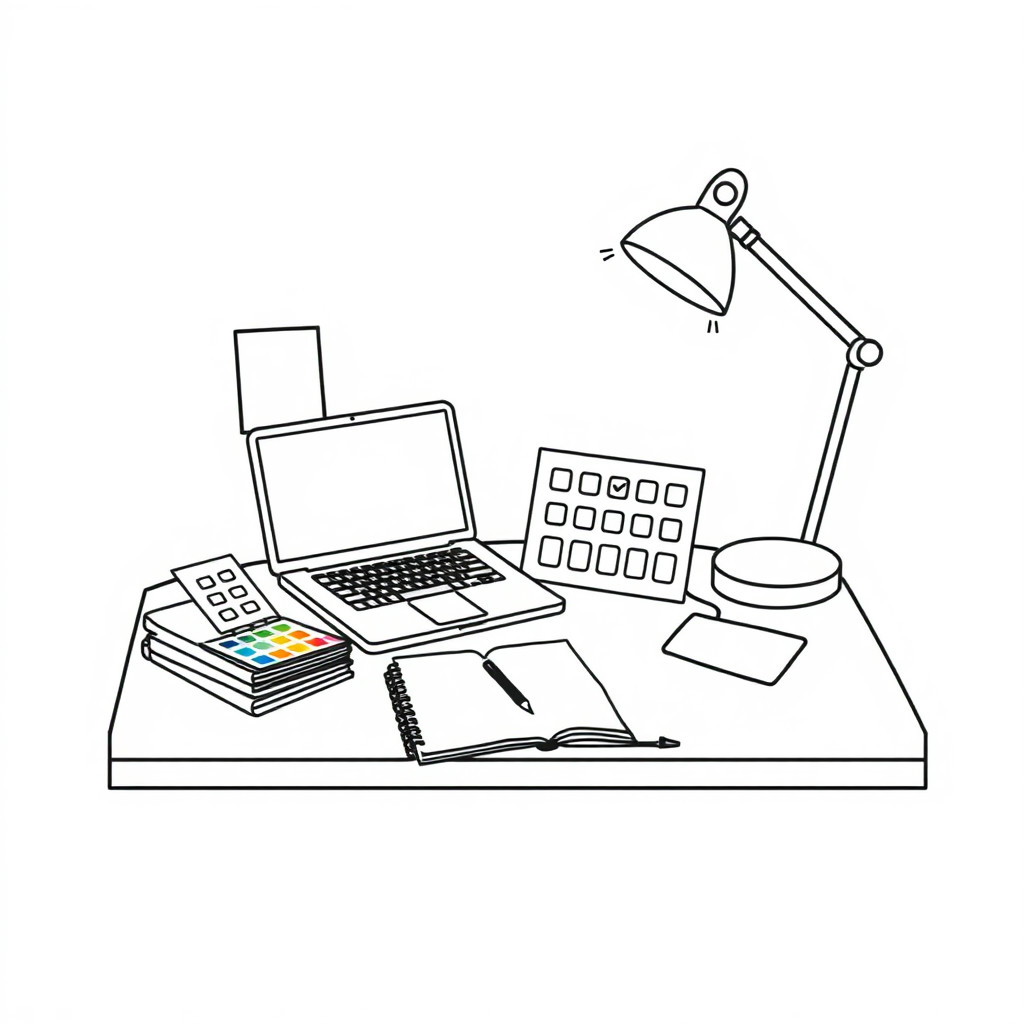
Erstelle Line Art aus Texteingaben für Icons, Tattoo-Ideen, Ausmalbilder, Verpackungselemente und redaktionelle Illustrationen. Lege Linienstärke, Detailgrad und eine minimalistische, dekorative, technische oder handgezeichnete Wirkung fest.
Use case
Markenillustrationen, Anleitungen, Icons und Verpackungsakzente.
Use case
Tattoo-Vorlagen, Ausmalideen und druckbare Umrisszeichnungen.
Use case
Redaktionelle Motive mit Fokus auf Form und Negativraum.
Visual direction preview
Use the style thumbnail as the creative target
The preview gives users a concrete reference for color, texture, edge detail, and mood before they open the generator. Pair it with the prompt starters below to keep the page useful instead of only decorative.
Generated examples
See the line art style in real outputs
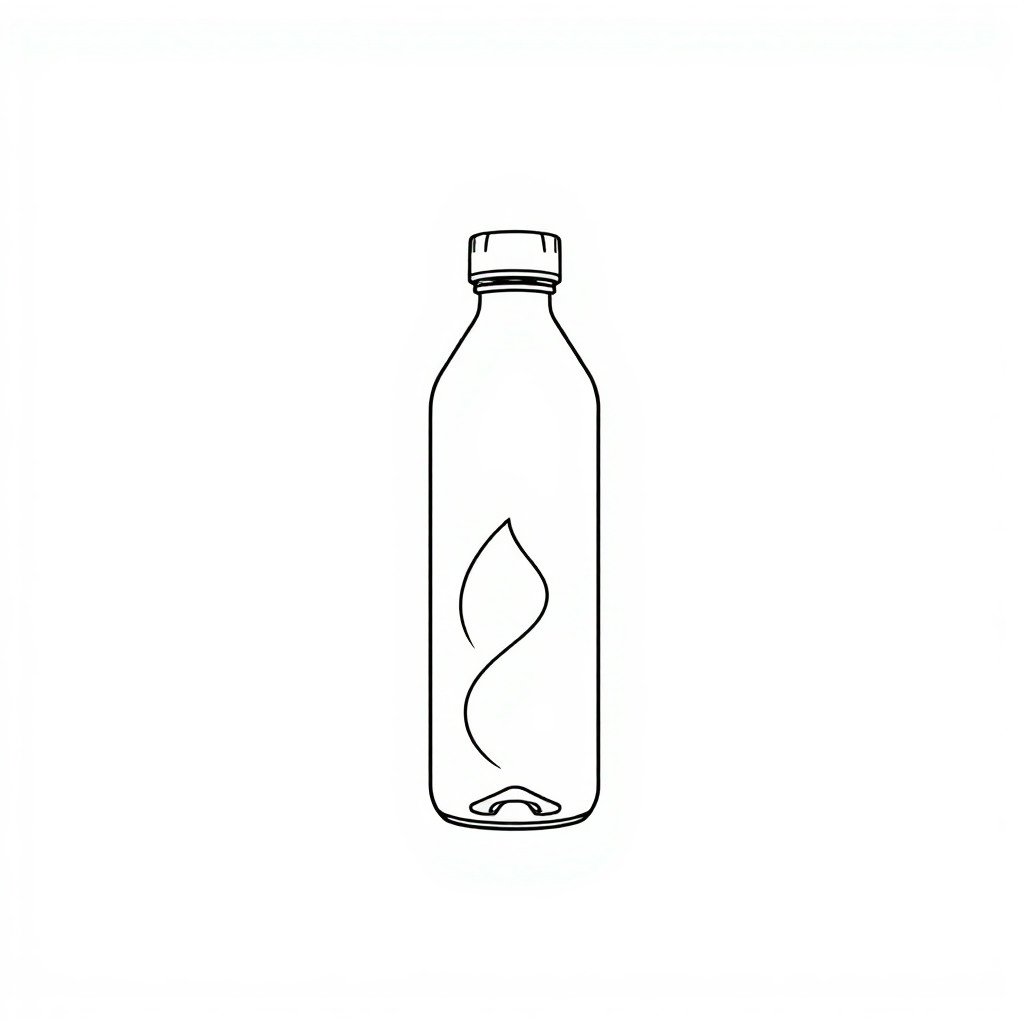
These examples were generated through the Magic Eraser AI Create API with the line art style selected.
Prompt workflow
How to get a stronger line art result
Beschreibe das Motiv und wähle dünne, kräftige, durchgehende, geometrische, organische oder skizzenhafte Linien.
Erzeuge Varianten und vergleiche Balance, Symmetrie und Negativraum.
Bereinige und beschneide das Bild; ergänze Farbe oder Text bei Bedarf später.
Prompt starters
- “Minimalistische Line Art einer Hand mit Blume, durchgehende Linie, schlichter Hintergrund”
- “Detaillierte botanische Line Art von Rosmarin und Thymian, druckbarer schwarzer Tintenstil”
- “Geometrisches Line-Art-Bergabzeichen, symmetrisch, ohne Text, klare Vektoroptik”
Style tips
- Weniger Motive sorgen für sauberere Linien.
- Gib einen einfarbigen Hintergrund für leichte Wiederverwendung an.
- Fordere für Druckzwecke hohen Kontrast und klare Kanten.
Output planning checklist
- Decide the final placement before prompting: square post, vertical story, product insert, poster, thumbnail, or wide banner.
- Keep one primary subject and one visual mood so the line art style has a clear job.
- Describe the background as simple, detailed, bright, dark, studio, outdoor, or textured instead of leaving it open-ended.
- Generate variations first, then edit the selected image for crop, cleanup, and export size.
When to choose this style
Choose line art when the image needs a clear creative direction before production: an ad concept, a social visual, a character idea, a packaging mood, or a fast design draft. Choose another style if the final asset must look like a camera photo, preserve exact product color, or include precise typography.
For commercial work, treat the generated image as a starting point. Review details, remove distracting artifacts, add exact text separately, and export the final size from the editor.
FAQ
Can I edit the generated image?
Yes. Generate the image, then continue with cleanup, crop, background, and export tools in Magic Eraser.
Should I include exact text?
Use AI Create for the visual direction. Add exact text later with editable design tools for cleaner spelling and layout.
Is this style selected automatically?
The CTA opens AI Create with the line art style parameter, and the app falls back safely if the option changes.