
So stellen Sie ein altes Foto wieder her
Alte Fotos verblassen, verkratzen, vergilben und verlieren Details durch jahrzehntelange Handhabung und Lagerung. Durch das Scannen wird der Schaden digital konserviert – ein hochauflösender Scan eines zerkratzten Abdrucks aus den 1970er Jahren ist nur eine hochauflösende Datei eines zerkratzten Bildes. Das AI Enhance-Tool von Magic Eraser analysiert die Verschlechterungsmuster (Verblassen, Farbverschiebung, Oberflächenkratzer, Körnung, Weichheit) und rekonstruiert die ursprünglichen Details, die Farbbalance und die Schärfe, die das Foto beim ersten Drucken hatte.
Last updated
Jetzt ein Foto wiederherstellen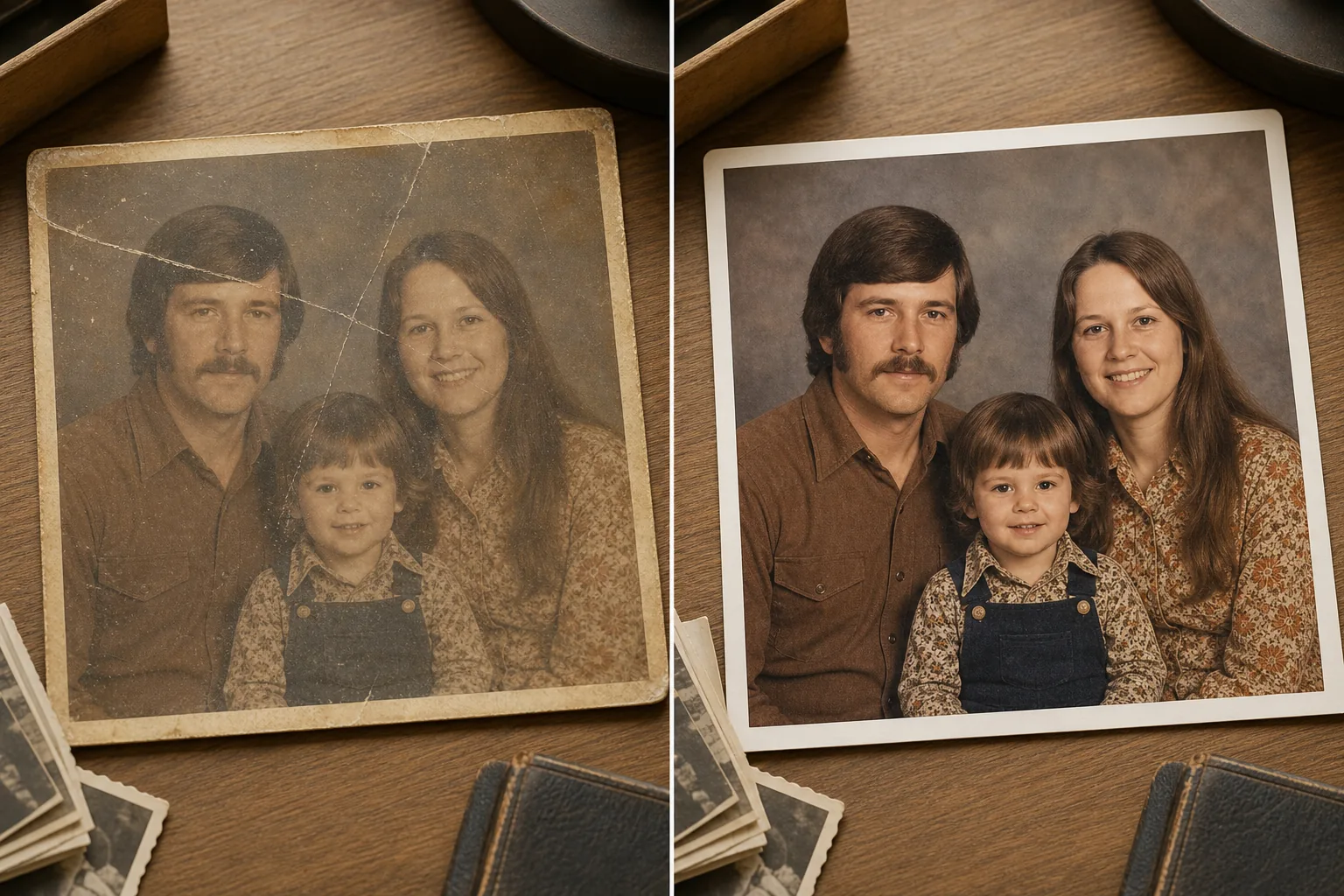
Warum sich alte Fotos verschlechtern und was die KI-Wiederherstellung tatsächlich behebt
Um ein altes Foto wiederherzustellen, scanne oder fotografiere den Abzug so klar wie möglich, öffne Magic Eraser im Web, auf iOS oder Android, lade das Bild hoch und wende AI Enhance an – es korrigiert verblasste Farben, entfernt Kratzer und Oberflächenschäden und macht unscharfe Stellen in einem Durchgang schärfer. Es ist kostenlos und ohne Anmeldung. Je sauberer und höher aufgelöst dein Scan ist, desto besser das Ergebnis. Leichte bis mittlere Schäden lassen sich überzeugend wiederherstellen; wo ein Gesicht oder Detail stark zerrissen oder gar nicht mehr vorhanden ist, rekonstruiert die AI eine plausible Version, statt das exakte Original wiederzugewinnen – betrachte stark beschädigte Bereiche also als Interpretation. Bewahre deinen Original-Scan immer auf. Fotodrucke verschlechtern sich durch drei Hauptmechanismen: chemisches Ausbleichen (die Farbstoffe oder Silberverbindungen in der Emulsionsschicht zerfallen mit der Zeit, verschieben die Farben in Richtung Gelbbraun und verringern den Kontrast), physische Schäden (Kratzer, Falten, Risse, Wasserflecken durch Handhabung, Lagerung und Umwelteinflüsse) und Auflösungsverlust (der Originaldruck war bei 4 x 6 Zoll scharf, aber beim Scannen mit 300 DPI entsteht eine Datei mit 1200 x 1800 Pixeln, die auf einem modernen Gerät weich aussieht Anzeige). Jeder Mechanismus erfordert einen anderen Wiederherstellungsansatz. Farbverblassungen erfordern eine Korrektur des Weißabgleichs und eine Histogrammerweiterung, um den ursprünglichen Tonwertbereich wiederherzustellen. Kratzer und Oberflächenschäden müssen übermalt werden – der Bildinhalt unter dem Kratzer muss mithilfe des umgebenden Pixelkontexts rekonstruiert werden. Auflösungsverlust erfordert eine KI-Hochskalierung, die plausible feine Details (Hautstruktur, Stoffgewebe, Blattränder) mit dem 2- bis 4-fachen der gescannten Auflösung erzeugt. Bei der manuellen Wiederherstellung in Photoshop wird jede Ebene einzeln behandelt: Kurvenanpassung für die Farbe, Klonstempel für Kratzer und Größenänderung mit Schärfen für die Auflösung – ein Arbeitsablauf, der je nach Schadensschwere 30 bis 90 Minuten pro Foto dauert. AI Enhance von Magic Eraser erledigt alle drei in einem einzigen Durchgang: Es identifiziert Qualitätsminderungsartefakte, trennt sie vom ursprünglichen Bildinhalt, korrigiert die Farbbalance, entfernt Oberflächenschäden und skaliert das Ergebnis auf eine moderne Bildschirmauflösung hoch. Die Ausgabe ist eine saubere, scharfe und farbgenaue Version des Originalfotos, die sich zum Nachdrucken, digitalen Einrahmen oder Teilen eignet.
Before you start
Stellen Sie ein altes Foto in drei Schritten wieder her
Start with scannen oder fotografieren sie den originaldruck. The result preview above and tips below use this guide's existing content; no separate before-and-after proof is assumed.
- 1
Scannen oder fotografieren Sie den Originaldruck
Verwenden Sie einen Flachbettscanner mit 600 DPI, um optimale Ergebnisse zu erzielen. Dadurch werden genügend Details erfasst, damit die KI arbeiten kann, während die Dateigröße überschaubar bleibt. Wenn Sie keinen Scanner haben, fotografieren Sie den Druck bei gleichmäßigem, diffusem Licht (bewölktes Tageslicht oder ein gut beleuchteter Raum ohne direkte Sonneneinstrahlung), wobei Sie Ihre Telefonkamera parallel zur Druckoberfläche halten. Vermeiden Sie Blitzlicht, da dadurch Blendflecken entstehen, die die KI umgehen muss. Importieren Sie den Scan oder das Telefonfoto in Magic Eraser im Web, iOS oder Android.
- 2
Bewerben Sie sich AI Enhance
Wählen Sie AI Enhance aus dem Werkzeugmenü. Die KI analysiert das Bild auf Verschlechterungsmuster: Farbverblassung, Gelbverschiebung, Kontrastverlust, Oberflächenkratzer, Körnung und Weichheit. Es verarbeitet alle erkannten Probleme gleichzeitig – Sie müssen Farbe und Kratzer nicht separat behandeln. Bei Fotos mit starken physischen Schäden (tiefe Kratzer, Knicke, eingerissene Kanten, Wasserflecken) verwenden Sie zuerst das Pinselwerkzeug Magic Eraser, um die schlimmsten Schäden manuell zu entfernen, und führen Sie dann AI Enhance auf dem gereinigten Ergebnis aus, um die Farbe wiederherzustellen und zu skalieren.
- 3
Überprüfen und exportieren
Vergleichen Sie die wiederhergestellte Version mit dem Originalscan. Überprüfen Sie Hauttöne (der sichtbarste Indikator für eine genaue Farbwiederherstellung), die Wiederherstellung von Hintergrunddetails und die Kantenschärfe. Bei Fotos, die stark verblasst waren (geringer Kontrast, starker Gelbstich), kann die KI ein Ergebnis erzeugen, das gesättigter aussieht, als es der Originaldruck jemals war – dies ist die beste Schätzung der KI für die Farbbalance vor dem Verblassen, und Sie können Belichtung und Sättigung nachträglich anpassen, wenn das Ergebnis zu stark ausfällt. Exportieren Sie es in voller Auflösung, um es in der gleichen oder einer größeren Größe als das Original erneut zu drucken, oder teilen Sie es digital.
Am besten für
- Familienfotoarchive aus den 1950er bis 1990er Jahren, in denen die Abzüge über Jahrzehnte vergilbt und verblasst sind und sich durch Handhabungsschäden angesammelt haben
- Kulturerbe- und Genealogieprojekte, bei denen alte Porträts für Stammbäume, Gedenktafeln und digitale Archive restauriert werden müssen
- Fotobücher und Gedenk-Diashows, bei denen alte Fotos mit der Qualität aktueller digitaler Bilder im gleichen Layout übereinstimmen müssen
- Einrahmen und Nachdrucken alter Fotos in modernen Größen (8x10, 11x14, 16x20), wenn die gescannte Auflösung ohne KI-Hochskalierung nicht ausreicht
- Teilen von Kindheits- und Vintage-Fotos in sozialen Medien, bei denen der moderne Betrachter schärfere, lebendigere Bilder als die bereitgestellten Originalabzüge erwartet
- Nachlass- und Archivdigitalisierungsprojekte, bei denen Hunderte alter Drucke zur langfristigen digitalen Aufbewahrung stapelweise restauriert werden müssen
Tipps für beste Ergebnisse
Bei mehr als 600 DPI ist die Scanqualität wichtiger als die Scanauflösung – ein sauberer, gut beleuchteter 600-DPI-Scan liefert der KI besseres Quellmaterial als ein staubiger 1200-DPI-Scan mit ungleichmäßiger Beleuchtung. Reinigen Sie das Scannerglas und die Druckoberfläche vor dem Scannen vorsichtig. Bei Drucken, die in Klebealben (mit Klebeseiten und Plastikauflage) aufbewahrt werden, hat sich der Kleber möglicherweise mit der Druckoberfläche verklebt. Wenn sich der Druck nicht entfernen lässt, ohne zu zerreißen, scannen Sie ihn durch die Plastikauflage und lassen Sie die KI mit der leichten Trübung umgehen. Scannen Sie bei sehr kleinen Originalen (Abzüge in Brieftaschengröße, Fotoautomatenstreifen) mit 1200 DPI, um der KI mehr Pixeldaten für den Hochskalierungsdurchgang zu geben. Bei Drucken mit gemischten Schäden (eine Hälfte verblasst, die andere Hälfte wasserfleckig) behebt AI Enhance die Inkonsistenz in einem einzigen Durchgang – es geht nicht von einer gleichmäßigen Verschlechterung über das gesamte Bild aus. Für Farbnegative oder Dias: Scannen Sie das Negativ/Dia direkt, anstatt einen davon erstellten Abzug zu scannen – das Negativ behält mehr Toninformationen als jeder davon erstellte Abzug, wodurch die KI bessere Quelldaten für die Wiederherstellung erhält.
Häufig gestellte Fragen
- Ist die KI-Fotowiederherstellung kostenlos?
- Ja. Das kostenlose Kontingent von Magic Eraser umfasst AI Enhance mit täglichen Nutzungslimits. Premium (29,99 $/Jahr) hebt Einschränkungen auf und ermöglicht hochauflösende Exporte für den Nachdruck in großen Formaten.
- Kann KI ein stark zerrissenes oder wassergeschädigtes Foto wiederherstellen?
- Bei mittelschweren Schäden (Kratzer, Falten, kleine Risse, kleinere Wasserflecken) führt AI Enhance die Reparatur automatisch durch. Bei schweren Schäden (große abgerissene Stellen, starker Wasserschaden, der die Emulsion zerstört hat, fehlende Ecken) entfernen Sie die beschädigten Bereiche zunächst mit dem Pinsel Magic Eraser und tragen Sie dann AI Enhance zur Farbwiederherstellung und Hochskalierung auf. Die KI kann Inhalte nur dort rekonstruieren, wo sie einen umgebenden Kontext haben – einem Foto, bei dem 40 % seiner Fläche fehlen, ist eine manuelle Inpainting-Anleitung erforderlich.
- Wird das wiederhergestellte Foto genauso aussehen wie das Original?
- Die KI stellt das Foto anhand der verbleibenden Bilddaten wieder so her, dass es dem Originalzustand vor dem Ausbleichen und vor der Beschädigung am besten entspricht. Bei leicht beeinträchtigten Fotos (leichte Vergilbung, leichte Kratzer) kommt die Restaurierung dem Original sehr nahe. Bei stark beeinträchtigten Fotos erstellt die KI fundierte Schätzungen über die ursprüngliche Farbbalance und fehlende Details. Das Ergebnis sieht natürlich und scharf aus, bestimmte feine Details, die durch die Verschlechterung zerstört wurden, können jedoch nicht perfekt wiederhergestellt werden.
- Kann ich Schwarzweißfotos wiederherstellen?
- Ja. AI Enhance stellt Schwarzweißfotos wieder her, indem es den Kontrast korrigiert, Kratzer und Oberflächenschäden entfernt und die Auflösung hochskaliert. Der Schwarz-Weiß-Ton bleibt erhalten – das Foto wird nicht koloriert, es sei denn, Sie verwenden speziell ein Kolorierungswerkzeug. Bei Schwarzweißdrucken sind die Hauptziele der Wiederherstellung die Wiederherstellung des Kontrasts (Wiederherstellung des gesamten Farbtonbereichs von tiefem Schwarz bis hin zu reinem Weiß) und die Entfernung von Kratzern/Körnungen.
- Wie scanne ich alte Fotos, um die besten Restaurierungsergebnisse zu erzielen?
- Verwenden Sie einen Flachbettscanner mit 600 DPI und geschlossenem Deckel, um Umgebungslicht zu blockieren. Reinigen Sie zuerst das Glas und die Druckoberfläche. Achten Sie bei Hochglanzdrucken auf vom Scanner verursachte Newton-Ringe (Regenbogenmuster durch den Kontakt zwischen Glas und Druck) – ein dünnes Blatt Seidenpapier zwischen Druck und Glas verhindert dies, ohne die Scanqualität wesentlich zu beeinträchtigen. Zum Fotografieren von Abdrücken mit dem Telefon: Verwenden Sie gleichmäßiges, diffuses Licht, halten Sie das Telefon parallel zum Abdruck und vermeiden Sie Blitzlicht.