
So fügen Sie Fotos KI-Filter hinzu
Herkömmliche Fotofilter passen Farbe, Kontrast und Sättigung mit voreingestellten Werten an – die gleiche mathematische Formel wird auf jedes Bild angewendet. KI-Filter gehen noch einen Schritt weiter: Sie verstehen den Bildinhalt und wenden Stiltransformationen an, die auf die Szene reagieren – und passen den Effekt basierend auf dem Bildinhalt an, anstatt jedes Pixel gleich zu behandeln.
Last updated
Wenden Sie einen Filter an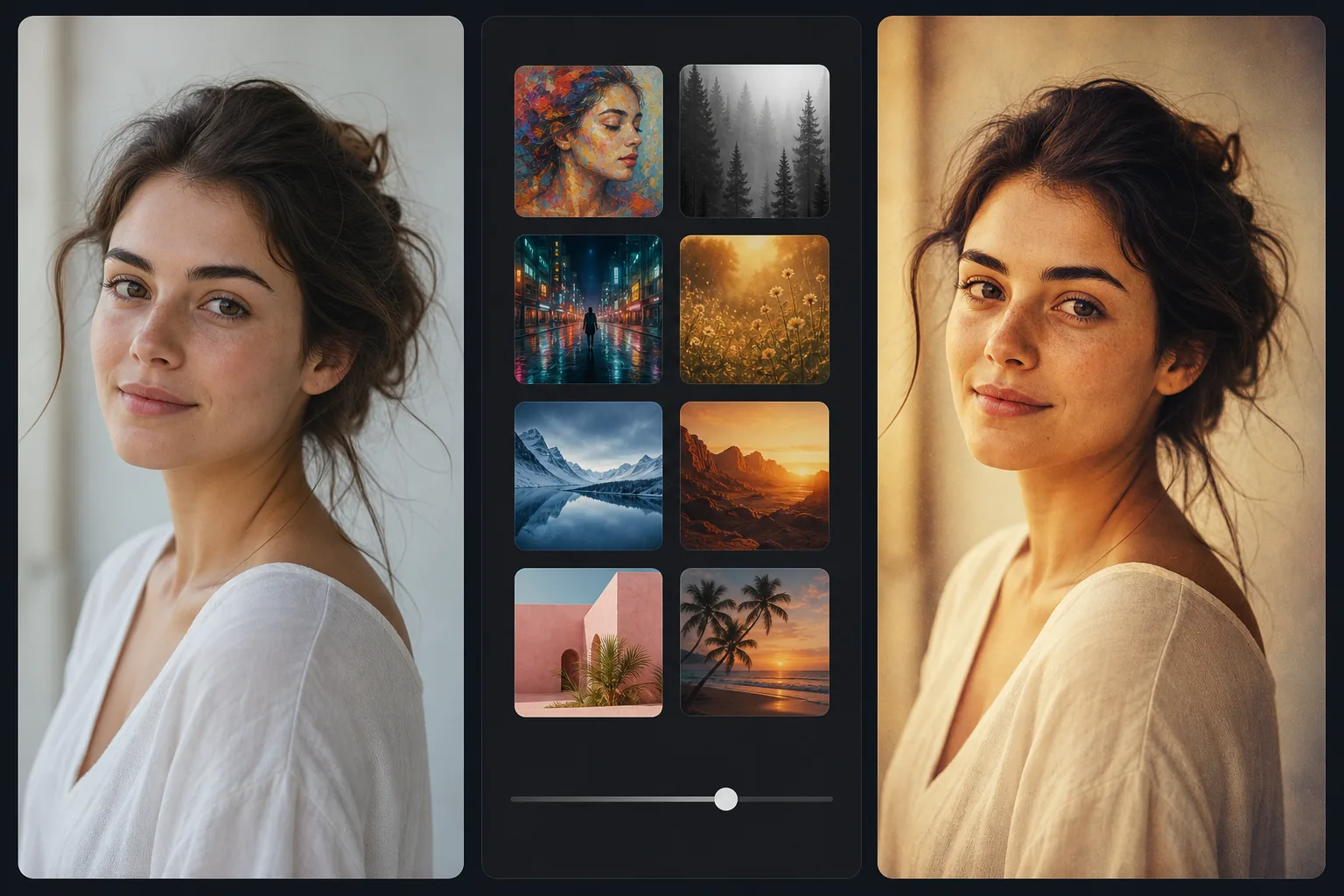
So fügst du einen Filter zu einem Foto hinzu
Um einen Filter zu einem Foto hinzuzufügen, öffnest du Magic Eraser im Web, auf iOS oder Android, wählst AI Filter, lädst dein Bild hoch, stöberst durch die Filter-Presets – Kunststile, Vintage-Looks, Farbabstimmungen – und tippst auf einen, um ihn anzuwenden. Danach passt du die Stärke nach Geschmack an. Es ist kostenlos und ohne Anmeldung. Anders als ein festes Preset im Instagram-Stil, das jedem Foto dieselbe Farbverschiebung verpasst, erkennen die KI-Filter, was im Bild steckt (Gesichter, Himmel, Haut), und passen den Look pro Bereich an. So bleibt er ausgewogen, statt ein ohnehin warmes Bild in ein übersättigtes Orange zu kippen. Reduziere die Intensität für ein dezentes Ergebnis oder lege ihn bei Porträts leichter auf, damit die Hauttöne natürlich bleiben. Herkömmliche Filter (Instagram-Voreinstellungen, Lightroom-Voreinstellungen, VSCO-Filmemulationen) wenden einen festen Farbgrad an – eine Nachschlagetabelle (LUT), die jeden eingegebenen RGB-Wert einem neuen RGB-Wert zuordnet. Derselbe Filter erzeugt auf jedem Bild die gleiche Farbverschiebung, unabhängig vom Inhalt: Ein warmer Vintage-Filter, der auf einem Porträt zur goldenen Stunde großartig aussieht, erzeugt auf einem bereits warmen Foto ein übersättigtes Orange-Ergebnis, und ein Filter mit kühlen Tönen, der für die Stadtfotografie entwickelt wurde, lässt ein Strandfoto grau werden. Der Fotograf kompensiert dies, indem er Voreinstellungen auswählt, die zum vorhandenen Farbton des Bildes passen, oder indem er Belichtung und Weißabgleich anpasst, bevor er die Voreinstellung anwendet – indem er manuelle Schritte hinzufügt, die das One-Tap-Versprechen zunichte machen. KI-Filter analysieren den Bildinhalt – identifizieren Gesichter, Himmel, Vegetation, Hauttöne, Lichtquellen und Materialoberflächen – und passen die Stiltransformation unabhängig an jede Region an. Ein Porträtfilter verstärkt Hauttöne und behandelt gleichzeitig den Hintergrund anders. Ein Landschaftsfilter passt den Himmel, das Laub und den Boden unabhängig an, je nachdem, was jede Region enthält. Ein Vintage-Filter wendet Alterungseffekte (Körnung, Verblassen, Farbverschiebung) an, die auf den tatsächlichen Tonwertbereich des Bildes reagieren, anstatt eine feste LUT anzuwenden, die bereits warme Töne in einen unnatürlichen Bereich verschieben könnte. Das Ergebnis ist eine Stiltransformation, die auf jedem Bild gewollt aussieht und keine Feinabstimmung für jedes Bild erfordert.
Before you start
Wenden Sie einen KI-Filter in drei Schritten an
Start with laden sie das foto hoch. The result preview above and tips below use this guide's existing content; no separate before-and-after proof is assumed.
- 1
Laden Sie das Foto hoch
Öffnen Sie Magic Eraser im Web, iOS oder Android. Fügen Sie das Foto ein, das Sie stilisieren möchten – ein Porträt für einen Social-Media-Beitrag, eine Landschaft für einen Druck, ein Food-Foto für einen Blog, eine Produktaufnahme für Marketingzwecke oder ein beliebiges Bild, das einer kreativen Stilbearbeitung bedarf. JPEG, PNG, HEIC und WebP werden unterstützt.
- 2
Durchsuchen Sie KI-Filter und wenden Sie sie an
Wählen Sie AI-Filter und durchsuchen Sie die verfügbaren Stile. Jeder Filter zeigt eine Vorschau Ihres tatsächlichen Fotos an, sodass Sie sehen können, wie er Ihr spezifisches Bild verändert – kein generisches Beispiel. Zu den Kategorien gehören Porträtstile (hautnahe Farbabstufung), Landschaftslooks (optimiert für Himmel und Laub), Vintage- und Filmemulationen (Körnung, Verblassen, Farbverschiebung, die sich an den Tonwertbereich des Bildes anpasst), künstlerische Stile (malerisch, illustriert, kontrastreiche Grafik) und Stimmungstransformationen (warm, kühl, dramatisch, weich). Zum Anwenden und Vergleichen mit dem Original antippen.
- 3
Anpassen und exportieren
Wenn die Intensität des Filters zu stark oder zu subtil ist, passen Sie die Effektstärke an. Für die Veröffentlichung in sozialen Medien ist das gefilterte Bild bereit zum Teilen. Exportieren Sie für Druck- und Designarbeiten mit voller Auflösung – KI-Filter bewahren die ursprüngliche Auflösung und Details und ändern nur den Stil und die Farbbehandlung. Für eine konsistente Feed-Ästhetik speichern Sie die Filterauswahl und wenden Sie sie für eine visuelle Markenkohäsion auf mehrere Fotos an.
Am besten für
- Social-Media-Inhalte, bei denen eine konsistente visuelle Ästhetik über alle Beiträge hinweg die Markenbekanntheit und den Feed-Zusammenhalt stärkt
- Porträtfotografie, bei der hautgerechte Farbkorrektur schmeichelhafte Töne erzeugt, ohne dass die manuelle Farbbearbeitung von Lightroom-Voreinstellungen erforderlich ist
- Landschafts- und Reisefotografie, bei der Himmel, Laub und Gelände von einer unabhängigen Stilbehandlung und nicht von einer einzigen globalen Farbverschiebung profitieren
- Food-Fotografie, bei der warme, appetitliche Farbabstufungen auf die tatsächlichen Farben des Gerichts reagieren müssen, anstatt bereits warme Töne zu übersättigen
- Produktfotografie, bei der Stimmungs- und Stilbehandlungen dazu beitragen, dass ein Produktfoto zur visuellen Identität einer Marke passt
- Persönliche Fotosammlungen, bei denen durch die stapelweise Anwendung eines einheitlichen Stils auf Urlaubs-, Veranstaltungs- oder Familienfotos eine zusammenhängende Albumästhetik entsteht
Tipps für beste Ergebnisse
KI-Filter liefern die besten Ergebnisse bei gut belichteten und gut komponierten Fotos – der Filter verändert den Stil, nicht die Qualität. Ein dunkles, verschwommenes Foto mit einem schönen Filter ist immer noch ein dunkles, verschwommenes Foto mit unterschiedlichen Farben. Wenn die Qualität des Quellbilds verbessert werden muss, führen Sie zuerst AI Enhance aus und wenden Sie dann den Filter auf das verbesserte Ergebnis an. Für Konsistenz in den sozialen Medien: Wählen Sie einen Filterstil aus und wenden Sie ihn zwei bis vier Wochen lang konsistent auf Ihre Inhalte an, um eine visuelle Wiedererkennung zu erreichen, bevor Sie ihn ändern. Follower reagieren mehr auf eine einheitliche visuelle Identität als auf die Ästhetik einzelner Beiträge. Für Fotos mit gemischter Beleuchtung (Innenaufnahmen sowohl mit warmem Kunstlicht als auch mit kaltem Fensterlicht): KI-Filter bewältigen gemischte Beleuchtung besser als herkömmliche LUT-Filter, da die KI die Regionen unabhängig anpasst – die warm beleuchteten Bereiche und die kühl beleuchteten Bereiche erhalten jeweils eine angemessene Behandlung, anstatt beide weiter in die gleiche Richtung zu drängen. Für Fotos, die Sie drucken möchten: Zeigen Sie eine Vorschau des gefilterten Ergebnisses in der beabsichtigten Druckgröße an – Filter, die Körnung oder Textur hinzufügen, sehen im Druckmaßstab anders aus als auf dem Bildschirm. Starke Körnung, die bei der Bildschirmgröße des Telefons stilvoll aussieht, kann bei der Druckgröße 16x20 verrauscht wirken.
Häufig gestellte Fragen
- Sind KI-Fotofilter kostenlos?
- Das kostenlose Kontingent von Magic Eraser umfasst eine Auswahl an KI-Filterstilen mit täglichen Nutzungsbeschränkungen. Premium (29,99 $/Jahr) schaltet alle Filterstile frei und hebt Nutzungsbeschränkungen auf.
- Wie unterscheiden sich KI-Filter von Instagram-Filtern?
- Instagram und ähnliche App-Filter wenden eine feste Farb-Lookup-Tabelle (LUT) an – die gleiche mathematische Transformation für jedes Pixel, unabhängig vom Inhalt. KI-Filter analysieren den Bildinhalt (Gesichter, Himmel, Vegetation, Materialien) und passen die Stiltransformation pro Region an. Dies führt zu natürlicheren Ergebnissen, die bereits warme Bilder nicht übersättigen oder unnatürliche Hauttöne erzeugen.
- Kann ich die Filterintensität anpassen?
- Ja. Passen Sie nach dem Anwenden eines Filters seine Stärke von dezent bis voll an. Bei einer geringeren Intensität wird der Filtereffekt mit den Farben des Originalfotos gemischt, um ein natürlicheres Aussehen zu erzielen. Bei voller Intensität wird die komplette Stiltransformation angewendet.
- Vermindern Filter die Qualität meiner Fotos?
- Nein. KI-Filter verändern die Farb- und Stilbehandlung, ohne die Auflösung, Details oder Schärfe zu verringern. Die Ausgabe hat die gleichen Pixelabmessungen und die gleiche Klarheit wie die Eingabe – nur der visuelle Stil ändert sich. Dies gilt sowohl für die kostenlose als auch für die Premium-Version.
- Kann ich denselben Filter auf mehrere Fotos anwenden, um ein einheitliches Erscheinungsbild zu erzielen?
- Ja. Wenden Sie denselben Filter für eine visuelle Konsistenz auf mehrere Fotos an – nützlich für Social-Media-Feeds, Blog-Post-Serien, Portfolio-Präsentationen und Fotoalben für Veranstaltungen. Da sich KI-Filter an den Inhalt jedes Bildes anpassen, erzeugt derselbe Filter die entsprechende Version dieses Stils für jedes Bild, ohne dass eine Anpassung für jedes Bild erforderlich ist.