
KI-Farbkorrektur und Farbabstimmung
Behebe Farbstiche, korrigiere den Weißabgleich und wende KI-gestützte Farbabstimmung an, um die Stimmung deiner Fotos zu bestimmen.
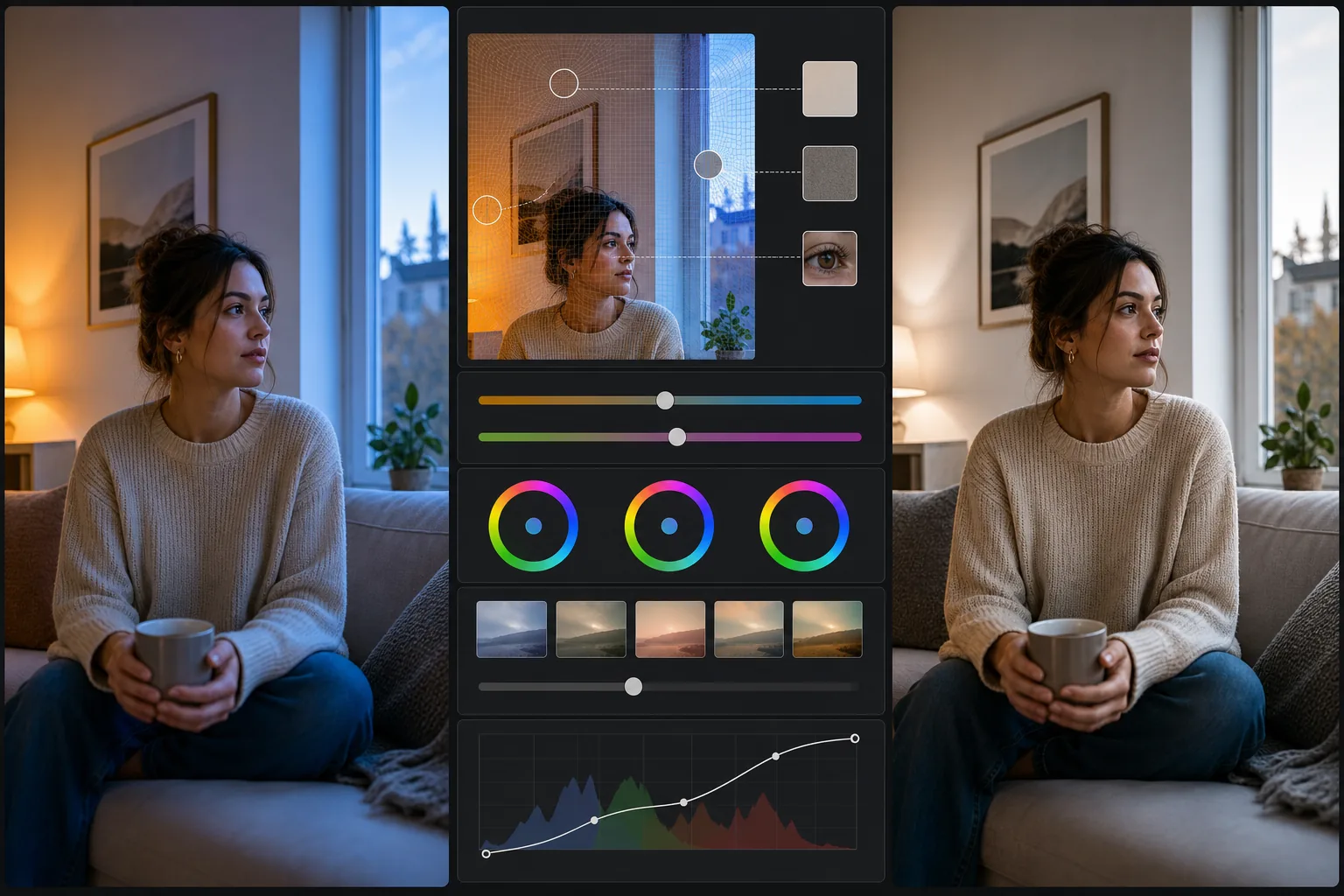
Lesson context before the long read
Review the result preview above, then scan the learning objectives below before reading the full lesson. Updated 2026-05-17.
Example visual uses an existing public asset: /content-images/ai-color-correction-academy.webp.
Learning Objectives
- 1Häufige Farbstichprobleme durch Kunstlicht und Mischlichtquellen erkennen und korrigieren
- 2Den KI-Weißabgleich nutzen, um bei verschiedenen Lichtbedingungen präzise neutrale Töne zu erzielen
- 3KI-Farbabstimmungs-Presets anwenden und anpassen, um einen einheitlichen visuellen Stil zu schaffen
Grundlagen der Weißabgleichskorrektur
Farbstiche sind getönte Überlagerungen, die durch die Farbtemperatur der Lichtquelle verursacht werden. Glühbirnen erzeugen einen warmen orangefarbenen Stich, Leuchtstofflampen einen grünen oder magentafarbenen Schimmer, und LED-Panels können eine Vielzahl subtiler Farbverschiebungen einbringen. Der automatische Weißabgleich deiner Kamera versucht auszugleichen, wird aber oft durch Mischlicht oder durch große farbige Flächen in der Szene irritiert, die den Sensor täuschen. Einen Farbstich zu erkennen ist der erste Schritt: Betrachte Bereiche, die neutral sein sollten, wie weiße Wände, grauen Asphalt oder das Weiß in den Augen einer Person, und achte darauf, welche Farbe sie annehmen.
Farbstiche durch Mischlicht beheben
Die KI-Weißabgleichskorrektur analysiert dein Bild auf Objekte und Oberflächen, die farblich neutral sein sollten, und berechnet die genaue Anpassung, die zum Entfernen des Stichs nötig ist. Anders als manuelle Weißabgleichsregler, die das gesamte Bild entlang einer Warm-Kalt-Achse verschieben, kann die KI-Korrektur Mischlicht bewältigen, indem sie verschiedene Korrekturen auf verschiedene Zonen anwendet. Ein nahe einem Fenster aufgenommenes Foto kann etwa auf einer Seite tageslichtabgestimmtes Licht und auf der anderen warmes Lampenlicht haben, und die KI passt jeden Bereich entsprechend an.
Natürliche Farbtreue bewahren
Die Farbabstimmung geht über die Korrektur hinaus und verschiebt Farben bewusst für einen kreativen Effekt. KI-Abstimmungs-Presets analysieren den Inhalt deines Fotos und wenden Anpassungen an, die Motiv und Szene ergänzen. Eine Sonnenuntergangslandschaft erhält vielleicht warme goldene Lichter und tiefblaue Schatten, um die natürliche Dramatik zu verstärken. Eine Streetphotography-Aufnahme bekommt vielleicht einen entsättigten, kontrastreichen Look, der Geometrie und Licht betont. Beginne mit einem Preset, das zur gewünschten Stimmung passt, und feile dann an der Intensität, damit das Bild nicht künstlich bearbeitet wirkt.
Key Takeaways
- ✓Prüfe neutrale Oberflächen wie weiße Wände oder grauen Asphalt, um Farbstiche in deinen Fotos zu erkennen
- ✓Der KI-Weißabgleich bewältigt Mischlicht, indem er verschiedene Zonen unabhängig korrigiert
- ✓Nutze KI-Farbabstimmungs-Presets als Ausgangspunkt und passe die Intensität für einen natürlichen, einheitlichen Look an