
كيفية إزالة الملصق من الصورة
تغطي الملصقات وتراكبات الرموز التعبيرية والتسميات التوضيحية النصية والطوابع المزخرفة التي تضيفها تطبيقات المراسلة أو برامج تحرير الصور محتوى الصورة الأصلية. يزيل الذكاء الاصطناعي الخاص بـ Magic Eraser هذه الإضافات ويعيد بناء الصورة الموجودة أسفلها.
Last updated
قم بإزالة الملصق الآن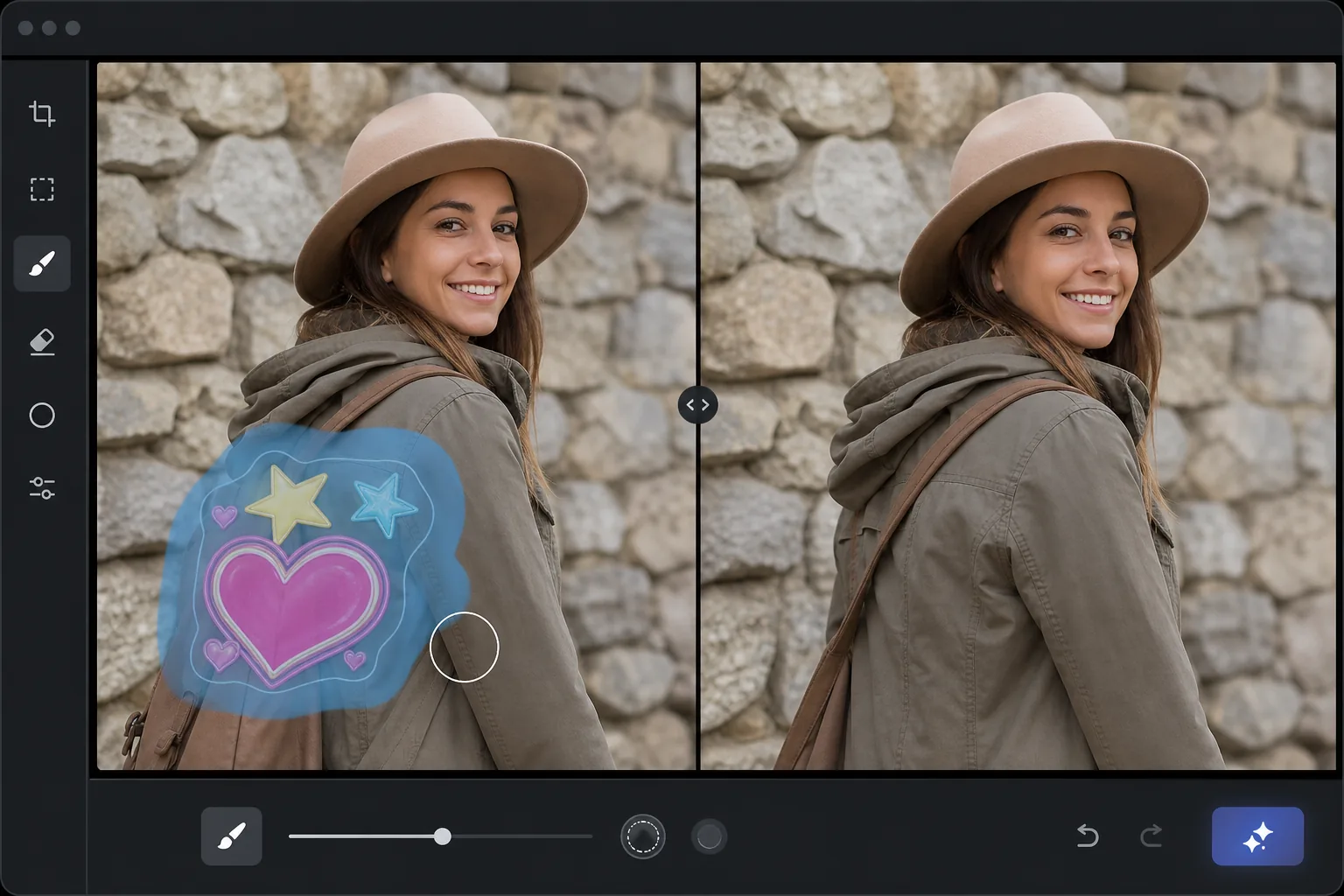
عندما تحتاج الملصقات إلى الخروج
لإزالة ملصق من صورة، افتح Magic Eraser على الويب أو iOS أو Android، وارفع الصورة، ثم مرّر الفرشاة فوق الملصق بالكامل — بما في ذلك أي توهج أو حافة شبه شفافة — واضغط على Erase. يعيد الذكاء الاصطناعي بناء ما كان الملصق يغطّيه اعتماداً على ما يحيط به في الصورة، فتبدو الصورة وكأن الملصق لم يكن موجوداً أصلاً. الأداة مجانية وبدون تسجيل. تعمل مع الإيموجي والنصوص التوضيحية والأختام الزخرفية؛ والملصقات الصغيرة فوق خلفيات بسيطة هي الأفضل في النتائج، بينما يترك الملصق الذي يغطّي معظم الوجه مساحة أقل للذكاء الاصطناعي ليعمل عليها. وإذا كانت الصورة الأصلية بدون الملصق لا تزال موجودة في معرض صورك أو في محادثة الرسائل، فهذا دائماً أفضل من إعادة البناء. تشجع تطبيقات الوسائط الاجتماعية والمراسلة على إضافة الملصقات والرموز التعبيرية والنصوص والتراكبات الزخرفية إلى الصور قبل مشاركتها. لكن الصورة الأصلية غير المزخرفة غالبًا ما تكون هي الصورة التي تريد الاحتفاظ بها فعليًا: للطباعة، أو لألبوم عائلي، أو للاستخدام الاحترافي، أو ببساطة لأن الملصق الآن يغطي شيئًا مهمًا في الصورة. على عكس البيانات الوصفية التي يمكن تجريدها، يتم عرض هذه التراكبات المرئية مباشرة على وحدات بكسل الصورة - ويحل الملصق محل محتوى الصورة الأصلي في المنطقة التي يغطيها. تتطلب إزالة الملصق إعادة بناء كل ما كان خلفه، باستخدام الصورة المرئية المحيطة كمرجع. هذه هي نفس عملية إعادة بناء الذكاء الاصطناعي المستخدمة لإزالة أي كائن، ويتعامل معها Magic Eraser بنفس الطريقة: قم بالفرشاة فوق الملصق، ويقوم الذكاء الاصطناعي بإنشاء المحتوى المخفي بناءً على ما يحيط بالمنطقة المغطاة.
Before you start
قم بإزالة الملصق في ثلاث خطوات
Start with قم بتحميل الصورة. The result preview above and tips below use this guide's existing content; no separate before-and-after proof is assumed.
- 1
قم بتحميل الصورة
افتح Magic Eraser على الويب أو iOS أو Android. قم بتحميل الصورة باستخدام الملصق أو الرموز التعبيرية أو تراكب النص أو العنصر الزخرفي الذي تريد إزالته. دعم JPEG، PNG، وWebP. إذا تم حفظ الصورة من تطبيق مراسلة، فقد يتم ضغطها — يعمل الذكاء الاصطناعي على أي مستوى جودة.
- 2
فرشاة على الملصق
قم بالطلاء على الملصق بأكمله، مع تغطية الرسم بالكامل بما في ذلك أي تأثير ظل أو توهج حوله. بالنسبة لتراكبات النص، قم بتنظيف النص بالكامل بما في ذلك أي شريط خلفية أو تراكب شبه شفاف خلف النص. للحصول على ملصقات متعددة، قم بتمشيط كل واحدة على حدة.
- 3
اضغط على مسح ومراجعة
يقوم الذكاء الاصطناعي بإزالة الملصق وإعادة بناء محتوى الصورة الذي كان خلفه. بالنسبة للملصقات على الخلفيات البسيطة (السماء والجدران)، تكون عملية إعادة البناء سلسة. بالنسبة للملصقات على الوجوه أو المحتوى المعقد، يقوم الذكاء الاصطناعي بإنشاء إعادة بناء معقولة بناءً على المناطق المحيطة المرئية. التحقق من النتيجة والتصدير بالدقة الكاملة.
الأفضل ل
- استعادة الصور الأصلية التي تم تزيينها بالملصقات قبل حفظها في ألبوم الكاميرا
- إزالة تراكبات الرموز التعبيرية التي تغطي الوجوه أو أجزاء مهمة من الصورة
- تنظيف تراكبات النص من الصور بتنسيق meme لاستعادة الصورة الأصلية
- إزالة ملصقات Snapchat أو Instagram أو WhatsApp من الصور المحفوظة
- تنظيف الصور الواردة من الآخرين والتي تحتوي على عناصر زخرفية غير مرغوب فيها
نصائح للحصول على أفضل النتائج
تنتج الملصقات الصغيرة على الخلفيات البسيطة أفضل النتائج لأن الذكاء الاصطناعي لديه مرجع أكثر وضوحًا حول منطقة صغيرة مغطاة. تعد الملصقات الكبيرة التي تغطي أجزاء كبيرة من الوجه أو المشهد المعقد أكثر صعوبة، حيث يجب على الذكاء الاصطناعي إنشاء المزيد من المحتوى بمرجع أقل. بالنسبة للملصقات ذات الحواف شبه الشفافة أو التأثيرات المتوهجة، قم بالفرشاة قليلاً خارج حدود الملصق المرئية لالتقاط التداخل الشفاف. إذا كانت الصورة الأصلية غير الملصقة موجودة في أي مكان (في ألبوم الكاميرا، في سلسلة الرسائل قبل التحرير)، فاستخدم ذلك بدلاً من ذلك - إعادة البناء بالذكاء الاصطناعي أمر جيد ولكن الصورة الأصلية هي الأفضل دائمًا. بالنسبة للملصقات الصغيرة المتعددة المنتشرة عبر الصورة، قم بإزالة كل واحدة على حدة بدلاً من تنظيف المنطقة بأكملها بالفرشاة.
الأسئلة المتداولة
- هل يمكنه استعادة وجه مخفي خلف رمز تعبيري؟
- جزئيا. إذا كان الرمز التعبيري يغطي جزءًا من الوجه، فإن الذكاء الاصطناعي يعيد بناء الجزء المخفي باستخدام الأجزاء المرئية كمرجع، بما يتوافق مع لون البشرة وبنية الوجه وميزاته. إذا كان الرمز التعبيري يغطي الوجه بالكامل، فسيقوم الذكاء الاصطناعي بإنشاء وجه معقول ولكنه لن يتطابق مع الشخص الفعلي.
- هل يعمل على فلاتر سناب شات؟
- بالنسبة للتراكبات من نوع الملصقات (النصوص والرسومات والزخارف)، نعم. بالنسبة لمرشحات الواقع المعزز التي تعدل الوجه نفسه (آذان الكلاب، وتشويه الوجه، وتأثيرات الماكياج)، يمكن للذكاء الاصطناعي تقليل التأثير ولكن تم تغيير بيانات الوجه الأصلية، وليس فقط تغطيتها.
- هل يمكنني إزالة العلامة المائية بهذه الطريقة؟
- نعم من الناحية الفنية — تقوم أداة الفرشاة بإزالة أي تراكب مرئي. ومع ذلك، تشير العلامات المائية إلى حقوق النشر. قم فقط بإزالة العلامات المائية من صورك الخاصة أو الصور التي لديك حقوق فيها.
- هل إزالة الملصقات مجانية؟
- نعم. تتضمن الطبقة المجانية لـ Magic Eraser أداة الفرشاة لإزالة الملصقات مع حدود الاستخدام اليومي. يزيل Premium حدود معالجة الدُفعات.
- كيف أزيل ملصقاً من صورة على Android أو iPhone؟
- افتح Magic Eraser في أي متصفح على هاتفك أو في تطبيق iOS أو Android، وحمّل الصورة من معرض صورك، ثم قرّب بإصبعيك لتتمكن من تتبّع الملصق بدقة. مرّر الفرشاة بإصبعك فوق الملصق بالكامل — بما في ذلك أي توهج أو حافة ناعمة — ثم اضغط على Erase. يعيد الذكاء الاصطناعي بناء ما كان تحته مباشرة على هاتفك، ويحفظ الصورة النظيفة في معرض صورك. تعمل الأداة بالطريقة نفسها كنسخة سطح المكتب، وبدون الحاجة إلى تثبيت أي تطبيق إذا استخدمت المتصفح، وهذا أمر عملي لأن معظم الملصقات تُضاف على الهاتف في الأساس.