
Remove Screen Glare From Photos
تعلم كيفية Remove Screen Glare From Photos باستخدام Magic Eraser. دليل بسيط خطوة بخطوة مع أداة ذكاء اصطناعي مجانية. يعمل على الويب وiOS وAndroid.
Last updated
جرب الآن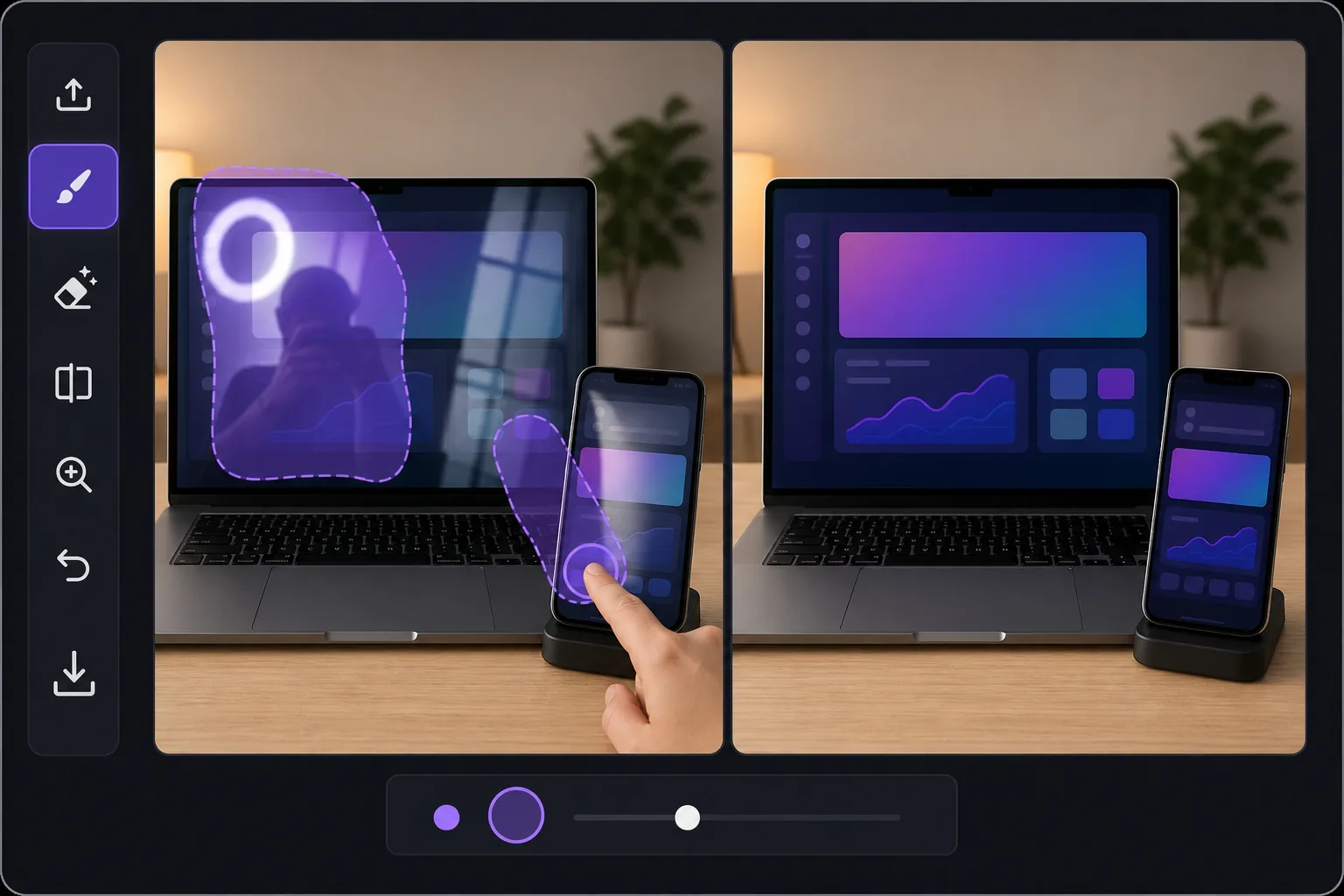
Why screen glare is harder than ordinary glare — Magic Eraser
Glare on a glossy display is a special problem. Phones, laptops, tablets, monitors and TVs are mirrors when they are dark, and they blow out to pure white when light hits them at the wrong angle. In product shots and how-to tutorials, that hotspot or reflection sits directly over the UI, the app screen, or the thing you are trying to show — so a viewer can't read the interface or see the demo. Reshooting means re-staging the device, dimming lights, and chasing the reflection around the room. Magic Eraser skips all of that. Brush over the bright streak, the reflected window, or even your own silhouette caught in the screen, and the AI removes it. Because this is inpainting, it does not recover the literal pixels that were hidden under the glare — it synthesizes a plausible, glare-free continuation of the surrounding screen, bezel and on-screen content. For a uniform wallpaper, a solid app background, or a simple gradient that looks seamless. For dense, specific UI text buried under a full white-out, treat it as a believable clean-up rather than a perfect copy of what was there.
Before you start
التعليمات خطوة بخطوة
Start with ارفع الصورة. The result preview above and tips below use this guide's existing content; no separate before-and-after proof is assumed.
- 1
ارفع الصورة
افتح Magic Eraser على الويب أو iOS أو Android. اسحب وأفلت صورتك بتنسيق JPEG أو PNG أو HEIC أو WebP. لا حاجة لحساب.
- 2
اختر الأداة والمنطقة
اختر الأداة المناسبة وحدد المنطقة المراد معالجتها. سيحلل الذكاء الاصطناعي ويطبق التغييرات تلقائيًا في ثوانٍ.
- 3
حمّل النتيجة
معاينة النتيجة وتحميل الصورة المعدلة. تصدير بصيغة PNG أو JPEG عالي الجودة.
الأنسب لـ
- Product photos of phones and tablets where a window or ring light hotspot covers the app on screen
- Laptop and monitor shots for how-to tutorials, with overhead-light glare washing out the interface
- TV and smart-display listings where reflections of the room hide what's playing
- Removing your own silhouette or camera caught reflected in a dark, glossy screen
- E-commerce and marketplace device listings that need a clean, glare-free display to look trustworthy
نصائح للحصول على أفضل النتائج
Work in zoomed-in passes rather than one big stroke — small, accurate brushing over the glare protects the surrounding UI and bezel. If a reflection has soft edges, include the faint halo around the hotspot so no gray smear is left behind. For partially blown-out screens, erase the glare first, then judge what's left: if real content survives at the edges, the AI blends it convincingly; if the whole screen is white, expect a believable synthesized fill, not the exact original interface. When the screen shows simple, repeating content (a solid color, wallpaper or plain background), results look near-flawless. For critical UI text or a chart you must show accurately, the cleanest route is to erase glare on a re-shot, dimmer image — and let Magic Eraser handle the residual shine.
الأسئلة الشائعة
- هل ميزة Remove Screen Glare From Photos مجانية؟
- نعم، يتيح لك Magic Eraser Remove Screen Glare From Photos مجانًا ضمن الحد اليومي. قم بالترقية إلى Pro للمعالجة غير المحدودة والتصدير بدقة عالية.
- كم يستغرق Remove Screen Glare From Photos؟
- بضع ثوانٍ فقط. يعالج الذكاء الاصطناعي في Magic Eraser الصور بسرعة — معظم النتائج متاحة فور الرفع.
- هل يمكنني استخدامه على الهاتف؟
- نعم، Magic Eraser يعمل على iOS وAndroid وجميع متصفحات الويب. يمكنك التبديل بين الأجهزة بحرية.
- هل تتأثر جودة الصورة؟
- لا، يحافظ Magic Eraser على جودة الصورة الأصلية. يعالج الذكاء الاصطناعي بذكاء للحفاظ على التفاصيل والوضوح.