
كيفية إزالة السياج من الصورة
أسوار حدائق الحيوان، والحواجز المتسلسلة في الأحداث الرياضية، وأسوار الحدائق التي تحجب المناظر الطبيعية - تُنشئ الأسوار شبكة من الخطوط الرفيعة عبر الصورة التي تحجب الموضوع. يزيل الذكاء الاصطناعي الخاص بـ Magic Eraser نمط السياج ويعيد بناء المشهد خلفه.
Last updated
إزالة السياج الآن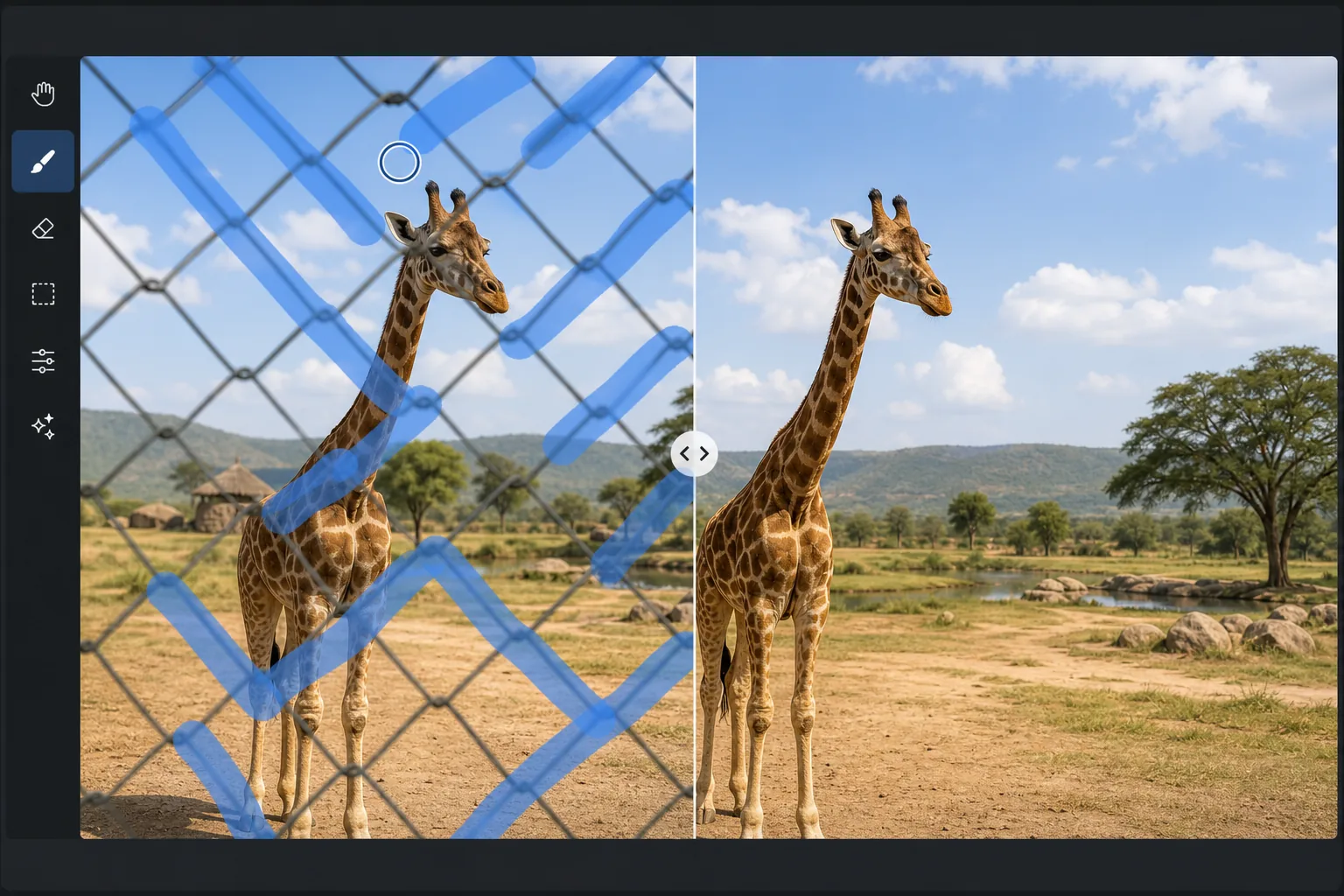
لماذا الأسوار صعبة بشكل خاص لإزالة
تعد الأسوار من أصعب الأشياء التي يصعب إزالتها من الصور لأنها تنشئ نمطًا متكررًا من الخطوط الرفيعة التي تتقاطع مع كل جزء من الخلفية وتحجبه جزئيًا. على عكس كائن واحد (شخص، علامة) يغطي منطقة محلية، يخلق السياج مئات من الانسدادات الصغيرة المنتشرة عبر الصورة بأكملها. يتطلب كل تقاطع بين سلك السياج والخلفية من الذكاء الاصطناعي إعادة بناء منطقة صغيرة من المشهد المخفي. تعتبر أسوار السلسلة هي التحدي الأكثر شيوعًا - حيث يغطي النمط الماسي الإطار بأكمله، حيث تُظهر كل خلية جزءًا صغيرًا من المشهد خلفها. يستخدم الذكاء الاصطناعي هذه الأجزاء المرئية لإعادة بناء المشهد بالكامل، و"الرؤية من خلال" السياج بشكل فعال لإعادة إنشاء ما خلفه.
Before you start
قم بإزالة السياج في ثلاث خطوات
Start with قم بتحميل الصورة. The result preview above and tips below use this guide's existing content; no separate before-and-after proof is assumed.
- 1
قم بتحميل الصورة
افتح Magic Eraser على الويب أو iOS أو Android. قم بتحميل الصورة الملتقطة من خلال سياج - حيوان حديقة حيوانات خلف سلسلة ربط، أو حدث رياضي من خلال حاجز، أو منظر طبيعي محجوب جزئيًا بواسطة حديقة أو سياج عقار. دعم JPEG، PNG، HEIC، وWebP.
- 2
فرشاة على مناطق السياج
قم بالطلاء على أسلاك وقضبان السياج المرئية. بالنسبة للأسوار المتسلسلة، قم بالفرشاة على نمط السياج عبر الإطار. بالنسبة للأسوار الأبسط (القضبان الرأسية والأفقية)، قم بتنظيف كل شريط أو حاجز على حدة. يحتاج الذكاء الاصطناعي إلى معرفة العناصر التي تعتبر سياجًا وأيها تخضع.
- 3
اضغط على مسح ومراجعة
يقوم الذكاء الاصطناعي بإزالة نمط السياج وملء كل فجوة بمحتوى المشهد من المناطق المرئية المجاورة. تظهر النتيجة الموضوع أو المشهد الطبيعي كما لو أن السياج لم يكن موجودًا على الإطلاق. تحقق من وجود أي قطع أثرية متبقية في السياج (خاصة عند التقاطعات) وقم بتحسينها باستخدام تمريرة ثانية. تصدير بدقة كاملة.
الأفضل ل
- تصوير حديقة الحيوان حيث تغطي السلاسل السلكية أو السلكية الحيوان
- تم التقاط الصور الفوتوغرافية الرياضية من خلال دعامات السلسلة أو الحواجز الواقية
- تصوير المناظر الطبيعية حيث تحجب أسوار الملكية أو حواجز الحديقة الرؤية
- التصوير الفوتوغرافي أثناء السفر حيث تمنع الأسوار المحيطة بالمواقع التاريخية اللقطات النظيفة
- تم تصوير الحياة البرية من خلال حواجز ملجأ الحياة البرية أو ستائر المراقبة
نصائح للحصول على أفضل النتائج
بالنسبة إلى الأسوار ذات الروابط المتسلسلة، يعمل الذكاء الاصطناعي بشكل أفضل عندما يكون السياج خارج نطاق التركيز - حيث يؤدي التصوير بفتحة واسعة (f/2.8 أو أوسع) ووضع الكاميرا بالقرب من السياج إلى تشويش الارتباط المتسلسل، مما يجعله شفافًا جزئيًا ويسهل على الذكاء الاصطناعي الرؤية من خلاله. إذا كان السياج في بؤرة تركيز حادة، فسيظل الذكاء الاصطناعي يتعامل معه ولكنه يحتاج إلى تنظيف أكثر دقة. بالنسبة للأسوار البسيطة (قضبان الحديد العمودية، والقضبان الأفقية)، قم بتنظيف كل عنصر على حدة للحصول على أفضل النتائج. بالنسبة للصور التي يغطي فيها السياج جزءًا فقط من الصورة، قم بتنظيف المنطقة المسيجة فقط بدلاً من الإطار بأكمله. قد تكون هناك حاجة إلى تمريرات متعددة لأنماط السياج الكثيفة - فالتمرير الأول يزيل الهيكل الرئيسي، والممر الثاني يلتقط أي أسلاك رفيعة متبقية أو قطع أثرية للتقاطع.
الأسئلة المتداولة
- هل يمكن إزالة سياج ربط السلسلة؟
- نعم. أسوار ربط السلسلة هي حالة الاستخدام الأكثر شيوعًا. يقوم الذكاء الاصطناعي بتحليل نمط الماس وإعادة بناء المشهد خلف كل خلية من الشبكة، مما ينتج عنه رؤية واضحة للحيوان أو الحقل أو المناظر الطبيعية خلف السياج.
- هل يجب أن تكون الكاميرا قريبة من السياج؟
- الأقرب هو الأفضل. عندما تكون الكاميرا قريبة من السياج، يكون السياج خارج نطاق التركيز ويكون شفافًا جزئيًا، مما يمنح الذكاء الاصطناعي بيانات خلفية أكثر وضوحًا للعمل معها. تعتبر الأسوار الحادة ومركزة التركيز أصعب ولكن لا يزال من الممكن التحكم فيها.
- هل يمكنه التعامل مع سياج فوق جسم متحرك؟
- نعم. بالنسبة للحيوانات الموجودة خلف أسوار حديقة الحيوان أو الرياضيين خلف الحواجز، يقوم الذكاء الاصطناعي بإعادة بناء الموضوع خلف نمط السياج. تنتج الصور الواضحة نتائج أفضل، كما أن ضبابية الحركة في الموضوع تزيد من التعقيد.
- هل إزالة السياج مجانية؟
- نعم. تتضمن الطبقة المجانية لـ Magic Eraser أداة الفرشاة لإزالة السياج مع حدود الاستخدام اليومي. يزيل Premium القيود المفروضة على معالجة صور حديقة الحيوانات أو الأحداث المتعددة.