
Remove an Emoji From an iPhone Photo
تعلم كيفية إزالة الإيموجي على iPhone باستخدام Magic Eraser. دليل بسيط خطوة بخطوة مع أداة ذكاء اصطناعي مجانية. يعمل على الويب وiOS وAndroid.
Last updated
جرب الآن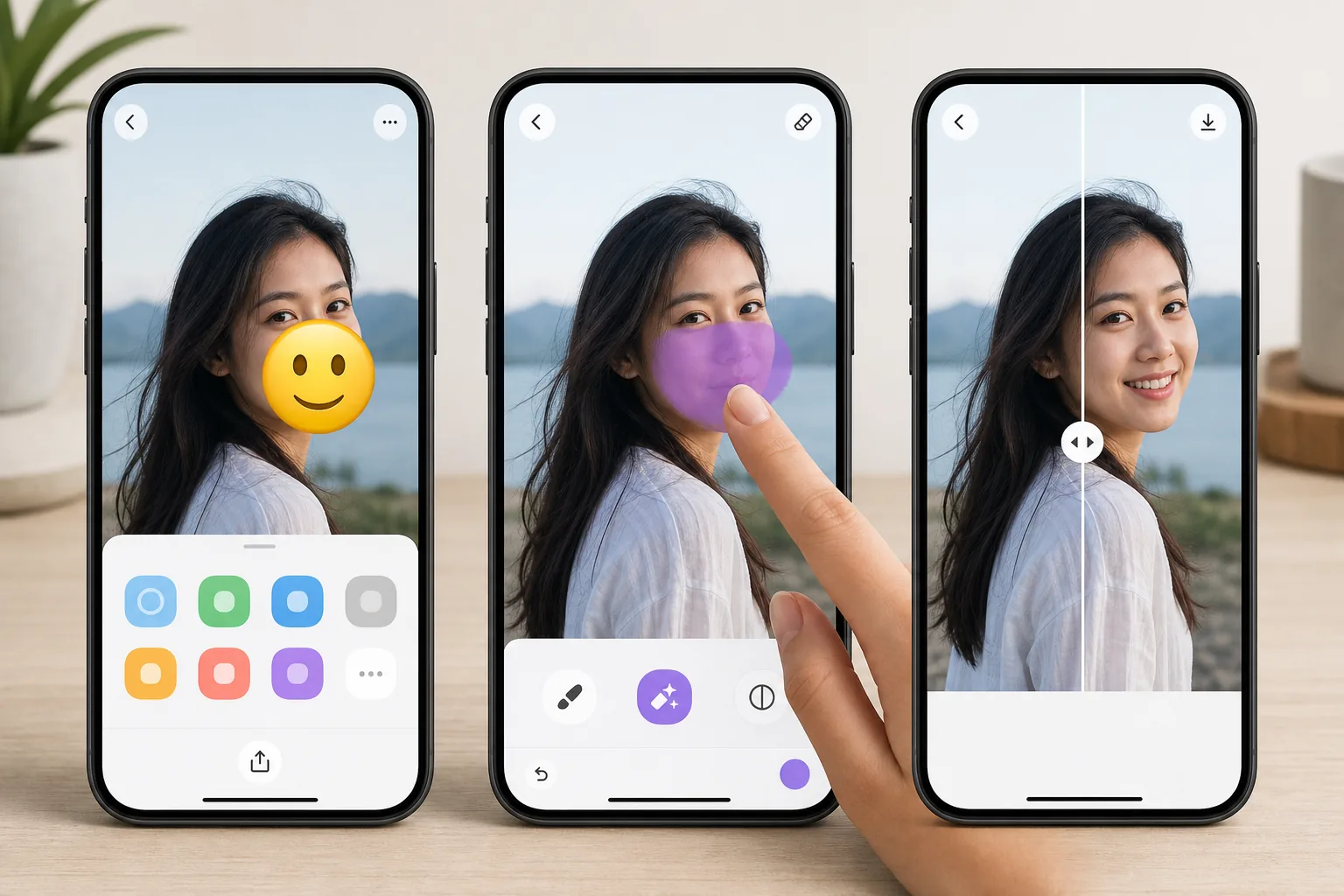
Erase emojis without leaving your iPhone — Magic Eraser
Emojis pile up on iPhone photos fast — a sticker you slapped on in Messages, a 😂 added in Markup, or a face cover someone dropped over a shot before AirDropping it to you. Once it is saved to your camera roll, that emoji is baked into the pixels, and iOS gives you no built-in way to peel it back off. Magic Eraser fixes that on-device. You open the photo in the iOS Photos app, send it to Magic Eraser through the standard share sheet (or the Magic Eraser app), brush over the emoji, and the AI inpainting reconstructs a plausible version of whatever was behind it. To be clear: the AI synthesizes a believable fill based on the surrounding texture — sky, wall, skin, grass — it does not recover the literal original pixels or reveal a hidden face. The result lands back in your Photos library at full resolution, free, and with no watermark on the free tier.
Before you start
التعليمات خطوة بخطوة
Start with ارفع الصورة. The result preview above and tips below use this guide's existing content; no separate before-and-after proof is assumed.
- 1
ارفع الصورة
افتح Magic Eraser على الويب أو iOS أو Android. اسحب وأفلت صورتك بتنسيق JPEG أو PNG أو HEIC أو WebP. لا حاجة لحساب.
- 2
اختر الأداة والمنطقة
اختر الأداة المناسبة وحدد المنطقة المراد معالجتها. سيحلل الذكاء الاصطناعي ويطبق التغييرات تلقائيًا في ثوانٍ.
- 3
حمّل النتيجة
معاينة النتيجة وتحميل الصورة المعدلة. تصدير بصيغة PNG أو JPEG عالي الجودة.
الأنسب لـ
- Wiping a 😂 or 🔥 sticker you added in iMessage or Markup off a saved photo
- Clearing an emoji face-cover someone placed before AirDropping a picture to you
- Cleaning up a screenshot where an emoji landed over the part you actually wanted
- Prepping a camera-roll shot for posting after removing a playful sticker
- Removing an emoji from a downloaded or received iPhone photo without a Mac or laptop
نصائح للحصول على أفضل النتائج
Brush slightly past the emoji's edges — sticker outlines and soft shadows extend a few pixels beyond the visible art, and missing them leaves a faint halo. Emojis sitting on flat backgrounds (a clear sky, a solid-color wall, blurred bokeh) reconstruct almost invisibly; ones plastered over a face, fine text, or busy patterns are harder, since the AI is inventing a plausible fill rather than restoring true detail. If the first pass looks slightly soft, zoom in on your iPhone and re-brush just the rough area instead of redoing the whole thing. Always keep the original in Photos until you are happy — iOS makes duplicating a shot easy, so edit the copy.
الأسئلة الشائعة
- هل ميزة إزالة الإيموجي على iPhone مجانية؟
- نعم، يتيح لك Magic Eraser إزالة الإيموجي على iPhone مجانًا ضمن الحد اليومي. قم بالترقية إلى Pro للمعالجة غير المحدودة والتصدير بدقة عالية.
- كم يستغرق إزالة الإيموجي على iPhone؟
- بضع ثوانٍ فقط. يعالج الذكاء الاصطناعي في Magic Eraser الصور بسرعة — معظم النتائج متاحة فور الرفع.
- هل يمكنني استخدامه على الهاتف؟
- نعم، Magic Eraser يعمل على iOS وAndroid وجميع متصفحات الويب. يمكنك التبديل بين الأجهزة بحرية.
- هل تتأثر جودة الصورة؟
- لا، يحافظ Magic Eraser على جودة الصورة الأصلية. يعالج الذكاء الاصطناعي بذكاء للحفاظ على التفاصيل والوضوح.