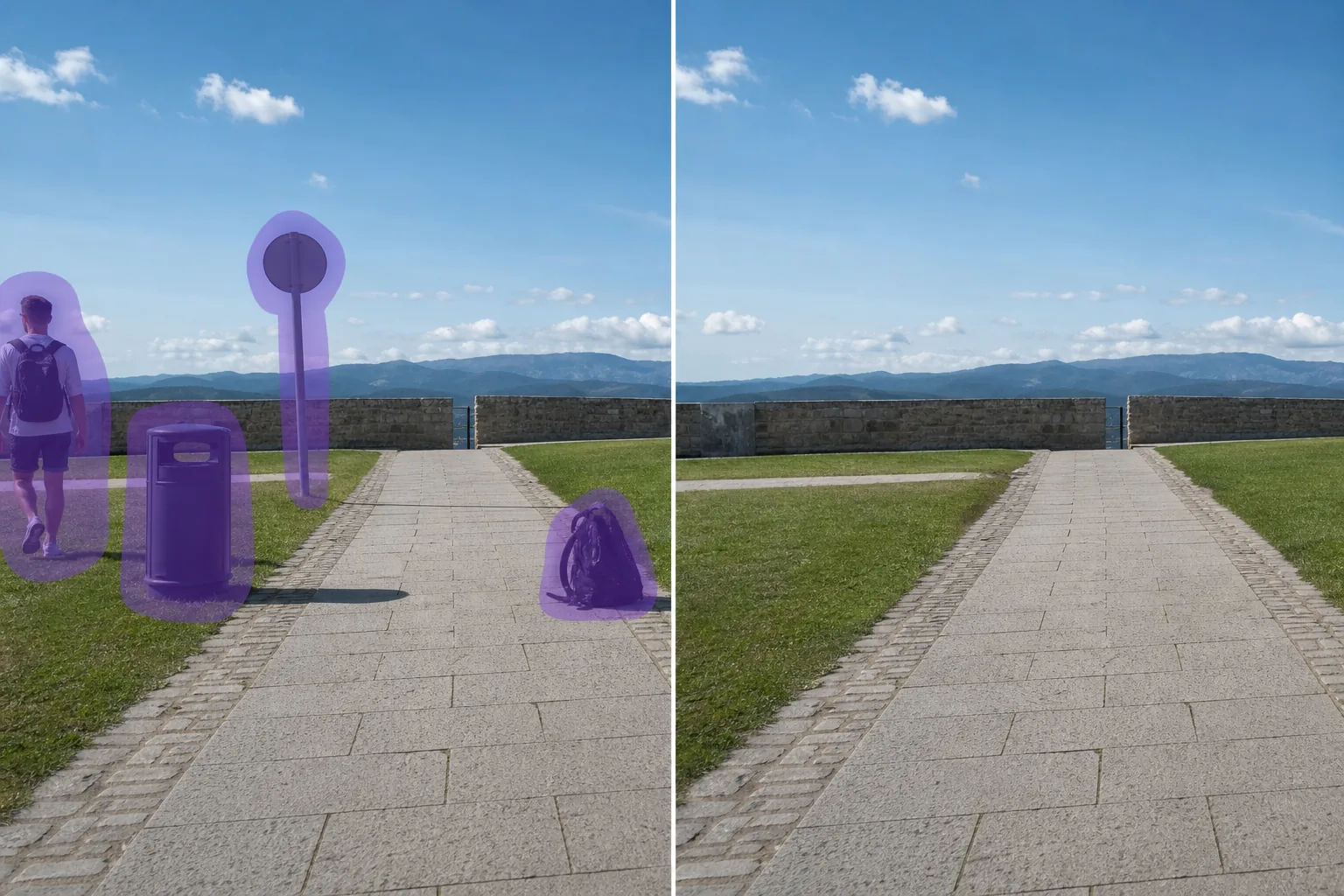
从照片中删除物体
使用 Magic Eraser 在几秒钟内从照片中删除物体。AI 自动重建背景。在 iOS、Android 和网页上免费使用。
Last updated
立即尝试

AI 删除物体的工作原理
Most photos don't have one obvious flaw — they have a little of everything. A travel shot with a stranger walking through it and a bin in the corner. A new-listing photo with a car in the driveway and a recycling tote by the gate. A portrait with an exit sign hovering over someone's shoulder. This is the catch-all page for all of it: instead of hunting for the exact tool for each thing, you point one AI eraser at whatever doesn't belong. Magic Eraser uses AI inpainting — you mark the object, and the model synthesizes a believable reconstruction of what was likely behind it, matching the surrounding light, color, and texture. It's important to be clear about what that means: the tool does not recover the literal hidden pixels (the camera never saw them). It generates a plausible fill based on the rest of the frame. For everyday subjects — pavement, grass, sky, walls, water — that fill is usually convincing enough that no one can tell. If your object falls into a common category, there's often a dedicated page tuned for it (people, cars, text and signs, watermarks, glare, and more), but this general eraser handles the long tail of one-off objects that don't fit a neat label.
分步教程
- 1
上传照片
在网页、iOS 或 Android 上打开 Magic Eraser,上传包含物体的照片。支持 JPEG、PNG 和 WebP 格式。
- 2
涂抹要删除的区域
用画笔涂抹要删除的物体。画笔范围比对象稍大一点,AI 会产生更干净的边缘。
- 3
擦除并下载
AI 在几秒内重建背景。检查结果,必要时用修补画笔微调,然后以全分辨率导出。
最适合
- Travel and vacation photos with strangers, tourists, or passers-by wandering through the background
- Real-estate and listing shots with a parked car, recycling bins, or a for-sale sign in the frame
- Street and architecture photos cluttered with power lines, poles, traffic signs, or scaffolding
- Portraits and group photos with a distracting exit sign, fire alarm, or wall fixture behind the subject
- Pet and kid photos where a leash, toy, or stray object pulls attention from the subject
- Product and marketplace listings with a stray hand, prop, or label that shouldn't be in shot
- Event and wedding photos with an unwanted guest, gear bag, or trash can at the edge of the frame
- Landscape and nature shots spoiled by a trail marker, fence post, or a single distant building
重要提示
Because this is AI inpainting, the eraser fills the gap with a synthesized reconstruction, not the real pixels that were hidden behind the object — the camera never captured them. The quality of that fill depends mostly on what's around the object. When the background is simple or repeating — sky, grass, pavement, water, a plain wall — the rebuild is usually seamless and no one can tell anything was removed. It gets harder when the object sits in front of something detailed or structured: a face, repeating tile or brick, text on a sign, or a complex pattern the model has to invent. There you may see slight smudging, a soft patch, or a guess that doesn't quite line up. Two habits help most. First, work in smaller passes for big or layered objects so the model has more reference pixels each time. Second, use the touch-up brush on any seams instead of redoing the whole erase. Large objects that take up most of the frame, or objects in front of clear text, are the cases most likely to need a manual cleanup pass. And for high-stakes uses — news, evidence, legal, or insurance photos — don't alter the image; keep AI removal to personal photos, listings, and creative work, and disclose edits where a platform or MLS requires it.
常见问题
- 从照片中删除物体是免费的吗?
- 是的。Magic Eraser 免费版包含删除物体功能,有每日使用限制。升级到 Premium($29.99/年)可解除限制并解锁高分辨率导出。
- 删除物体需要多长时间?
- 通常只需几秒钟。AI 处理涂抹区域并几乎即时重建背景。
- 手机上能用吗?
- 是的。Magic Eraser 适用于 iOS、Android 和网页浏览器。您可以在任何设备上删除物体。
- 图片质量会下降吗?
- 不会。AI 保留照片的原始分辨率和质量。重建区域与周围的光线、颜色和纹理匹配。